
















Guides / Arma 3
Arma 3 server guides.
One task per guide: how to do it in the ArthOS panel, and by hand where there is a way.
Basics
14 guides-
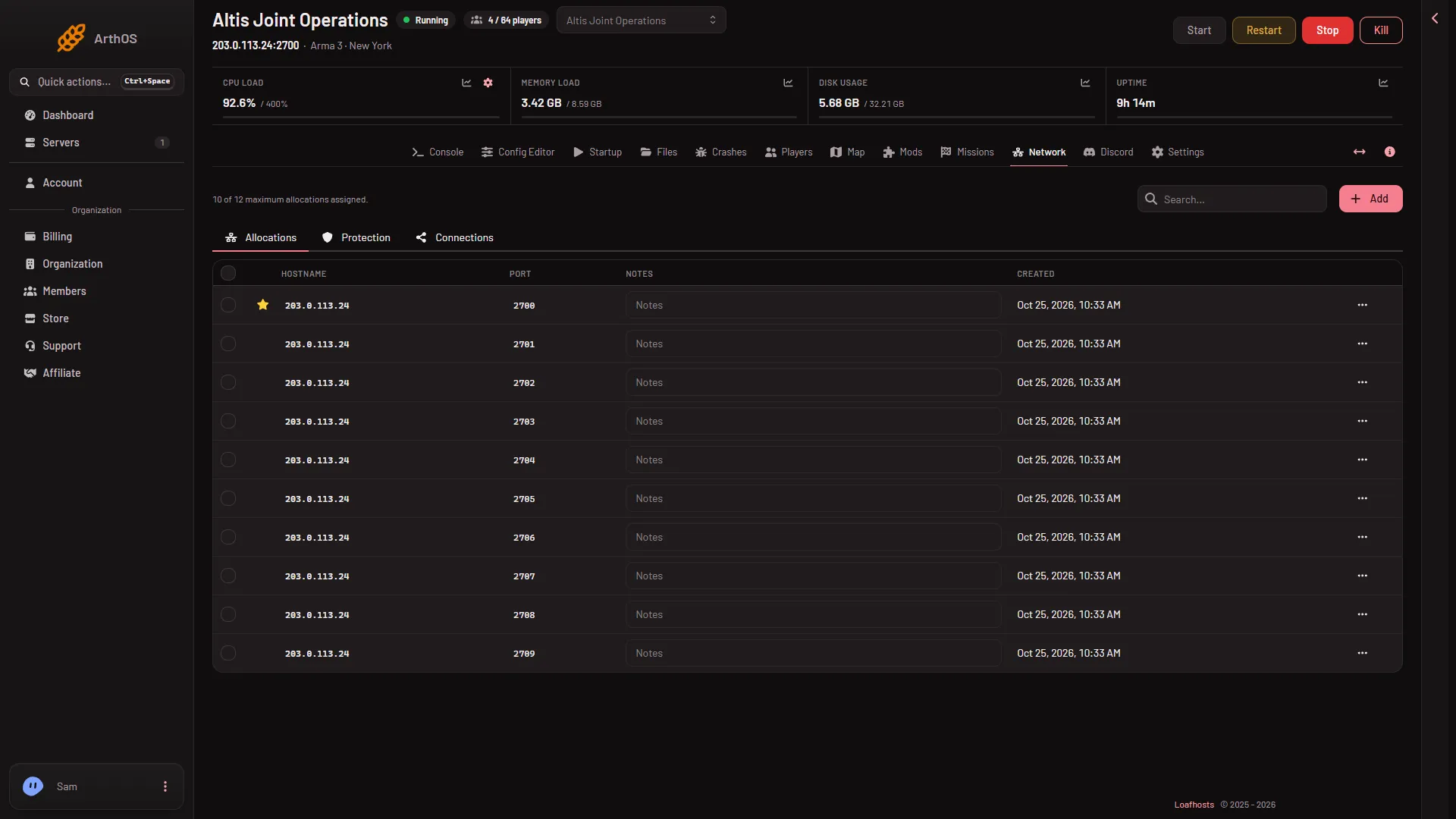
Arma 3 server ports: what each of the ten is for
An Arma 3 server on Loafhosts holds a block of ten UDP ports: game, Steam query, Steam, voice, BattlEye and RCon. See what each does and which players use. -
 Basics
How to join your Arma 3 server
Get the address from the Joining band, open the Arma 3 Launcher, use Servers and Direct Connect, and type the join password. Same branch and mods needed. - Basics
Move an existing Arma 3 server onto this host
Move an Arma 3 server you run elsewhere: settings into the Config Editor, missions into mpmissions, mods through a Launcher preset, and the campaign save. - Basics
Set up an Arma 3 server, from first start to first join
A new Arma 3 server starts with a random join password and Zeus missions ready. Copy the address from Players, add a mission and mods, then join. -
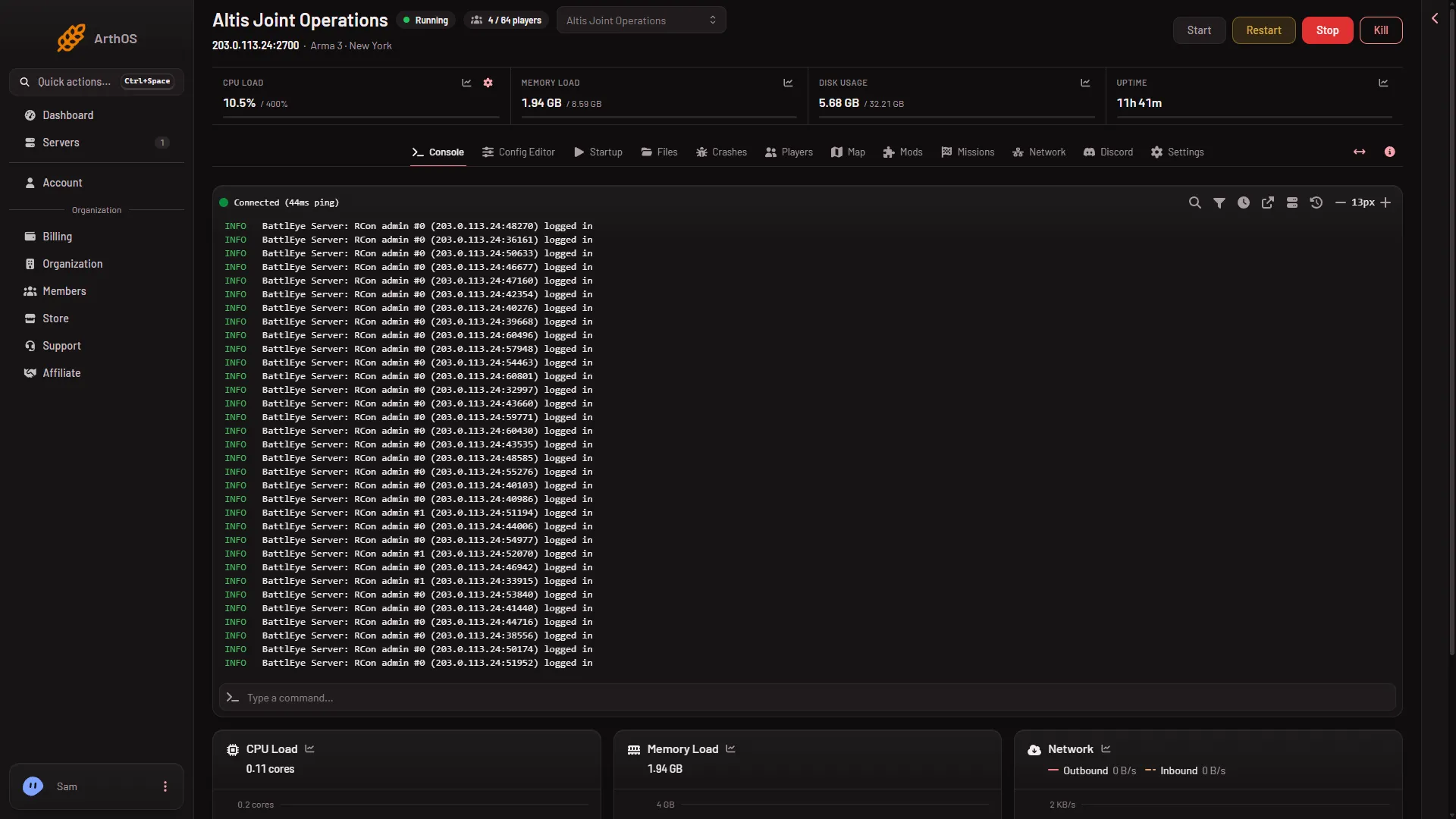
Start, stop or restart your Arma 3 server
Use the buttons at the top of the server page to start, stop or restart an Arma 3 server. A stop is a Ctrl+C signal, and players are disconnected. - Basics
Update your Arma 3 server to the latest version
Keep Automatic Updates on and restart the Arma 3 server: it checks for a game update at every start. Players must run the same version to join. - Basics
What a new Arma 3 server does at its first start
A new Arma 3 server takes your ordered name, makes random passwords and plays two Zeus sample missions. It is ready at the log line Host identity created. - Basics
Arma 3 extra start parameters (-autoInit)
Add options such as -autoInit to an Arma 3 server in Extra Start Parameters on Startup. Up to 200 characters, a few allowed symbols, never a password. -
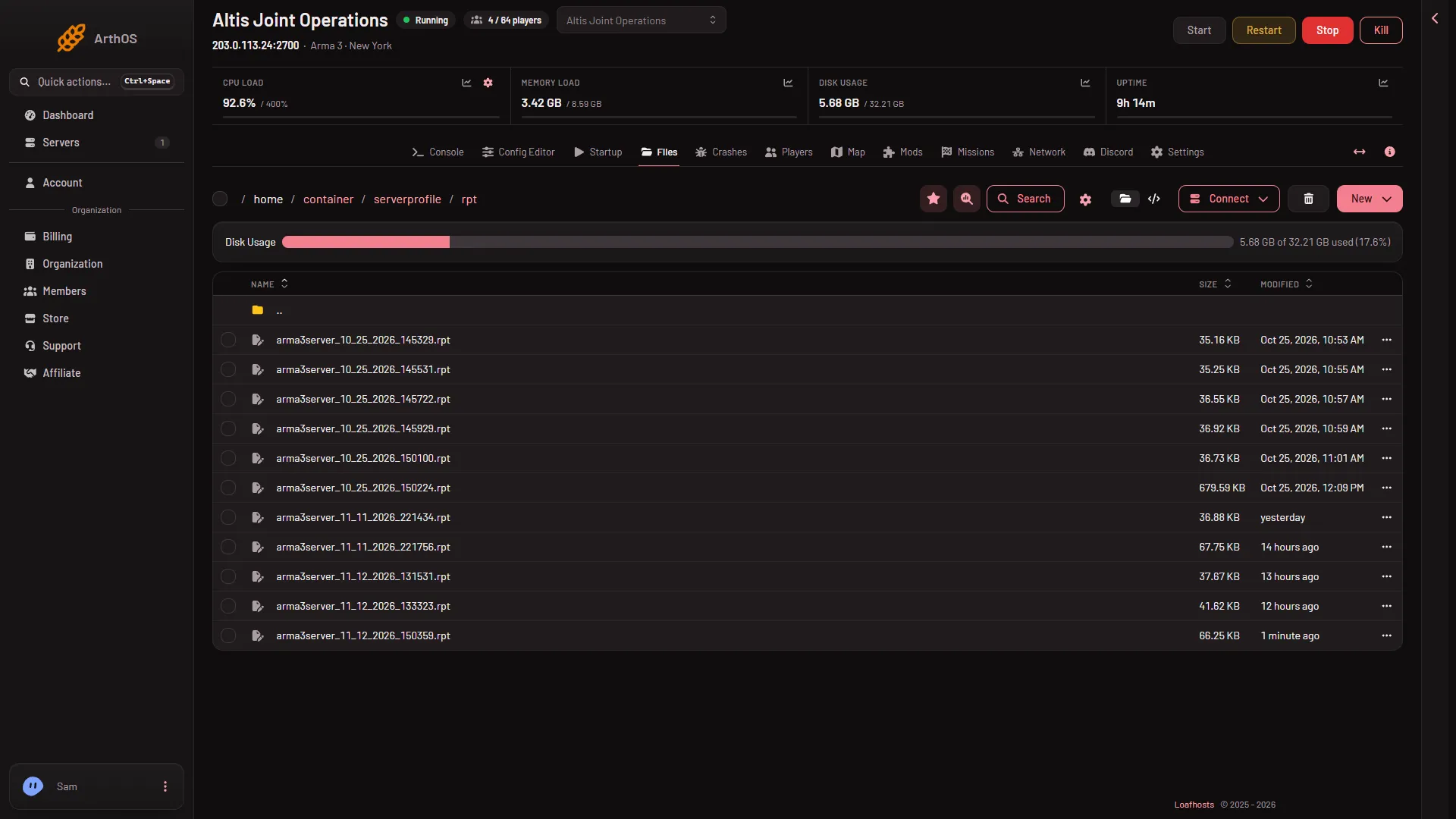
Arma 3 server files and folders explained
What server.cfg, basic.cfg, mpmissions, keys, the @mod folders, serverprofile and battleye hold on an Arma 3 server, and which ones to leave alone. - Basics
Arma 3 standby and wake link: stop an empty server
Standby stops your Arma 3 server when nobody has played for a time you choose. The wake link lets your players start it again. Nothing is deleted. - Basics
Arma 3 Startup page: every variable explained
Every variable on the Arma 3 Startup page by its label: Max Players, Headless Clients, Automatic Updates, Extra Start Parameters, and where the passwords went. - Basics
Back up an Arma 3 server: create, lock and export
Create a backup of your Arma 3 server, lock it so it is never deleted, export it to Files, and learn what it copies. Campaign saves are kept separately. - Basics
Find your Arma 3 server address
Your Arma 3 server address is on the Players page, in the Joining band. Choose Copy to get the IP and game port that players type into Direct Connect. - Basics
Schedule a daily restart for your Arma 3 server
Make a daily restart on your Arma 3 server with Create Schedule: a Daily trigger and a Send Power Signal step. Players get no warning, so tell them by hand.
Players and BattlEye
25 guides- Players and BattlEye
Arma 3 admin login: use #login with the admin password
Become admin on your Arma 3 server: join, press / to open chat and type #login with the Admin Password. Find or set that password under Passwords. - Players and BattlEye
Arma 3 make someone admin from the Players page
Make a player an Arma 3 server admin from the Players page. Open the row menu and choose Make admin. They log in with #login, no password, after a restart. - Players and BattlEye
Arma 3 Players page: a tour of every section
What each part of the Arma 3 Players page does: the join address, who is online, kicks and bans, admins, the mission controls and who played lately. - Players and BattlEye
Arma 3 server: see who is online
The Players page lists everyone on your Arma 3 server with name, GUID, ping, side, group and vehicle. Here is what each part of a row means. - Players and BattlEye
Ban a player by GUID or Steam ID on Arma 3
Ban someone who is not on your Arma 3 server: type their 32-character BattlEye GUID or 17-digit Steam ID in the Bans card, pick a length, and choose Ban. - Players and BattlEye
How to ban a player from your Arma 3 server
Ban a player on your Arma 3 server from the Players page: choose Ban, add a reason, pick a length from 1 hour to for good. Bans go by BattlEye GUID. - Players and BattlEye
How to kick a player from your Arma 3 server
Kick a player from your Arma 3 server on the Players page: choose Kick, add a reason if you like, confirm. A kick is not a ban, so they can rejoin at once. - Players and BattlEye
Set an Arma 3 server password (join password)
Set a join password on your Arma 3 server under Passwords in the Config Editor: type a Server Password, save, restart. Leave it empty for a public server. - Players and BattlEye
Arma 3 3D map: hills, roads, towns and vehicles
The Arma 3 3D map shows your world with hills, roads, buildings, towns, player pins and vehicle models. Learn the controls and what hills look like. - Players and BattlEye
Arma 3 admins who log in without the password
Add Steam IDs to the Arma 3 admins list so those players type #login with no password. Add by Steam ID on the Players page; 30 at most; next restart. -
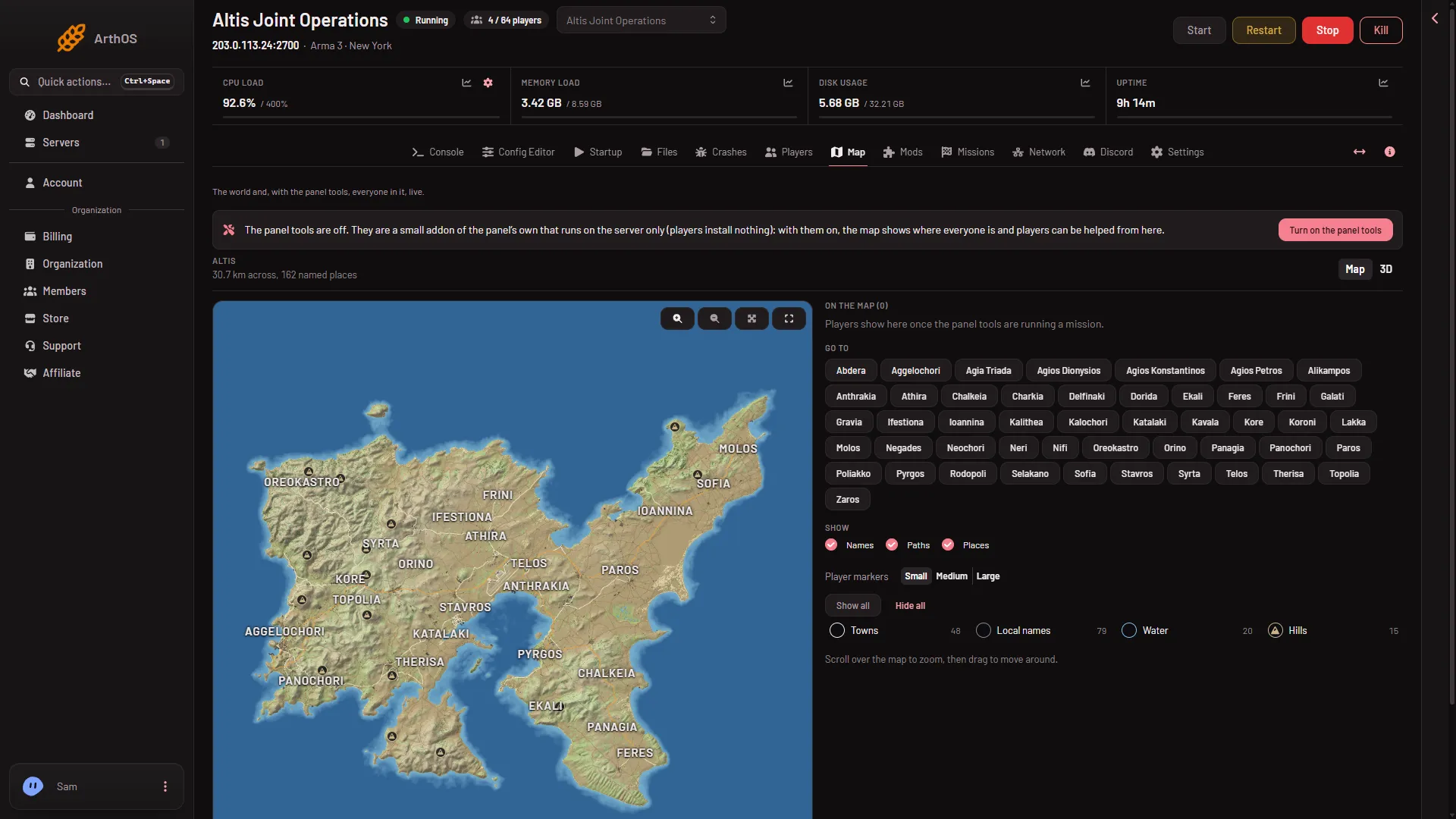
Arma 3 live map: world, players, groups, vehicles
The Map page shows your Arma 3 world and, with the panel tools on, every player, AI group and vehicle. Learn the layers and place filters. - Players and BattlEye
Arma 3 lock server: stop new players joining
Lock your Arma 3 server so nobody new can join, then let players in again. Use Lock out and Let in under New players on the Players page. - Players and BattlEye
Arma 3 panel tools: turn them on for live players
The panel tools show live players on the Arma 3 map and let you help them. Turn them on from the Map page. They load at the next start. - Players and BattlEye
Arma 3 player GUID: find a BattlEye GUID
Find an Arma 3 player's BattlEye GUID on the Players page, click it to copy, and learn how it differs from the Steam ID. Bans and kicks use the GUID. - Players and BattlEye
Arma 3 player limit: change Max Players
Change the Arma 3 player limit with Max Players on Startup. It applies at the next start. Headless clients, civilians and spectators count toward it. - Players and BattlEye
Arma 3 unban a player: lift a BattlEye ban
Lift a ban on your Arma 3 server from the Players page. Choose Lift on the player's row in the Bans card. It works for ended bans and for good bans. - Players and BattlEye
Arma 3: send a message to all players
Send one message to everyone on your Arma 3 server from the Players page. Type up to 120 characters in A message to everyone and choose Send. - Players and BattlEye
Ban an Arma 3 player after they leave the server
A player left before you could ban them? On your Arma 3 server, the Seen lately list keeps names for 90 days so you can still choose Ban. - Players and BattlEye
Change the Arma 3 admin password
Change your Arma 3 admin password under Passwords in the Config Editor. Save and restart: the panel writes it into server.cfg at every start. - Players and BattlEye
Change the Arma 3 RCon password (BattlEye)
Change the RCon Password of your Arma 3 server under Passwords: letters and digits, 40 at most. Restart so BattlEye uses it. The Players page needs it. - Players and BattlEye
Change the time of day on an Arma 3 server
Move the in-game time forward or back by up to 24 hours for everyone on your Arma 3 server from the Map page. It takes effect at once. -
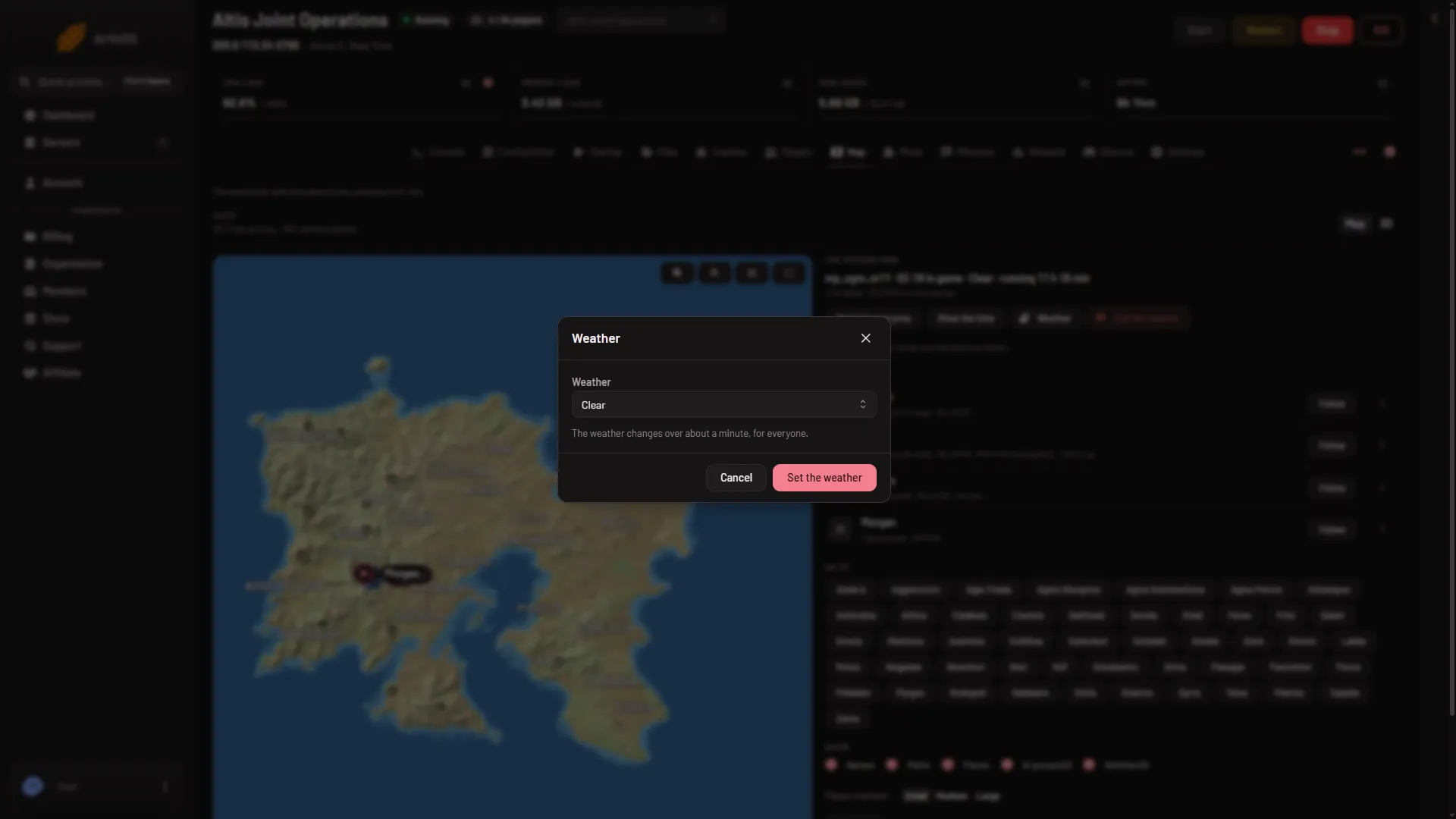
Change the weather on an Arma 3 server
Set Clear, Cloudy, Rain, Storm or Fog for everyone on your Arma 3 server from the Map page. The weather changes over about a minute. - Players and BattlEye
Give items to a player on an Arma 3 server
Give a rifle, magazines or a medkit to a player on your Arma 3 server from the Map page. Search the game's list, pick 1 to 50, and send it. -
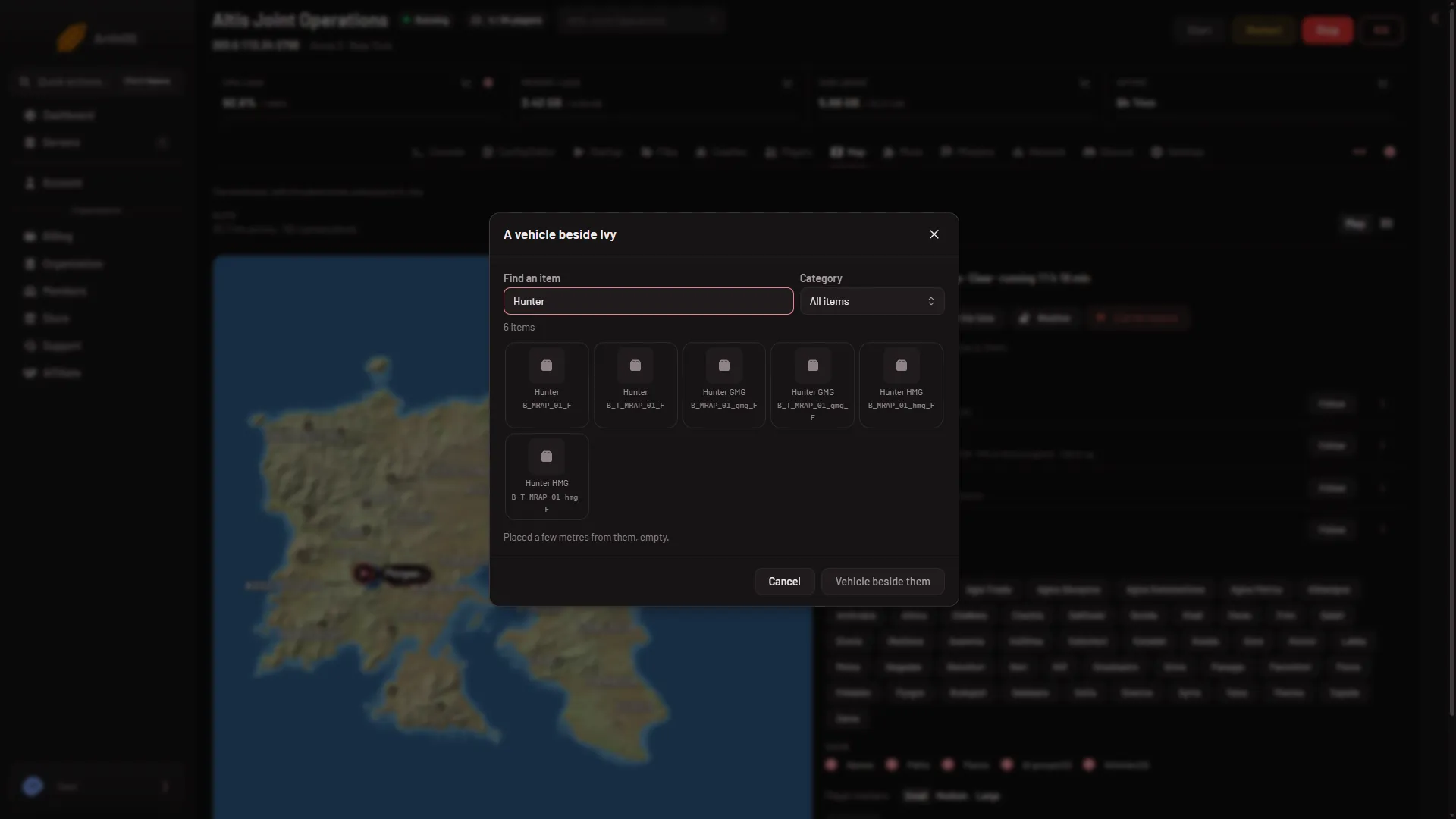
Spawn a vehicle next to a player in Arma 3
Put an empty car, tank, helicopter, plane, boat or static weapon beside a player on your Arma 3 server from the Map page. Needs the panel tools. - Players and BattlEye
Teleport a player in Arma 3
Send a player on your Arma 3 server to a spot you click on the map, or next to another player. It works while a mission plays with the panel tools on.
Missions
16 guides- Missions
Add a mission to your Arma 3 rotation
Add missions to the rotation on the Missions page, put them in order, pick a difficulty and press Save. The server plays the new rotation from its next start. - Missions
Arma 3 Antistasi save: where it is and how to copy it
Antistasi and KP Liberation keep progress in the server's profile. Use Copy aside on the Missions page to keep a copy, up to ten, and find the save file. - Missions
Arma 3 Missions page: rotation, switches and saves
A tour of the Missions page on your Arma 3 server: the mission list, the rotation, three switches and campaign saves, and when each change applies. - Missions
Change the mission on your Arma 3 server now
Play another mission right away: open Players, choose Play another mission, pick a mission and difficulty, then Play it now. The rotation is not changed. - Missions
How to play a Zeus mission on your Arma 3 server
Start an Arma 3 Zeus scenario from the Missions list: add it to the rotation, or use Play another mission to start it now. No upload needed. - Missions
Upload a mission to your Arma 3 server
Put a mission .pbo file or folder into the mpmissions folder in Files and it shows on the Missions page. Name it name.world, then add it to the rotation. - Missions
Arma 3 -autoInit notice: mission parameters are ignored
The Missions page says -autoInit is on the start line. It plays the first mission at once and ignores mission parameters. Remove it from Extra Start Parameters. - Missions
Arma 3 headless clients: set them up on your server
A headless client runs AI so the server has less to do. Set 0 to 5 under Startup, Headless Clients. The mission must support them, and they use player slots. - Missions
Arma 3 mission difficulty: Recruit, Regular, Veteran
Set the difficulty of each Arma 3 mission in the rotation, force one for every mission, or change it for the mission playing now. Recruit to Custom. - Missions
Arma 3 mission not in the Missions list: fixes
An uploaded Arma 3 mission is missing from the Missions page when its name has no world, has spaces, or sits in the wrong folder. Name it name.world. - Missions
Arma 3 mission says needs a DLC: what to do
A mission row that says needs Apex or a Creator DLC runs on a world players must own. See which worlds need what and how to turn on the server files. - Missions
Arma 3 put a campaign save back (Antistasi, Liberation)
Stop the server, then use Put back on a saved copy on the Missions page. It replaces the save in use and loads at the next start. Copy the current save first. - Missions
Arma 3 worlds: Altis, Tanoa, Livonia and what each needs
The worlds on the Arma 3 Missions page, from Altis and Stratis to Tanoa, Livonia and the Creator DLC maps, and which ones need an expansion or DLC. - Missions
Arma 3 Zeus, Warlords and Combat Patrol scenarios
Arma 3's own multiplayer scenarios are in the Missions list with a The game's own chip. Find Zeus, Warlords and Combat Patrol and add them to the rotation. - Missions
Keep an Arma 3 mission running when the server is empty
Turn on Keep running when everyone leaves on the Missions page so the mission does not end when the last player goes. Save it, then restart the server. - Missions
Restart the mission on your Arma 3 server
Restart the mission, not the server: open Players and choose Restart the mission. It starts over, and progress is lost unless the mission saves it.
Mods and presets
20 guides-
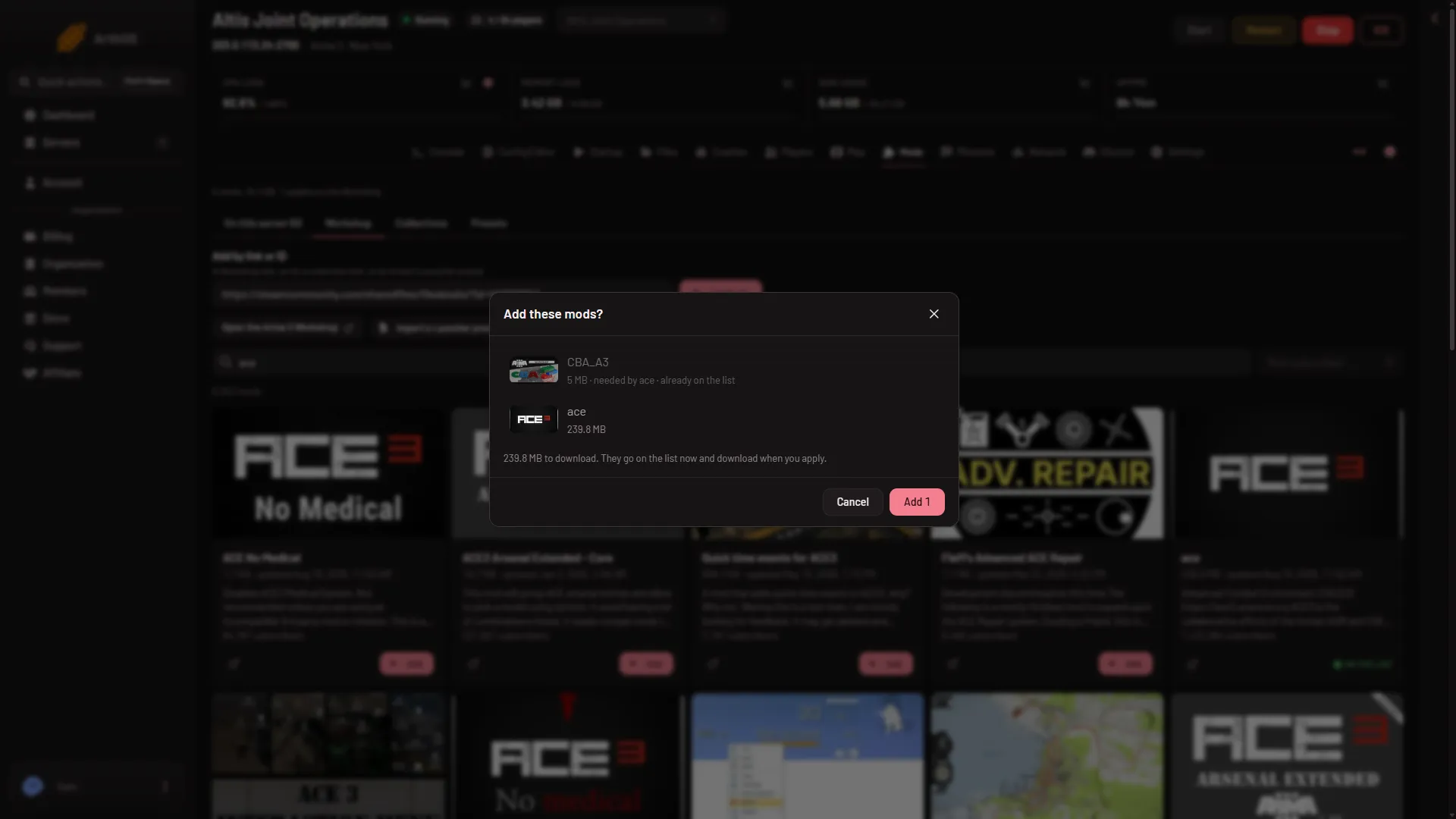
Add an Arma 3 mod by Workshop link or ID
Paste a Steam Workshop link, a mod ID or a collection link into Add by link or ID, choose Look up, and the mod joins your Arma 3 server's list. - Mods and presets
Arma 3 client mods and server only mods: what players need
Players too means every player must load the mod. Server only means it stays on the server. Set it on each Arma 3 mod row, then apply the change. -
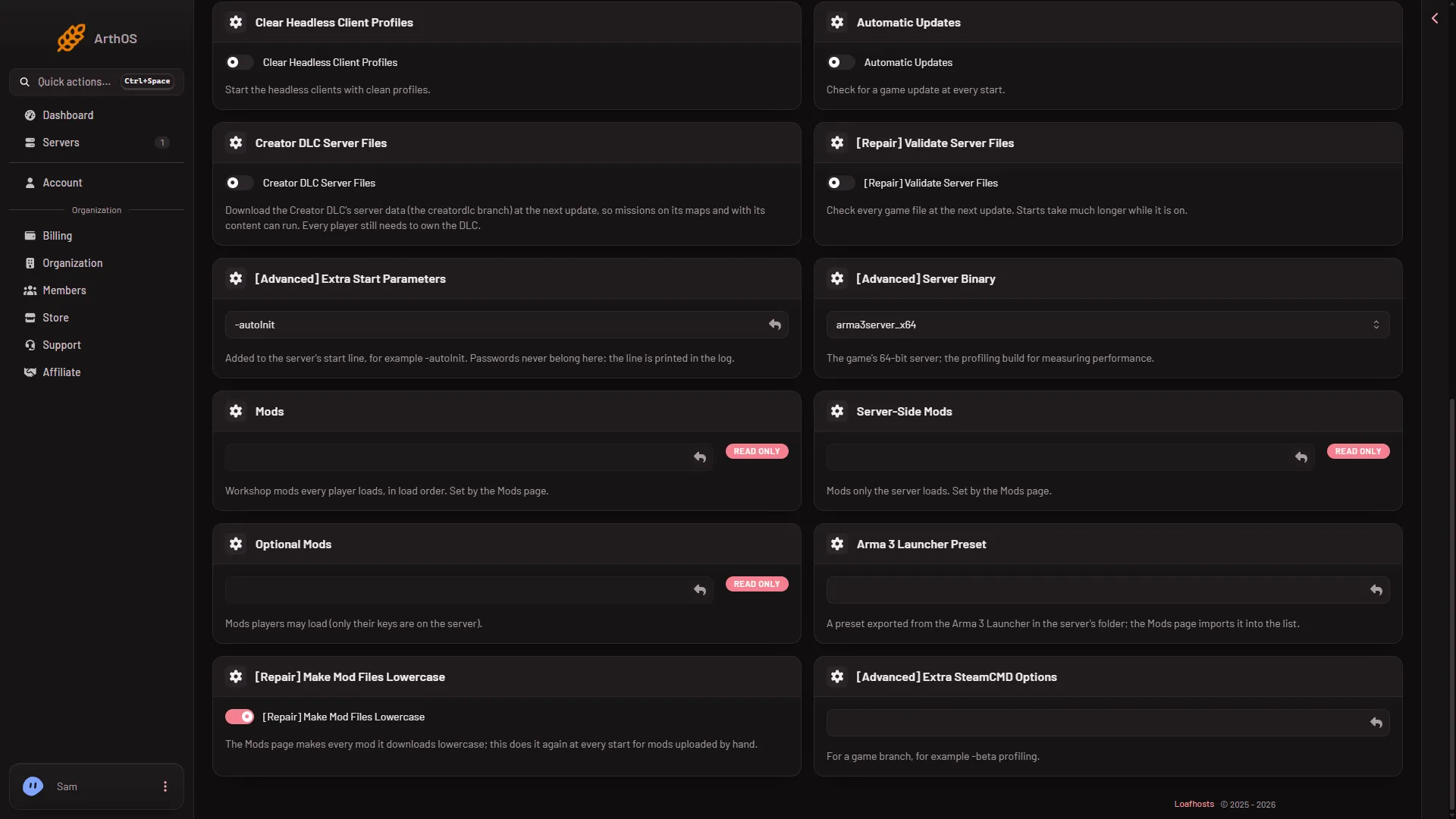
Arma 3 Creator DLC server files: turn them on
Run a Creator DLC map or its content on your Arma 3 server: turn on Creator DLC Server Files, restart, add the DLC folder. Players must own the DLC. - Mods and presets
Arma 3 mod load order: put mods in the right order
The Arma 3 mod list is the load order: each mod loads after the ones above it. Drag a row or type its number, then apply. Needed mods go first. - Mods and presets
Arma 3 Mods page: what each tab does
A tour of the Arma 3 Mods page: the list in load order, Workshop, Collections and Presets, plus the bar that applies your changes to the server. - Mods and presets
Give players your Arma 3 server's mods as a preset
Download your server's mod list as a preset. Players drag the file onto the Arma 3 Launcher and load exactly the mods your server runs. - Mods and presets
How to install an Arma 3 Workshop mod on your server
Install an Arma 3 Steam Workshop mod: find it on the Workshop tab, add it, then apply and restart. The panel downloads it and copies the keys for you. - Mods and presets
How to put ACE3 on your Arma 3 server
Add the ACE3 modpack to your Arma 3 server from the Presets tab, apply it, and give players the same mods. CBA, the mod ACE3 needs, comes with it. - Mods and presets
What Apply does when you change Arma 3 mods
Apply stops your Arma 3 server, downloads the mods, copies their keys and starts it again. If a download fails, the copy the server had stays. - Mods and presets
Where Arma 3 mods are stored on your server
Arma 3 mods sit in the server's root folder, one lowercase @ folder per Workshop ID. Their signing keys go in the keys folder. Find both in Files. - Mods and presets
Arma 3 Launcher shows only some of the server's mods
If the Arma 3 Launcher shows only part of a long mod list, raise Server browser data size to 4096 or more in the Config Editor, then restart the server. -
Arma 3 Milsim core modpack: what it adds
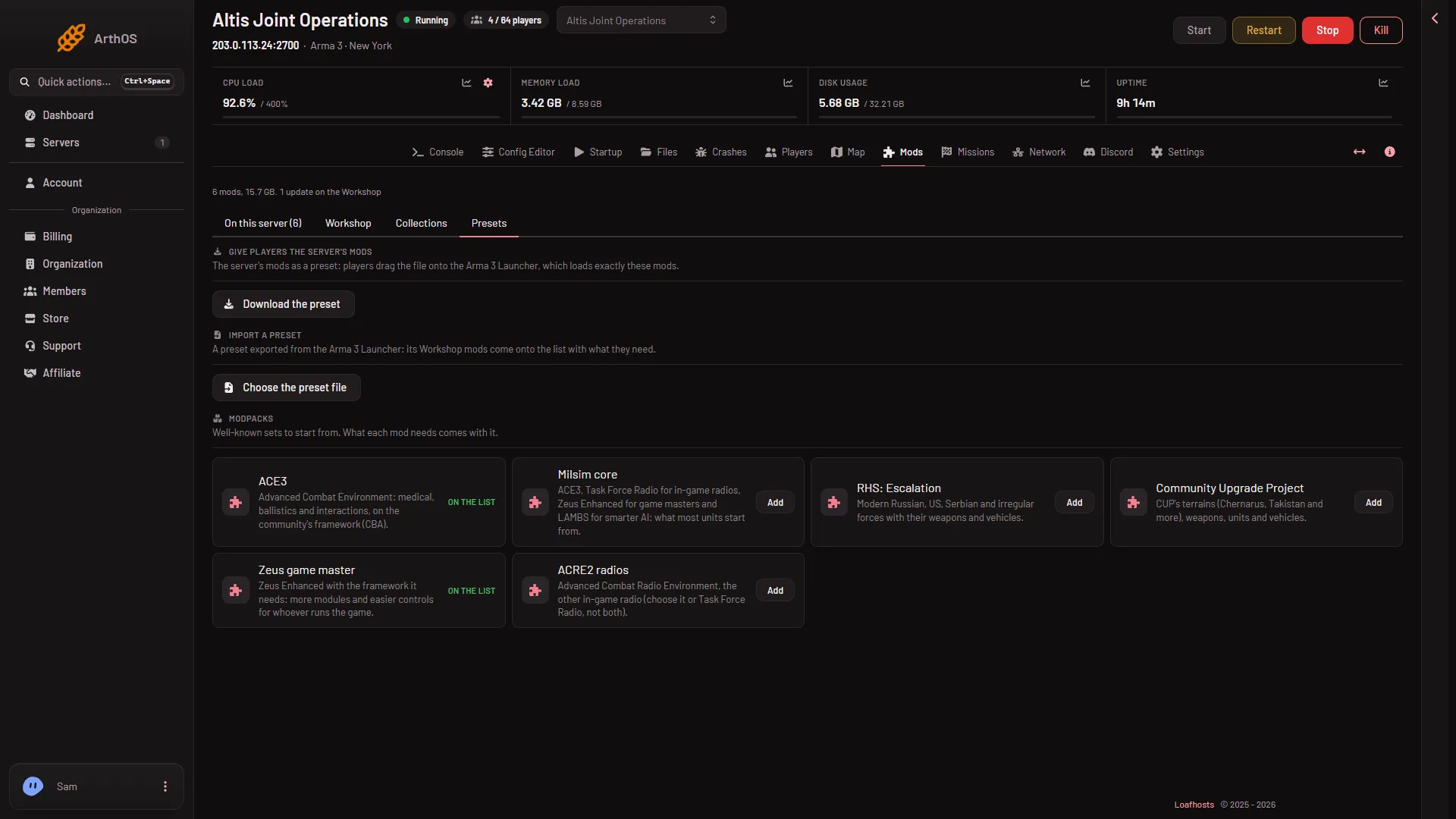
The Milsim core modpack adds ACE3, Task Force Radio, Zeus Enhanced and LAMBS to your Arma 3 server in one step. See what each does and how to add it. -
Arma 3 mod keys and signature checks on your server
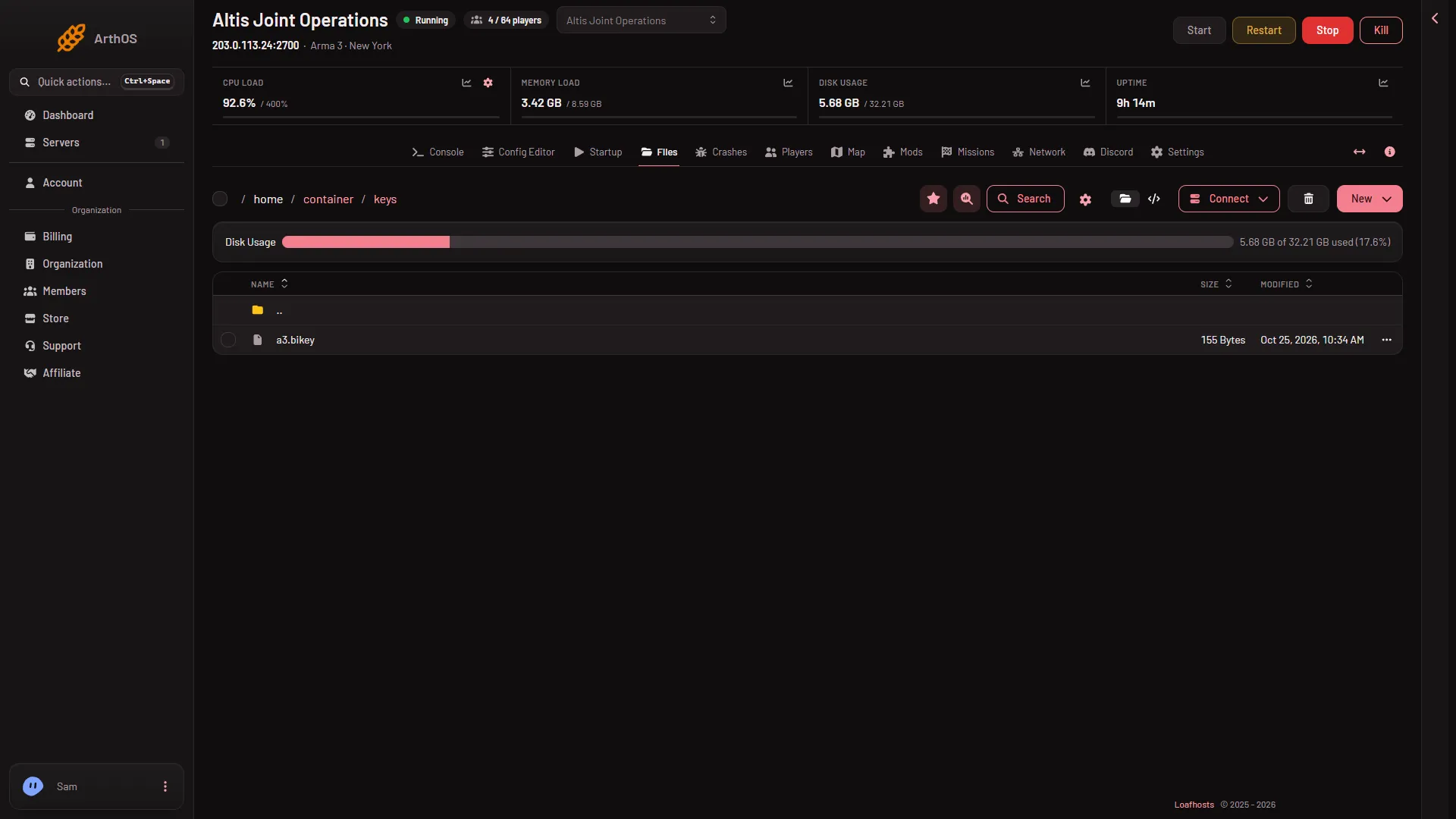
Arma 3 checks players' mods against .bikey files in the keys folder. The Mods page copies them for you; add one by hand in Files if needed. - Mods and presets
How to remove a mod from an Arma 3 server
Take a mod off the Arma 3 mod list, then apply. The server stops loading it and removes keys only that mod used. Free its disk space if you wish. - Mods and presets
Import an Arma 3 Launcher preset into your server
Import a preset exported from the Arma 3 Launcher: its Workshop mods join the list with what they need, and local mods are named for you. - Mods and presets
Make Arma 3 mod files lowercase on a Linux server
Linux servers need lowercase mod file names. The Mods page does it for downloads; for hand-uploaded mods turn on Make Mod Files Lowercase. -
Save your Arma 3 mod list as a collection
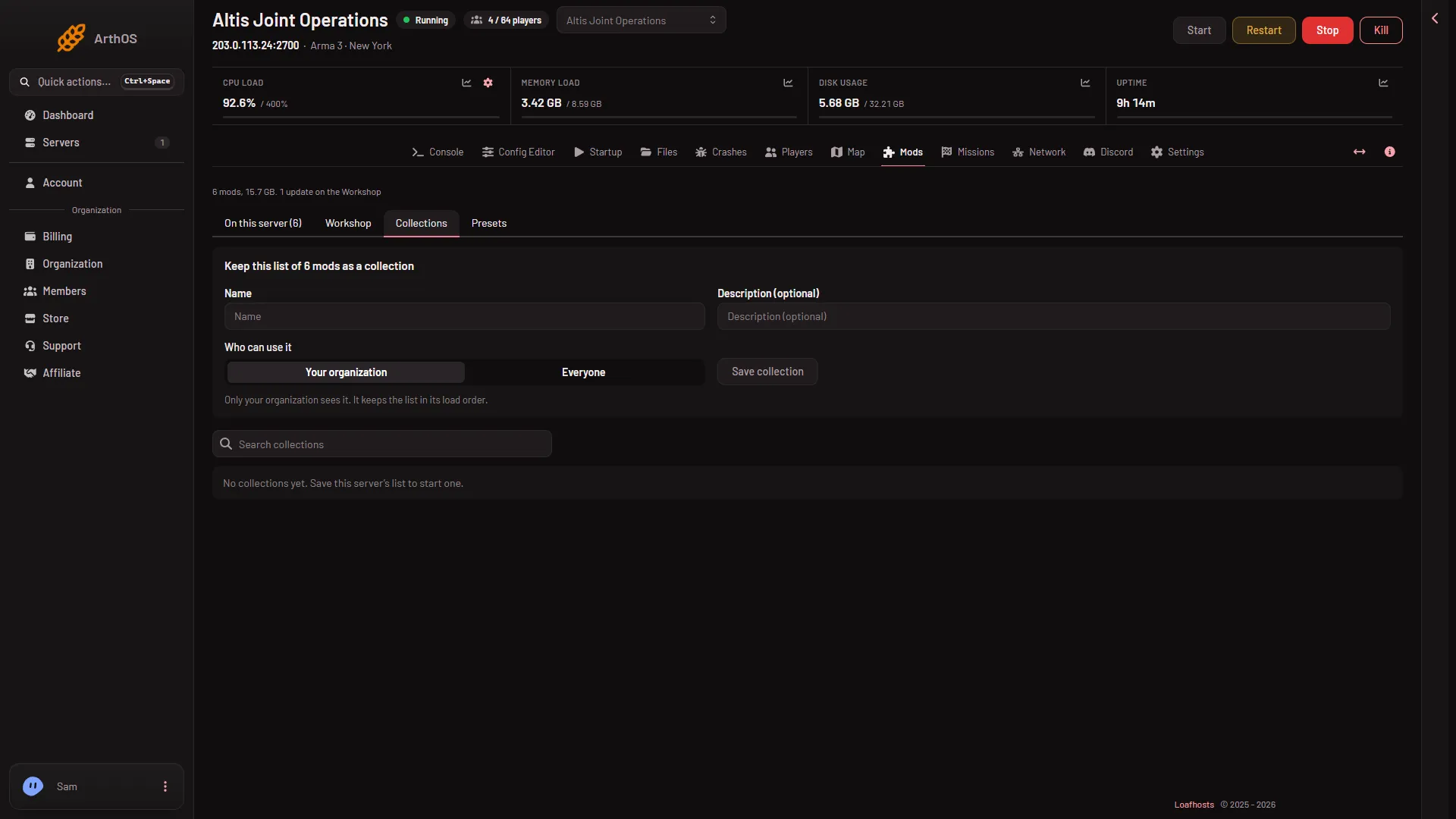
Keep your Arma 3 server's mod list as a collection, then add it to another server or replace a list with it. Keep it private or share it with everyone. - Mods and presets
Search the Steam Workshop for Arma 3 server mods
Search the Arma 3 Steam Workshop from your server's Mods page and sort by Most subscribed, Trending, Recently updated or Newest. Add mods in one click. - Mods and presets
Update Arma 3 Workshop mods on your server
Mods with a newer Workshop version show an Update chip. Choose Update on a row or Update all, then apply, or players on the new version cannot join. - Mods and presets
Upload an Arma 3 mod to your server by hand
Upload an @ mod folder in Files, put it on the Mods list and apply. The Mods page shows it as Local folder and never changes or updates it.
server.cfg and settings
14 guides- server.cfg and settings
Arma 3 Config Editor: server.cfg and basic.cfg settings
Change Arma 3 server settings in the Config Editor: pick server.cfg or basic.cfg, search, edit cards, Save, then Restart now. Locked fields explained. - server.cfg and settings
Arma 3 maxPacketSize: the largest packet setting
Find and change the largest network packet an Arma 3 server sends. The panel advises 1300 or less, the game's own default is 1400. Applies at the next start. - server.cfg and settings
Arma 3 allowedFilePatching: loose files from players
Choose who may load loose files on an Arma 3 server: No clients, Headless clients only or Every client. Set it in the Config Editor; it applies at next start. - server.cfg and settings
Arma 3 basic.cfg explained: the nine network settings
What each Arma 3 basic.cfg setting does in the Config Editor: packet size, messages per frame, bandwidth and smoothness, with the ranges and the advice. - server.cfg and settings
Arma 3 forcedDifficulty: one difficulty for all missions
Set forcedDifficulty on an Arma 3 server to Recruit, Regular, Veteran or Custom in the Config Editor. See what Custom reads and how rotation entries fit in. - server.cfg and settings
Arma 3 kickDuplicate: kick players with a duplicate ID
Check kickDuplicate in the Config Editor: an Arma 3 server then kicks a second player who joins with an ID already in use. It applies at the next start. -
Arma 3 locked settings: where to change them
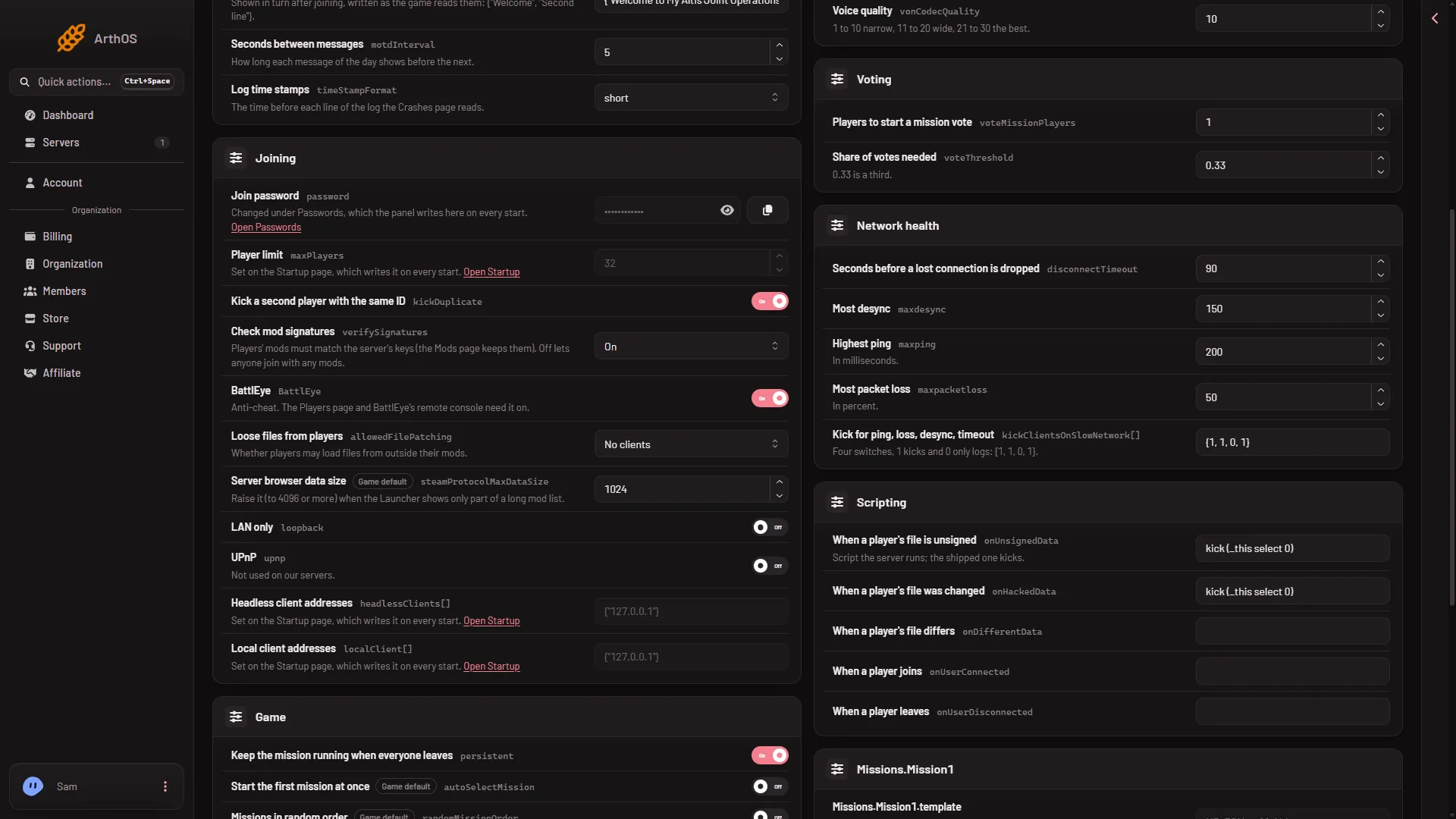
Some Arma 3 server.cfg fields are locked in the Config Editor: passwords, player limit, headless clients and missions. See why and where to change each. - server.cfg and settings
Arma 3 max ping, desync and packet loss limits
Set the Arma 3 limits for ping, desync, packet loss and lost-connection time, and choose which of them kick a player or only write a log line. - server.cfg and settings
Arma 3 message of the day: set the welcome lines
Set the Arma 3 message of the day in the Config Editor: write motd[] as a list in braces, set the seconds between messages, then restart the server. - server.cfg and settings
Arma 3 passwords: join, admin and RCon in one place
The Passwords file in the Config Editor holds an Arma 3 server's join, admin and RCon passwords. See what each one is for and when a change takes effect. - server.cfg and settings
Arma 3 server.cfg explained: every setting, card by card
All 42 Arma 3 server.cfg settings in the Config Editor, in card order: Server, Joining, Game, Voice, Voting, Network health and Scripting, in plain words. - server.cfg and settings
Arma 3 verify signatures: Check mod signatures On or Off
What Check mod signatures does on an Arma 3 server: On makes players' mods match the server's keys, Off lets anyone join with any mods. How to change it. -
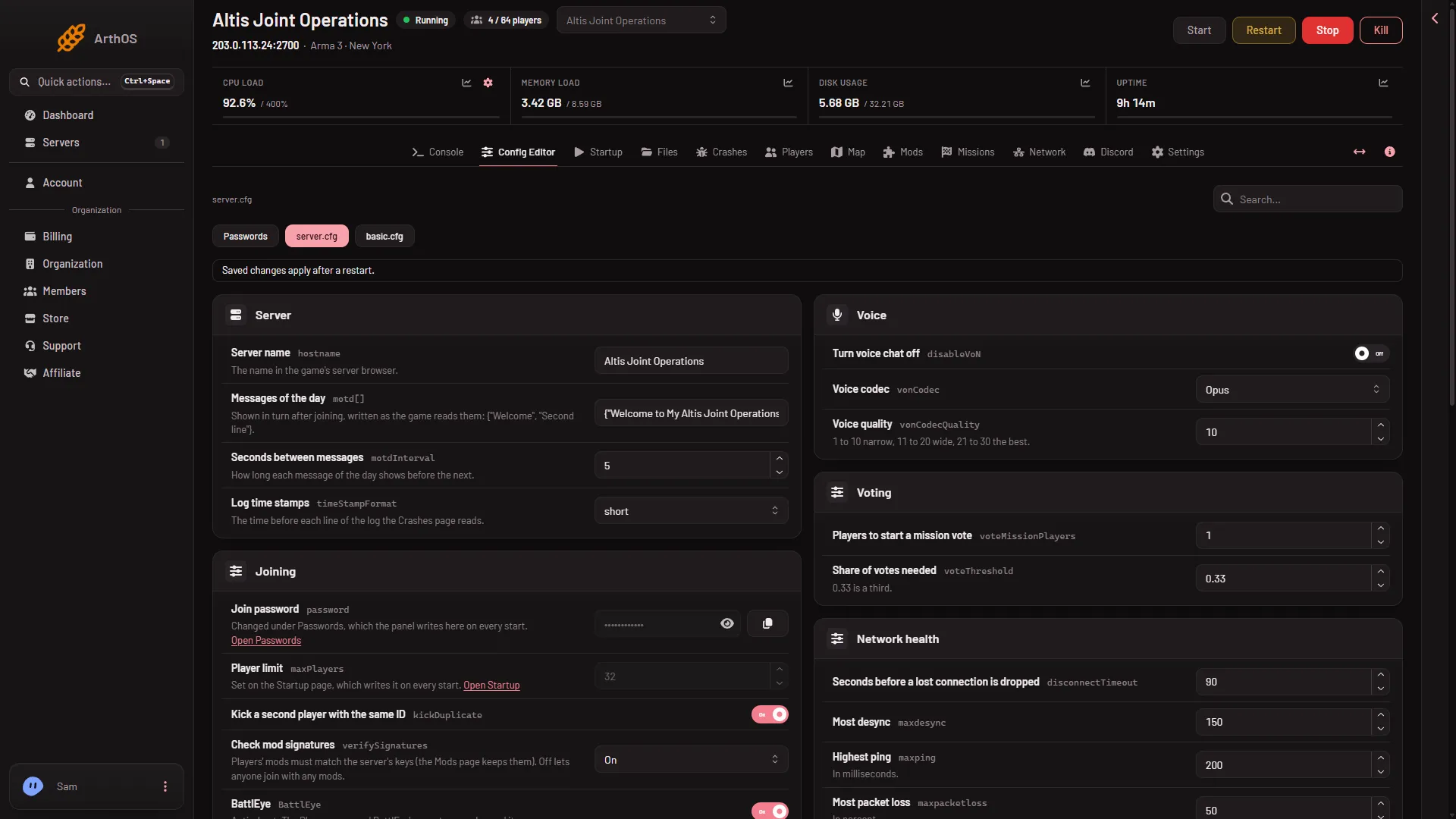
Arma 3 voice chat settings: disableVoN, codec and quality
Turn Arma 3 server voice chat off, pick the Opus or Speex codec and set voice quality from 1 to 30 in the Config Editor. Applies at the next start. - server.cfg and settings
Arma 3 vote settings: voteMissionPlayers and voteThreshold
Set how many players must connect before Arma 3 mission voting starts and what share of votes confirms a vote. Use the Voting card in the Config Editor.
Fixes
20 guides- Fixes
Arma 3 'Client not responding' kick: causes and fixes
Players dropped from your Arma 3 server with Client not responding? Check the Largest packet setting in basic.cfg, then the ping, loss and desync limits. - Fixes
Arma 3 cannot connect to the server: what to check
A player cannot join your Arma 3 server? Check it runs, the address, game version, mods and keys, join password, bans, a full server and the lock. - Fixes
Arma 3 desync and lag: fix a slow server
Players rubber-banding or desyncing on your Arma 3 server? Check server FPS on the Map page, then AI, mods, script errors, headless clients and network limits. - Fixes
Arma 3 missing addons error: fix it on your server
Your Arma 3 mission needs content the server does not load. The log names the addon: add its mod on the Mods page, or turn on Creator DLC server files. - Fixes
Arma 3 mod download failed: left off, waiting
A Workshop mod that failed to download stays on your list, marked waiting. Read the reason on the Mods page, fix it, and press Apply again to retry. -
Arma 3 server logs: where the RPT files are
Your Arma 3 server writes one RPT log per start in serverprofile/rpt. Find the newest, download it and learn which lines matter and which are normal. -
Arma 3 server not showing in the server browser
Your Arma 3 server runs but is not in the server browser. Join with Direct Connect, then check it is ready, its name, its Steam query port and the game build. - Fixes
Arma 3 server out of memory: find it and fix it
Your Arma 3 server stopped and the Crashes page says it ran out of memory? Confirm it, remove mods you do not need, or move to a plan with more memory. - Fixes
Arma 3 wrong signature for file: players kicked
Players kicked with wrong signature for file? Their mods do not match the server's. Update the mods on the server and on their side, and check the keys. - Fixes
Arma 3 Crashes page: how to read a start
Open Crashes to see every start of your Arma 3 server: did it run, crash or fail, and what the panel found in the log. Here is how to read one. - Fixes
Arma 3 map not drawn yet: why the Map page is empty
The Arma 3 map is drawn once, from the game itself, when a mission runs with the panel tools on. Turn them on, start a mission, and wait a few minutes. - Fixes
Arma 3 map shows no players: panel tools and fixes
The Arma 3 map shows players only while the panel tools run a mission on that world. Check the tools card, the restart, the key and the world, in order. -
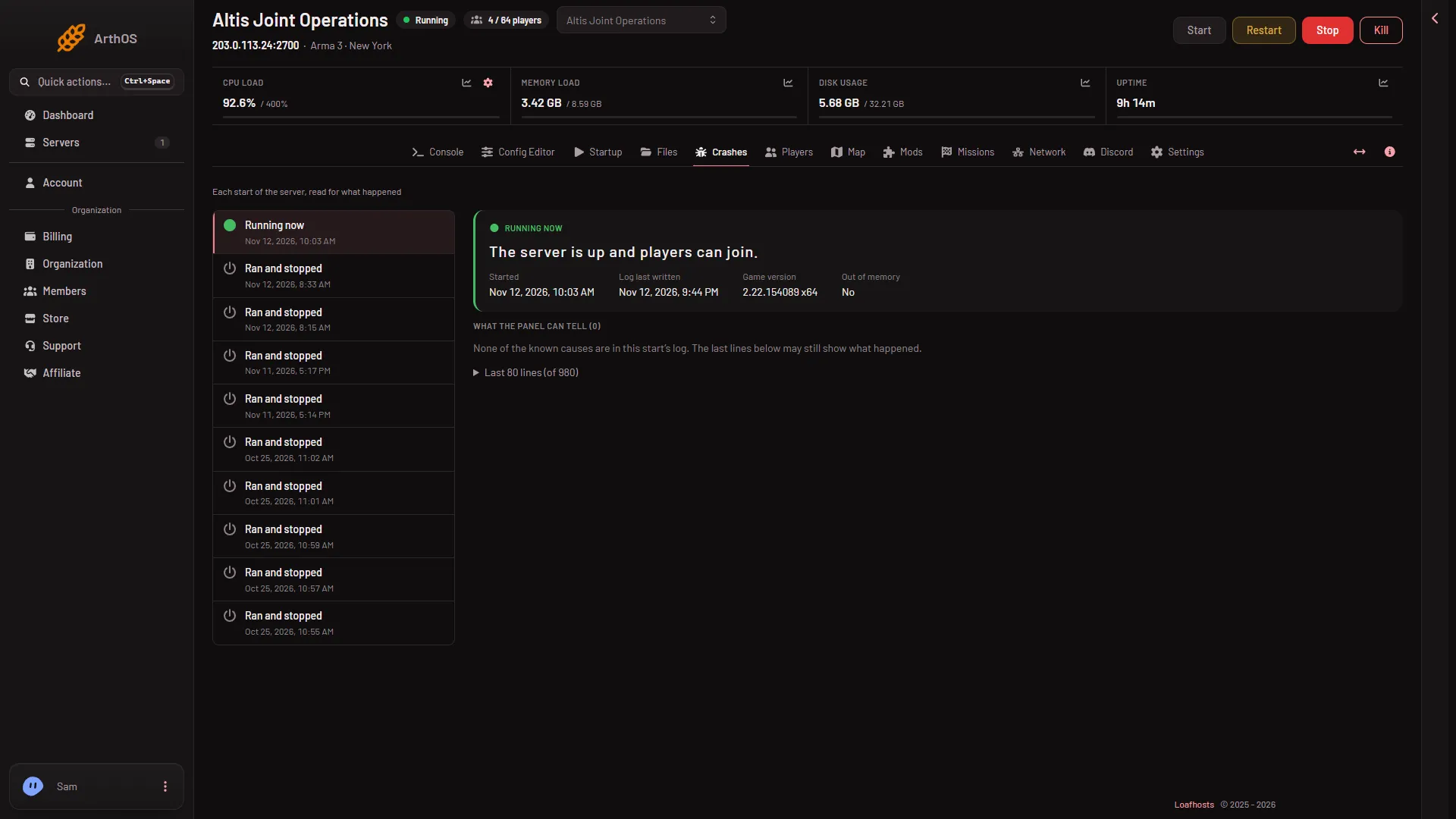
Arma 3 minidump Steam ID log line is not a crash
The SteamInternal_SetMinidumpSteamID line in an Arma 3 server log a few minutes after a start is normal, not a crash. Here is how to check. - Fixes
Arma 3 mod needs another mod: add what is missing
A row on the Mods page says Needs (name), which is not on the list. Add the missing mod, check the load order, then apply so the server loads both. - Fixes
Arma 3 Players page: BattlEye is not answering yet
The Players page says BattlEye is not answering. Read the state line, wait for the start to finish, then check BattlEye, the RCon password and the RCon port. - Fixes
Arma 3 server stuck on Starting: what to check
An Arma 3 server is ready when the console prints Host identity created. If it never does, read the Crashes start outcome, then check mods, disk and updates. - Fixes
Arma 3 server: a mod's extension did not load
The Crashes page says a mod's extension did not load. The server runs on Linux and the mod only ships a Windows .dll. Remove the mod or ask for a Linux build. - Fixes
Arma 3 server.cfg did not read: find the line and fix it
The Crashes page says server.cfg or basic.cfg did not read. It names the file and the line. Fix the mistake in the Config Editor and restart the server. - Fixes
Arma 3 wrong password when joining: which one to use
Arma 3 refuses the password? A server has a join password, an admin password and an RCon password. Learn which is which and where to change each. - Fixes
Arma 3: BattlEye refused the panel's RCon password
You changed the RCon password while the server ran, so BattlEye still holds the old one. Restart the server and the Players page works with the new password.
- Add a mission to your Arma 3 rotation Add missions to the rotation on the Missions page, put them in order, pick a difficulty and press Save. The server plays the new rotation from its next start.
- Add an Arma 3 mod by Workshop link or ID Paste a Steam Workshop link, a mod ID or a collection link into Add by link or ID, choose Look up, and the mod joins your Arma 3 server's list.
- Arma 3 'Client not responding' kick: causes and fixes Players dropped from your Arma 3 server with Client not responding? Check the Largest packet setting in basic.cfg, then the ping, loss and desync limits.
- Arma 3 admin login: use #login with the admin password Become admin on your Arma 3 server: join, press / to open chat and type #login with the Admin Password. Find or set that password under Passwords.
- Arma 3 Antistasi save: where it is and how to copy it Antistasi and KP Liberation keep progress in the server's profile. Use Copy aside on the Missions page to keep a copy, up to ten, and find the save file.
- Arma 3 cannot connect to the server: what to check A player cannot join your Arma 3 server? Check it runs, the address, game version, mods and keys, join password, bans, a full server and the lock.
- Arma 3 client mods and server only mods: what players need Players too means every player must load the mod. Server only means it stays on the server. Set it on each Arma 3 mod row, then apply the change.
- Arma 3 Config Editor: server.cfg and basic.cfg settings Change Arma 3 server settings in the Config Editor: pick server.cfg or basic.cfg, search, edit cards, Save, then Restart now. Locked fields explained.
- Arma 3 Creator DLC server files: turn them on Run a Creator DLC map or its content on your Arma 3 server: turn on Creator DLC Server Files, restart, add the DLC folder. Players must own the DLC.
- Arma 3 desync and lag: fix a slow server Players rubber-banding or desyncing on your Arma 3 server? Check server FPS on the Map page, then AI, mods, script errors, headless clients and network limits.
- Arma 3 make someone admin from the Players page Make a player an Arma 3 server admin from the Players page. Open the row menu and choose Make admin. They log in with #login, no password, after a restart.
- Arma 3 maxPacketSize: the largest packet setting Find and change the largest network packet an Arma 3 server sends. The panel advises 1300 or less, the game's own default is 1400. Applies at the next start.
- Arma 3 missing addons error: fix it on your server Your Arma 3 mission needs content the server does not load. The log names the addon: add its mod on the Mods page, or turn on Creator DLC server files.
- Arma 3 Missions page: rotation, switches and saves A tour of the Missions page on your Arma 3 server: the mission list, the rotation, three switches and campaign saves, and when each change applies.
- Arma 3 mod download failed: left off, waiting A Workshop mod that failed to download stays on your list, marked waiting. Read the reason on the Mods page, fix it, and press Apply again to retry.
- Arma 3 mod load order: put mods in the right order The Arma 3 mod list is the load order: each mod loads after the ones above it. Drag a row or type its number, then apply. Needed mods go first.
- Arma 3 Mods page: what each tab does A tour of the Arma 3 Mods page: the list in load order, Workshop, Collections and Presets, plus the bar that applies your changes to the server.
- Arma 3 Players page: a tour of every section What each part of the Arma 3 Players page does: the join address, who is online, kicks and bans, admins, the mission controls and who played lately.
- Arma 3 server logs: where the RPT files are Your Arma 3 server writes one RPT log per start in serverprofile/rpt. Find the newest, download it and learn which lines matter and which are normal.
- Arma 3 server not showing in the server browser Your Arma 3 server runs but is not in the server browser. Join with Direct Connect, then check it is ready, its name, its Steam query port and the game build.
- Arma 3 server out of memory: find it and fix it Your Arma 3 server stopped and the Crashes page says it ran out of memory? Confirm it, remove mods you do not need, or move to a plan with more memory.
- Arma 3 server ports: what each of the ten is for An Arma 3 server on Loafhosts holds a block of ten UDP ports: game, Steam query, Steam, voice, BattlEye and RCon. See what each does and which players use.
- Arma 3 server: see who is online The Players page lists everyone on your Arma 3 server with name, GUID, ping, side, group and vehicle. Here is what each part of a row means.
- Arma 3 wrong signature for file: players kicked Players kicked with wrong signature for file? Their mods do not match the server's. Update the mods on the server and on their side, and check the keys.
- Ban a player by GUID or Steam ID on Arma 3 Ban someone who is not on your Arma 3 server: type their 32-character BattlEye GUID or 17-digit Steam ID in the Bans card, pick a length, and choose Ban.
- Change the mission on your Arma 3 server now Play another mission right away: open Players, choose Play another mission, pick a mission and difficulty, then Play it now. The rotation is not changed.
- Give players your Arma 3 server's mods as a preset Download your server's mod list as a preset. Players drag the file onto the Arma 3 Launcher and load exactly the mods your server runs.
- How to ban a player from your Arma 3 server Ban a player on your Arma 3 server from the Players page: choose Ban, add a reason, pick a length from 1 hour to for good. Bans go by BattlEye GUID.
- How to install an Arma 3 Workshop mod on your server Install an Arma 3 Steam Workshop mod: find it on the Workshop tab, add it, then apply and restart. The panel downloads it and copies the keys for you.
- How to join your Arma 3 server Get the address from the Joining band, open the Arma 3 Launcher, use Servers and Direct Connect, and type the join password. Same branch and mods needed.
- How to kick a player from your Arma 3 server Kick a player from your Arma 3 server on the Players page: choose Kick, add a reason if you like, confirm. A kick is not a ban, so they can rejoin at once.
- How to play a Zeus mission on your Arma 3 server Start an Arma 3 Zeus scenario from the Missions list: add it to the rotation, or use Play another mission to start it now. No upload needed.
- How to put ACE3 on your Arma 3 server Add the ACE3 modpack to your Arma 3 server from the Presets tab, apply it, and give players the same mods. CBA, the mod ACE3 needs, comes with it.
- Move an existing Arma 3 server onto this host Move an Arma 3 server you run elsewhere: settings into the Config Editor, missions into mpmissions, mods through a Launcher preset, and the campaign save.
- Set an Arma 3 server password (join password) Set a join password on your Arma 3 server under Passwords in the Config Editor: type a Server Password, save, restart. Leave it empty for a public server.
- Set up an Arma 3 server, from first start to first join A new Arma 3 server starts with a random join password and Zeus missions ready. Copy the address from Players, add a mission and mods, then join.
- Start, stop or restart your Arma 3 server Use the buttons at the top of the server page to start, stop or restart an Arma 3 server. A stop is a Ctrl+C signal, and players are disconnected.
- Update your Arma 3 server to the latest version Keep Automatic Updates on and restart the Arma 3 server: it checks for a game update at every start. Players must run the same version to join.
- Upload a mission to your Arma 3 server Put a mission .pbo file or folder into the mpmissions folder in Files and it shows on the Missions page. Name it name.world, then add it to the rotation.
- What a new Arma 3 server does at its first start A new Arma 3 server takes your ordered name, makes random passwords and plays two Zeus sample missions. It is ready at the log line Host identity created.
- What Apply does when you change Arma 3 mods Apply stops your Arma 3 server, downloads the mods, copies their keys and starts it again. If a download fails, the copy the server had stays.
- Where Arma 3 mods are stored on your server Arma 3 mods sit in the server's root folder, one lowercase @ folder per Workshop ID. Their signing keys go in the keys folder. Find both in Files.
- Arma 3 -autoInit notice: mission parameters are ignored The Missions page says -autoInit is on the start line. It plays the first mission at once and ignores mission parameters. Remove it from Extra Start Parameters.
- Arma 3 3D map: hills, roads, towns and vehicles The Arma 3 3D map shows your world with hills, roads, buildings, towns, player pins and vehicle models. Learn the controls and what hills look like.
- Arma 3 admins who log in without the password Add Steam IDs to the Arma 3 admins list so those players type #login with no password. Add by Steam ID on the Players page; 30 at most; next restart.
- Arma 3 allowedFilePatching: loose files from players Choose who may load loose files on an Arma 3 server: No clients, Headless clients only or Every client. Set it in the Config Editor; it applies at next start.
- Arma 3 basic.cfg explained: the nine network settings What each Arma 3 basic.cfg setting does in the Config Editor: packet size, messages per frame, bandwidth and smoothness, with the ranges and the advice.
- Arma 3 Crashes page: how to read a start Open Crashes to see every start of your Arma 3 server: did it run, crash or fail, and what the panel found in the log. Here is how to read one.
- Arma 3 extra start parameters (-autoInit) Add options such as -autoInit to an Arma 3 server in Extra Start Parameters on Startup. Up to 200 characters, a few allowed symbols, never a password.
- Arma 3 forcedDifficulty: one difficulty for all missions Set forcedDifficulty on an Arma 3 server to Recruit, Regular, Veteran or Custom in the Config Editor. See what Custom reads and how rotation entries fit in.
- Arma 3 headless clients: set them up on your server A headless client runs AI so the server has less to do. Set 0 to 5 under Startup, Headless Clients. The mission must support them, and they use player slots.
- Arma 3 kickDuplicate: kick players with a duplicate ID Check kickDuplicate in the Config Editor: an Arma 3 server then kicks a second player who joins with an ID already in use. It applies at the next start.
- Arma 3 Launcher shows only some of the server's mods If the Arma 3 Launcher shows only part of a long mod list, raise Server browser data size to 4096 or more in the Config Editor, then restart the server.
- Arma 3 live map: world, players, groups, vehicles The Map page shows your Arma 3 world and, with the panel tools on, every player, AI group and vehicle. Learn the layers and place filters.
- Arma 3 lock server: stop new players joining Lock your Arma 3 server so nobody new can join, then let players in again. Use Lock out and Let in under New players on the Players page.
- Arma 3 locked settings: where to change them Some Arma 3 server.cfg fields are locked in the Config Editor: passwords, player limit, headless clients and missions. See why and where to change each.
- Arma 3 map not drawn yet: why the Map page is empty The Arma 3 map is drawn once, from the game itself, when a mission runs with the panel tools on. Turn them on, start a mission, and wait a few minutes.
- Arma 3 map shows no players: panel tools and fixes The Arma 3 map shows players only while the panel tools run a mission on that world. Check the tools card, the restart, the key and the world, in order.
- Arma 3 max ping, desync and packet loss limits Set the Arma 3 limits for ping, desync, packet loss and lost-connection time, and choose which of them kick a player or only write a log line.
- Arma 3 message of the day: set the welcome lines Set the Arma 3 message of the day in the Config Editor: write motd[] as a list in braces, set the seconds between messages, then restart the server.
- Arma 3 Milsim core modpack: what it adds The Milsim core modpack adds ACE3, Task Force Radio, Zeus Enhanced and LAMBS to your Arma 3 server in one step. See what each does and how to add it.
- Arma 3 minidump Steam ID log line is not a crash The SteamInternal_SetMinidumpSteamID line in an Arma 3 server log a few minutes after a start is normal, not a crash. Here is how to check.
- Arma 3 mission difficulty: Recruit, Regular, Veteran Set the difficulty of each Arma 3 mission in the rotation, force one for every mission, or change it for the mission playing now. Recruit to Custom.
- Arma 3 mission not in the Missions list: fixes An uploaded Arma 3 mission is missing from the Missions page when its name has no world, has spaces, or sits in the wrong folder. Name it name.world.
- Arma 3 mission says needs a DLC: what to do A mission row that says needs Apex or a Creator DLC runs on a world players must own. See which worlds need what and how to turn on the server files.
- Arma 3 mod keys and signature checks on your server Arma 3 checks players' mods against .bikey files in the keys folder. The Mods page copies them for you; add one by hand in Files if needed.
- Arma 3 mod needs another mod: add what is missing A row on the Mods page says Needs (name), which is not on the list. Add the missing mod, check the load order, then apply so the server loads both.
- Arma 3 panel tools: turn them on for live players The panel tools show live players on the Arma 3 map and let you help them. Turn them on from the Map page. They load at the next start.
- Arma 3 passwords: join, admin and RCon in one place The Passwords file in the Config Editor holds an Arma 3 server's join, admin and RCon passwords. See what each one is for and when a change takes effect.
- Arma 3 player GUID: find a BattlEye GUID Find an Arma 3 player's BattlEye GUID on the Players page, click it to copy, and learn how it differs from the Steam ID. Bans and kicks use the GUID.
- Arma 3 player limit: change Max Players Change the Arma 3 player limit with Max Players on Startup. It applies at the next start. Headless clients, civilians and spectators count toward it.
- Arma 3 Players page: BattlEye is not answering yet The Players page says BattlEye is not answering. Read the state line, wait for the start to finish, then check BattlEye, the RCon password and the RCon port.
- Arma 3 put a campaign save back (Antistasi, Liberation) Stop the server, then use Put back on a saved copy on the Missions page. It replaces the save in use and loads at the next start. Copy the current save first.
- Arma 3 server files and folders explained What server.cfg, basic.cfg, mpmissions, keys, the @mod folders, serverprofile and battleye hold on an Arma 3 server, and which ones to leave alone.
- Arma 3 server stuck on Starting: what to check An Arma 3 server is ready when the console prints Host identity created. If it never does, read the Crashes start outcome, then check mods, disk and updates.
- Arma 3 server: a mod's extension did not load The Crashes page says a mod's extension did not load. The server runs on Linux and the mod only ships a Windows .dll. Remove the mod or ask for a Linux build.
- Arma 3 server.cfg did not read: find the line and fix it The Crashes page says server.cfg or basic.cfg did not read. It names the file and the line. Fix the mistake in the Config Editor and restart the server.
- Arma 3 server.cfg explained: every setting, card by card All 42 Arma 3 server.cfg settings in the Config Editor, in card order: Server, Joining, Game, Voice, Voting, Network health and Scripting, in plain words.
- Arma 3 standby and wake link: stop an empty server Standby stops your Arma 3 server when nobody has played for a time you choose. The wake link lets your players start it again. Nothing is deleted.
- Arma 3 Startup page: every variable explained Every variable on the Arma 3 Startup page by its label: Max Players, Headless Clients, Automatic Updates, Extra Start Parameters, and where the passwords went.
- Arma 3 unban a player: lift a BattlEye ban Lift a ban on your Arma 3 server from the Players page. Choose Lift on the player's row in the Bans card. It works for ended bans and for good bans.
- Arma 3 verify signatures: Check mod signatures On or Off What Check mod signatures does on an Arma 3 server: On makes players' mods match the server's keys, Off lets anyone join with any mods. How to change it.
- Arma 3 voice chat settings: disableVoN, codec and quality Turn Arma 3 server voice chat off, pick the Opus or Speex codec and set voice quality from 1 to 30 in the Config Editor. Applies at the next start.
- Arma 3 vote settings: voteMissionPlayers and voteThreshold Set how many players must connect before Arma 3 mission voting starts and what share of votes confirms a vote. Use the Voting card in the Config Editor.
- Arma 3 worlds: Altis, Tanoa, Livonia and what each needs The worlds on the Arma 3 Missions page, from Altis and Stratis to Tanoa, Livonia and the Creator DLC maps, and which ones need an expansion or DLC.
- Arma 3 wrong password when joining: which one to use Arma 3 refuses the password? A server has a join password, an admin password and an RCon password. Learn which is which and where to change each.
- Arma 3 Zeus, Warlords and Combat Patrol scenarios Arma 3's own multiplayer scenarios are in the Missions list with a The game's own chip. Find Zeus, Warlords and Combat Patrol and add them to the rotation.
- Arma 3: BattlEye refused the panel's RCon password You changed the RCon password while the server ran, so BattlEye still holds the old one. Restart the server and the Players page works with the new password.
- Arma 3: send a message to all players Send one message to everyone on your Arma 3 server from the Players page. Type up to 120 characters in A message to everyone and choose Send.
- Back up an Arma 3 server: create, lock and export Create a backup of your Arma 3 server, lock it so it is never deleted, export it to Files, and learn what it copies. Campaign saves are kept separately.
- Ban an Arma 3 player after they leave the server A player left before you could ban them? On your Arma 3 server, the Seen lately list keeps names for 90 days so you can still choose Ban.
- Change the Arma 3 admin password Change your Arma 3 admin password under Passwords in the Config Editor. Save and restart: the panel writes it into server.cfg at every start.
- Change the Arma 3 RCon password (BattlEye) Change the RCon Password of your Arma 3 server under Passwords: letters and digits, 40 at most. Restart so BattlEye uses it. The Players page needs it.
- Change the time of day on an Arma 3 server Move the in-game time forward or back by up to 24 hours for everyone on your Arma 3 server from the Map page. It takes effect at once.
- Change the weather on an Arma 3 server Set Clear, Cloudy, Rain, Storm or Fog for everyone on your Arma 3 server from the Map page. The weather changes over about a minute.
- Find your Arma 3 server address Your Arma 3 server address is on the Players page, in the Joining band. Choose Copy to get the IP and game port that players type into Direct Connect.
- Give items to a player on an Arma 3 server Give a rifle, magazines or a medkit to a player on your Arma 3 server from the Map page. Search the game's list, pick 1 to 50, and send it.
- How to remove a mod from an Arma 3 server Take a mod off the Arma 3 mod list, then apply. The server stops loading it and removes keys only that mod used. Free its disk space if you wish.
- Import an Arma 3 Launcher preset into your server Import a preset exported from the Arma 3 Launcher: its Workshop mods join the list with what they need, and local mods are named for you.
- Keep an Arma 3 mission running when the server is empty Turn on Keep running when everyone leaves on the Missions page so the mission does not end when the last player goes. Save it, then restart the server.
- Make Arma 3 mod files lowercase on a Linux server Linux servers need lowercase mod file names. The Mods page does it for downloads; for hand-uploaded mods turn on Make Mod Files Lowercase.
- Restart the mission on your Arma 3 server Restart the mission, not the server: open Players and choose Restart the mission. It starts over, and progress is lost unless the mission saves it.
- Save your Arma 3 mod list as a collection Keep your Arma 3 server's mod list as a collection, then add it to another server or replace a list with it. Keep it private or share it with everyone.
- Schedule a daily restart for your Arma 3 server Make a daily restart on your Arma 3 server with Create Schedule: a Daily trigger and a Send Power Signal step. Players get no warning, so tell them by hand.
- Search the Steam Workshop for Arma 3 server mods Search the Arma 3 Steam Workshop from your server's Mods page and sort by Most subscribed, Trending, Recently updated or Newest. Add mods in one click.
- Spawn a vehicle next to a player in Arma 3 Put an empty car, tank, helicopter, plane, boat or static weapon beside a player on your Arma 3 server from the Map page. Needs the panel tools.
- Teleport a player in Arma 3 Send a player on your Arma 3 server to a spot you click on the map, or next to another player. It works while a mission plays with the panel tools on.
- Update Arma 3 Workshop mods on your server Mods with a newer Workshop version show an Update chip. Choose Update on a row or Update all, then apply, or players on the new version cannot join.
- Upload an Arma 3 mod to your server by hand Upload an @ mod folder in Files, put it on the Mods list and apply. The Mods page shows it as Local folder and never changes or updates it.