
















The Crashes page can show a finding called server.cfg or basic.cfg did not read. It names the file and the line where the game stopped reading. The game ignores everything after a mistake, so settings below that line did not apply. Fix the line in the Config Editor, save, and restart.
Find the line
- Open the Crashes page.
- Open the newest entry. Each start of the server has its own entry.
- Under What the panel can tell, find server.cfg or basic.cfg did not read.
- Read the log line in Last lines. It says
server.cfgorbasic.cfg, and a line number.
Fix it in the Config Editor
- Open Config Editor.
- Under Settings files, choose the file the finding names:
server.cfg(2) orbasic.cfg(3). Passwords (1) is the third tab.
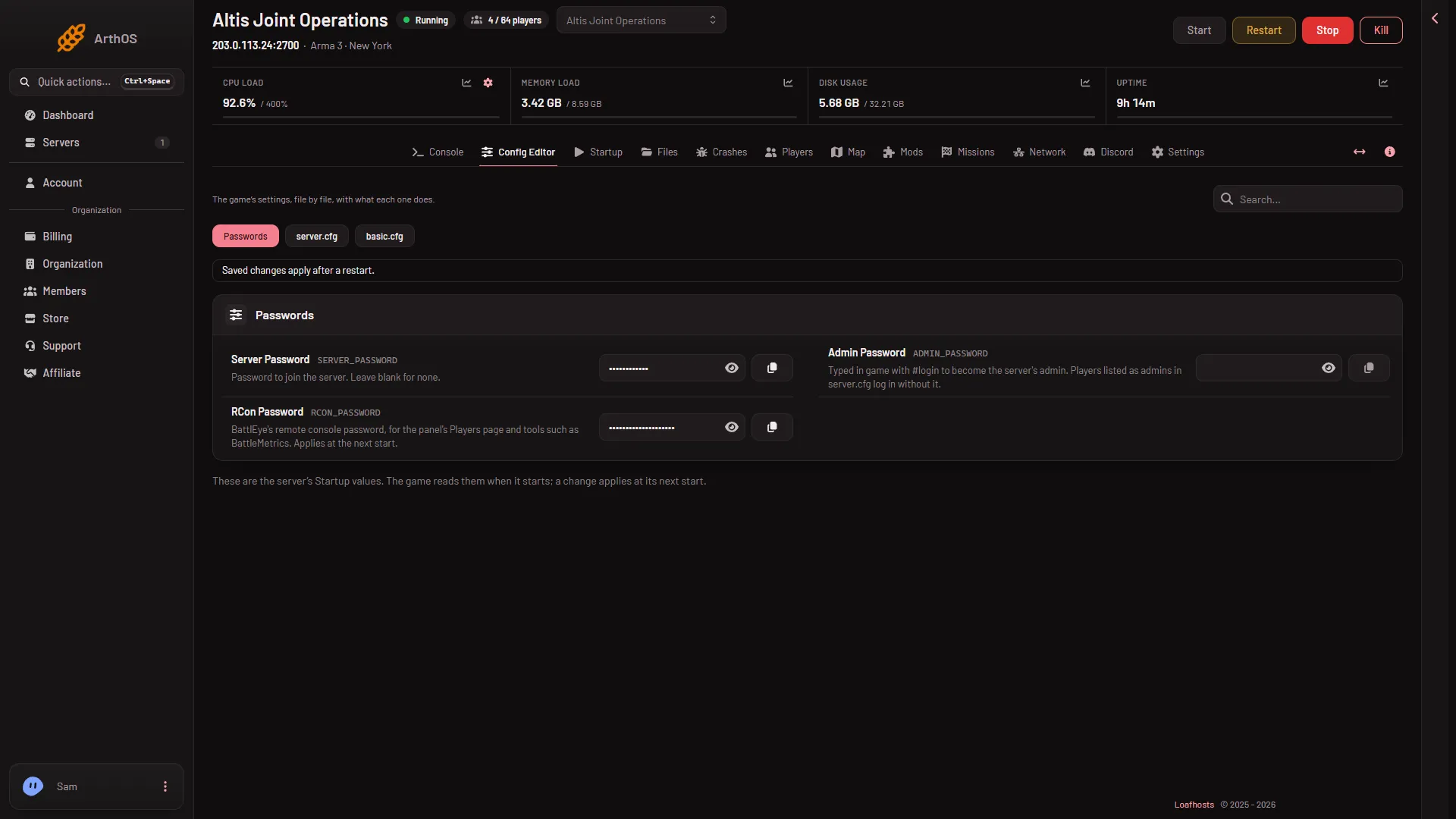
- Passwords
- server.cfg
- basic.cfg
- Choose Edit the whole file as text.
- Go to the line number from the log. Look at that line and the one above it.
- Choose Save.
- Read the line under the bar. A running server says “Saved. Restart the server to apply the changes.”; a stopped one says “Saved. The changes apply when the server starts.” The game reads these files once, at the start, so nothing changes until then. To restart, use Restart at the top of the server page. It drops everyone who is on, so warn them first with A message to everyone on the Players page, then Send.
If the file is shown as unreadable text instead of a list of settings, the panel could not split it into settings. That is a sign of the same kind of mistake, such as a class that is never closed.
Mistakes to look for
These are the usual causes in a file of this kind. Check the line the log names for each one.
- A line that does not end with a semicolon
;. - A
classwith an opening brace{and no closing};. - A list such as
motd[] = {that is not closed with};. - Quote marks that are not paired.
A correct line looks like this:
hostname = "My Arma 3 server";The Game default shown beside each setting in the list view is a safe value to go back to.
If the file has a mission mistake
The same finding also shows when the game reports a mission file it cannot find. The mission rotation is written into server.cfg by the Missions page. Open Missions, check each entry in the rotation, and take out any marked “not on the server”. Then save and restart.
The panel will not change server.cfg from the Missions page while a class or list in it does not close. It says so. Fix the file in the Config Editor first.
If it does not work
- The finding comes back after the restart. Open the newest entry. Old entries stay in the list.
- You cannot find the line. The log line number counts from the top of the file. Use the text view, not the settings list.
- Passwords you typed in the file are gone after a start. Passwords are set under Passwords in the Config Editor. The panel writes them into
server.cfgat every start. - A setting is greyed out. Some settings are kept on another page, and the field says which.
More about the game: Arma 3 servers.
Sources: Bohemia wiki: Server Config File