
















The Crashes page lists each start of your server and reads its log for you. Pick a start, look at the outcome at the top, then read what the panel found. Most problems are named there in plain words, with a fix.
What a start is
Every time the server starts, the game writes a new log file. The page shows one entry for each start, newest first, and the newest ten starts. Pick one to read it. The Started time is in the server’s own time zone, which you set on the Settings page under Timezone.
You need a role that allows reading files to see the page. If the tab is missing, ask the owner of your organization to check your role.
The outcome
The headline says what happened to that start.
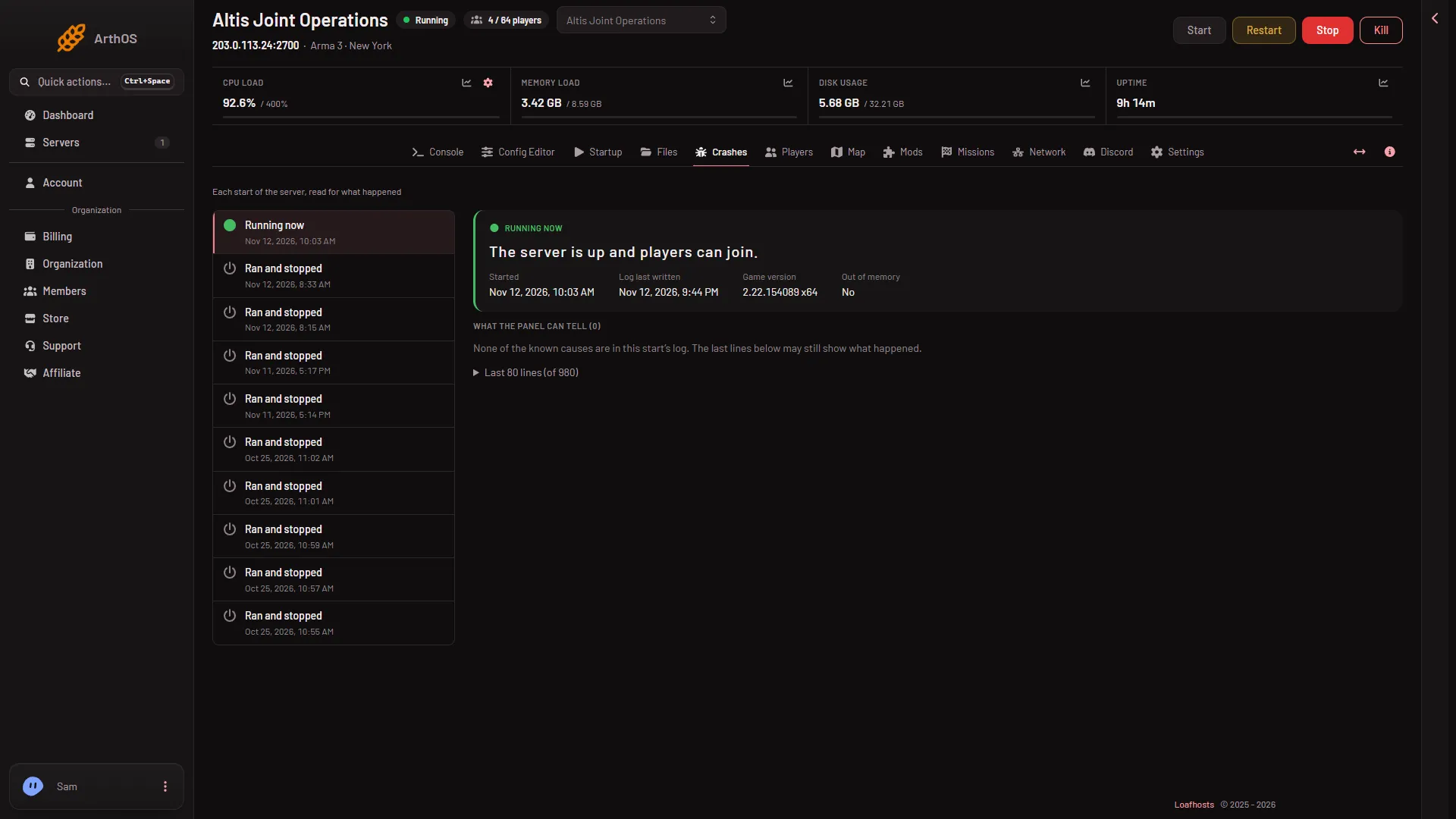
- Running now. “The server is up and players can join.”
- Starting. “The server is still starting.”
- Ran and stopped. “The server started, ran and stopped normally.” This is the good outcome. A stop you asked for ends here.
- Crashed. “The game stopped without being asked to.” Read the findings next.
- Failed to start. “The server never got as far as letting players in.” The log never reached the line
Host identity created., which is how the game says it is ready. - Ended early. “The log ends without saying how the server stopped.”
- Stuck, restarted. “The game stopped answering, so the panel restarted it.”
- Game version
- Out of memory
The picture shows a start that is still running, with no finding. A start that went wrong has the same layout, with its outcome and findings in place of those.
The details
Under the outcome the page shows a few facts:
- Started: when this start began.
- Log last written: when the game last wrote to the log.
- Game version (1): for example
2.22.154089 x64. - Exit code: how the game process ended.
- Out of memory (2): Yes when the machine ended the server because it reached its plan’s memory. See server out of memory.
What the panel can tell
This list, What the panel can tell, holds the findings, with their number in brackets. Each has a title and a fix. For example, “A mission or mod needs content the server does not load” tells you to add the mod on the Mods page. See the missing addons error for that one and the wrong signature error for another.
If nothing matches, the page says “None of the known causes are in this start’s log. The last lines below may still show what happened.” That does not mean all is well. Read the last lines.
The last lines
Open Last (n) lines to see the end of the log. The heading shows how many lines are listed and, in brackets, the total in the file.
For the whole file, open Files and go to serverprofile/rpt. See where the logs are.
If it does not work
- The page is empty. The server has not started yet. Start it once.
- A start has no lines. The server may be running with the start option
-noLogs. That stops the game from writing its log, so the page has nothing to read. Take it out of Extra Start Parameters on Startup. - A line looks scary but the outcome says Ran and stopped. Some lines are normal. One is explained in the SteamInternal line is not a crash.
More about the game: Arma 3 servers.
Sources: Bohemia wiki: Startup Parameters