
















“Wrong signature for file” means a player’s mod files do not match the keys on your server. Almost always the mod is a different version on their side and on yours. Update the mods on the server, ask players to update theirs, and the kicks stop.
Why it happens
Your server checks every player’s mods against signing keys. The keys are .bikey files in the folder keys. The setting that does this is Check mod signatures. It is on for a new server. A mod’s key has to match the mod files the player loads. When a mod updates on the Workshop, its files change. Players who updated and a server that did not, or the other way round, no longer match.
See it
Open the Crashes page and pick the start. The finding is titled “A player’s files did not match the server’s keys”. It shows when the log holds wrong signature for file or signature check timed out.
Update the mods on the server
- Open the Mods page.
- Look for the Update tag on a row (1). It means the Workshop has a newer version. The row reads: “The Workshop has a newer version. Players who already have it cannot join until the server has it too.”
- Choose Update all (2), or update the one mod.
- Choose Apply and restart (3). The server stops, downloads and starts again. Players online are disconnected, so warn them first with A message to everyone on the Players page, then choose Send.
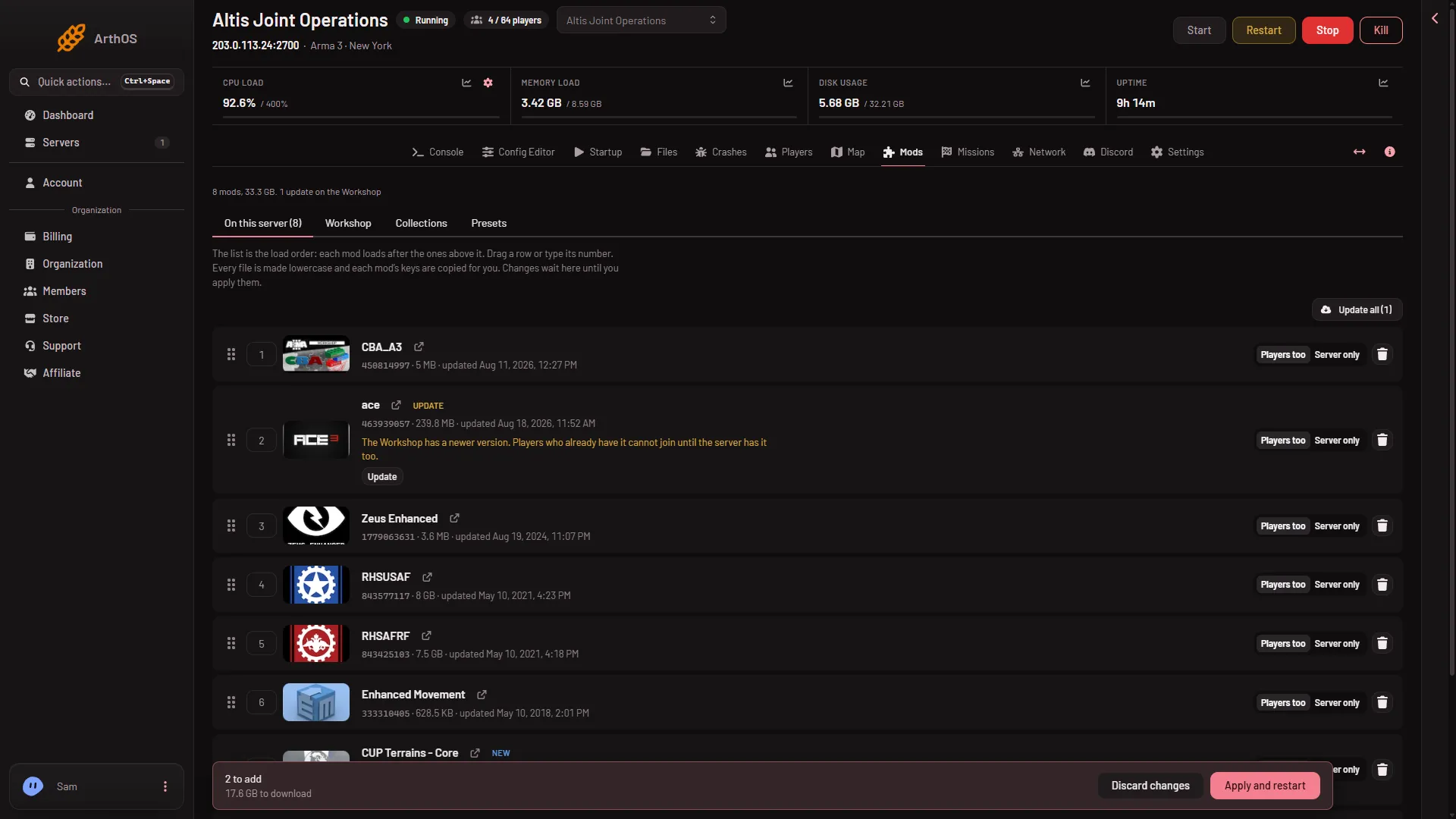
- Update tag on a mod
- Update all
- Apply and restart
The panel copies each mod’s keys into keys for you. The box before applying says so, and afterwards the page shows how many keys were added or updated. It removes a key only when no mod left on the list uses it.
Update the mods on the players’ side
Ask each player to update their mods. The server does not send mods: players must have the same mods and versions, and the server only checks them. If you want them to have exactly your list, open the Presets tab on the Mods page, choose Download the preset and send them the file. They drag it onto the Arma 3 Launcher.
Keys you added by hand
A mod you uploaded yourself does not get its keys copied. Find the .bikey file that comes with the mod. Open Files, go to the keys folder, and upload the .bikey there. Restart the server afterwards.
Turning the check off
You can switch off Check mod signatures in the Config Editor, in the file server.cfg. It says: “Players’ mods must match the server’s keys. Off lets anyone join with any mods.” Saved settings apply after a restart.
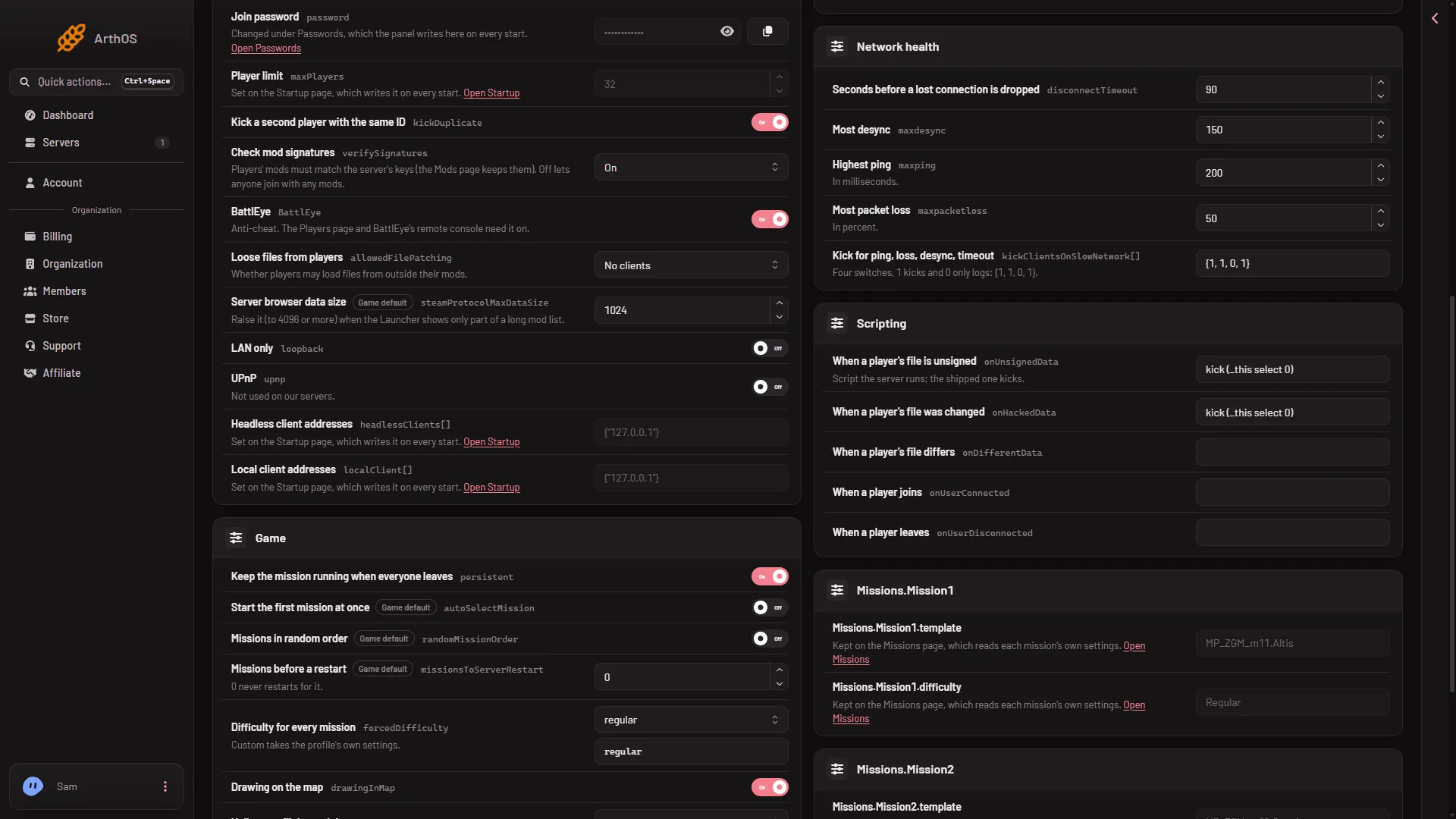
- Check mod signatures
If it does not work
- Only one player is kicked. Their copy is old or damaged. Ask them to update the mod and join again.
- Everyone is kicked after you updated. Players still have the old version. Send them the preset and ask them to update.
- A mod from outside the Workshop. It needs its
.bikeyinkeysand the same files on every player’s computer. - The server also kicks unsigned files. The scripts in the Config Editor under When a player’s file is unsigned decide that. The shipped one kicks.
More about the game: Arma 3 servers.
Sources: Bohemia wiki: Server Config File