
















Every Arma 3 mod is signed by its author. The server holds the matching public key, a .bikey file, in its keys folder. When a player joins, the server checks the player’s mod files against those keys. A file that does not match is refused.
On a Loafhosts server you rarely touch keys yourself. The Mods page copies them for you.
What the check does
The setting is verifySignatures in server.cfg. In the Config Editor it is called Check mod signatures.
- On is the game’s value 2. Players’ mods must match the server’s keys.
- Off is the value 0. The panel’s help text says: “Off lets anyone join with any mods.”
A new Loafhosts server starts with the check on. Keep it on unless you have a reason to turn it off. With it off, a player can join with changed or unsigned files.
How the panel handles keys
When you choose Apply (or Apply and restart) on the Mods page, the panel does this for each mod:
- It downloads the mod into a folder named
@and the Workshop number. - It copies the mod’s
.bikeyfiles intokeys. - It removes a key only if no mod that stays on the list ships that key.
The apply box says it first: “Each mod’s signing keys are copied into the keys folder, and a key only a mod leaving the list used is removed.” When the apply is done, the page shows a line such as “Keys: 3 added or updated, 0 removed.”
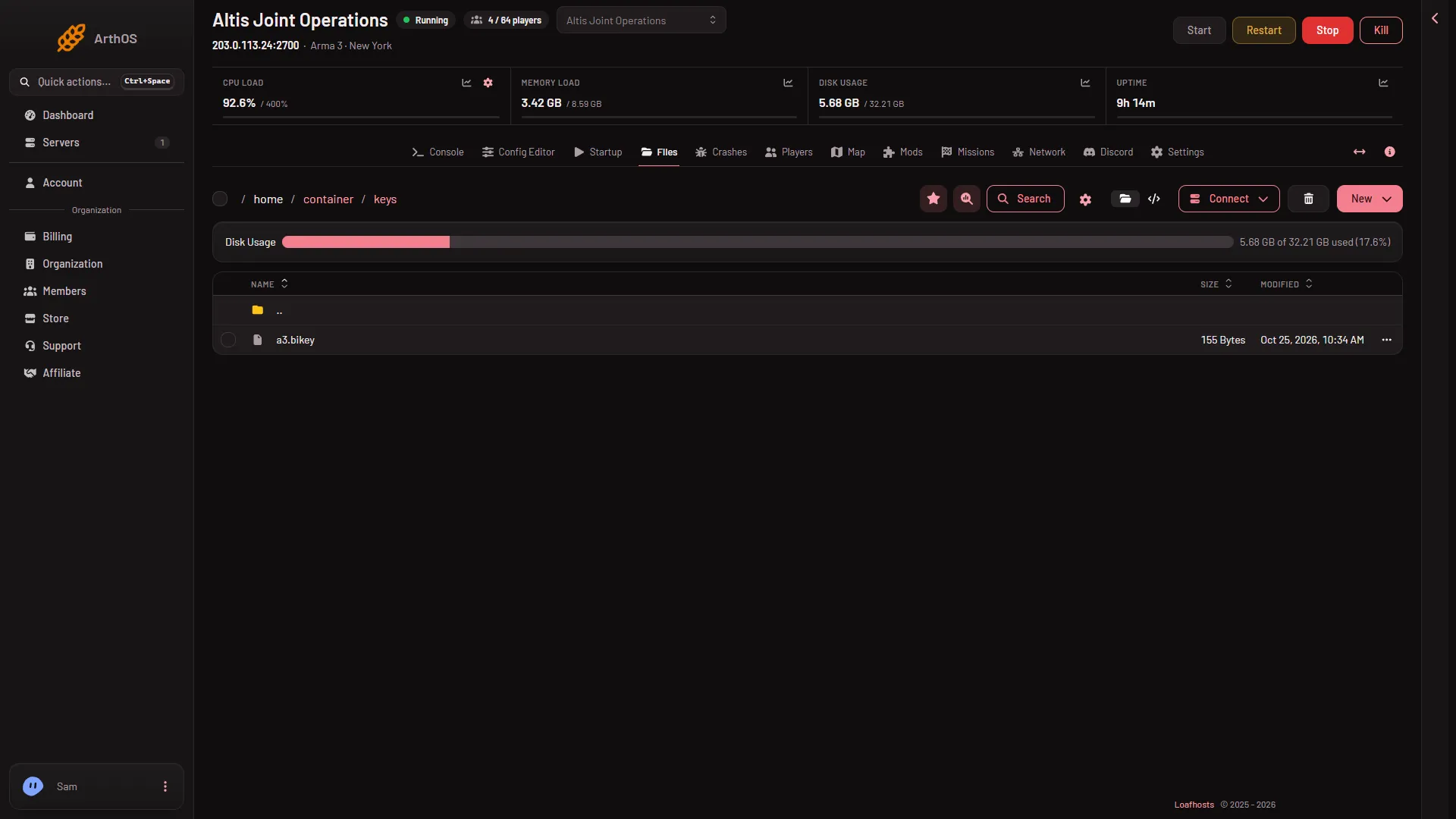
Keys are copied at apply time. A key is removed only when a mod that leaves the list shipped it and no remaining mod does. Not checked on 2.22.154089 as of 13 November 2026: whether applying touches a key you added by hand.
Add a key by hand
Do this for a mod you uploaded yourself (see upload a mod by hand).
- Find the
.bikeyfile that came with the mod, on your computer. - Open Files on your server and go to
keys. - Choose New, then File from Upload, and send the
.bikeyfile. - Restart the server so the new key is read. A restart disconnects everyone who is on: warn them first with A message to everyone on the Players page, then choose Send.
Turn the check off or on
- Open Config Editor, then
server.cfg. - Find Check mod signatures (1).
- Change it and choose Save.
- After saving, the page says \
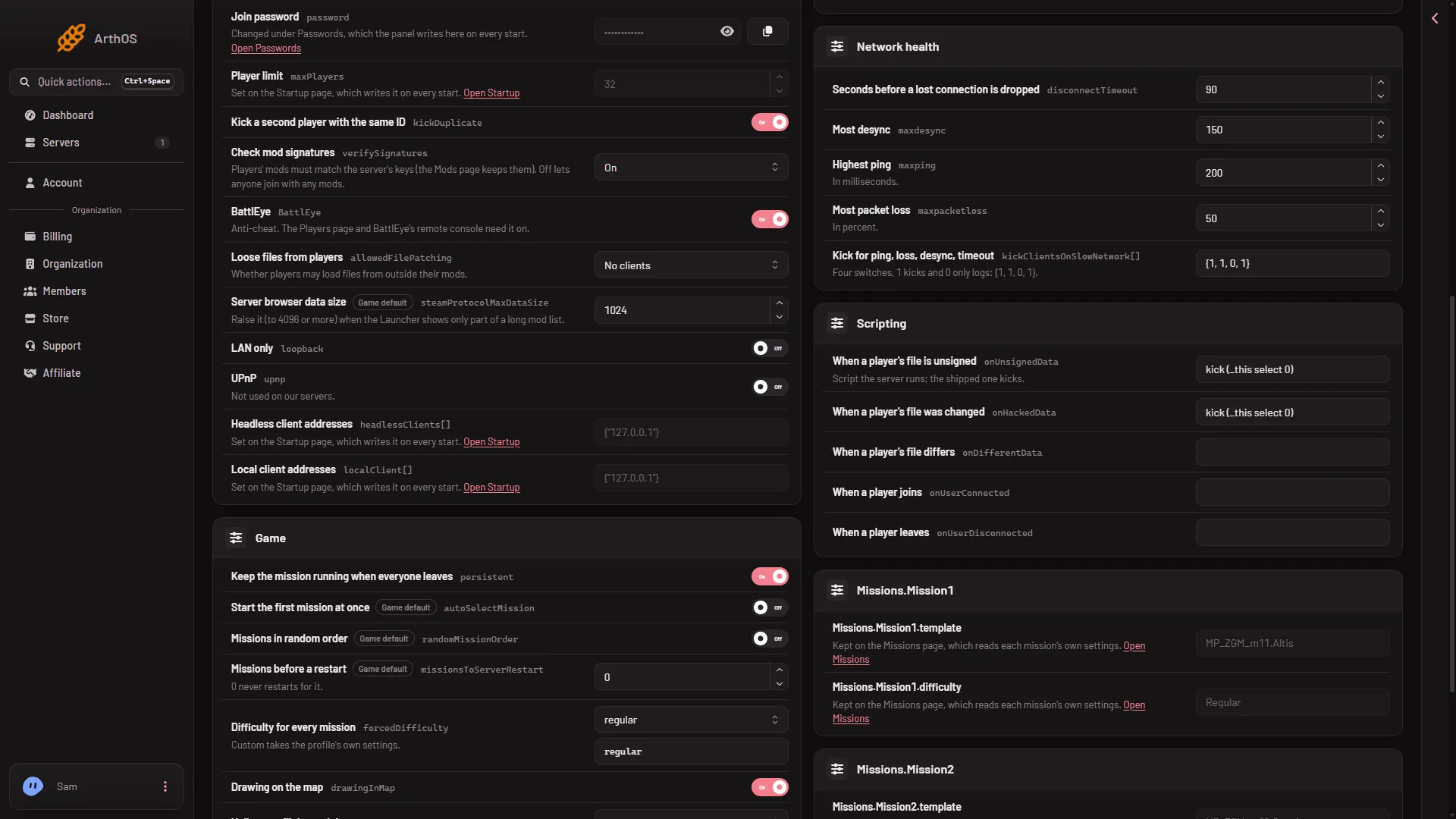
- Check mod signatures
If it does not work
- A player is refused with a signature message. Their mod version differs from the server’s. Update the mods on the server (see update Workshop mods) and ask the player to update theirs.
- The Crashes page shows “A player’s files did not match the server’s keys”. The same cause. The panel’s advice is to update the mods on the server and have players update theirs.
- Players with a hand-uploaded mod are refused. Its
.bikeymay be missing fromkeys. Add it as above and restart. - You turned the check off and still see a refusal. The change needs a restart before it applies.
More about the game: Arma 3 servers.
Sources: Bohemia wiki: Server Config File