
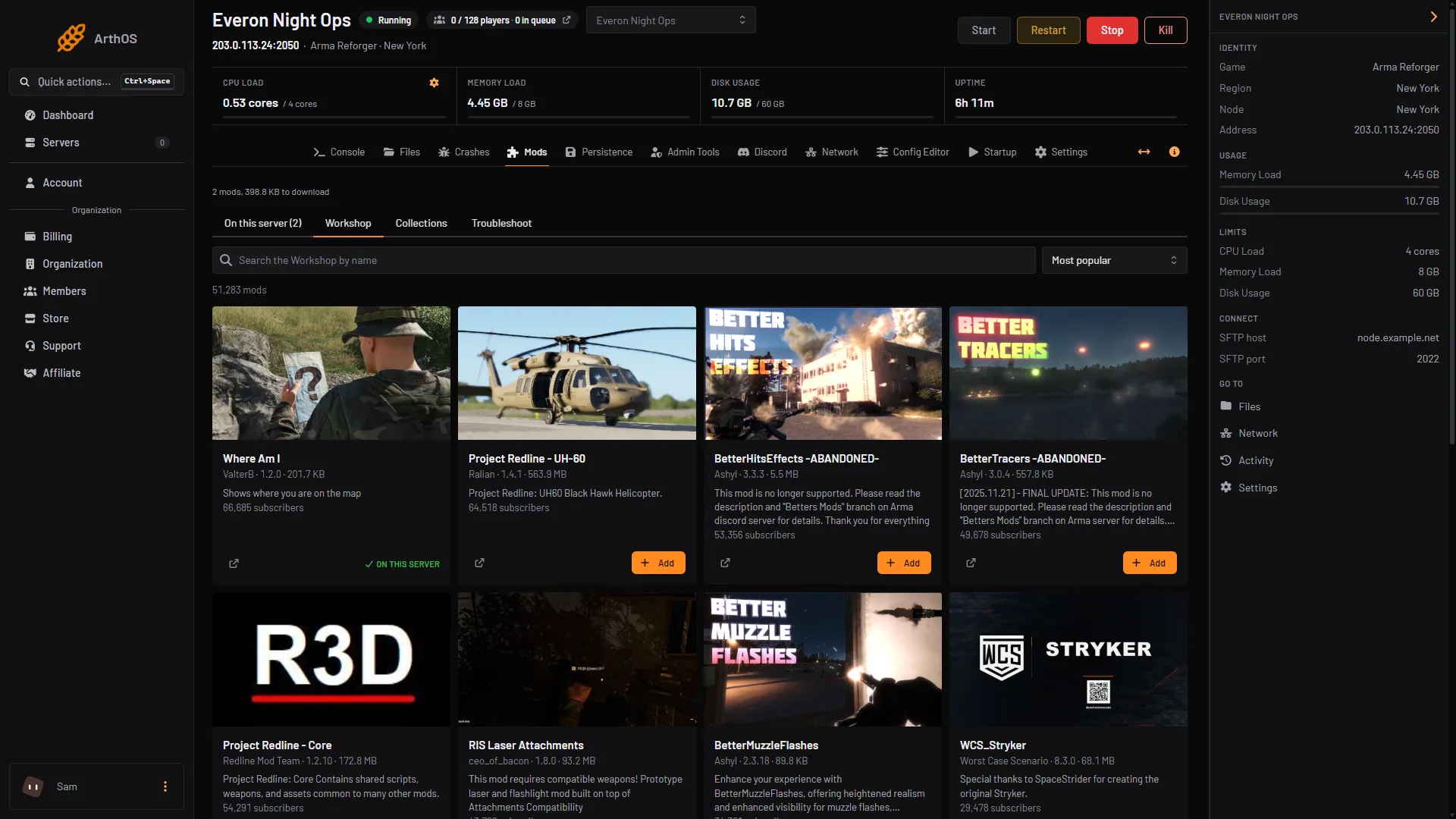
If you know a mod’s ID, you do not need to search for it. Open the Mods tab, choose Workshop, choose Add by ID, paste the ID or the Workshop link, and choose Add. The panel shows what the mod needs before it adds anything.
Most mods need other mods to work. These are its dependencies. You choose, once per server, what happens to them.
Add a mod by ID
- Open the Mods tab of your server and choose the Workshop tab.
- Choose Add by ID (1).
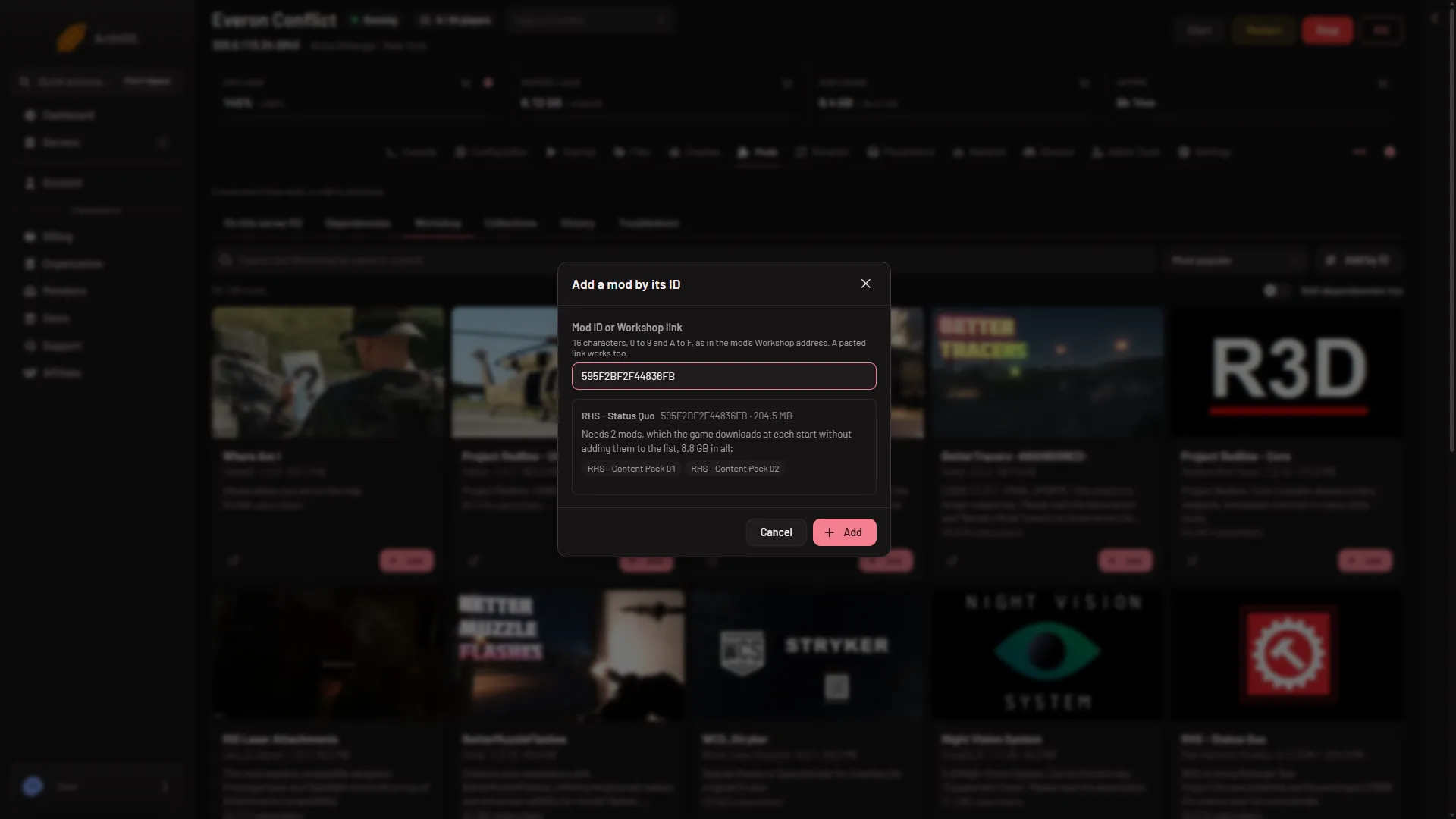
- Paste the ID or the whole Workshop link into Mod ID or Workshop link. The second picture below shows this box.
- Add by ID
- Add dependencies too
An ID has 16 characters, 0 to 9 and A to F. You find it in the mod’s Workshop address. See how to find mod IDs. A pasted link works too. The panel reads the ID out of it.
- Mod ID or Workshop link
- What it needs
- Add
Paste it into Mod ID or Workshop link (1). When the ID is whole, the box shows the mod’s name, its ID and its size. Under it you see what the mod needs (2). Read this before you choose Add (3).
The picture shows a made-up server. Your mod and its list will differ.
What happens to the dependencies
When nobody has chosen yet, the panel asks “When you add a mod to this server” as you open the Mods page. You pick one of two answers. It is saved for the whole server and for everyone who adds mods to it. If you close the question without choosing, mods are added on their own and it asks again later.
- Don’t add dependencies (recommended). Only the mod goes on the list. The game downloads what the mod needs at every start, in the order it needs. When you remove the mod, the things it needed go with it.
- Add dependencies too. Every mod it needs goes on the list above it, as its own row that you can lock or move. One mod can bring in dozens more, and they stay on the list when you remove the mod.
The box under the ID tells you which one is on. With dependencies off it says the mod needs some mods, “which the game downloads at each start without adding them to the list”. With them on it says “Also adds” those mods to the list.
To change your answer later, use the switch Add dependencies too above the results on the Workshop tab. It changes only mods you add after that. It does not change the list as it is now. Only members who may change the server’s files see the switch.
See what a mod needs
- On the On this server tab, a chip such as 2 needed on a mod’s row shows its dependencies. Each one says On this server or Downloaded with it. Those not on the list have an Add button. It follows your choice above.
- The Dependencies tab lists each mod that other mods need, and which mods need it. It is read only. It changes nothing.
After you add it
The mod goes on the list at the end, above any mod you kept last. Restart the server so the game loads it. A mod you add does not load until the next start. Drag it on the list if its load order matters. See install mods.
If it does not work
- “That is not a mod ID.” An ID is 16 characters, 0 to 9 and A to F. Check for a missing or extra character, or paste the whole link.
- “The Workshop has no mod with that ID.” Check the ID against the mod’s Workshop address.
- No Add by ID button. Your role may not edit the server’s files.
- “config.json is not valid JSON; fix it in the file editor first”. The file has a mistake. Fix it in Files, then try again.
- “the server is starting or stopping; try again once it has finished”. Wait and try again. Adding works while the server runs.
- The mod is already on the list. The panel refuses a second copy.
- The Workshop did not answer. Try again in a minute.
- “The Workshop no longer has a mod it needs.” The mod may not load. Look for a newer version of it.
- The Add button stays grey. The panel is still reading what the mod needs. Wait a moment.
- The server fails to start after you add a mod. See mod dependency errors and remove a mod.
More about the game: Arma Reforger servers.