


When you remove a mod, its files stay on the server’s disk. Over time these old mod folders can fill the disk. Clear old mods deletes only the ones nothing uses any more and tells you how much space it frees. It works on Arma Reforger servers, while the server runs or is stopped.
Clear them
- Open the server and choose the Mods tab, then On this server.
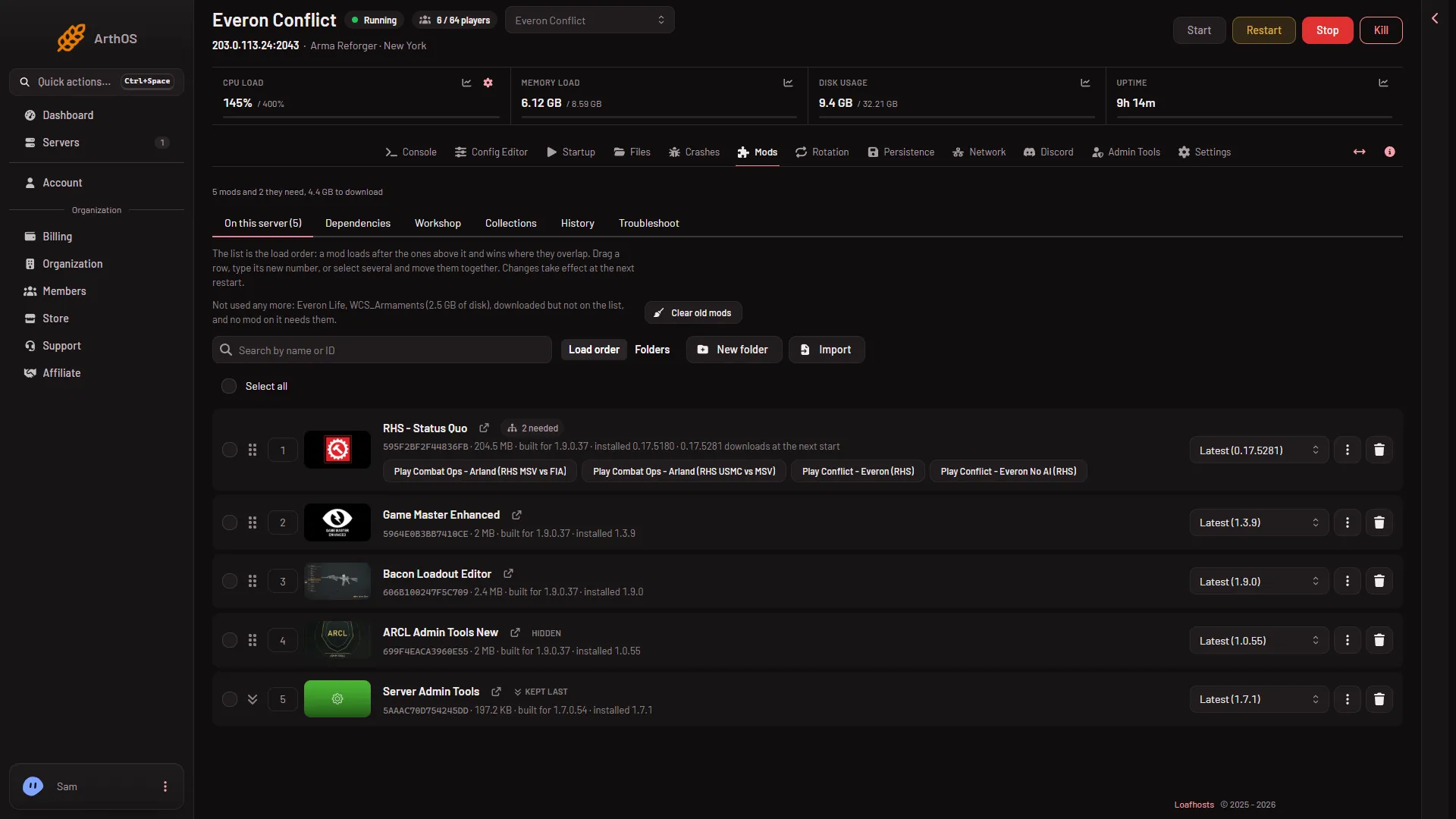
- Look for the line that starts “Not used any more”.
- Choose Clear old mods.
- Read the dialog and choose Clear old mods again.
- Old mods notice
- Clear old mods
The notice (1) names the mods and their size: “downloaded but not on the list, and no mod on it needs them.” With more than three it gives a count and a button to show them. The button Clear old mods (2) opens the dialog.
You need a role that may delete files on the server.
- Space it frees
- Only disk space
- Clear old mods
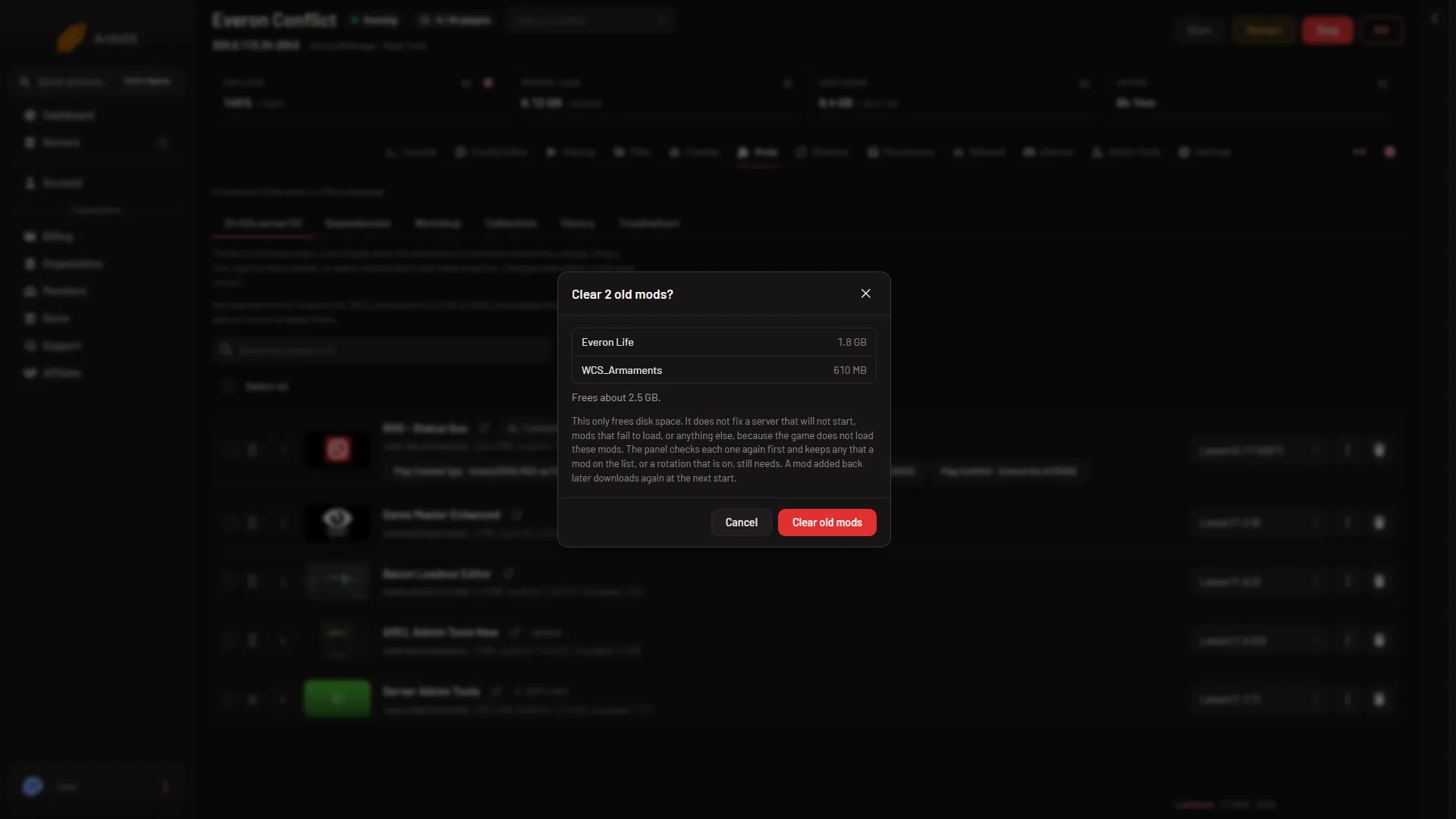
The dialog lists each mod with its size and says “Frees about (size).” (1). The text under it (2) says this only frees disk space. It does not fix a server that will not start or mods that fail to load, because the game does not load these mods. The red button (3) deletes them.
What counts as old
A mod folder is old only when all of this is true:
- It is downloaded on the server.
- It is not on the mod list. A disabled mod counts as on the list.
- No mod on the list needs it, directly or through another mod.
- No entry of a rotation that is on uses it.
The panel checks each folder again just before it deletes. It keeps any mod the list or an enabled rotation still needs. The mod folders are under profile/addons; see the mod folder location.
What to know
- It is permanent. These folders do not go to the Trash.
- It deletes only those mod folders and changes nothing else.
- A mod you add back later downloads again at the next start.
- The result is a toast, for example “Cleared (mods) and freed (size).” If one was kept, it says “Kept (name)” and why. One reason is that the running game has it loaded. Clear it after the next restart.
- The panel also offers it by itself. When the server’s disk is at 80 percent or more and the old mods are worth enough, a dialog opens on any page of the server: “This server’s disk is (percent)% full.” Choose Not now to close it. It stays away for 3 days.
- To remove a mod from the list first, see remove a mod. To see where the folders are, see the mod folder location.
If it does not work
- No notice and no button. Nothing is old, or your role may not delete files.
- Nothing is old but the disk is full. Files you deleted in Files stay in the Trash and still use space. Open the Trash and choose Empty Trash.
- “the server is starting or stopping; try again once it has finished”. Wait and try again.
- “could not read (folder) on the node; nothing was deleted”. Try again in a minute.
- “could not tell what (name) needs”. Nothing was deleted. Try again in a minute.
- “(name) was not deleted; try again, or delete it in Files”. Try again, or delete that folder under
profile/addonsin Files. In Files it goes to the Trash first. - Too many requests. You can clear up to 6 times a minute, and up to 400 mods at once.