









Open the Players page, find the player and choose Kick or Ban. A kicked player can join again at once. A banned player cannot sign in until you unban them. Both take effect at once, and the server must be running to use them. More about the game: Project Zomboid servers.
Kick a player
The player must be online. They show the tag Online.
- Open the Players page.
- Find the player in the Players list. Type in Filter by name or SteamID if the list is long.
- Choose Kick (1). A box titled “Kick (name)” opens.
- Type a Reason (optional). If you leave it empty, the player sees “Kicked by an admin”. A reason is at most 120 characters.
- Choose Kick to confirm.
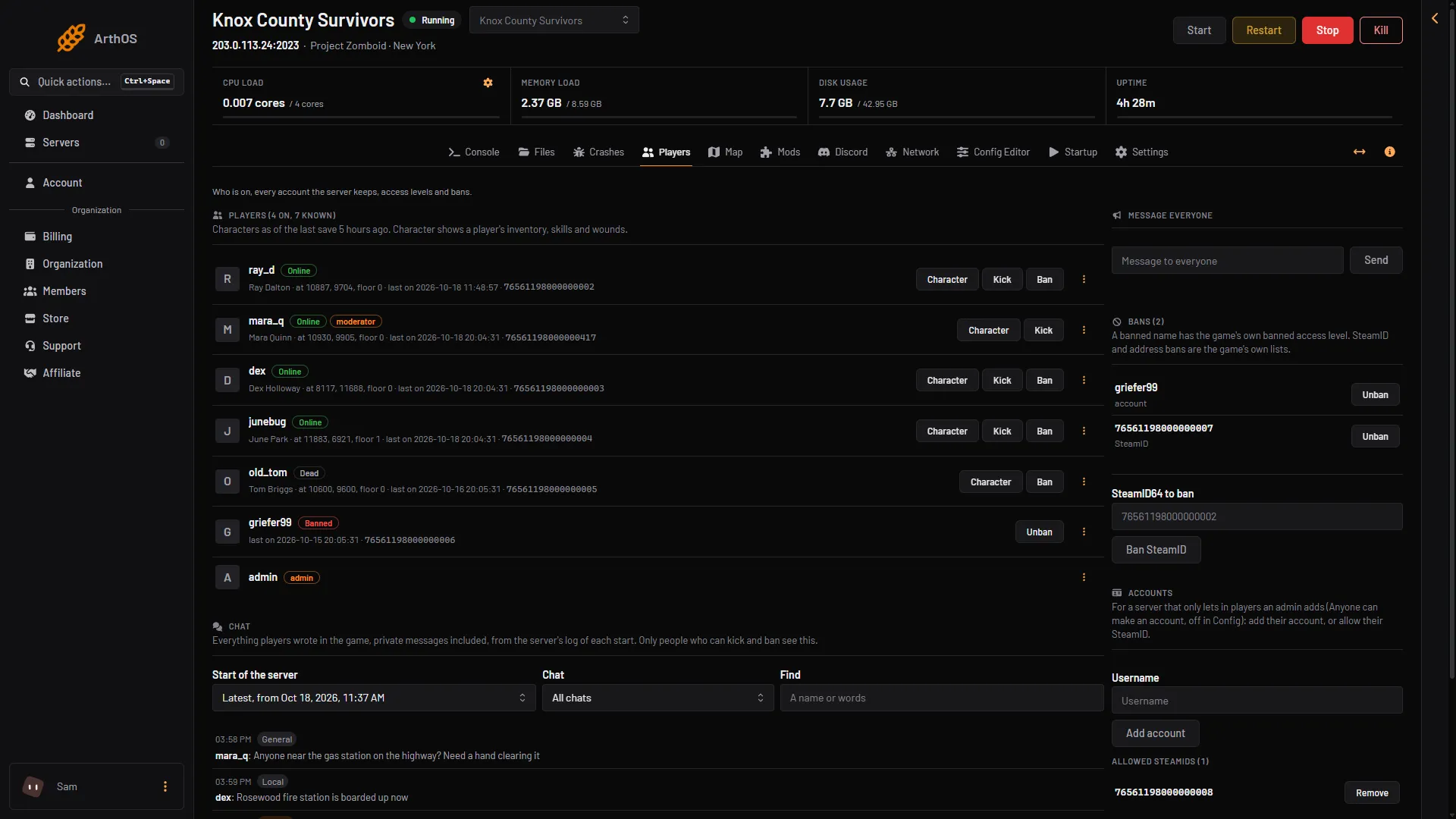
- Kick
- Ban
- Unban
- Bans (N) card
Ban a player
A ban sets the player’s account to the game’s own banned access level. If they are online, the panel then kicks them with your reason, or “Banned by an admin” if you leave it empty. The reason is shown with the kick only. The ban itself does not keep it.
- On the player’s row, choose Ban (2 above). A box titled “Ban (name)” opens.
- Type a Reason (optional) (1 below).
- Choose Ban (2 below).
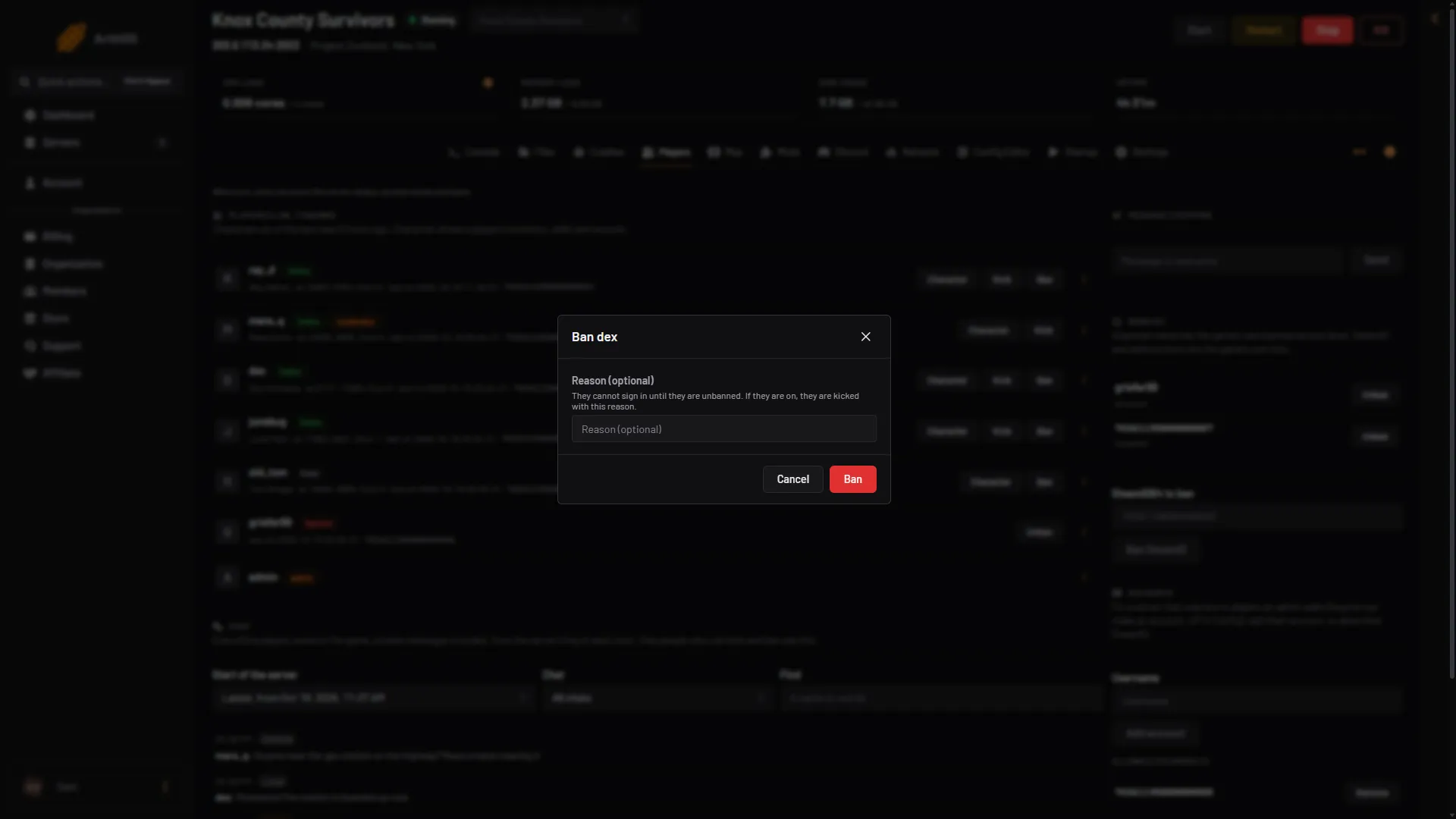
- Type the reason
- Ban
The row now shows the tag Banned. The panel reads the account back and tells you if the level did not change.
Not checked on Build 42.21 as of 18 October 2026: that a banned account is refused at sign-in.
A player who is a moderator or admin
The game refuses to ban a moderator (“This user can’t be banned”). The panel stops you earlier: it only bans players at the level user or priority. For any higher level, open the player’s menu and choose Access level, set the level to user with Set level, and ban them after that. See Project Zomboid access levels.
A player who has no account yet
A ban needs an account on the server. A player who never joined has none. The panel says the player has no account. If you know their SteamID, use Ban SteamID below.
Ban a SteamID
- On the Players page, find the card Bans (N).
- Type the ID in SteamID64 to ban (1). It is 17 digits and starts with
7656119. - Choose Ban SteamID (2). There is no confirm box.
The panel checks the game’s list afterwards and tells you if the ID is not in it.
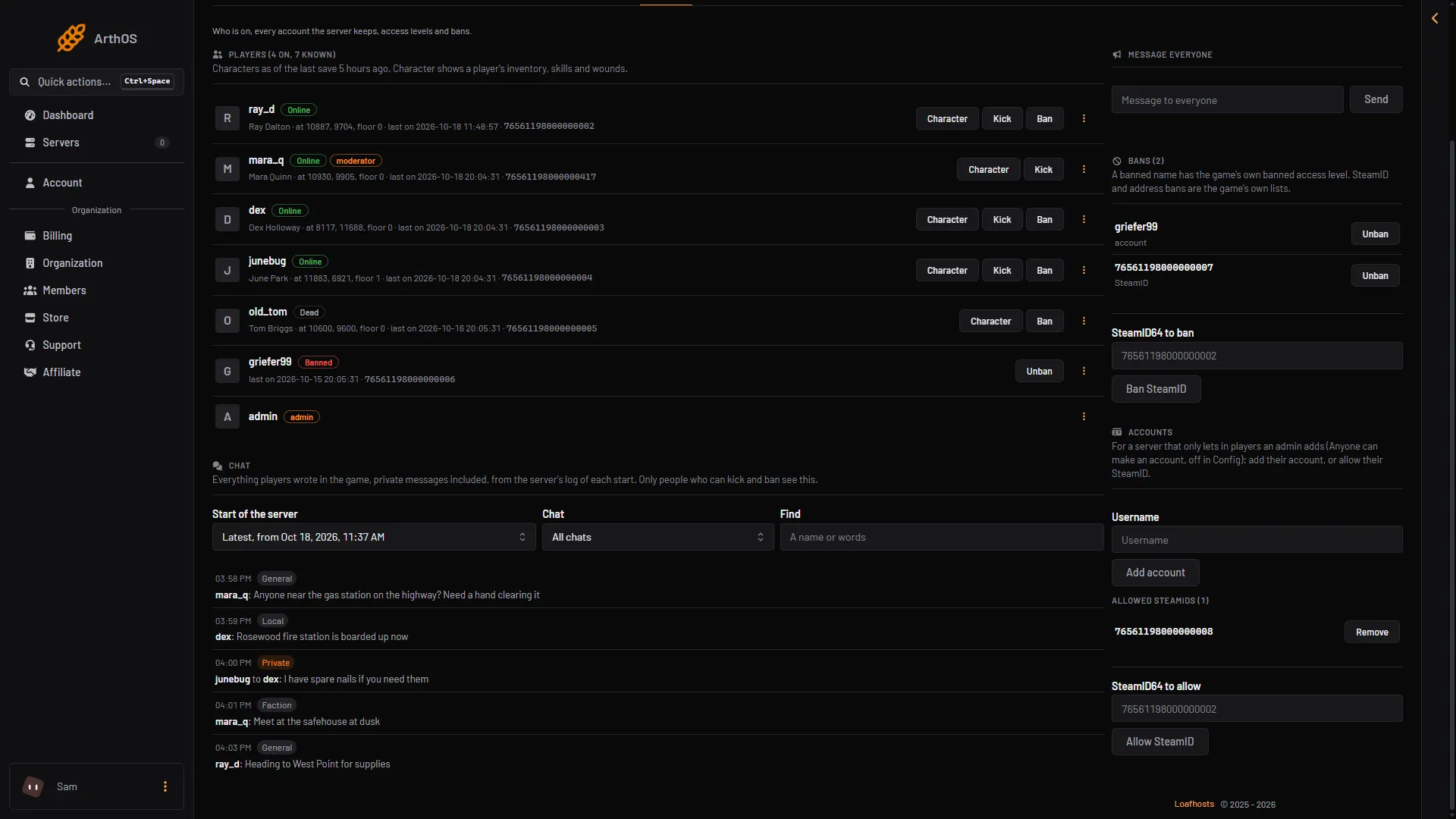
- Type the SteamID
- Ban SteamID
Remove a ban
- In Bans (N), find the ban. Each is marked as an account, a SteamID or an address.
- Choose Unban (3 in the first picture).
An account ban becomes the level user, so a player who was priority before comes back as user. You can also choose Unban on the row of a banned player in the main list.
The panel lists address bans and removes them. It does not make them. An address ban blocks everyone who connects from that address, which can be a whole household. Addresses are shown only to roles that may see them.
By hand
Type these on the Console page, without the slash. In the game, an admin types them in chat with a slash.
kickuser "name" -r "reason": kicks an online player.banuser "name" -ip -r "reason": bans the player.-ipbans their address too.-rgives a reason. Leave out either one if you do not need it.banid 76561190000000000: bans a SteamID.unbanidremoves it.banip 203.0.113.5: bans an address.unbanipremoves it.unbanuser "name": unbans a player.
The game answers “done” to unbanuser and unbanid even for a name or ID that was never banned, so check the Bans (N) card afterwards. banuser on a player who is not online changed nothing in the accounts file on Build 42.21. That is why the panel sets the banned level instead.
If it does not work
- Kick is missing. The player is not online. Only online players can be kicked.
- Ban is missing. The player is a moderator, admin or another staff level. Set them to
userfirst. - “Set it to user before banning them.” The player is a moderator, admin or another staff level. Lower the level first.
- “Has no account on this server.” The player never joined. Use Ban SteamID.
- The page says the server is not running. Accounts and bans still show from the server’s files. Start the server to kick, ban or unban.
- You cannot see Kick or Ban. Your role may not allow moderating players.
Sources: pzwiki.net: Admin commands