









In Project Zomboid, choose Join, add the server by its address and game port, enter an account name and password, then join. The address and port are on your server’s Network page. You make your account the first time you join.
What you need first
- The server is running. Its console shows
*** SERVER STARTED ****. A Loafhosts server stops by itself after 3 days with nobody on: choose Start at the top of the server page, or use the wake link (Make link in the Standby card in Settings). - The server’s address and its game port. The game port is the main one. The direct connection port next to it is used by the game itself. You do not type it.
- The same game build as the server. A new Loafhosts server runs the newest Build 42 release (42.21 on 18 October 2026); a server whose Steam Beta Branch [requires reinstall] is
legacy41runs Build 41. - The join password, if the server has one.
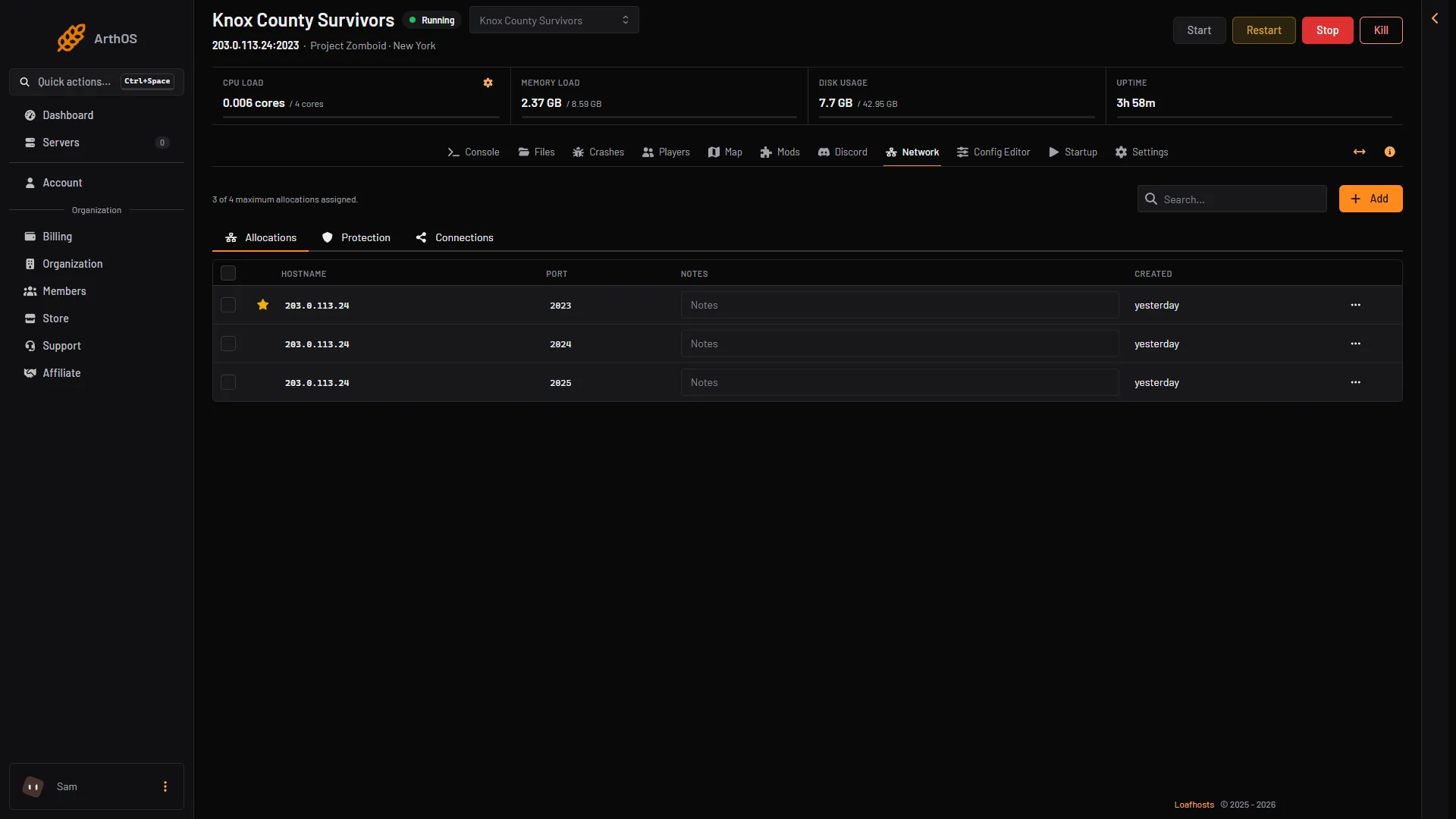
- Game port
- Direct connection port
The game port is the first one, marked with a star (box 1). The direct connection port is the next number up (box 2).
Join from the game
- Start Project Zomboid and choose Join.
- Open the Favorites tab.
- Add a server. Type the server’s address and the game port, for example
203.0.113.24and2023. - Type the account name and password you want on this server. You are making a new account.
- If the server has a join password, type it in the server password box of that form. Not checked on Build 42.21 as of 18 October 2026: the name of that box.
- Choose Save, select the server in the list, and join.
This follows the PZwiki dedicated server page. It lists the port as 16261 by default. A Loafhosts server has its own game port, so always use the one on the Network page.
A server that has List in the in-game browser switched on also shows up in the in-game server list, under its Server name. The Steam server browser lists every Steam server either way. Adding by address always works.
Your account
An account belongs to one server. The name and password you pick on the first join are made on that server. The same name on another server is a different account.
If the server has Anyone can make an account switched off, you cannot make your own. The server’s admin must add you first. See the whitelist guide. Ask the admin for your account name and password, and type exactly those when you add the server. The name and password you type there must match the account.
The game keeps your map data on your own computer, per server address and port. A new address or port starts with a fresh map.
The join password
The join password is set by the server’s owner. Enter it in step 5. It is not your account password. If you do not know it, ask the owner. See set a join password.
Mods
If the server has Steam Workshop mods, the game downloads them when you join. PZwiki says so. The first join can take longer. If you already have a newer version of a mod than the server has, you cannot join until the server is updated. Tell the owner.
If it does not work
- The server is not in the list. Add it by address. The in-game list only shows servers that opted in.
- It will not connect. Check the address and the game port on the Network page. See cannot connect to a Project Zomboid server.
- The game refuses your name. Use letters A to Z and numbers, or ask the owner to turn on Allow non ascii username.
- Wrong game version. Update your game from Steam. The server may also be waiting to update.
- Wrong password. The join password is not your account password. Ask the owner for the join password.
For more about hosting the game, see Project Zomboid servers.
Sources: pzwiki.net: Dedicated server, pzwiki.net: Server settings, pzwiki.net: Multiplayer