









A Project Zomboid whitelist means only players you add can join. Turn off Anyone can make an account in the Config Editor, restart, then add players on the Players page. Without the switch, anyone who finds your server can make an account. More about the game: Project Zomboid servers.
Close the server to new accounts
- Open the Config Editor.
- In the group Joining, find Anyone can make an account (
Open). Its help says: “Off, only players an admin adds can join (a whitelist).” - Switch it off and save.
- Restart the server. Saved changes apply after a restart.
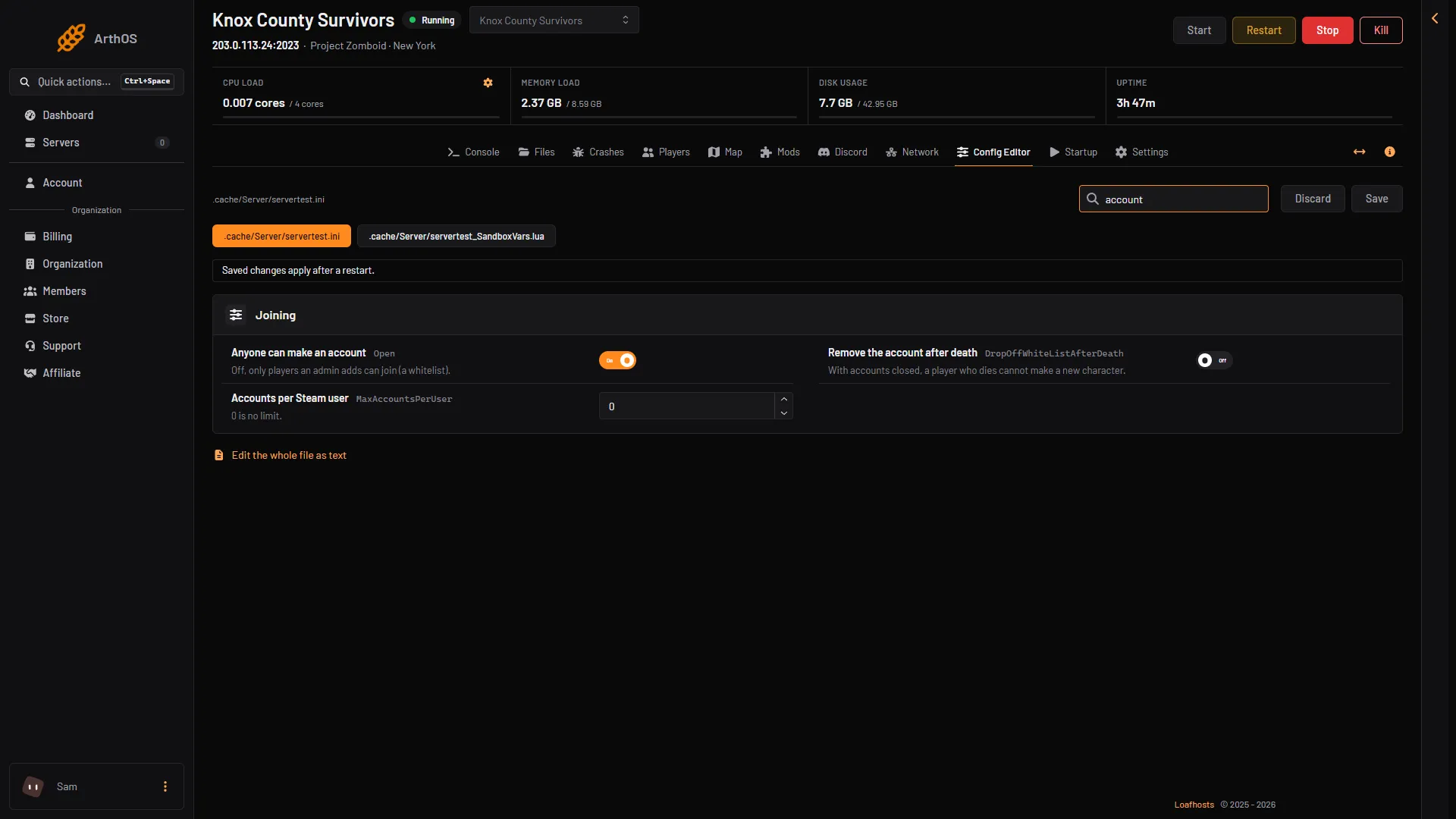
- Anyone can make an account
- Remove the account after death
Players who already have an account can still join. New players cannot make one.
Add a player
Use either way. Both are on the Players page, in the Accounts card.
Add an account
- Type the player’s name in Username (1). It cannot hold a double quote.
- Choose Add account (2).
The panel adds the account with no password set. It then reads the accounts file back and tells you if the account is not there. It refuses a name that already has an account.
What the player types at the first sign-in is not checked, so use a sure path: add the account, then set a password. On the Console page type setpassword "name" "password", and give the player that name and password. On the player’s side, the name and password they type when adding the server must match.
Allow a SteamID
- In Accounts, type the ID in SteamID64 to allow (4). It is 17 digits and starts with
7656119. - Choose Allow SteamID (5). There is no confirm box.
The ID joins the list Allowed SteamIDs (N). To take one off, choose Remove at the right of its ID (3 is the list; Remove is at the right of each ID).
PZwiki describes addsteamid as “add a SteamID to a list of allowed SteamIDs on server”. The panel’s Accounts hint says: “add their account, or allow their SteamID.”
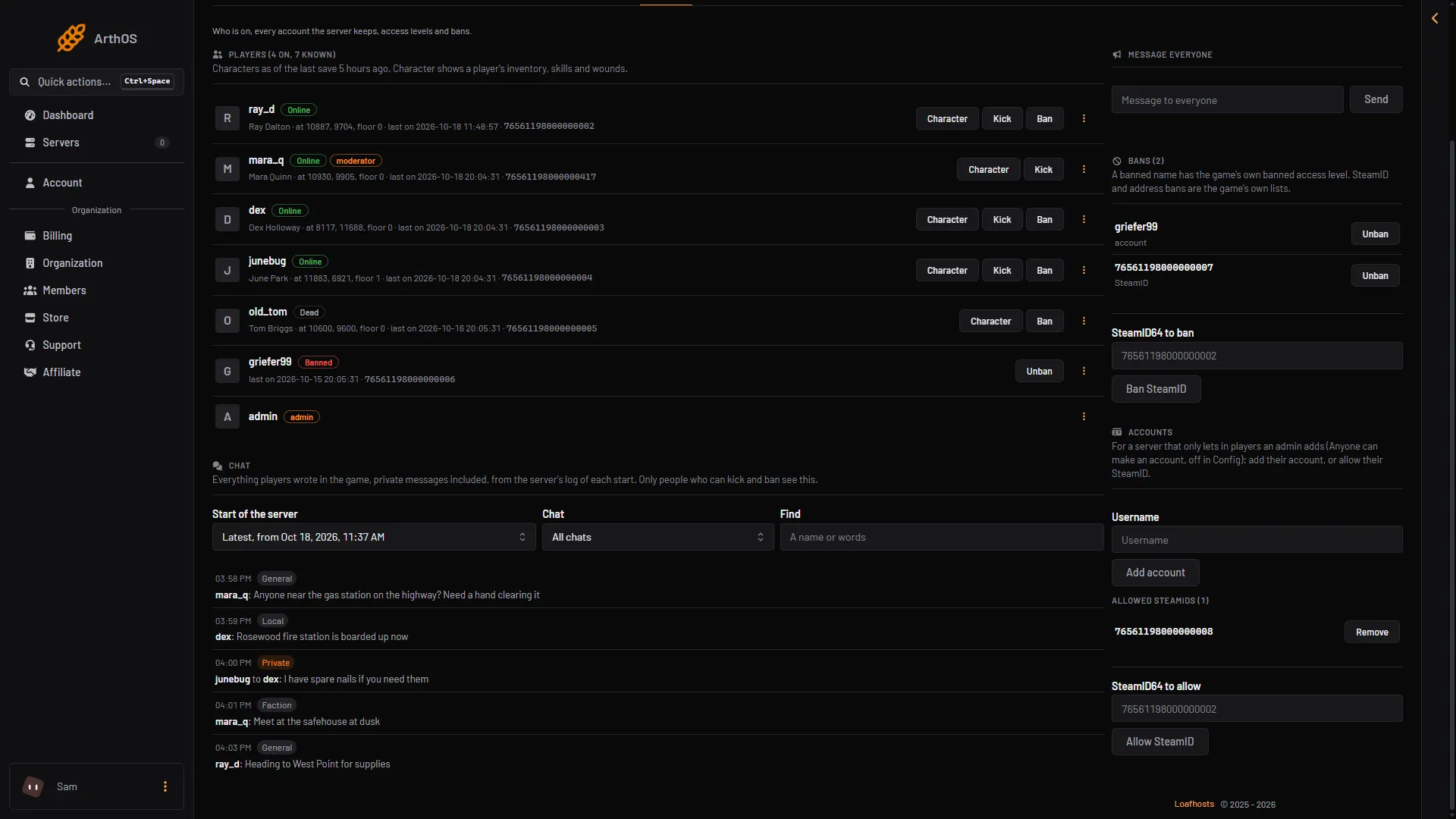
- Username
- Add account
- Allowed SteamIDs
- SteamID64 to allow
- Allow SteamID
Remove a player
- In the Players list, open the player’s menu and choose Remove account.
- In the box titled “Remove (name)‘s account”, choose Remove account.
The player needs a new account to join again. Their saved character is not deleted. If you want to keep them out for good, ban them instead.
Remove the account after death
On a closed server, Remove the account after death (DropOffWhiteListAfterDeath) is in the same Joining group. The game’s own words: it removes player accounts from the whitelist after death, “This prevents players creating a new character after death” on closed servers. A player who dies must then be added again to play. It is off by default.
By hand
Type these on the Console page, without the slash. In the game, an admin types them in chat with a slash.
adduser "name" "password": adds a player to a whitelisted server. The game’s help gives a password here.addsteamid "76561190000000000": allows a SteamID.removesteamidtakes it off.removeuserfromwhitelist "name": removes an account.
To close the server by hand, stop the server, open the server’s .ini file in Files (the .cache/Server folder), set Open=false and start the server. The game answers “done” to removeuserfromwhitelist even for a name that has no account, so check the Players page afterwards.
If it does not work
- New players still make accounts. Anyone can make an account is still on, or the server has not restarted since you changed it.
- A player is refused. They have no account and their SteamID is not allowed. Add one of the two.
- The panel says the name “has an account already”. That name is taken. Pick a different one, or find the existing account in the list.
- Nothing happens. Nothing happens when you choose Add account while the server is stopped. The server must be running to make changes. The page says so when it is stopped.
- A player who died cannot rejoin. Remove the account after death is on. Add them again.
Sources: pzwiki.net: Server settings, pzwiki.net: Admin commands