










You install Satisfactory mods from the Mods page. It searches ficsit.app, the mod site for the game, and puts the files on your server for you. One thing to know first: once a mod is on, only players who have the same mods can join. Read how players get the same mods before you tell friends.
Mods are for the PC game. They come from ficsit.app, and every mod needs a loader called SML. The panel installs SML with your first mod. See what SML is.
In the panel
- Open your server and choose the Mods page.
- Choose the Add mods tab.
- Type a name in Search ficsit.app. To browse instead, pick a Tag and an Order, such as Most downloaded or Recently updated.
- Read the card. It shows how many downloads the mod has and a short summary. Some cards carry a warning chip, Reported damaged or Reported broken. Those are marks from the mod’s own page on ficsit.app. A card without one of these chips is not marked. Pick a different mod when you see a chip.
- Check the line under the name. A card that says No server version for this game version has no build for your server’s game version. Its Install button is greyed out. Mods follow the game, and a new game patch can leave a mod behind until its author updates it.
- Choose Install on a mod that fits.
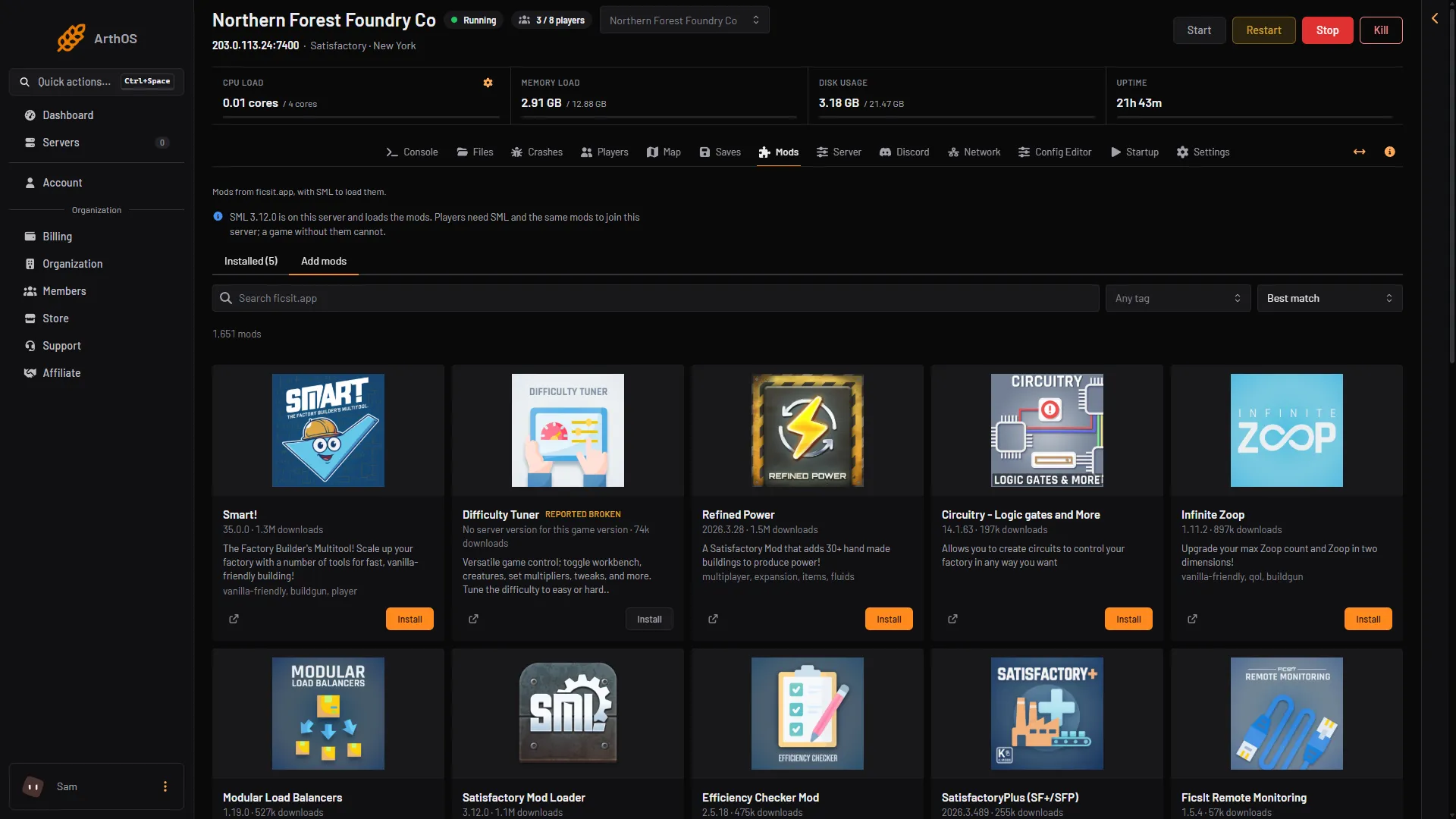
- Search for a mod
- Pick a tag
- Pick an order
- Skip a reported mod
- Choose Install
Read what it will install
A box titled Install (mod name)? opens. It reads what the mod needs first. Then it lists every mod it will install, each with its version and its size. A mod that another mod needs is marked needed. At the bottom it says how much it downloads in all.
The box also says: the server stops, the mods are put in place, and the server starts again if it was running.
If this is the first mod on the server, you also see this warning: “Once a mod is on, players without SML and the same mods cannot join this server.” Tick I understand: players need the same mods. Install stays greyed out until you do.
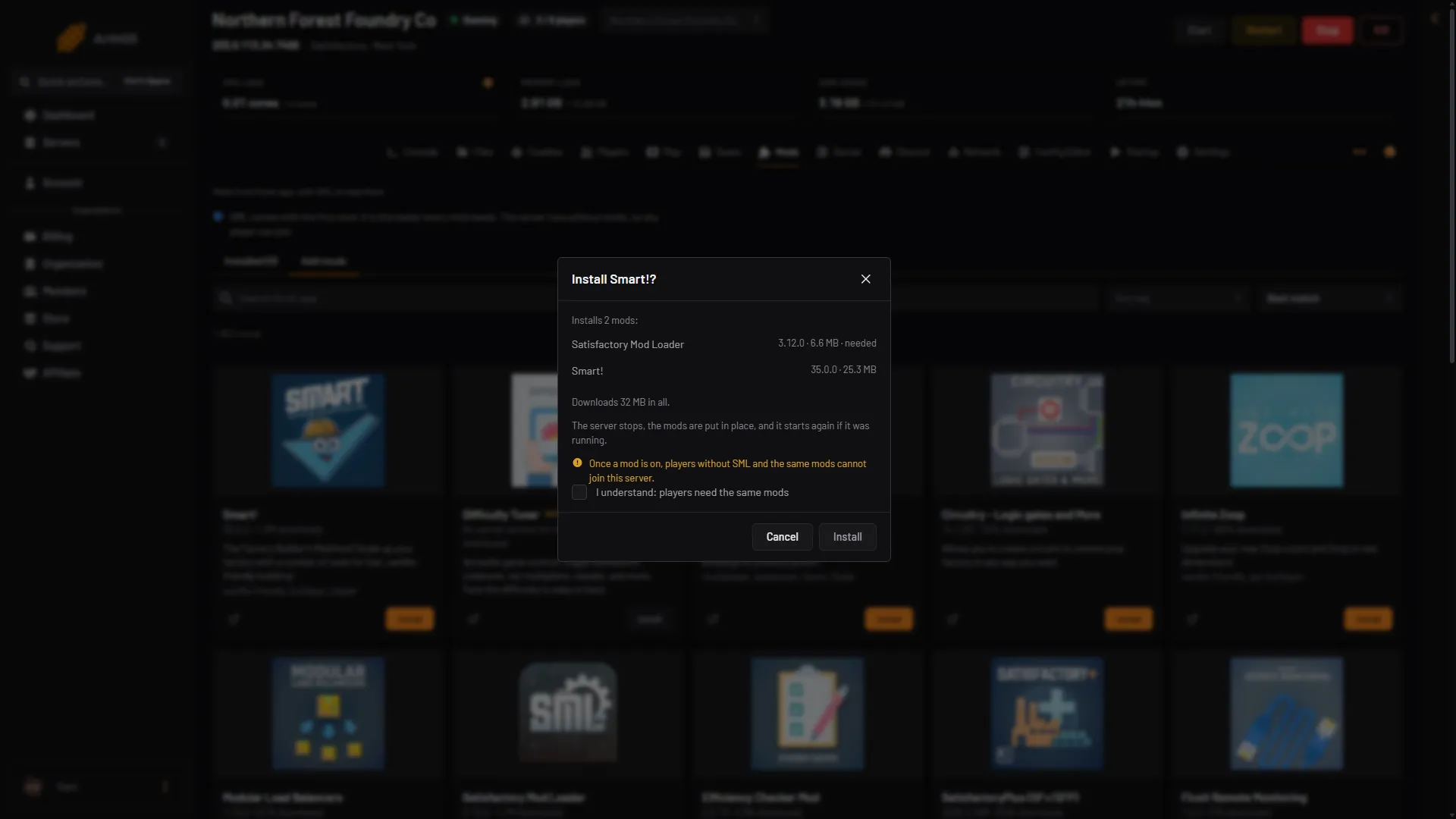
- Every mod it installs
- Download size
- Tick to confirm
- Choose Install
Choose Install. A message says “Installing”, and the header shows how it goes.
Check that it loaded
- When the install is done, go to the Installed tab.
- If the server was running, it was started again. Wait for it to be ready.
- Each mod row shows a chip. Loaded means the game picked the mod up at this start. Not loaded yet means it has not. Give it a minute.
- If the server was stopped before the install, it stays stopped. Choose Start at the top right of the server page, then look for Loaded.
Loaded and Not loaded yet only show while the server is running.
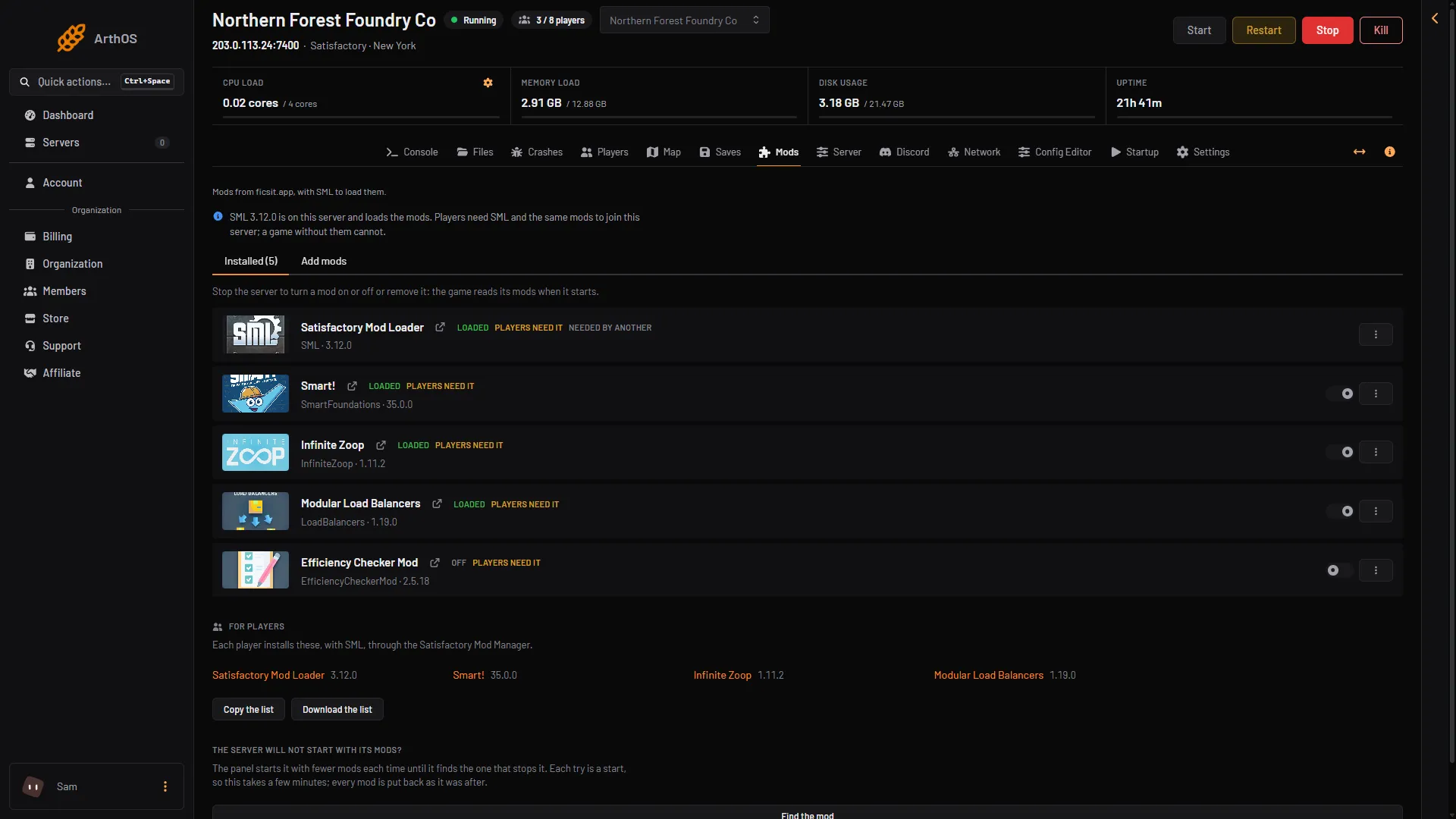
- Loaded
- Players need it
Each row also says Players need it or Server only. A server only mod works without anything on the player’s PC. If a row says Players need it, every player must install it too.
Tell your players
Open For players at the bottom of the Installed tab. It lists the mods players need. Use Copy the list or Download the list and send it to them. It is a plain list for reading: players add the mods by hand. Then follow how players install the same mods.
If it does not work
- Install is greyed out on a card. The card says No server version for this game version, or another install is still running. Wait for the first one to finish, or pick another mod.
- The box says a mod cannot be installed. The box shows the reason. Read it, then pick a different mod.
- The server will not start after an install. Use Find the mod at the bottom of the Installed tab. It starts the server with fewer mods each time until it finds the one that stops it, and puts every mod back after. Each try is a start, so it takes a few minutes.
- A mod shows Not loaded yet for a long time. The Mods page can show What SML said at this start with any problem SML found. The Crashes page can also show a finding such as “A mod did not load” with the line from the log.
More about the game: Satisfactory servers.
Sources: docs.ficsit.app: Index.html, satisfactory.wiki.gg: Modding