









To be admin under your own name, join once with your own account. Then on the Players page open the menu on your row, choose Access level, pick admin and choose Set level. Your server also has an admin account made for you: join with the Admin Username and Admin Password from the Startup page and that account is an admin.
Log in as the admin
- Open the Startup page of your server.
- Read Admin Username. The default is
admin. - Read Admin Password. A server ordered from the store has a random one.
- In Project Zomboid, join your server. When the game asks for a username and password, type these two.
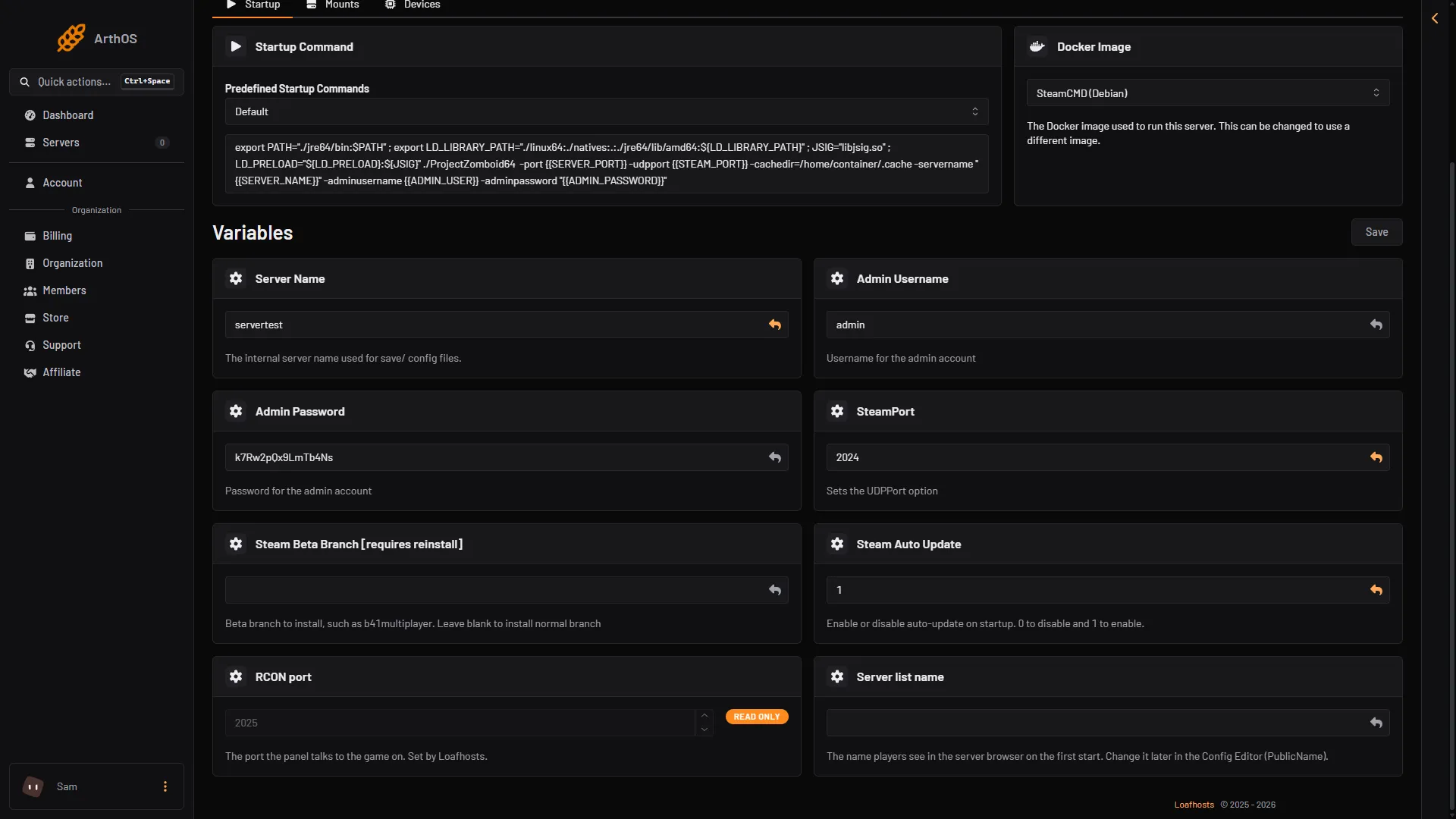
- Admin Username
- Admin Password
The Startup page shows Admin Password in plain text, so anyone who can open the page can read it.
The server makes the admin account only the first time it starts. Changing Admin Username or Admin Password later does not change that account. To change the password of an account that exists, use setpassword (see below).
Make another player admin
The player must have joined the server once, so their account exists.
In the ArthOS panel
- Open the Players page.
- On the player’s row, open the three-dot menu and choose Access level.
- In the “Access level for” box, open the Access level list and pick
admin(box 1). The help line under the list says: “The game’s own levels, from user (no powers) to admin (every power).” - Choose Set level.
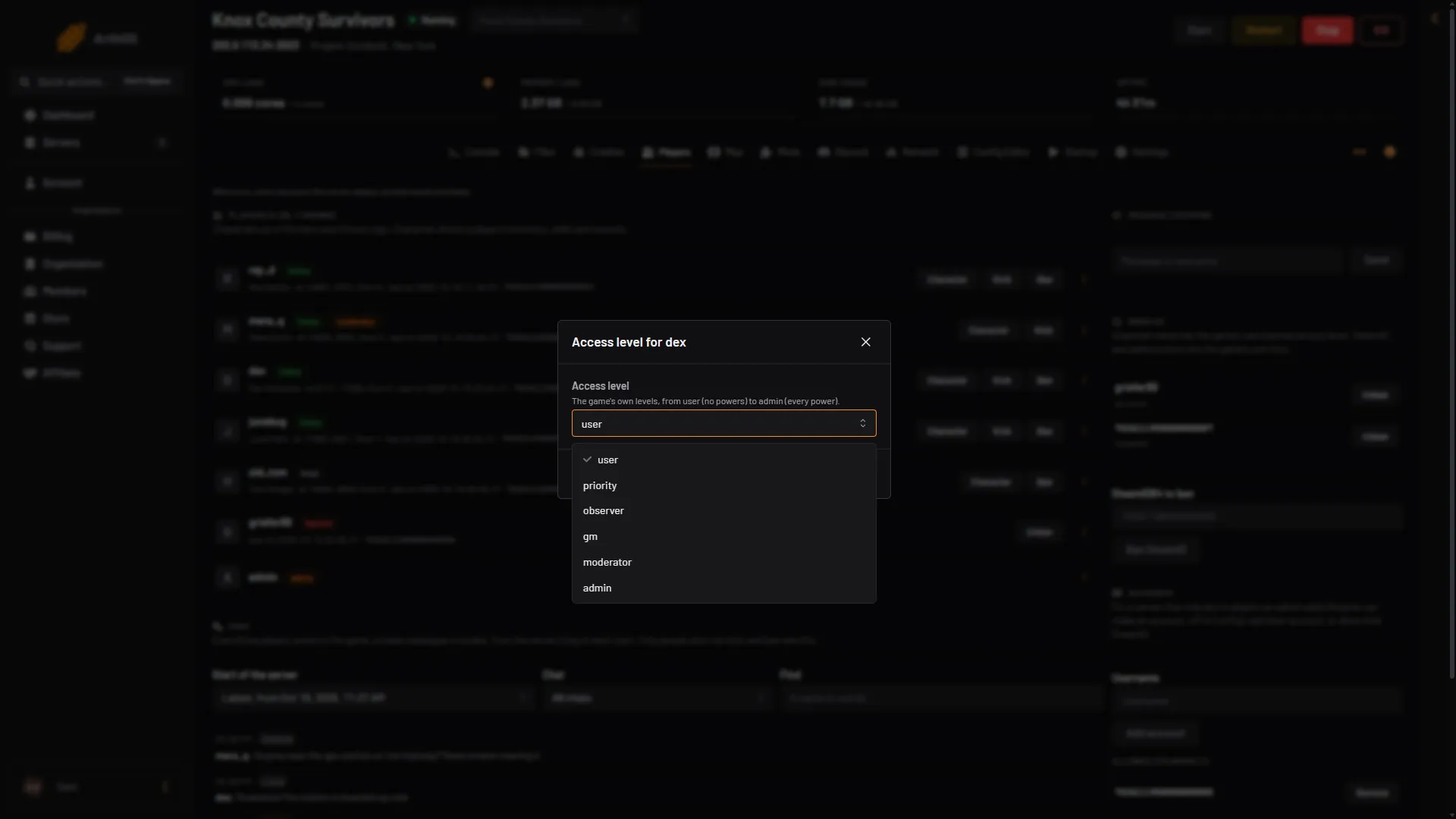
- admin
The page shows the new level on their row. Changing a level needs your role to allow it on the panel.
With a command
Use the Console page (no slash) or the game chat as an admin (with a slash):
setaccesslevel "username" "admin"PZwiki lists the levels as user, priority, observer, gm, moderator and admin.
Check that you are admin
- On the Players page, a staff level shows next to the name of the account.
- In the game chat, type
/help. An admin gets the list of commands. See admin commands.
Change an admin password
In the Console, type:
setpassword "admin" "NewPassword"Use the admin’s own username. Changing it here does not change Admin Password on the Startup page, so write it down yourself. Not checked on Build 42.21 as of 18 October 2026: whether the start parameter puts the Startup value back at the next start.
If it does not work
- “Wrong password” at login. Check Admin Username and Admin Password on the Startup page. Names must match exactly.
- The command says done but nothing changed. The game answers “done” for a name that does not exist. Check the name on the Players page.
- A new account for your name. On a server where anyone can make an account, joining with a wrong username makes a plain
useraccount, not an admin. - Your admin name changed after you edited Startup. The old admin account stays. Use the old name or give the new account a level.
More about the game: Project Zomboid servers.
Sources: pzwiki.net: Startup parameters, pzwiki.net: Admin commands, pzwiki.net: Dedicated server