






A plugin runs with full access to your server and the computer it runs on, so one bad file can do real harm. The ArthOS panel checks each plugin it installs, and Scan for tampering reads every jar in your plugins folder for hidden code. The safest habit is to download plugins only from the plugin’s own page on its original site.
Paper’s own documentation says the same: plugins have full access to the server, so never install one from a site you do not know.
What the panel checks for you
When you install a plugin from Add-ons, Plugins, the version list says: “The file is checked against the source’s checksum, and read for hidden code, before it is used.”
A checksum is a short code worked out from a file. If even one byte changes, the code changes. So the panel can tell that the file it got is the file the source published.
The panel also warns you about copies. If a plugin is on CurseForge and on its own home site, you see a notice that the plugin “is also published on” the original site. The panel’s own notice says: “Copies of popular plugins re-uploaded to CurseForge have carried malware. The copy on the original site is the safer choice.” Choose Install from the original site. Use this copy anyway is there if you still want the other one.
In the ArthOS panel
Run a scan now and then, and always after you upload a jar yourself. The scan only reads files, so you can run it any time.
- Open Add-ons, then Plugins.
- In the Installed plugins box, choose Scan for tampering.
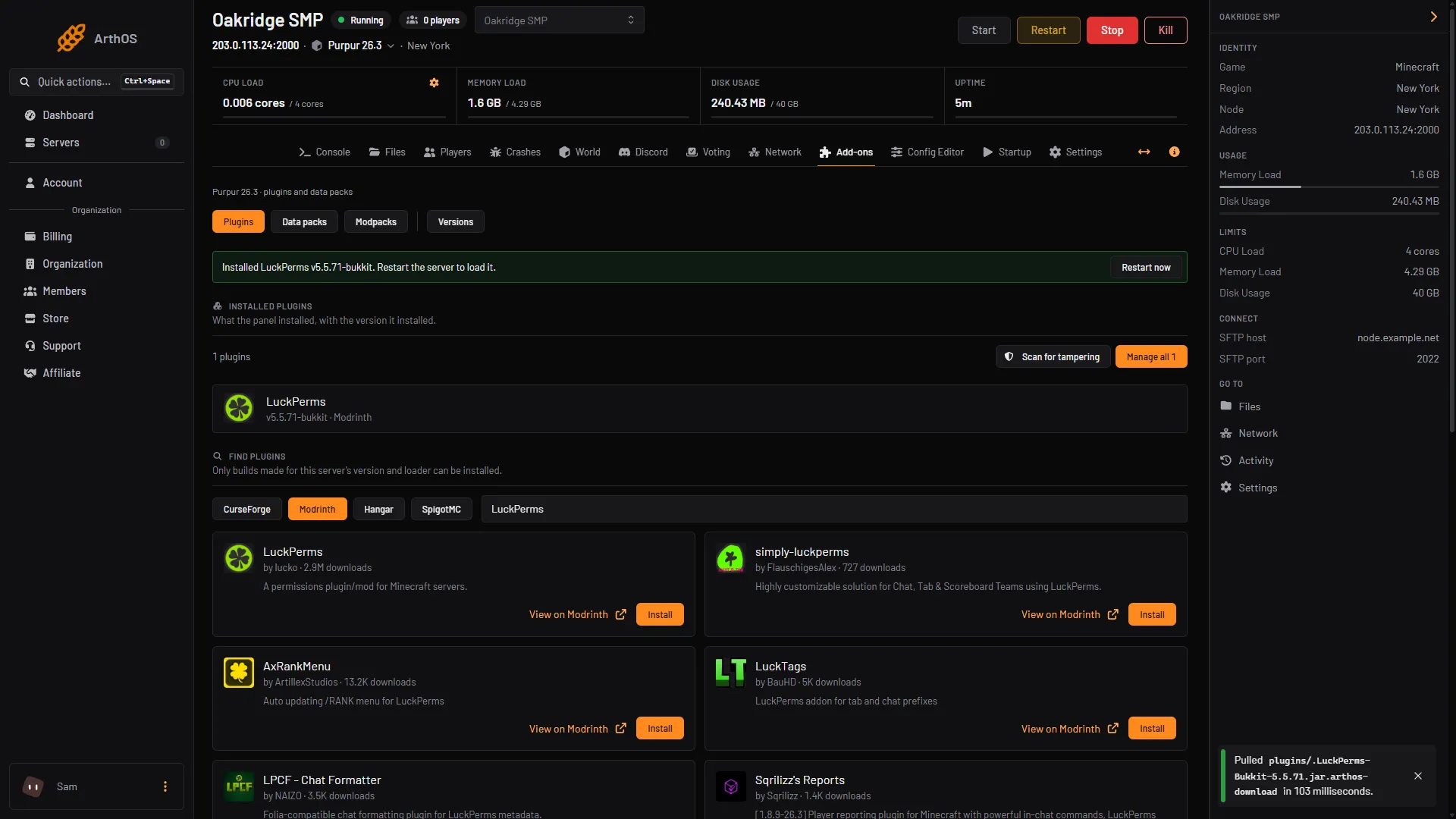
- Scan for tampering
- Manage all
The scan reads every jar, including the ones you uploaded. The texts below are the panel’s own. It ends in one of two ways.
- All clear. The page says “Checked N jars: none carries hidden code.” You need to do nothing.
- Something found. The page says how many of the jars “carry code that decrypts and runs a hidden program. Stop the server and put back clean copies.”
The scan looks for one kind of hidden code. It is not a guarantee that a plugin is harmless: install plugins only from the author’s own page.
Some files may be skipped. The page then adds “Not checked:” and the file names. A skipped file was too large or could not be read. Check those by hand, as described below.
If a plugin is flagged
- Stop the server. Stopping disconnects any players.
- Take a backup first.
- Choose Review, or open Manage all and use the Flagged filter. A flagged plugin has a red Tampered tag. Point at it to see “Hidden loader found in” and the name of the class that holds it. In short: the file is not what the author published.
- If you installed the plugin from the panel, choose Put back a clean copy. The panel fetches the file again from its source, checks it, and tells you the plugin “was put back from its source and checked.”
- Scan again to make sure the page is clear, then start the server.
Put back a clean copy only works for plugins the panel installed. For a jar you uploaded yourself, there is no button. After the backup, delete the jar in Files, download a fresh copy from the original site and upload it.
If the scan flags the server software itself, a Reinstall the server software button appears. Take a backup first and read the dialog before you confirm. It opens Versions, where you can install the server software again. See change the server version.
A flagged file means the server may already have run hidden code. Look in each plugin’s config file in Files for stored passwords or tokens, such as a database password or a Discord token, and change them where they were issued.
By hand
Use this on any host, or for jars you upload yourself.
- Keep a backup before you add or change a plugin.
- Download only from the plugin’s own page: Modrinth, Hangar, SpigotMC or its own site. Do not use a copy someone sent you or a link from a video.
- Compare the file with a fresh copy. Download the same version again from the original site and check that the file size is the same. Modrinth lists two kinds of checksum (SHA-1 and SHA-512) and Hangar one (SHA-256); use whichever the site shows. On Windows,
certutil -hashfile plugin.jar SHA256prints the SHA-256 checksum of your file (useSHA1orSHA512for the others). On Linux and macOS usesha256sum plugin.jar. The two codes must match. - Keep a plugin only if you know why it is there. Open Manage all and look for files you did not install.
- Put plugin jars only in the
pluginsfolder. Restart the server instead of using/reload.
If it does not work
- The scan says “Not checked”. The file was too large or unreadable. Download a fresh copy from the original site and compare the checksum as above.
- There is no Put back a clean copy button. The panel did not install that plugin. Delete the jar and upload a fresh one.
- The scan flags something again after you put back a clean copy. Scan once more and look at which file is named. If it is the server software, reinstall it from Versions. If it is a plugin you uploaded, delete it and use a fresh copy from the original site.
- You are not sure which copy is the original. Look for the plugin’s name on Modrinth, Hangar or SpigotMC and use the page the author links to from their own project.
Servers for all of this are on the Minecraft page.
Sources: docs.papermc.io: Adding plugins, hangar.papermc.io: Versions, api.modrinth.com: Version