





Skip to content
Minecraft advanced · 11 min read

How to Install a Minecraft Datapack with the LPV5 Datapack Manager

Install a Minecraft datapack on any Java server: browse CurseForge in the LPV5 datapack manager, drop it into your world, then reload to activate.

By Bradford Updated

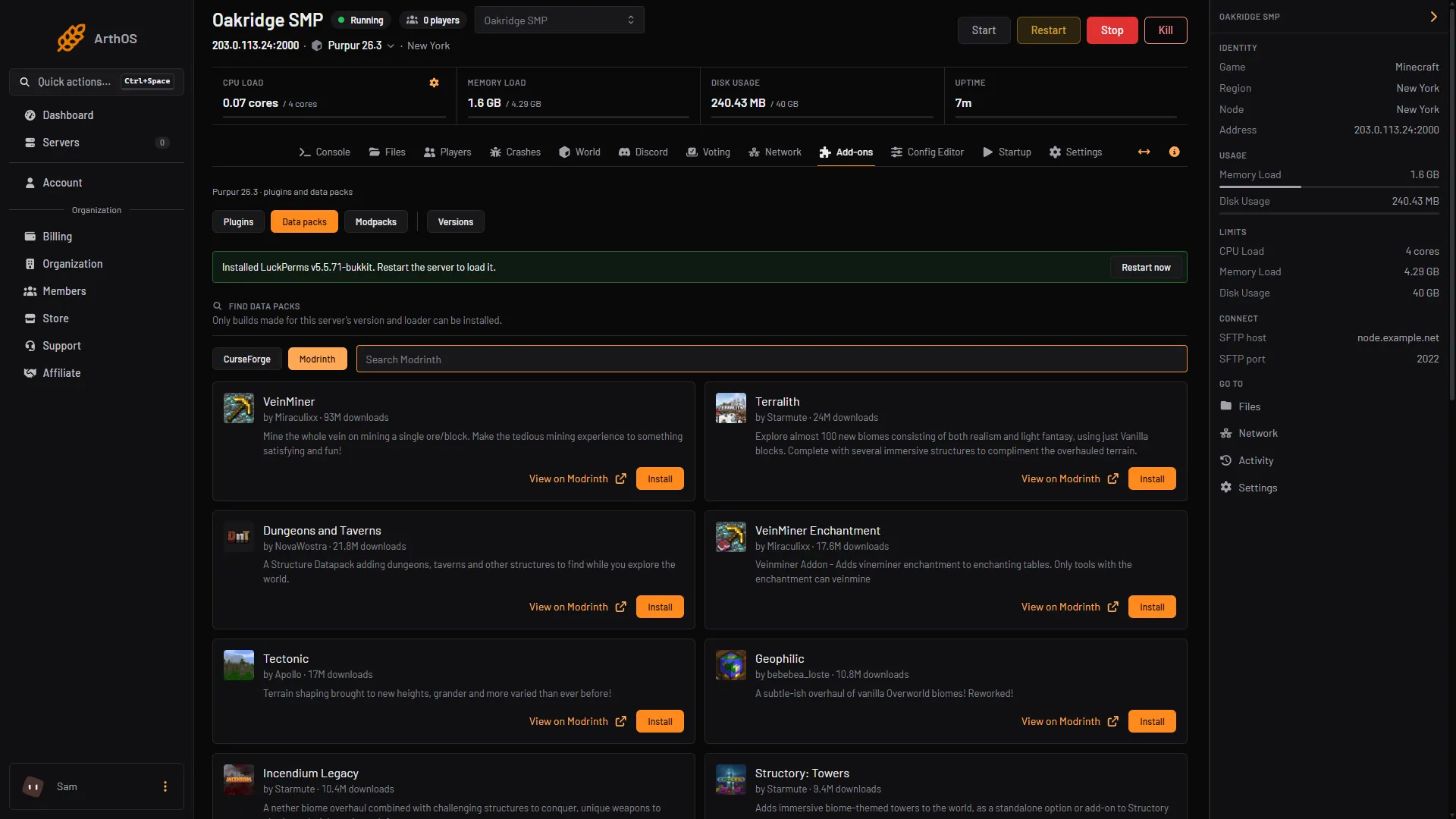
The Datapack Manager lets you install a Minecraft datapack onto any Java server by browsing CurseForge right in the LPV5 panel. It downloads the datapack into your active world’s datapacks folder for you, so you do not have to find the folder or upload anything by hand. This guide explains what datapacks are, how the tool installs them, and the one step everyone forgets: activating them with a reload or restart.

What a Datapack Is and What the Tool Does

A datapack is a vanilla-friendly way to change how your world behaves, adding things like custom recipes, loot tables, advancements, functions, predicates, and game rules without any mod loader at all. Because it is built into Minecraft itself, a datapack changes a single world rather than the whole server, which is why it installs into that world’s own datapacks folder. The Datapack Manager browses CurseForge datapacks and installs the one you choose into that folder for you. It reads the active world name from your server.properties, so it always targets the correct world rather than guessing, even if you have several worlds on the server.

Note: Datapacks tweak world behaviour using built-in game features, so no mod loader is required

Note: A datapack changes one world, not the whole server, so it lives inside that world’s datapacks folder

Note: Install places the datapack into your active world’s datapacks folder automatically

Note: The panel reads the world name from server.properties, so it installs into the world your server is actually running

Datapacks Work on Vanilla and Most Loaders

One of the best things about datapacks is how widely they work. Because they use built-in game features rather than a loader API, datapacks run on vanilla Minecraft and on most loaders too. That makes the Datapack Manager available on any Java server, unlike the Mods Manager, which is limited to modded loaders. So whether you are running a plain vanilla survival world or a Paper server with a stack of plugins, you can still add datapacks on top, and they sit happily alongside whatever else your server is already running.

Tip: If you want world-changing content without committing to a modded loader, datapacks are the lightest way to do it

Tip: Datapacks are a great fit for survival and minigame servers that want custom recipes or rules without the weight of mods

Note: Datapacks work on vanilla Minecraft and most loaders

Note: The Datapack Manager is available on any Java server, regardless of server type

Note: Datapacks coexist with plugins, so a Paper server can run both at once

How to Install a Minecraft Datapack Step by Step

Installing a datapack is a short search-and-install job, and the panel takes care of finding the right folder. You search CurseForge, pick a datapack, and install; it downloads into your active world’s datapacks folder as a tracked job. The only thing left after that is activating it, which is covered next.

  1. Log in to LoafHub at hub.loafhosts.com and open your Minecraft server
  2. Open the Datapack Manager tool on the server dashboard
  3. Search CurseForge for the datapack you want by name
  4. Select the datapack and start the install
  5. Let the tracked job download the datapack into your active world’s datapacks folder
  6. Activate the datapack with an in-game reload or a server restart
  7. Confirm the datapack is active in game

Note: The install targets the active world named in server.properties, so it always lands in the right place

Activate the Datapack: Reload or Restart

This is the step almost everyone misses. Installing the datapack puts the files in place, but it does not switch the datapack on. To activate it you need to run the in-game reload command or restart the server, at which point Minecraft loads the datapack into your world. Until you do one of those, the datapack sits in the folder doing nothing.

  1. After the install finishes, open the console or connect as an operator in game
  2. Run the reload command, or restart the server from the panel
  3. Confirm the datapack now appears in the world’s active datapack list

Tip: If a datapack does not seem to apply, run reload again or do a full restart, then check the active datapack list in game

Tip: A full restart is the most reliable way to make sure a newly installed datapack loads cleanly

Warning: A datapack does not activate on its own. You must run a reload or restart the server before it takes effect

Match the Game Version and Back Up First

Datapacks are tied to a pack format that follows the Minecraft version, so a datapack written for one version may not load, or may misbehave, on a very different version. Before you install, check that the datapack lists support for the version your server runs. It is also worth a quick backup, because a datapack can change recipes, loot, and game rules in a world, and the cleanest way to undo an unwanted change is to restore. Every Loafhosts plan includes automatic versioned backups with one-click restore, so taking a fresh one before you experiment costs you nothing.

  1. Check the datapack’s listed Minecraft versions on CurseForge and confirm it supports your server’s version
  2. Open the Backups tool and take a fresh backup of your world before installing
  3. Install the datapack, then reload or restart to activate it
  4. If you do not like the result, use the safe remove, or restore the backup to roll the world back

Tip: Datapacks follow the game’s pack format, so prefer one that lists your exact Minecraft version

Tip: A backup before installing means any recipe or game-rule change is fully reversible

Warning: A datapack built for a very different Minecraft version may fail to load or behave unexpectedly, so verify the version before installing

Managing and Removing Datapacks

The Datapack Manager keeps track of what it installed, so taking a datapack back out is a single safe action rather than a manual file delete. After removing one, give the world a reload or restart so the change registers, just as you did when activating it. If you run more than one datapack, removing them one at a time and reloading between changes makes it easy to see which datapack was responsible for any behaviour you wanted to stop.

Tip: Use the safe remove to uninstall a datapack you no longer want

Tip: Reload or restart after removing a datapack so the world updates

Tip: Keep only the datapacks you actually use, so it is easy to see what is changing your world

Datapacks vs Mods vs Plugins

Datapacks round out the picture of how you can change a Minecraft server, so it helps to see where they sit. Datapacks change a single world using built-in features and work almost everywhere. Mods change the game through a modded loader and live in the mods folder. Plugins extend Bukkit-style servers and live in the plugins folder. Each has its own panel tool, and choosing by what you want to change keeps things simple.

Note: Datapacks: installed into a world’s datapacks folder, work on vanilla and most loaders, installed with this Datapack Manager

Note: Mods: installed into the mods folder on Forge or Fabric, installed with the Mods Manager

Note: Plugins: installed into the plugins folder on Bukkit-style loaders, installed with the Plugin Manager

Frequently Asked Questions

How do I install a datapack on my Minecraft server?

Open the Datapack Manager on your server dashboard, search CurseForge for the datapack, and install it. The panel downloads it into your active world’s datapacks folder, reading the world name from server.properties. Then run the in-game reload command or restart the server to activate it.

Do datapacks work on Paper or modded servers, or only vanilla?

Datapacks use built-in game features rather than a loader API, so they work on vanilla Minecraft and most loaders. That is why the Datapack Manager is available on any Java server, unlike the Mods Manager, which is limited to modded loaders like Forge and Fabric.

Why isn’t my datapack working after I installed it?

Installing a datapack only places the files; it does not switch it on. You must run the in-game reload command or restart the server to activate it. If it still does not apply, run reload again or do a full restart, then check the world’s active datapack list in game.

Which world does the Datapack Manager install into?

It installs into your active world’s datapacks folder. The panel reads the world name from server.properties, so it always targets the world your server is actually running rather than guessing or installing into the wrong folder.

What is the difference between a datapack, a mod, and a plugin?

A datapack changes one world using built-in features and works on vanilla and most loaders. A mod changes the game through a modded loader and lives in the mods folder, installed with the Mods Manager. A plugin extends Bukkit-style servers and lives in the plugins folder, installed with the Plugin Manager.

How do I remove a datapack?

Because installs are tracked, the Datapack Manager can uninstall a datapack with a built-in safe remove rather than a manual file delete. After removing it, run a reload or restart the server so the world updates and drops the datapack from its active list.

Rate this guide

Tap a star — it helps us decide what to write (and fix) next.