






A Java server will not run until the Minecraft End User License Agreement (EULA) is accepted, which means eula.txt contains eula=true. On first start the server writes that file with eula=false and shuts down. In the ArthOS panel, the Console then asks you to accept; press Accept EULA and the server starts by itself.
What eula.txt is
The file sits in the server’s main folder. A fresh one looks like this:
#By changing the setting below to TRUE you are indicating your agreement to our EULA (https://aka.ms/MinecraftEULA).
#Generation time
eula=false
By changing it to true you say you have read and accept the Minecraft EULA. The server will not start without it, and files such as the world are not created until it is accepted. You only do this once per server.
In the ArthOS panel
- Open the server and go to Console. Press Start.
- The server will not run until you agree, and a dialog titled Minecraft EULA Agreement opens: “The Minecraft server requires you to accept the Minecraft End User License Agreement before it can start.”
- Read the Minecraft EULA.
- Press Accept EULA (1). The panel sets
eula=trueineula.txtand shows “EULA accepted successfully.” The server then starts by itself. Cancel closes the dialog and leaves the file as it was.
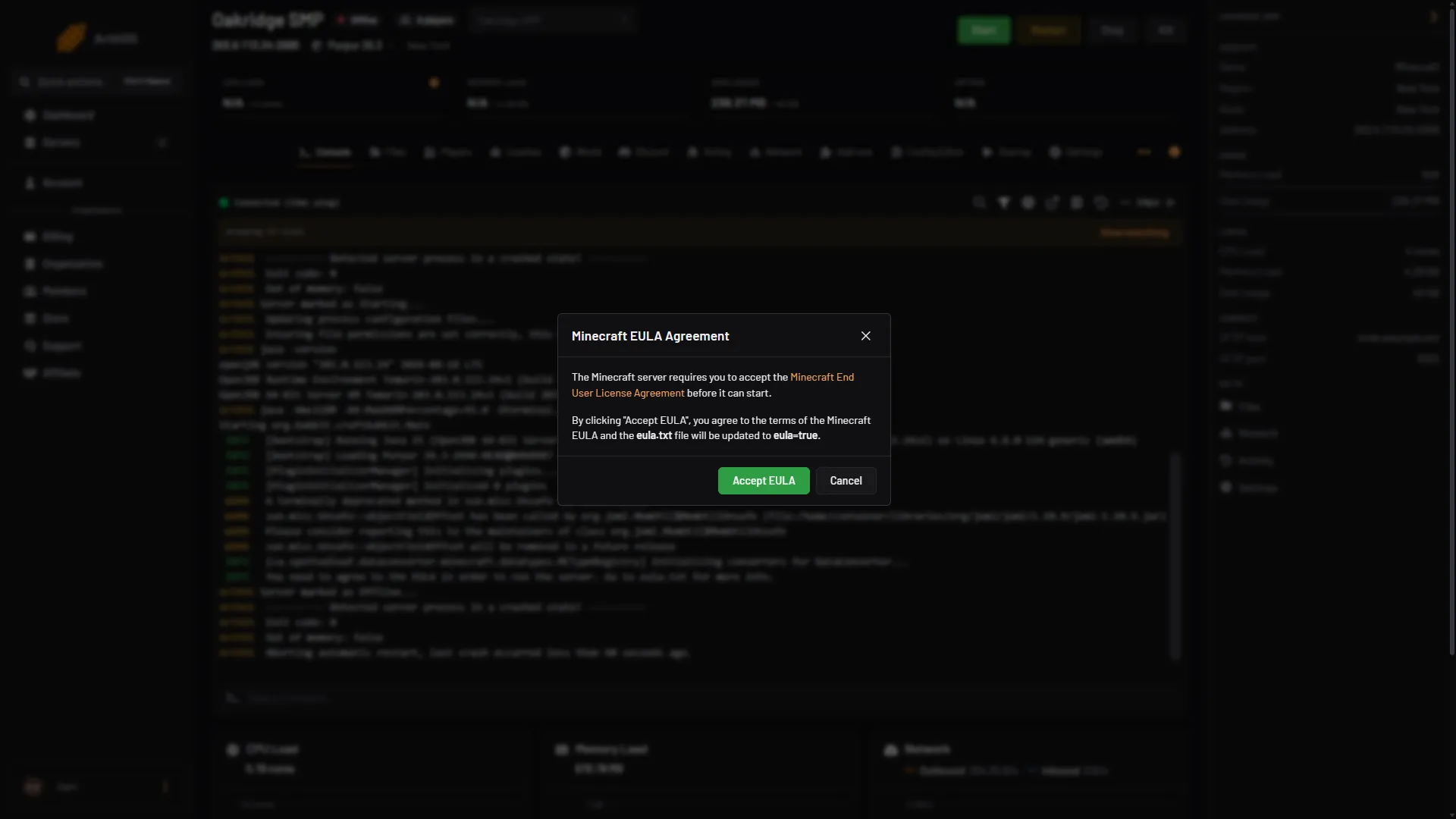
- Press Accept EULA
The button only shows if your role may create files.
By hand
- Stop the server.
- Open Files and open
eula.txt. - Change
eula=falsetoeula=trueand save. - Start the server.
If you host it yourself, run java -jar server.jar --nogui once so the file is created, edit it in any text editor, then run the same command again.
If it does not work
- No dialog appeared. It only opens while the server is not running, right after the Console prints the EULA message. Start the server again and watch the Console, or use the By hand steps.
- The server still stops. Open
eula.txtagain. The line must be exactlyeula=true, in lower case, with no#in front. - There is no eula.txt. The server creates it on its first start. Start it once, then edit it.
- The Accept EULA button is missing. Your role cannot create files. Ask the server owner to accept it.
More on the game: Minecraft servers.
Sources: minecraft.wiki: Server.jar, minecraft.wiki: Setting up a Java Edition server, minecraft.net: Eula