












Voice chat is off on a new Palworld server. Turn on Voice chat in the Config Editor, restart the server, and players can talk to each other in the game. Two more settings decide how far a voice carries.
Turn voice chat on
-
Open the Config Editor page and pick Game settings.
-
Open the Players group.
-
Switch Voice chat (1) to On. The row’s note says “Players can talk to each other in the game.”
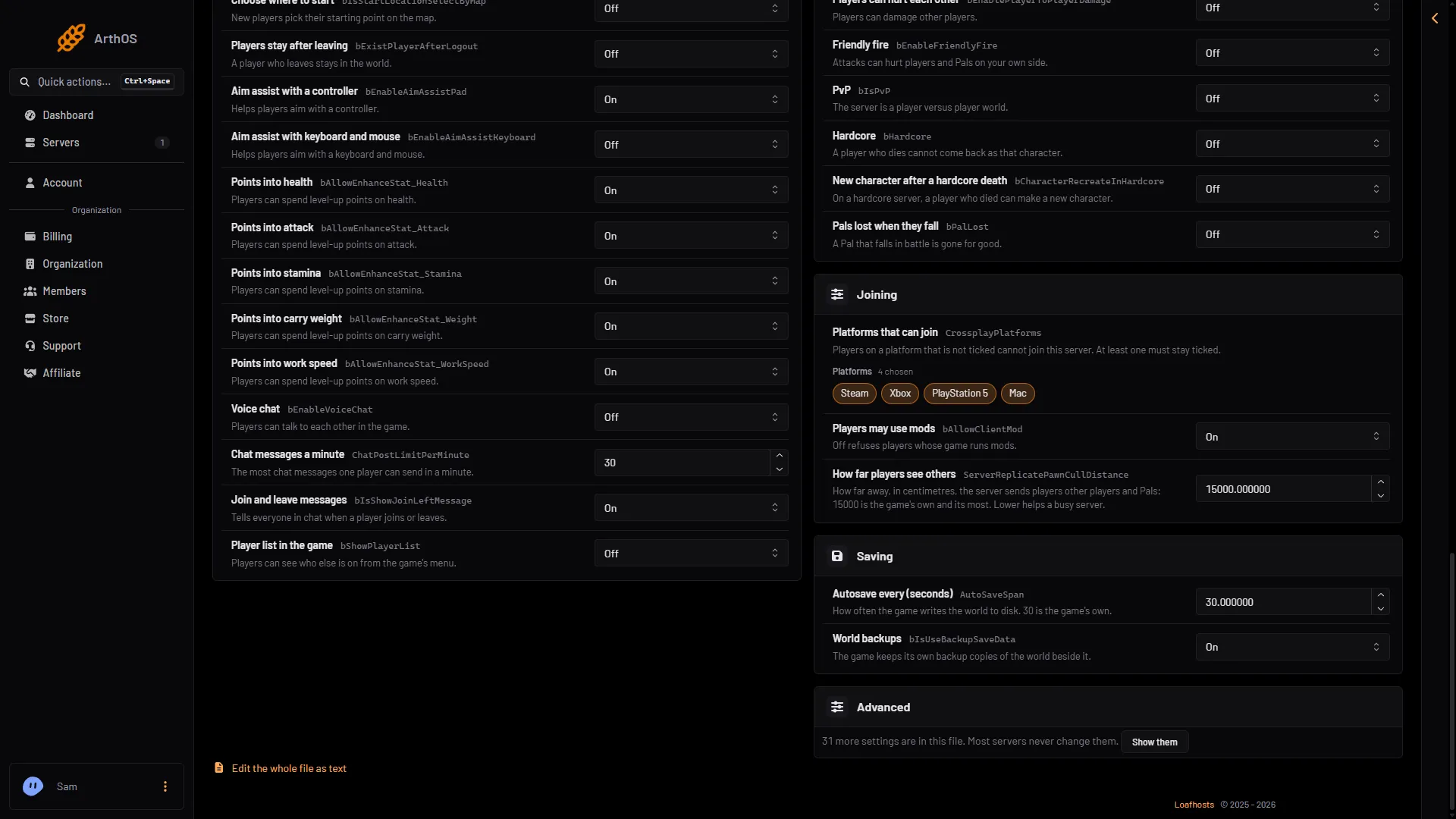
- Switch Voice chat to On
-
Choose Save.
-
Restart the server. If it is running, choose Restart now after saving. A restart disconnects everyone.
The setting behind the row is bEnableVoiceChat. Its default on the 1.0.5 server is False, which is Off.
When the server is running, the editor keeps your change and says “Saved, waiting for the next restart”. It is written to the settings file just before the next start. When the server is stopped, the change is written at once. Either way, the game reads it when it starts.
Set how far voices carry
Two settings control distance. They are under Advanced in Game settings. Choose Show them to see them. The panel names these rows from their keys, so look for the keys:
VoiceChatMaxVolumeDistance: Pocketpair says this is the distance at which voice chat volume does not fall off. Its default is3000.VoiceChatZeroVolumeDistance: Pocketpair says this is the distance at which voice chat volume becomes zero. Its default is15000.
In plain words: inside the first distance, a voice is at full volume. Beyond it, the voice gets quieter. At the second distance, it cannot be heard.
As advice, not a Pocketpair rule: keep the second number larger than the first. Change one value at a time and listen in the game, so you can hear what each change does. Pocketpair does not say which unit the distances use.
Save, then restart the server. These two settings only matter while Voice chat is On.
If it does not work
- Players cannot hear each other. Check that Voice chat is On and that the server was restarted after you saved.
- Voices carry too far or not far enough. Change
VoiceChatMaxVolumeDistanceandVoiceChatZeroVolumeDistance, save, and restart. - Your change shows as waiting. The server is running. It is applied at the next start.
- Some players have no voice. Not checked on 1.0.5 as of 4 November 2026: whether every platform can use voice chat.
More about the game: Palworld servers.
Sources: docs.palworldgame.com: Configuration