









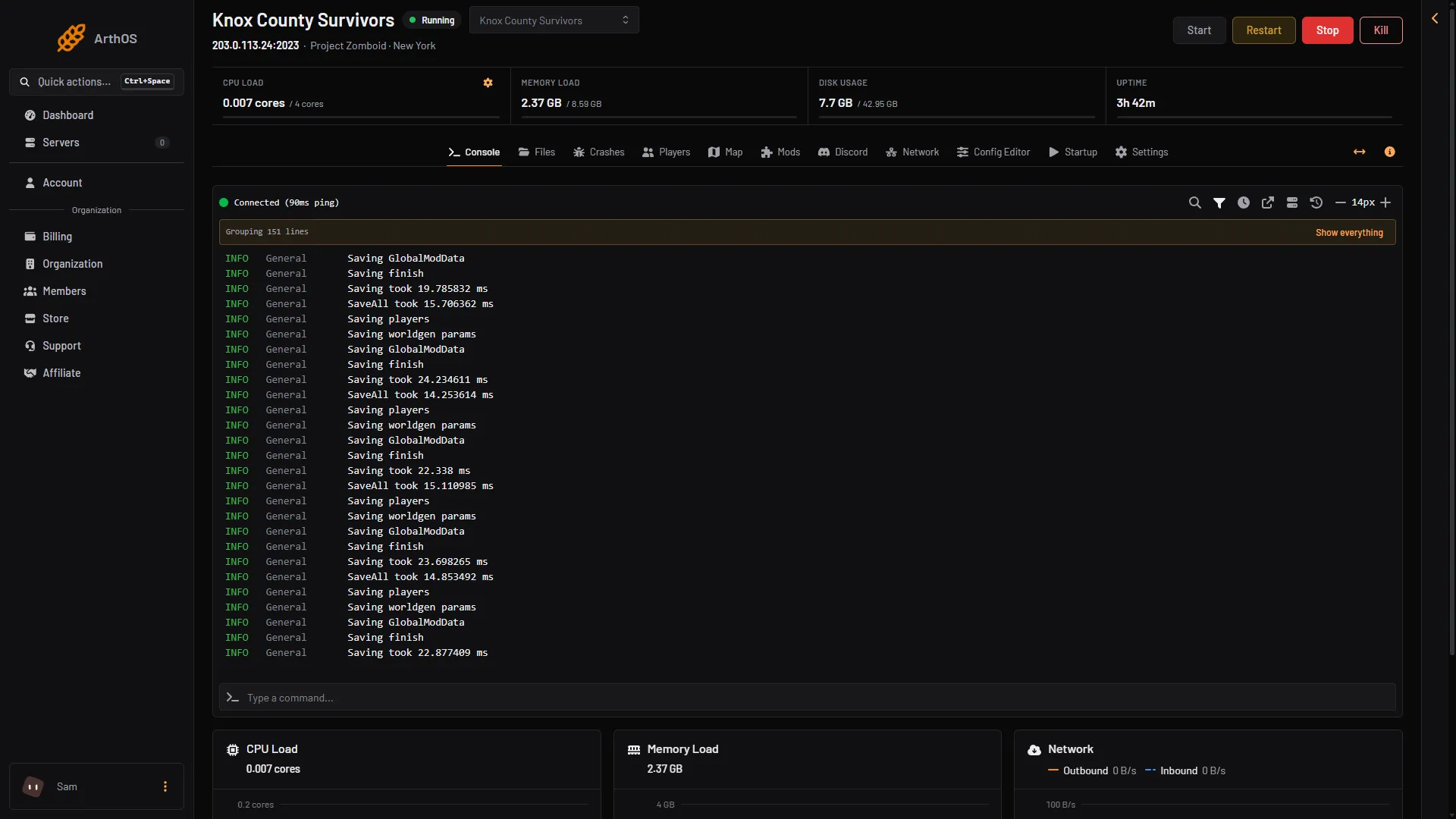
Choose Restart at the top of the server page. The panel stops the server with the game’s own quit command, which saves the world, and then starts it again. Tell your players first, so nobody loses a minute of play.
Restart from the panel
- Warn the players. Open the Players page and choose Message everyone. Write something like “Restarting in 5 minutes.” The game answers “Message sent to everyone”.
- Wait the time you promised.
- Choose Restart at the top of the server page.
- Watch the console. The server is ready when it shows
*** SERVER STARTED ****.
- Restart
- Stop
- Kill
Restart (1), Stop (2) and Kill (3) are at the top right of every server page, not only on the Console page.
Choose Stop and then Start if you want the server to stay off for a while. Kill ends the game at once and saves nothing. Use it only when the server does not answer.
What a clean stop looks like
A clean stop writes Saving players, Saving finish and Shutdown handling finished to the server log. You can read them in the .cache/Logs folder in Files. Log times are in UTC.
Warn players by hand
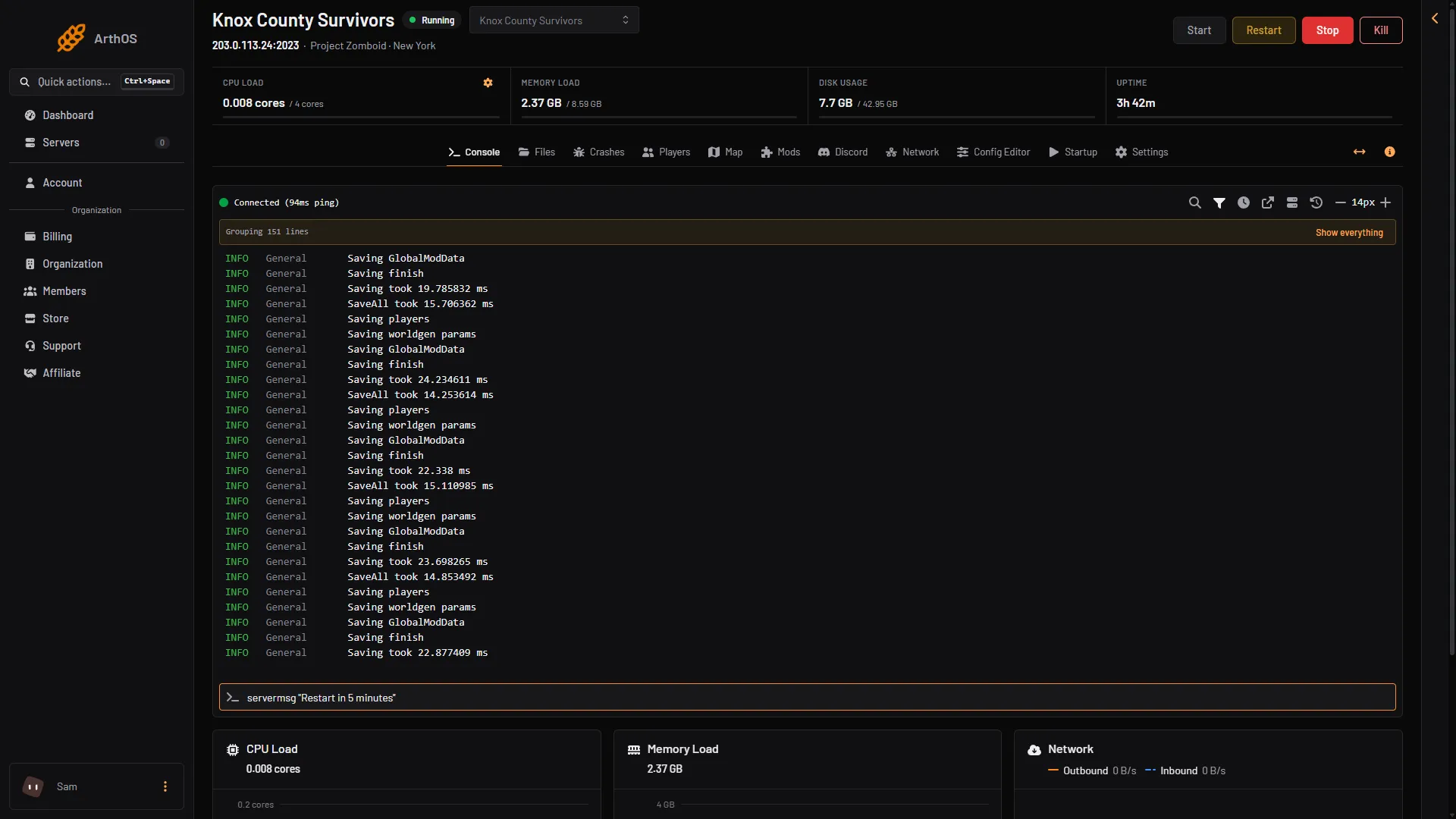
The game has a command that sends a message to everyone online. Type it in the Console page without a slash:
servermsg "Restarting in 5 minutes"
An admin in the game types it with a slash: /servermsg "Restarting in 5 minutes". Keep the quotes. See send a server message.
- Command box
- Restart
Type the command in the command box (1), press Enter, then choose Restart (2) when the time is up.
To save the world yourself before a restart, type save. The game answers “World saved”.
Restart on a schedule
A schedule restarts the server at the same time every day. It can warn players first.
- Open Settings and choose the Schedules tab.
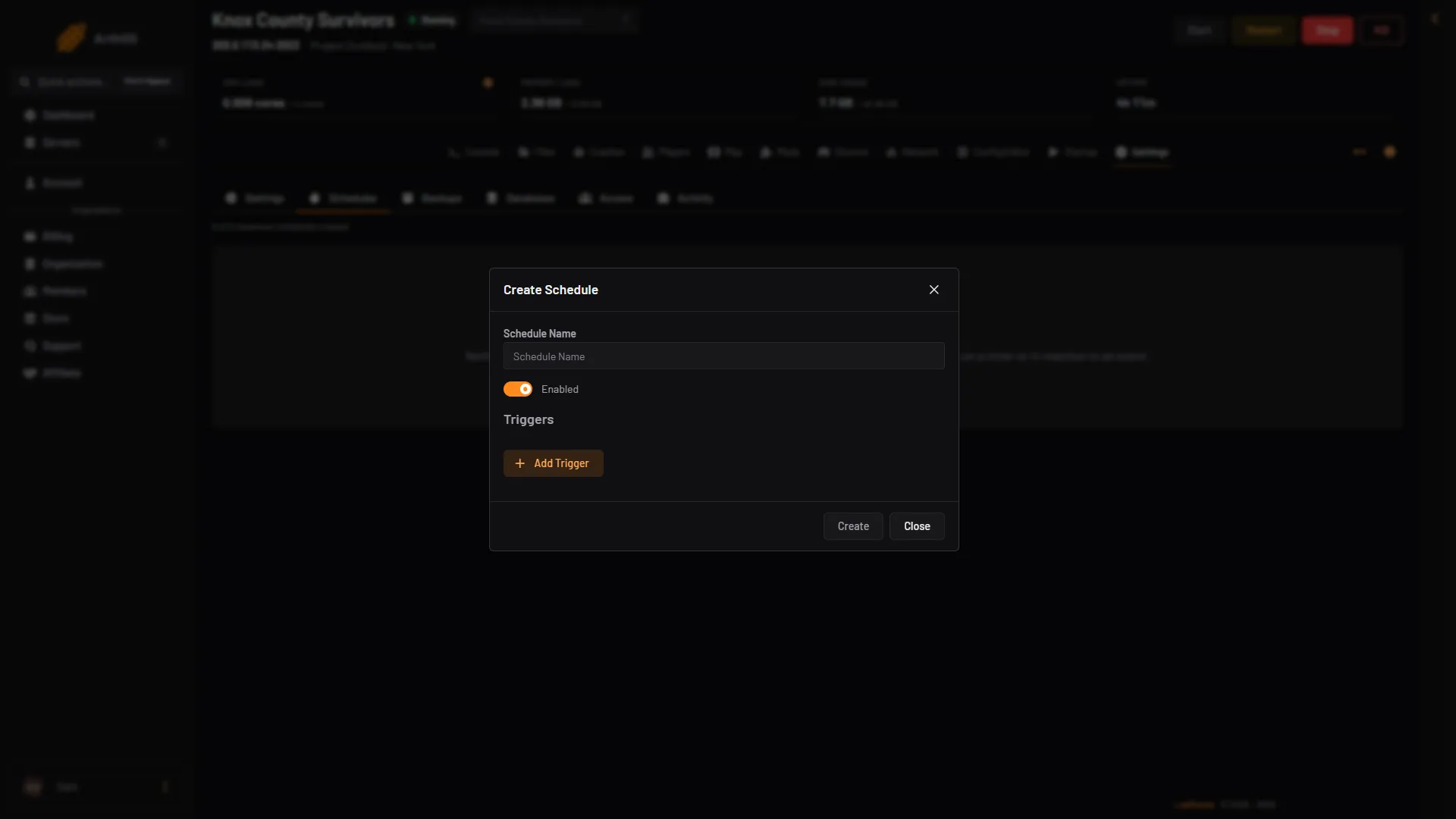
- Choose Create Schedule. Name it, for example “Daily restart”.
- Add a trigger. Choose Time Interval (Cron), set Runs to Daily, and set the time. Times use the server timezone, which the page shows.
- Choose Create.
- Open the new schedule. On Actions choose Create First Step, then Add Step for the next ones. Add these steps in order:
- Send Command, with the command
servermsg "Restarting in 5 minutes". - Sleep, with a Duration (milliseconds) of
240000(4 minutes). - Send Command, with the command
servermsg "Restarting in 1 minute". - Sleep, with a Duration (milliseconds) of
60000(1 minute). - Send Power Signal, set to Restart.
- Send Command, with the command
- Check that the schedule is Enabled.
- Schedule Name
- Add Trigger
- Create
Type the name in Schedule Name (1), add the trigger with Add Trigger (2), then choose Create (3). Steps are added after the schedule exists.
The panel’s steps for this are Send Command, Sleep and Send Power Signal. Send Power Signal can Start, Stop, Restart or Kill the server. Restart stops the game and starts it again, then goes on to the next step at once.
To test it, choose Run Now on the schedule while nobody is playing.
If it does not work
- The server does not come back. Open the Crashes page. Each start is read for how it ended. A mod that needs another mod, or a full disk, is named there.
- Players lose progress. A restart saves with
quit, but Kill does not. Never use Kill for a normal restart. - Players do not see the message. The server must be running. The command needs its quotes.
- A schedule did not run. Check that it is enabled and that its time uses the server timezone shown on the page.
- Changes in the Config Editor. Saved changes apply after a restart. Restart once when you have changed settings.
Sources: pzwiki.net: Dedicated server