









With Steam Auto Update set to 1, the server checks Steam for a game update every time it starts. To update, restart the server. Players on a different game version cannot join, so update when the new build is out and tell your players.
Update the game
- Open the Startup page.
- Find Steam Auto Update. It must be
1. New Loafhosts servers start with1. A0turns the check off. - Make a backup first (see below).
- Choose Restart at the top of the server page. See restart a Project Zomboid server.
- Watch the console. The start is slower when the server downloads an update. It is ready when it shows
*** SERVER STARTED ****.
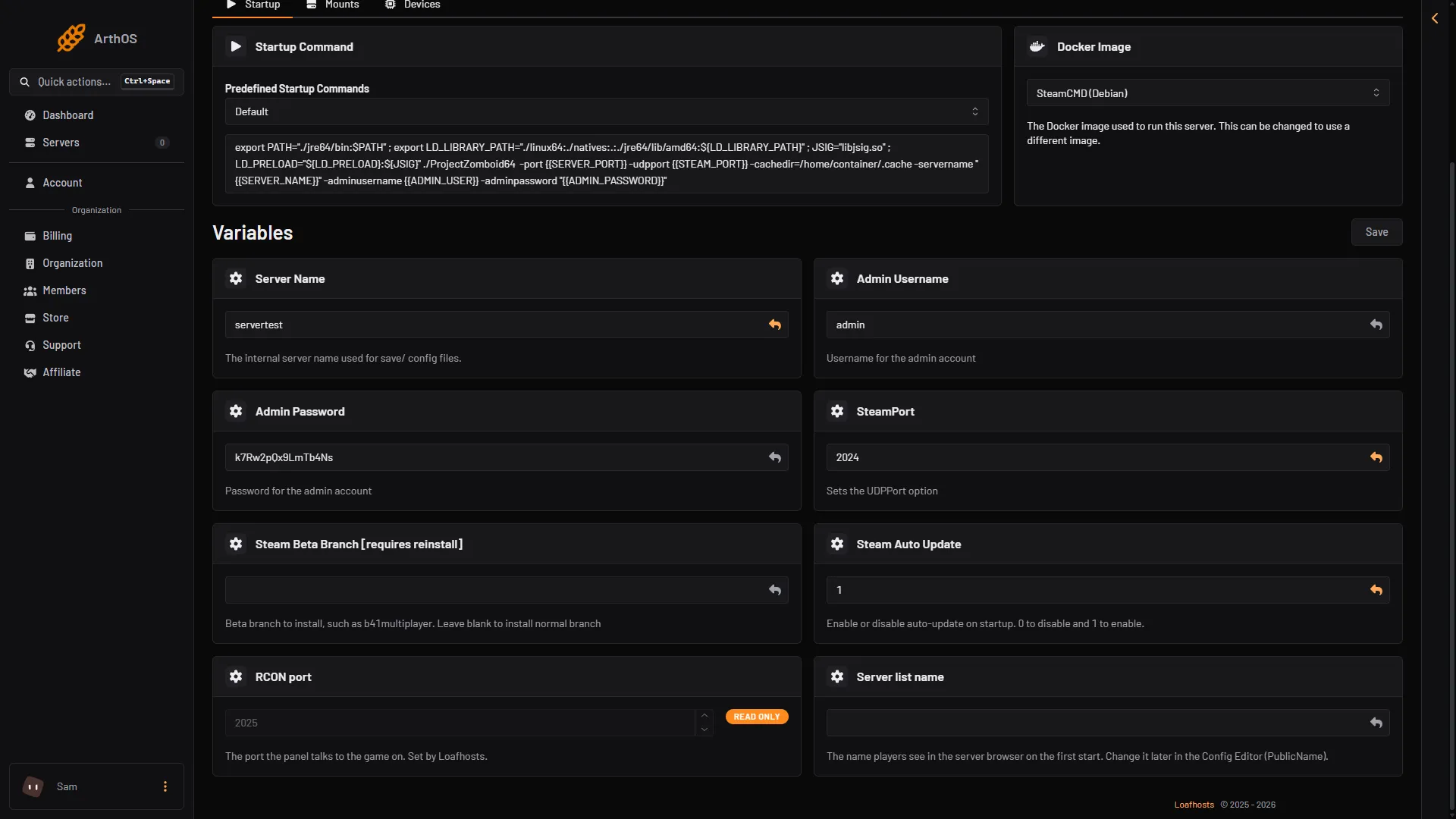
- Steam Auto Update
- Steam Beta Branch [requires reinstall]
Steam Auto Update (1) must be 1. Leave Steam Beta Branch [requires reinstall] (2) empty for the normal branch.
The current stable build is 42.21, as of 18 October 2026. Project Zomboid’s server is downloaded from Steam anonymously, so no Steam account is needed.
If Steam Auto Update is 0
The server stays on the build it has. To update, set Steam Auto Update to 1 and restart. Setting it back to 0 afterwards holds the server on that build until you change it.
Players and the server must match
A player on a newer game build cannot join a server on an older build, and a player on an older build cannot join a newer server. If players report that the version does not match, see version mismatch.
Tell your players when you update, so they update their game in Steam too.
Mods update separately
Updating the game does not update the Workshop mods. An item with a newer Workshop version shows Update on the Mods page. Players who already have the new version cannot join until the server has it too. See update Project Zomboid mods.
Make a backup before a big build
A new major build can change how the world is saved. Before you update to one, make a backup.
- Open Settings and choose the Backups tab.
- Choose Create (1), then Create Backup in its menu. The other entry is Create Backup Group.
- In the box, check Name and Source. Ignored Files takes one pattern per line. Choose Create.
- Wait until it finishes, then restart the server.
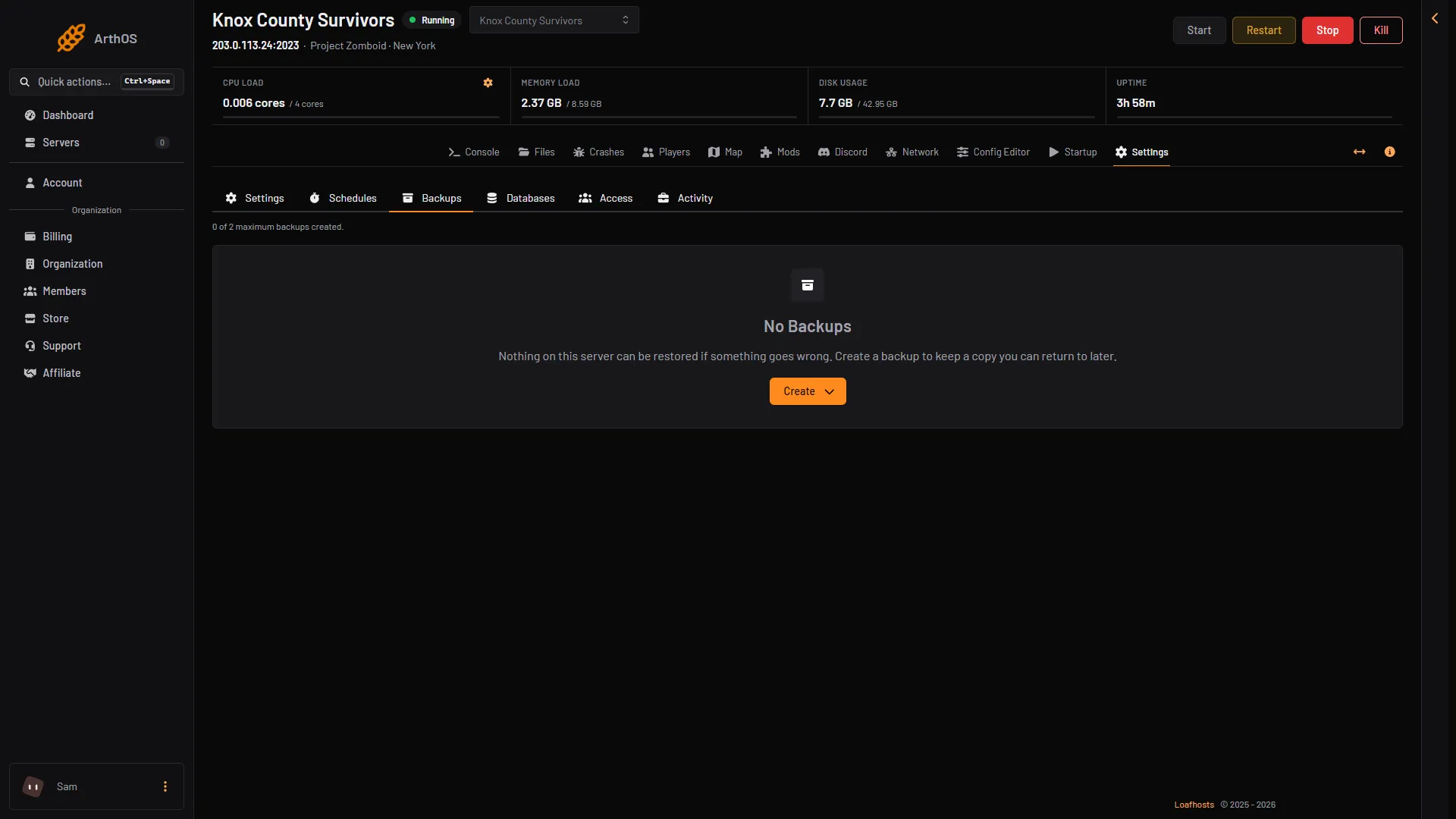
- Create
A manual backup at the backup limit is refused. Delete one first.
See backups and saves for what a backup holds and how to restore one.
Stay on Build 41 or try another branch
Steam Beta Branch [requires reinstall] on the Startup page picks which Steam branch the server installs. Empty is the normal branch. The branches are public (the normal one, Build 42.21), unstable, 42.19 and legacy41 (Build 41.78). A change needs a reinstall. For Build 41, type legacy41; the example in the field’s hint is an older branch name. See run a Build 41 server.
By hand
This part is for a server you run yourself. Install or update with SteamCMD:
login anonymous
app_update 380870 validate
For Build 41, use app_update 380870 -beta legacy41 validate. The game’s data folder is Zomboid in your home folder (~/Zomboid on Linux, C:\Users\<you>\Zomboid on Windows). Its Server folder holds servertest.ini and servertest_SandboxVars.lua, and Saves/Multiplayer/servertest holds the world. Source: PZwiki Dedicated_server.
If it does not work
- The server did not update. Check that Steam Auto Update is
1, and restart again. Open the Crashes page if the start failed. - Players cannot join after the update. They are on a different build. Ask them to update their game in Steam, or to pick the same branch you run.
- A mod fails after the update. A mod may not support the new build. The Crashes page names mods that need another mod or whose script failed.
- The disk is full. The update needs room. Remove old backups, or give the server more disk.
Sources: pzwiki.net: Dedicated server