






Restart the server when you changed a setting file or want a clean start. That drops every player. Use Restart match or End match on the Players page when you only want the match to change: the server itself keeps running.
Which one do I need?
| You want | Use | What players see |
|---|---|---|
New settings in Server.cfg or other files to apply | Restart (power button) | Everyone is disconnected and must rejoin when the server is back |
| The same layer again from the start | Restart match | The layer starts again; scores and tickets reset |
| To finish the match now and move on | End match | The round ends with the current score and the server goes to the next layer |
Restart the server
- Open Console.
- Use the power buttons. Restart stops the game and starts it again. Stop shuts it down and Start brings it back. Kill forces it off at once; use it only when Stop does not work.
- With Update on start switched on in Startup, the server checks Steam for a game update every time it starts. Players cannot join a server behind the current version, so leave it on.
Wait for the server to be running again before you tell players to rejoin. A restart makes the game read its settings files again, such as Server.cfg.
Restart or end the match
- Open Players. The server must be running, and your role needs the game control permission.
- Choose Restart match or End match (the box in the picture below), in the row of match buttons below Message everyone.
- Read the confirmation and confirm. Restart match says the current layer starts again from the beginning, with scores and tickets reset. End match says the round ends at once with the current score, and the server moves on to the next layer.
If you want a different layer instead, use Change now. See change the Squad layer.
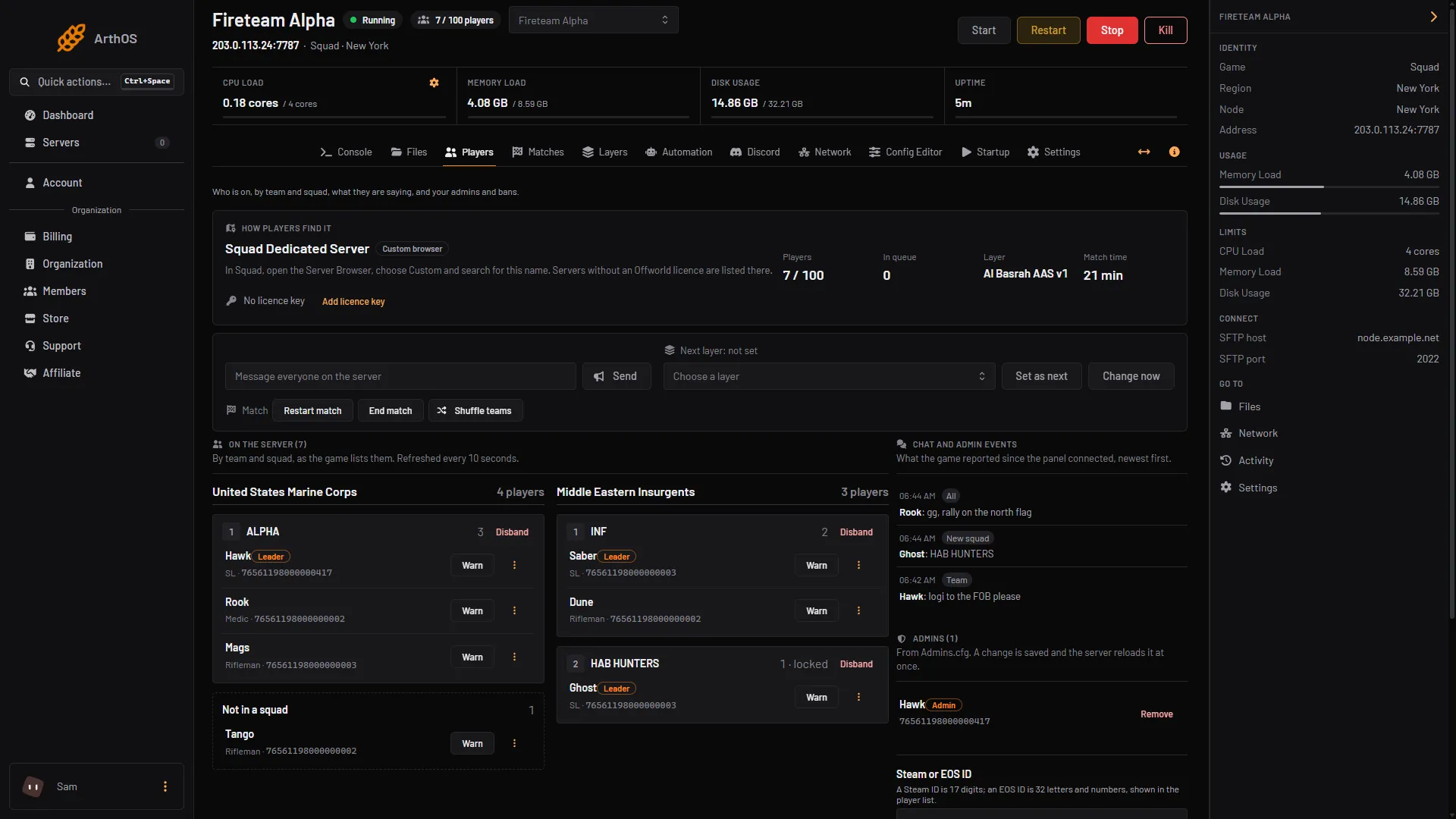
- Restart match, End match
Restart on a schedule
- Open Settings, then the Schedules tab, and choose Create Schedule (the box in the picture below).
- Type a Schedule Name and choose Add Trigger. Pick Time Interval (Cron), for example Daily at a quiet hour. Times use the server timezone, which the form shows.
- Add a step with the action Send Power Signal and Power Action set to restart.
- Save. View Calendar shows the upcoming runs.
A scheduled restart drops everyone with no warning from the game, so pick an hour when few people are on.
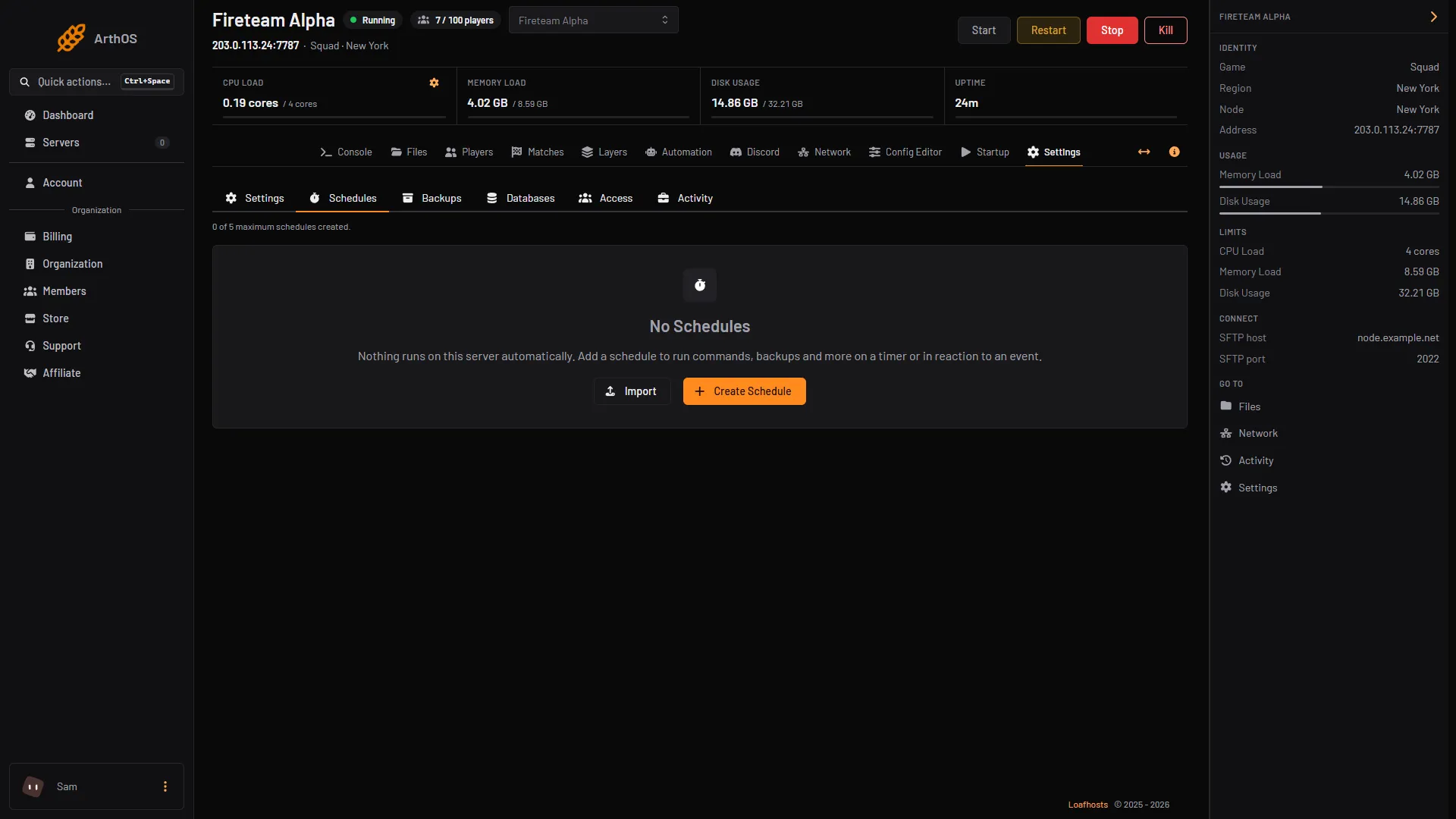
- Create Schedule
By hand
An admin can send AdminRestartMatch or AdminEndMatch from an RCON tool (see Squad RCON). These are the same two actions as the buttons. The Console box in the panel does not answer admin commands, so use the buttons or an RCON tool.
If it does not work
- The match buttons are grey. The server is stopped, or your role lacks the game control permission.
- Players could not join after a restart. Squad was updated. Make sure Update on start is on and restart again so the server downloads the update.
- My new setting did not apply. Settings in
Server.cfgare read when the server starts. Restart the server, not the match.
Sources: squad.fandom.com: Server Administration, squad.fandom.com: Server Configuration, store.steampowered.com: 672881728134580384