










The admin password is how you sign in as admin to your Satisfactory server. Find it on the Server page with Show, or choose Make a new one. Never give it to players.
What it is for
The game’s wiki says the admin password limits admin powers, such as loading a save, changing server options and starting a new game, to the people who know it.
You use it in the game. The Server Manager is a screen in the game. In the game, open the Server Manager, select the server, and choose Sign in as admin. The panel signs in with the same password to do its own work, such as saving and loading.
It is not the join password. Players type the join password to enter. Only admins use the admin password. See set a join password.
Show it
- Make sure the server is running. If it is stopped, choose Start at the top right of the server page. The page shows its passwords while the game runs.
- Open the Server page.
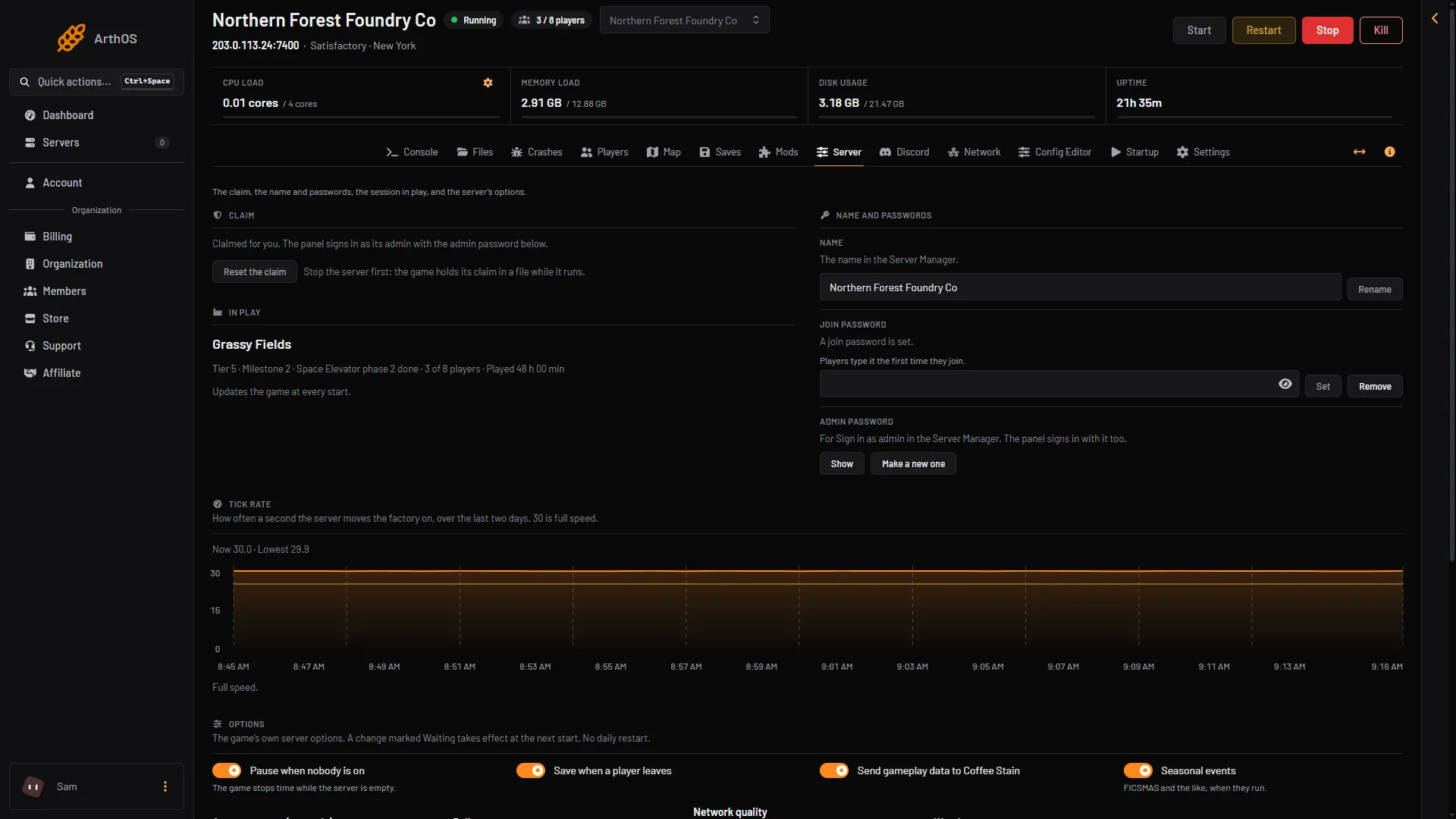
- Find Admin password and choose Show (box 1 in the picture).
- Choose Copy to copy it, or Hide to hide it again.
- Show the admin password
- Make a new one
A new server gets a password the panel made. If the page says “Not made yet: the server makes one at its next start”, start the server again.
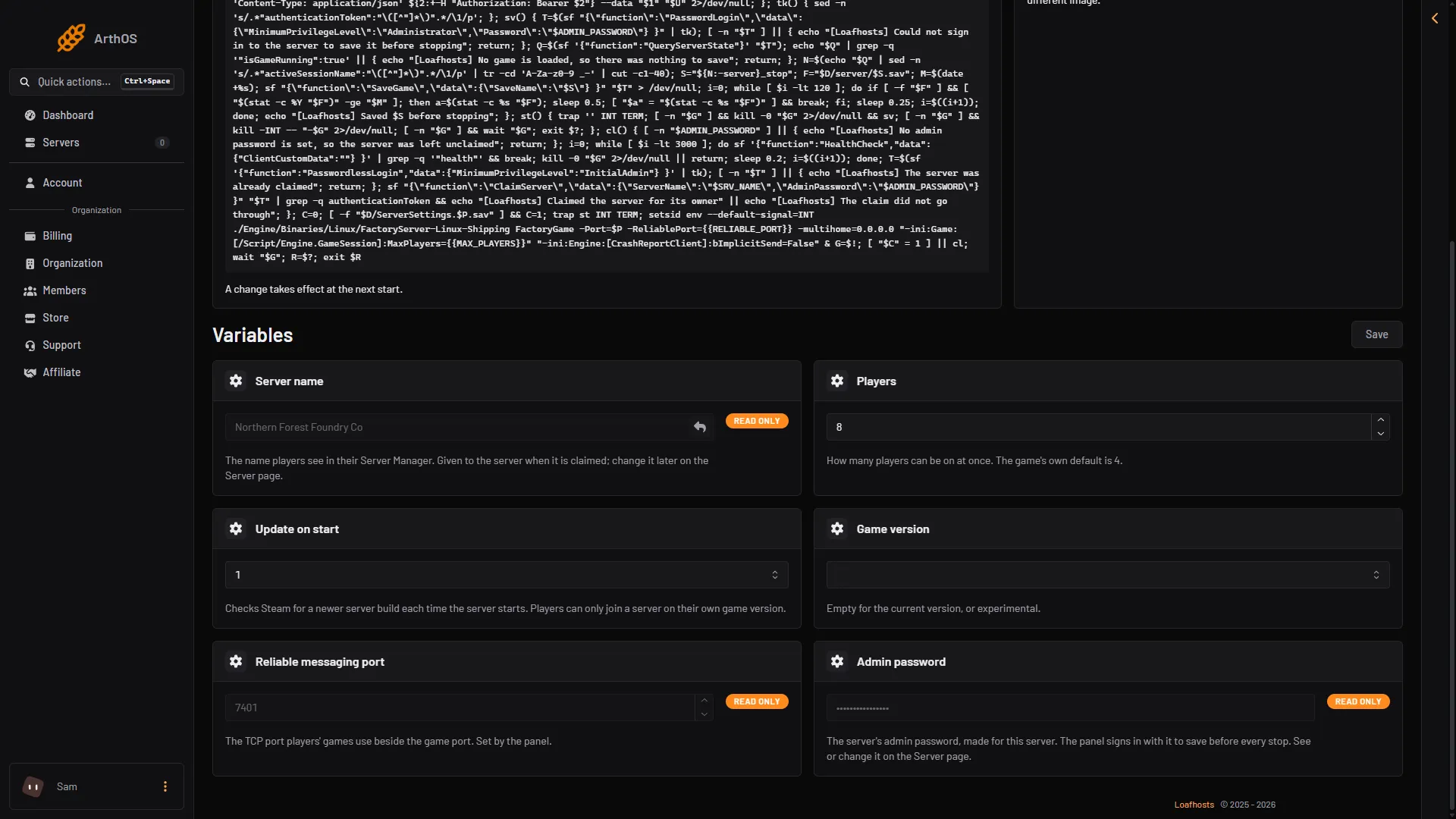
The Startup page lists Admin password too, but it is read only and masked. You cannot change it there. Change it on the Server page.
- Admin password
Make a new one
- On the Server page, choose Make a new one (box 2 in the first picture) under Admin password.
- A box asks “Make a new admin password?” It says anyone signed in as admin in the game signs in again with the new one.
- Confirm. The new password is shown so you can copy it.
The game takes the new password at once. No restart is needed.
If you changed it in the game
You can change the admin password inside the Server Manager. Then the panel no longer knows it and cannot sign in. The Claim card says: “The game refused the admin password the panel has: it was changed in the game.”
Type the new password in the box labelled “The admin password set in the game” and choose Use it. Or make a new one with Make a new one.
The panel accepts only 8 to 64 letters, digits, - and _. If the password you set in the game has anything else, it cannot be used in the panel. Set one that fits in the game, or use Make a new one on the Server page.
Keep it private
Anyone with the admin password can load saves, change options and start a new game over your factory. Share only the join password with players. If it leaks, make a new one.
If it does not work
- Show is missing. Your role may not allow changing the startup settings. Ask the server owner.
- “The server is stopped.” The game keeps its passwords itself, so choose Start at the top right of the server page to see or change them.
- The Server Manager says the password is wrong. It was changed. Use Show for the current one.
- Use it is refused. The panel says “the game refused that password too”. Set a different password in the game, or use Make a new one.
More about the game: Satisfactory servers.