









Holding the update keeps your server on the game version it runs now, even when Steam has a newer one. Use it when your mods have not caught up with a new Satisfactory version. The price is that players who updated their game cannot join until you update the server too.
Why hold
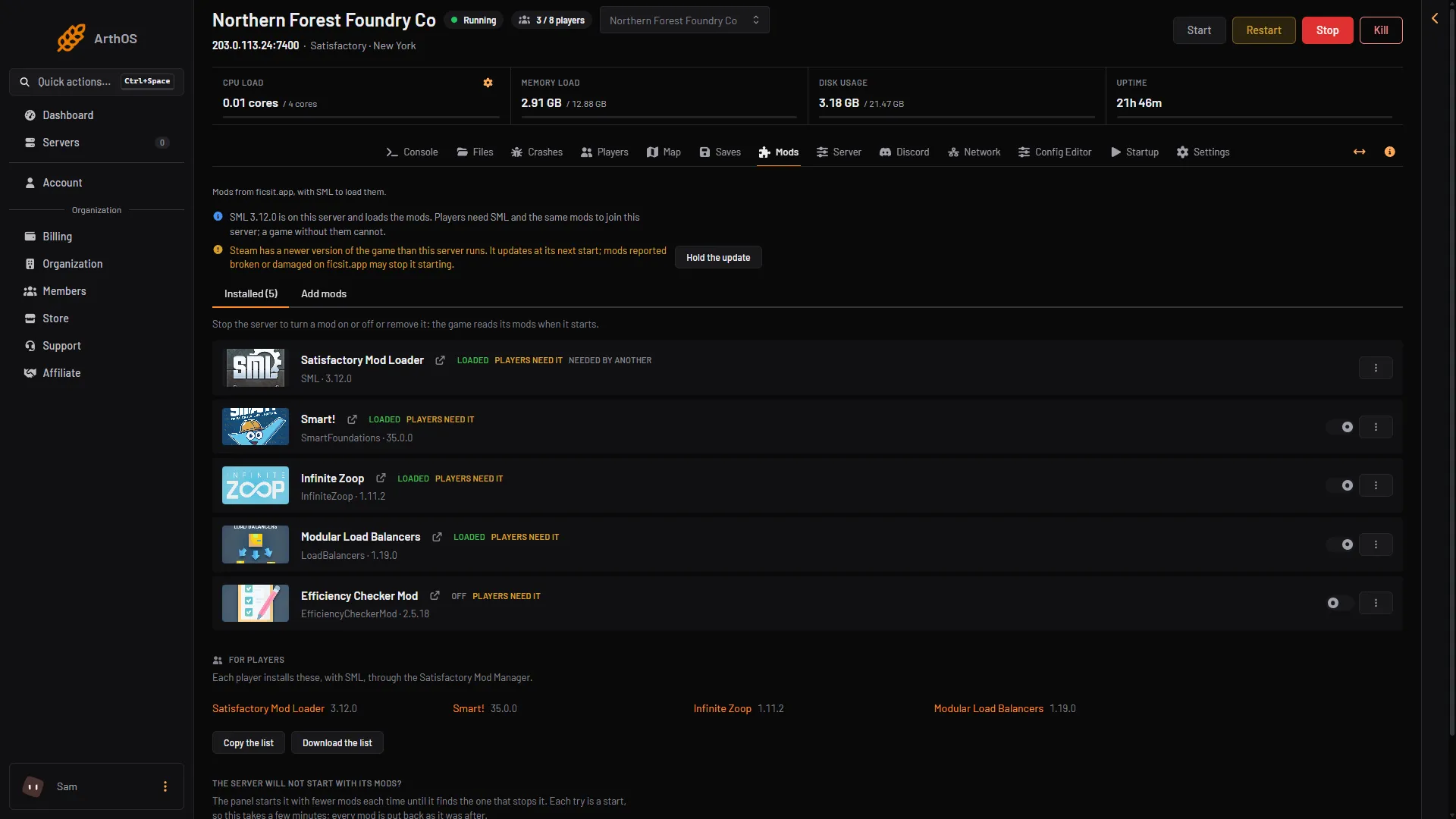
A server normally updates the game every time it starts. Mods are made for one game version at a time. After a game update, a mod can stop working until its author updates it. The panel says so on the Mods page:
“Steam has a newer version of the game than this server runs. It updates at its next start; mods reported broken or damaged on ficsit.app may stop it starting.”
ficsit.app marks a mod for the game’s current release. The Mods page shows a chip on a mod only when it is marked Reported damaged or Reported broken. A mod without one of those chips is not marked. If a mod you need carries one of them, hold the update.
Hold it
- Open the Mods page.
- Look for the warning above the mod list. It appears only when Steam has a newer version than the server runs.
- Choose Hold the update.
- A newer game version
- Hold the update
The button shows only when all three are true: Steam has a newer version, the server has at least one mod, and your role may change the server’s startup settings. It switches off the Startup setting Update on start. The change applies at the next start.
What held means
Once held, the page says:
“The game update is held. Players who updated their game cannot join until the server updates.”
Players must run the same game version as the server. A player who updated on Steam or the Epic Games Store is on the new version, so the server refuses them. Players on the old version can still join. Tell your players not to update, or to wait.
The Server page also says it, in the In play card: “Game updates are held (the Mods page has the switch).”
Let it update again
- Open the Mods page.
- Choose Update at the next start. It shows whenever an update is held.
- Choose Restart at the top right of the server page when you are ready. The game updates as it starts.
This turns Update on start on again. The game updates at every start from then on. See update the server.
You can also change Update on start yourself on the Startup page.
A server with no mods
A server with no mods has no Hold the update button. To stay on its version, open the Startup page, set Update on start to 0 and choose Save. Players who updated cannot join until you set it back to 1 and the server restarts.
When to update
Update when the mods you need no longer carry a Reported damaged or Reported broken chip, or when your players cannot wait. Install mod updates first if the Mods page offers them. Choose Update to (version) in the mod’s menu. That works while the server runs too.
If it does not work
- No Hold the update button. Steam has no newer version, the server has no mods, or your role cannot change startup settings. See “A server with no mods” above.
- Players cannot join after the hold. They updated. They need your server’s version. See version mismatch.
- The server will not start with its mods after an update. See mods not loading.
More about the game: Satisfactory servers.
Not checked on 1.2 as of 27 October 2026: how long mod authors usually take after a game update.