











A Satisfactory mod keeps its settings in its own file. The Config Editor lists that file by its name. The mod writes the file the first time the server starts with it, so start the server once after you install a mod. Change the settings while the server is stopped.
Where the settings are
Every mod that has settings writes a file named after the mod into FactoryGame/Configs. The file ends in .cfg and holds JSON, a plain text format of keys and values. For example, Ficsit Remote Monitoring writes FicsitRemoteMonitoring.cfg.
The mod reads the file when the server starts. A change you make while the server runs does not apply until the next start.
Change them in the panel
- Install the mod. Choose Start at the top right of the server page and wait until the server is running. The mod writes its file during this start.
- Choose Stop at the top right of the server page.
- Open the Config Editor page.
- Choose the mod’s button in the row of file buttons above the settings. Server settings is the game’s own file. The mod buttons come after it. A button is named after the mod’s file, without
.cfg. That name matches the reference shown under the mod’s name on the Mods page. - Change the values you want.
- Choose Save.
- Choose Start at the top right of the server page.
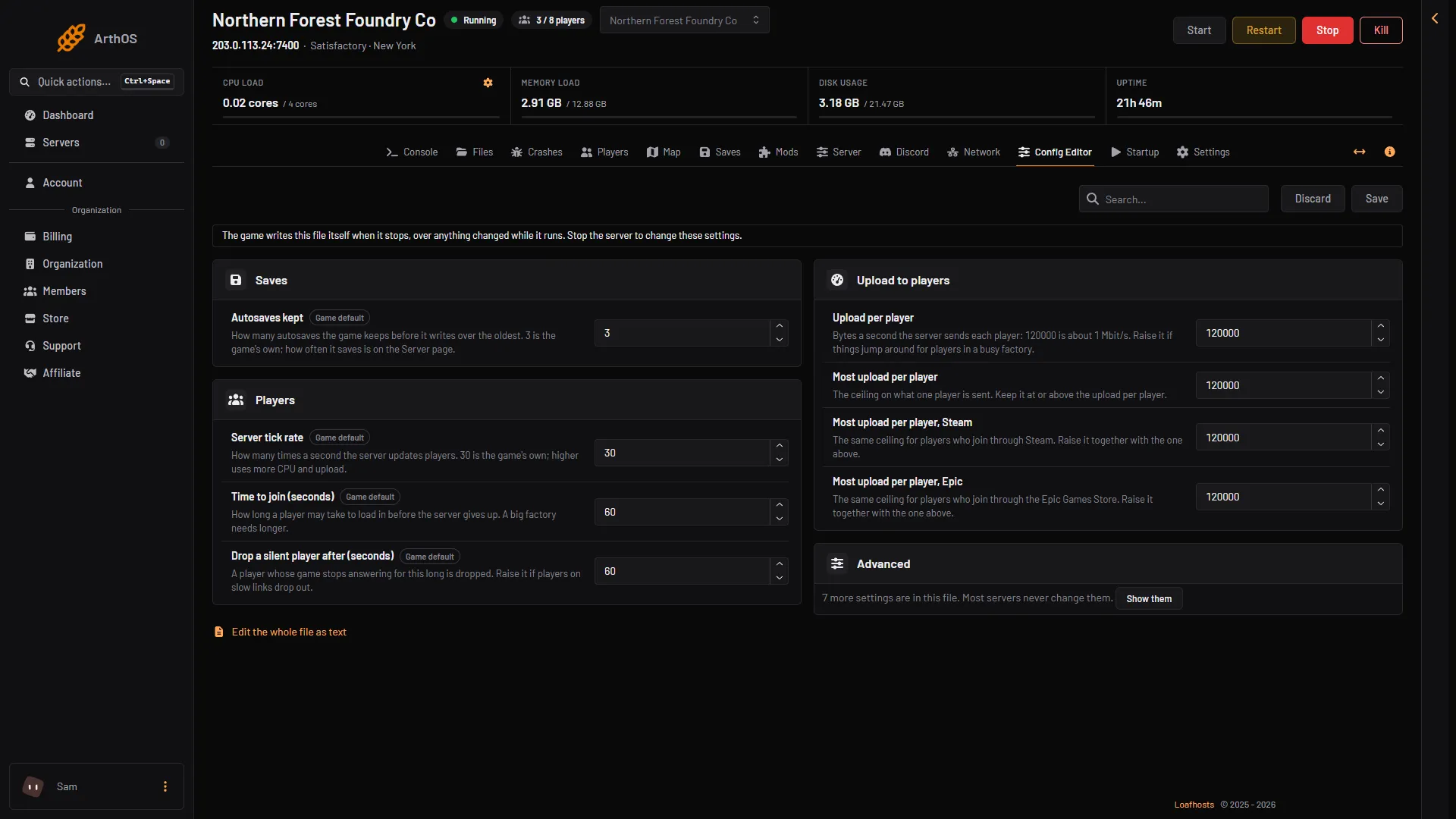
- Stop the server first
- Edit the whole file as text
Here the editor shows the game’s own file, because no mod had written a file on the server in the picture. A mod’s file gets its own button after Server settings once the mod has written it.
After you save, the panel says “Saved. The changes apply when the server starts.”
Why only while stopped
The game rewrites its settings files when it stops. It writes over anything that was changed while it ran. So the Save button stays off until the server is stopped. The page says so: “Stop the server to change these settings.”
Use the search box above the settings to find one by its key. Not checked on 1.2 as of 27 October 2026: where the editor puts a mod’s settings that the panel has no name for.
Edit the file by hand
- Choose Stop at the top right of the server page.
- Open Files.
- Go to
FactoryGame/Configs. - Open the mod’s
.cfgfile and edit it. Keep it valid JSON: every key in double quotes, a comma between entries, none after the last. - Save, then choose Start at the top right of the server page.
The Edit the whole file as text link at the foot of the Config Editor opens the same file in the file editor.
Good to know
- Removing a mod does not delete its settings. The panel says: “Its settings in FactoryGame/Configs stay.” If you install the mod again, it finds them. To start clean, delete the
.cfgfile in Files. - Some mods are set from inside the game instead. The Satisfactory wiki says mods can be configured with links on the main menu. A mod like that may have no file at all.
If it does not work
- The mod is not in the list. The mod has not written its file yet. Choose Start with the mod turned on, then reload the page. The mod may also keep its settings in the game’s menu instead.
- Save is greyed out. The server is running or changing state. Choose Stop first.
- Your change did not stick. You saved while the server ran, or the mod rewrote the file. Choose Stop, change it again, and save.
- The server will not start after an edit. The JSON is broken. Open the file in Files and fix it, or delete it and let the mod write a new one at the next start.
More about the game: Satisfactory servers.
Not checked on 1.2 as of 27 October 2026: how the editor shows settings nested inside other settings.
Sources: satisfactory.wiki.gg: Modding