

















Chat spam protection is a switch with three timers. You find it on the Server settings tab of the Config Editor, in the Chat group. The same group has Keep chat in the log, which decides whether the game writes chat into its own log.
The game’s own wiki lists the three timers as “Spam Message Timeout, Spam Message Time, Spam Messages Timeout” and does not say what each one does. The panel names them in plain words. Read the names as a guide, and test them with your players.
The five rows
All five sit under Chat on Server settings, each with the game’s own key beside it. The game keeps them in SpaceEngineers-Dedicated.cfg.
- Chat spam protection (
ChatAntiSpamEnabled). On or off. Off turns the protection off. - Same message again after (seconds) (
SameMessageTimeout). A number from 0 to 3600. By its name, this is how long a player waits before they can send the same message again. - Too fast between messages (seconds) (
SpamMessagesTime). A number from 0 to 60. By its name, this is the gap that counts as sending too fast. - Muted for spam (seconds) (
SpamMessagesTimeout). A number from 0 to 3600. By its name, this is how long a player is muted once they trip the protection. - Keep chat in the log (
SaveChatToLog). On or off. On asks the game to keep chat lines in its log file.
Not checked with a player on 1.210 as of 15 November 2026: what a muted player sees, and where in the log the game keeps the chat.
Change them
- Open the server and choose the Config Editor tab.
- Choose Server settings (1) at the top.
- Find the Chat card on the right.
- Change the switch or type a new number. Changed rows get a Changed tag.
- Press Save.
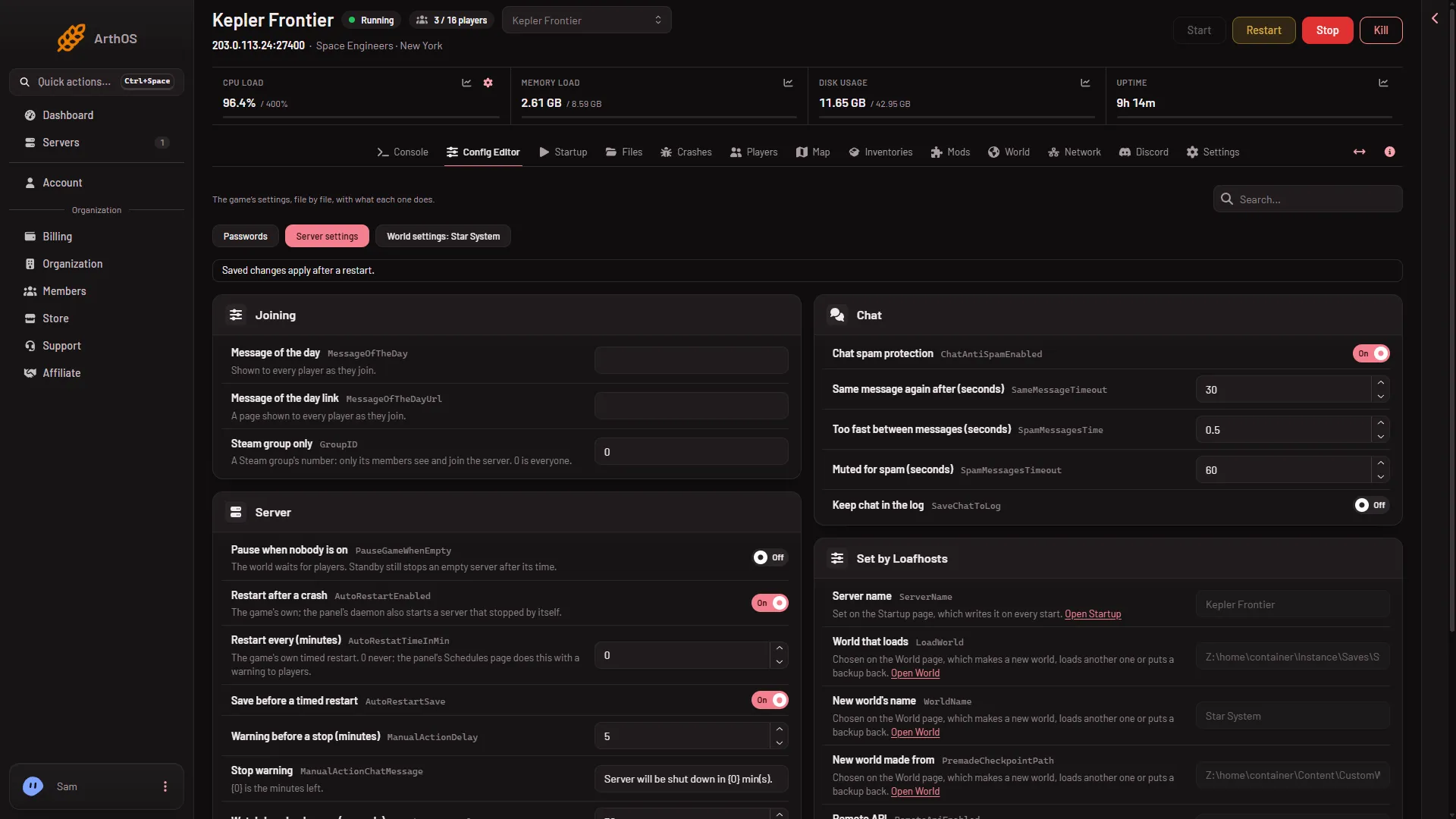
- Server settings tab
When it takes effect
Server settings are read when the server starts. The page says “Saved changes apply after a restart.” You can save while the server runs, and the saved values stay after it stops. Restart the server from the panel to use them. A normal stop saves the world first, so nothing is lost.
Other chat tools
- To see who said what on the panel, use the Console: with the panel tools on it shows Join, Leave, Chat and Kick lines. That is a panel feature, separate from Keep chat in the log.
- To message every player at once, use Message everyone on the Players page (it needs the panel tools). See the chat log guide.
If it does not work
- Save is greyed out. Your role may not allow changing settings, or you changed nothing yet.
- Players are still flooding chat. Check Chat spam protection is on, then lower the gap in Too fast between messages (seconds) and raise Muted for spam (seconds). Restart to apply.
- The Chat card is missing. Chat is a Server settings group, not a World settings one.
More about the game: Space Engineers servers.
Sources: spaceengineers.wiki.gg: Setting up a Space Engineers Dedicated Server, spaceengineers.wiki.gg: Chat