






The admin camera is a free spectator camera. To use it, an admin needs the cameraman access level in Admins.cfg. In game they press Shift and P to turn it on and off. The panel’s Players page then shows “Admin camera on” and “Admin camera off” in its feed.
Give someone the camera
The access level is called cameraman. Squad’s wiki describes it as “Spectate players”. It goes on a group line in Admins.cfg, and everyone in that group gets it.
The stock examples already include it in the larger groups:
Group=SuperAdmin:changemap,cheat,private,balance,chat,kick,ban,config,cameraman,debug,pause
Group=Admin:changemap,balance,chat,kick,ban,cameraman,pause
In the ArthOS panel
The panel does not create groups or change what a group may do. It adds a person to a group that exists.
- Open Files, then
SquadGame/ServerConfig/Admins.cfg. - Add
cameramanto a group, or make a new one:
Group=Cameraman:cameraman- Save the file.
- Open the Players page and find Admins.
- Type the person’s Steam or EOS ID (a Steam ID is 17 digits, an EOS ID is 32 letters and numbers). Optionally add a Name.
- Pick the group in Group, then choose Add admin. The running server reloads
Admins.cfgat once.
By hand
Add a line to Admins.cfg under your group, using the 17-digit Steam ID:
Admin=76561198000000001:Cameraman // Example PlayerThen run AdminReloadServerConfig from an RCON tool (see Squad RCON), or restart the server between matches.
Use the camera in game
The admin must be on the server. Squad’s wiki lists these controls. They only work while the camera is on.
- Shift + P turns the camera on and off.
- W, A, S, D move it, the mouse pans it, Space goes up and Ctrl goes down.
- 1 plus the scroll wheel changes how fast it flies.
- 2 plus the scroll wheel changes the field of view.
- 9 turns player name tags on or off, and 0 shows a small menu in the top left that explains the keys.
For the scroll wheel to work, the game’s keybindings for “switch to next item” and “switch to previous item” must be on the mouse wheel.
While in the camera the admin’s soldier is invisible. On leaving it, the admin carries on from the place they entered. Squad’s wiki lists problems that sometimes happen:
- If the arms do not move after leaving the camera, the admin must suicide to respawn.
- Switching teams twice without leaving the camera can glitch the game badly.
These notes and the key list come from Squad’s wiki.
See camera use in the panel
The Players page has a feed called Chat and admin events. It shows what the game reported since the panel connected, newest first. When an admin turns the camera on, a line Admin camera on appears with their name. When they turn it off, you see Admin camera off.
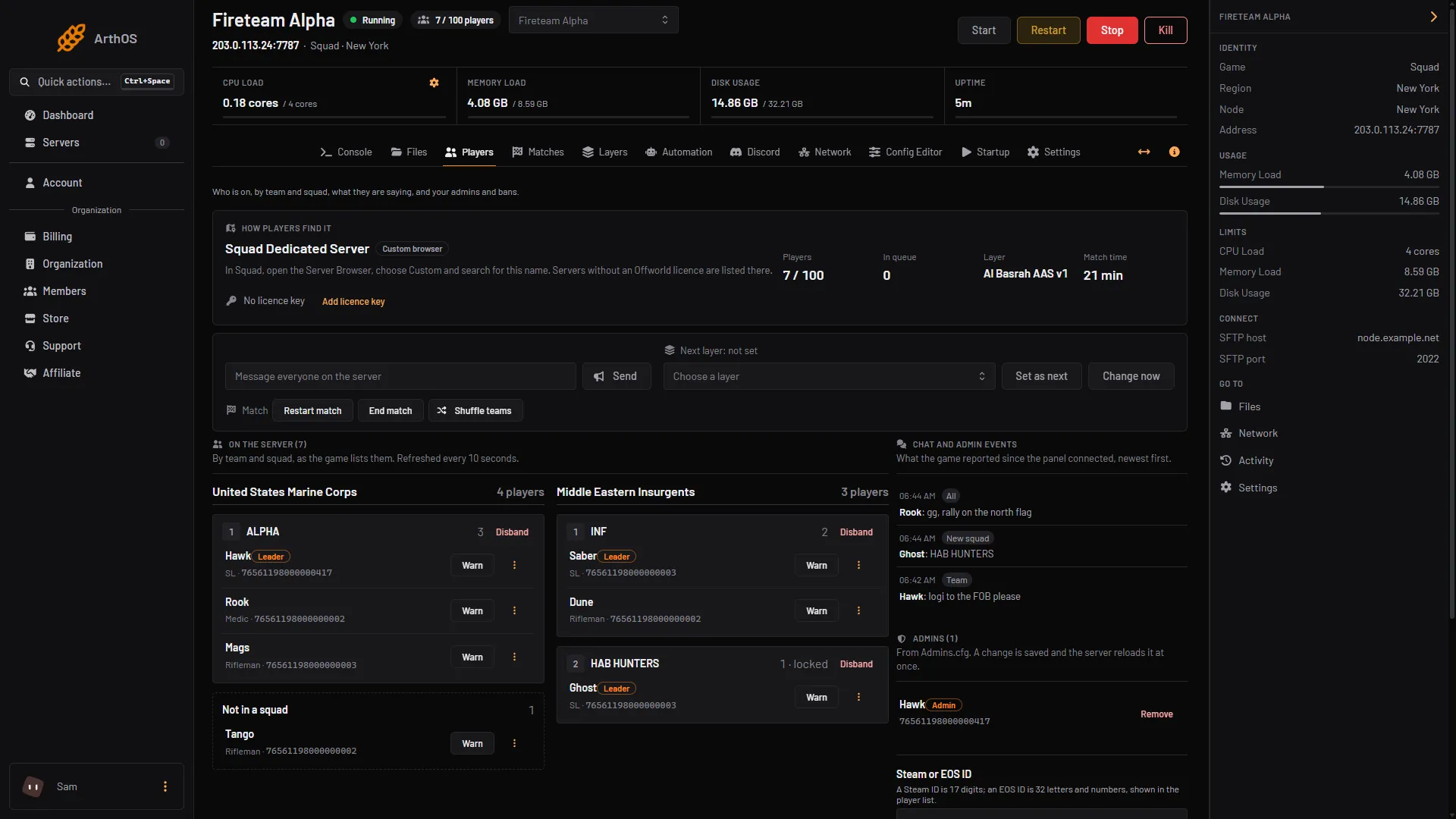
- Chat and admin events
In the picture, box 1 is the feed, at the right of the player list. This lets you see who used the camera and when. The feed only holds recent events and it starts empty when the panel reconnects.
If it does not work
- Shift + P does nothing. The admin is not in a group with
cameraman, or the Steam ID inAdmins.cfgis wrong. Check the ID has 17 digits. - The admin is not on the list. The Players page lists admins from
Admins.cfg. If Group is empty, the file has no groups yet. Add aGroup=line first. - The feed shows nothing. Events show only after the panel is connected to the running server. Start the server and try again.
More about the game: Squad servers.
Sources: squad.fandom.com: Server Administration, squad.fandom.com: Server Configuration, store.steampowered.com: 393380