
















First, make sure it is lag. A Terraria server with nobody on it is paused on purpose. If players really lag, read the load on the server page, then check your mods, memory and world size.
An empty server is paused, and that is normal
When no player is connected, the server does not run the world. The Terraria wiki says: “When no players are online the server hibernates. Time only passes when players are connected.” Since game version 1.4.5.7, an empty server only starts updating when a player has fully joined.
So if you open the Map or the Players page on an empty server and nothing moves, nothing is wrong. The panel’s tools say the world is paused, and its actions wait until a player joins. See an empty server is paused.
The world starts moving once a player has fully joined, so a player who is still loading does not count yet.
Read the load first
With players on, open any page of the server and read CPU Load and Memory Load at the top. A Memory Load near the plan’s size points to the memory section below. A high CPU Load with many players or many mods points to the mods and world sections.
Check NPC updates
NPC updates controls how often the server sends the positions of enemies to players.
- Open Config Editor and the file Server settings.
- In the group Server, find NPC updates (1).
- The panel explains it: a lower number sends positions more often, so movement is smoother and uses more network.
0turns it off. The game’s default is60.
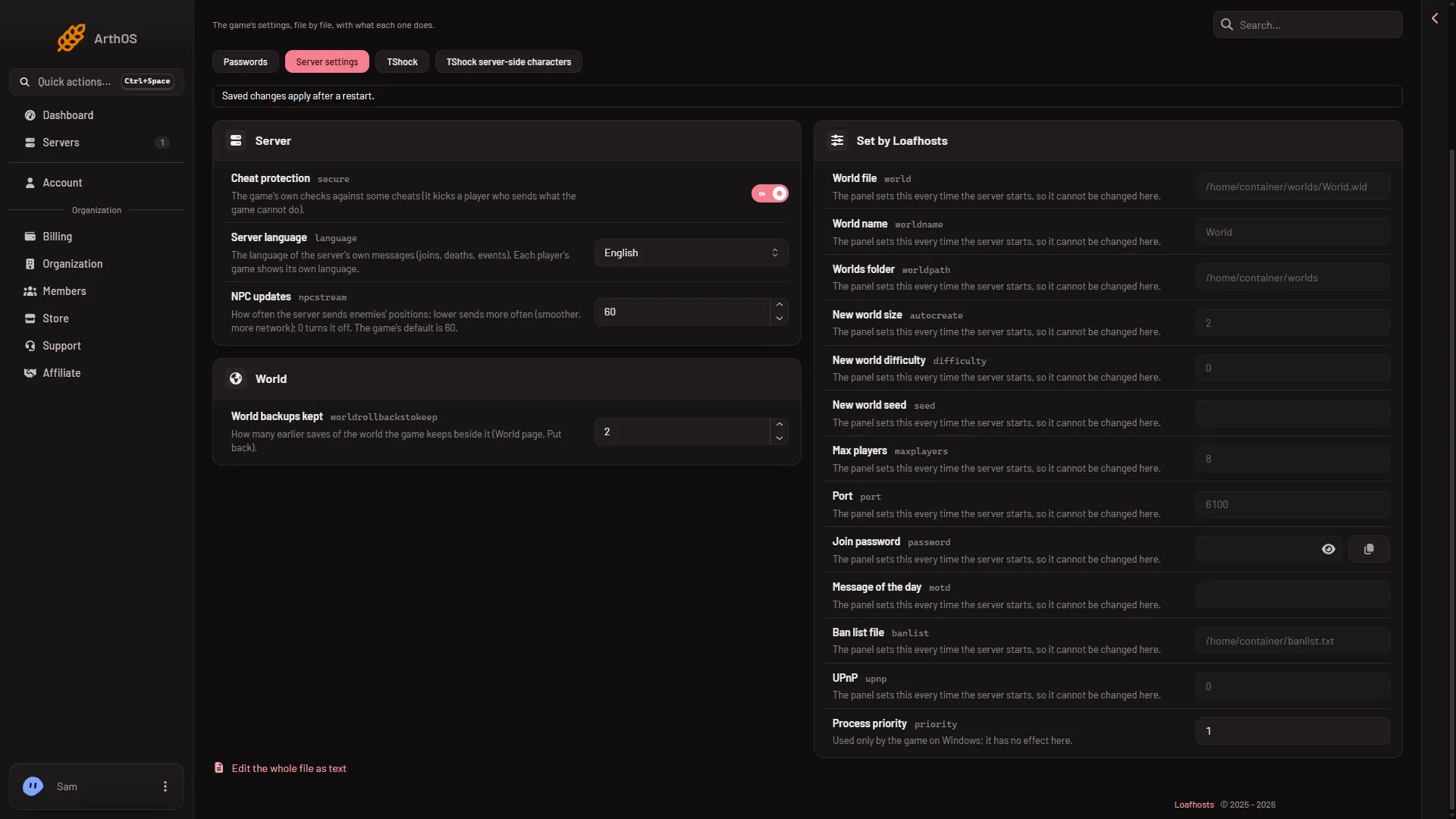
- NPC updates
Leave it at 60 unless you have a reason. A lower number costs more network, so it will not cure lag on its own. See the NPC updates setting.
Slow liquids
The game has a setting Slow liquids, which the panel says eases the server’s load in big flooded areas. A new server does not show it: the Config Editor shows a setting only when the server’s serverconfig.txt has its line, and the starter file has none for this one. If the group World shows a Slow liquids row on your server, you can turn it on. If it does not, ask support. Not checked on 1.4.5.8 as of 13 November 2026: how much it helps a lagging server.
Check your mods
A tModLoader server loads every mod on its list. Each mod adds work for the server, and some are heavy. To find the cause:
- Open the Mods page and look at On this server.
- Take off the mods you do not need. Take off the last ones you added first.
- Apply, and watch whether the lag goes.
Heavy mod lists also need more memory. See memory for large mod packs.
Check memory
A server that runs out of memory can stop. The Crashes page then shows The server ran out of memory, or, when the machine ends the server at its plan’s memory, The server used all its memory and was stopped with Out of memory set to Yes. The panel’s advice is to take off a mod you do not need, or move to a bigger plan. Large worlds and big mods need more.
A Small plan has 2 GB of memory, a Standard plan 4 GB, and a Large plan 6 GB. See out of memory.
Check the size of the world and the players
A Large world is bigger than a Medium or Small one. The World page shows each world’s size. More players also means more for the server to do. A bigger plan gives the server more cores and memory.
If it does not work
- Lag for one player only. It can be that player’s own connection. Ask others whether they see it.
- Lag started after you added a mod. Take that mod off, apply, and test again.
- The server stops. Open Crashes and read the last start.
Sources: terraria.wiki.gg: Server