









The panel tools are a small plugin that the panel adds to your Valheim server. It runs inside the server, so your players install nothing. With it on, the panel can show each player’s health and position and can act in the game: give items, heal, teleport and more. Turn them on from the Players page. More about the game: Valheim servers.
What they add
For each player who is online:
- Their health, for example “42 of 50 health”.
- Where they are in the world.
- What they are holding.
For the world:
- The day and the time of day, and the raid that is going on, if there is one.
Players on the Map page are drawn where they are. Click one to open their actions.
Actions
On a player’s row, the Actions menu has:
- Give item: see give items.
- Heal and Give effect: see heal players and give effects.
- Message: a text on the player’s screen.
- To another player and Teleport: click the map: move the player.
- Spawn creatures: creatures appear within a few metres of the player. You can choose one to ten, and the stars.
- Start a raid: the game’s own raid, with its warning, music and creatures.
- Kill: the player dies as in the game, and the world’s Death penalty decides what they keep.
Kick and Ban are buttons on the player’s row, beside Actions. With the tools on, a kick sends the player to the menu and they can join again.
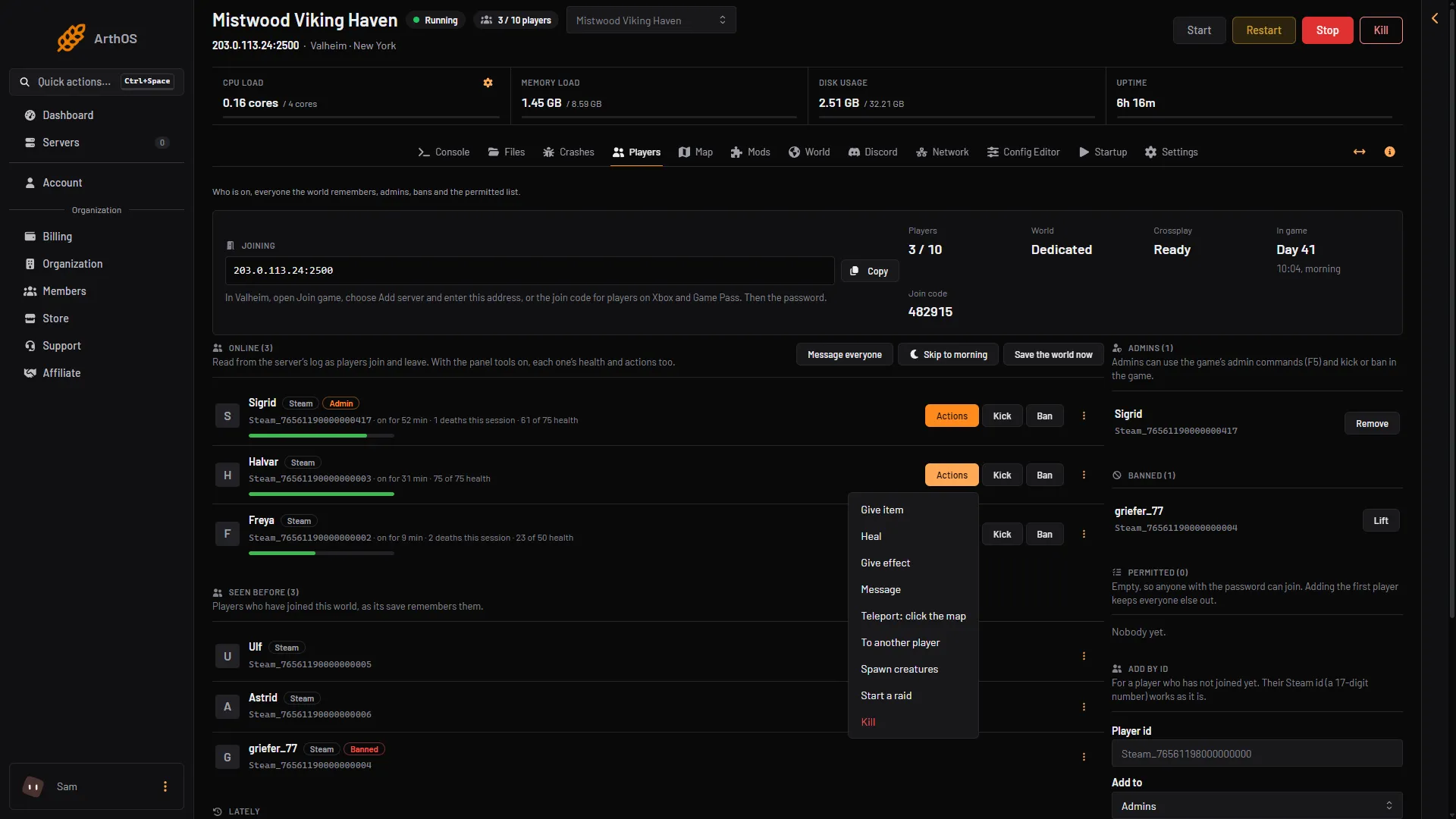
- Give item
- Heal
- Teleport: click the map
- Kill
For the whole world: Message everyone, Skip to morning and Save the world now.
Kick needs the permission to moderate players. Every other action needs the permission to act in the game. Your role may lack them.
What no server can do
The game keeps a player’s inventory, food and skills in the player’s own game, on their own computer. A server cannot read or change them. This is why Give item drops the items at the player’s feet.
Turn them on
- Open the Players page.
- Find the note about the panel tools (1) and choose Turn on panel tools (2).
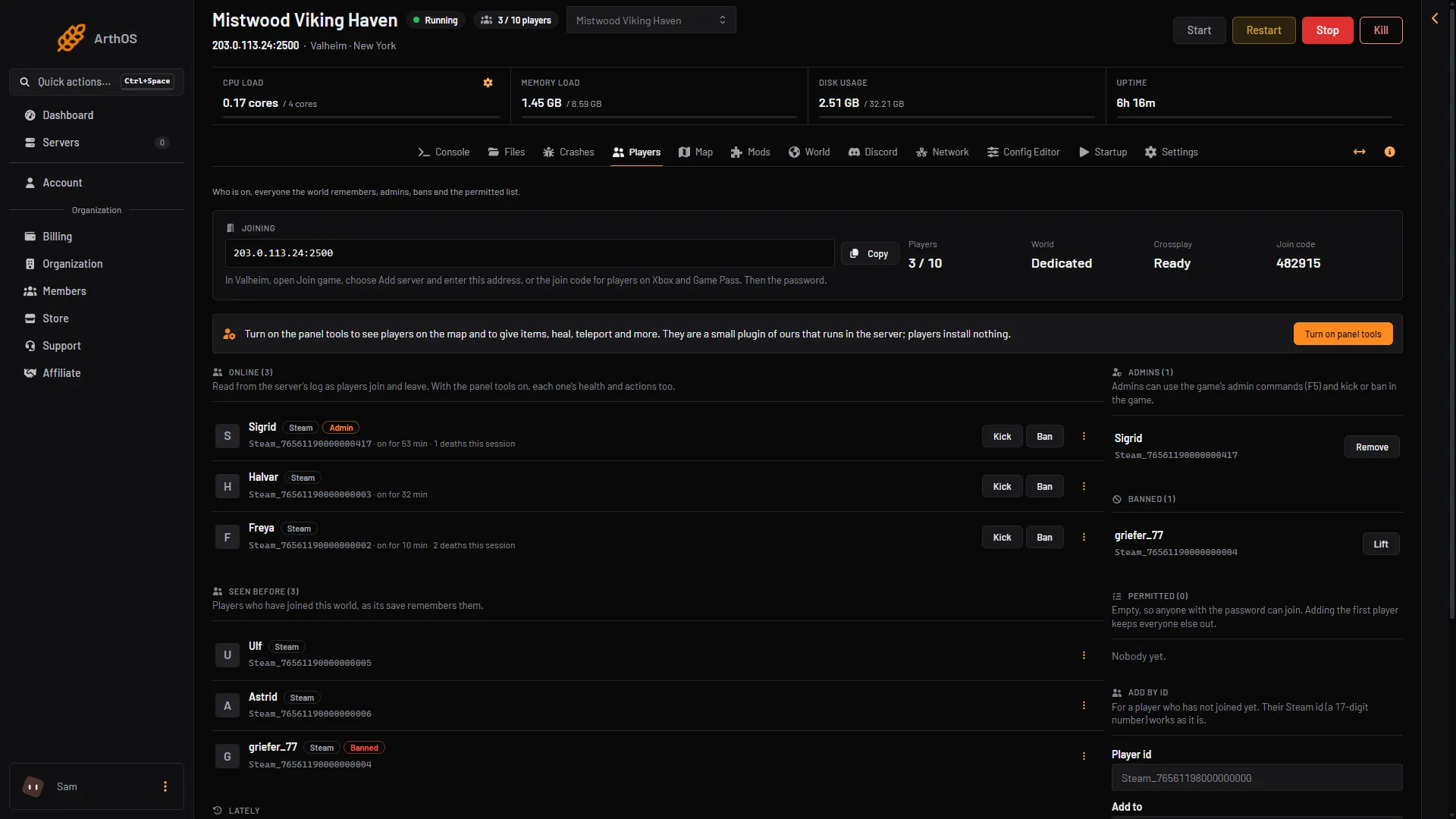
- What the tools add
- Turn on panel tools
- Kick
- Ban
- Read the box “Turn on the panel tools?” (1) and choose Turn on panel tools (2) to confirm.
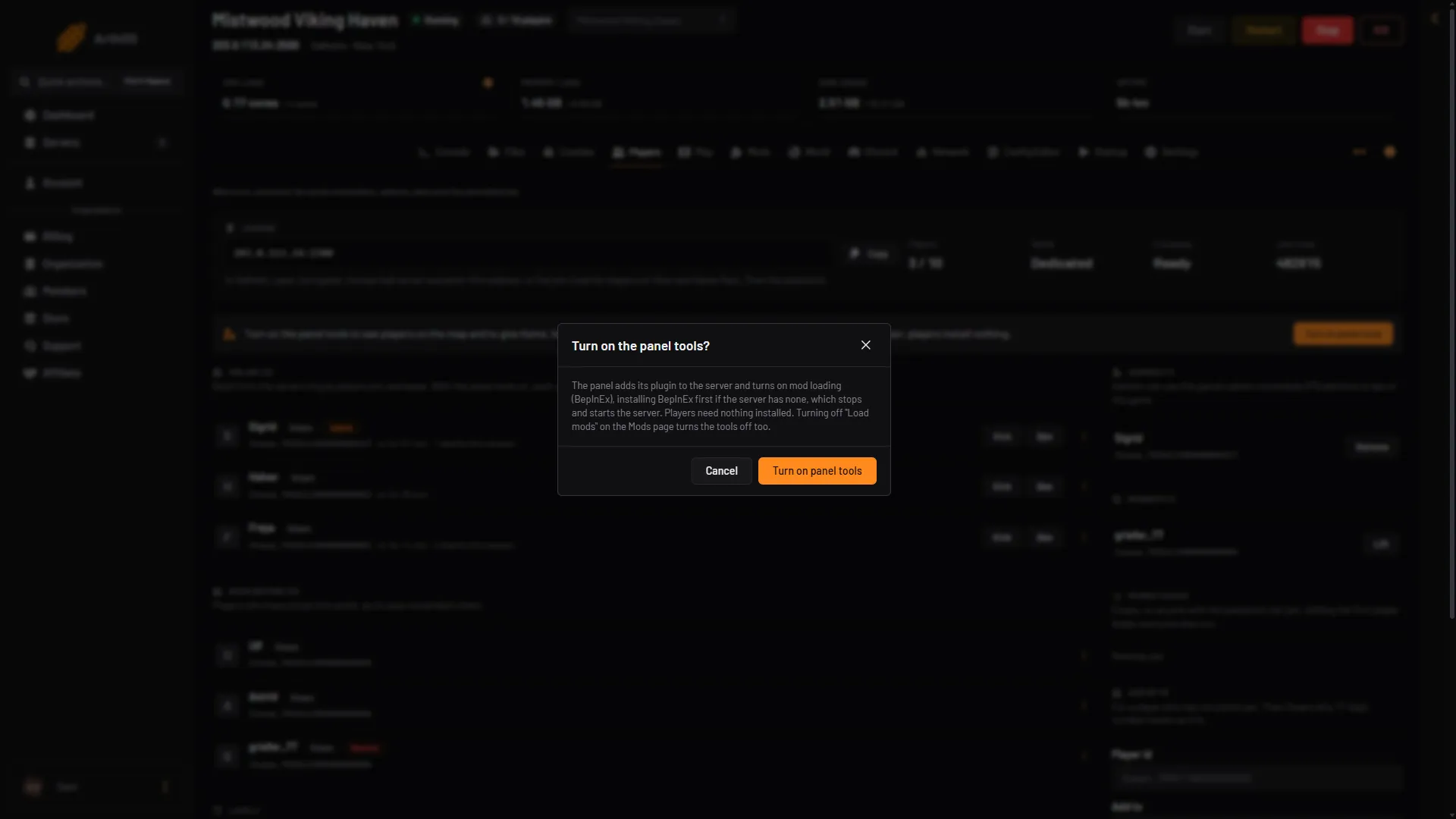
- What happens
- Turn on panel tools
The panel turns on mod loading, which is BepInEx. If the server has no BepInEx yet, the panel installs it first. This stops the server and starts it again. The panel says “Installing BepInEx and the panel tools. The server starts again when it is done.” Players on the server are disconnected, so pick a quiet time.
When it is done, Actions appears on each online player’s row. If the page says to restart the server to load the tools, choose Restart at the top of the server page once.
Not checked on 1.0.20 as of 21 October 2026: how long the stop and start take, and turning the tools on when a modpack or ValheimPlus is already installed. If you use either, make a backup first. See world backups.
Without the tools
The Players page still works, as the picture of the Players page with the tools off shows. It lists who is online, and you can ban, permit and make admins. There is no Actions button and no health. Kick then bans the player and lifts the ban 30 seconds later: the box says “The game has no kick command on a server”. The Map lists players by name only, because the game tells nobody where its players are.
Turn them off
- Open the Mods page.
- Turn off Load mods.
The server then starts as the plain game and the panel tools are off. Nothing is removed. Mods you installed stay on the Mods page. See BepInEx on a Valheim server.
If it does not work
- There is no Turn on panel tools button. Your role may not allow setting them up, or they are already on.
- The page says the tools are not acting yet. Choose Restart at the top of the server page once, so that the server starts with the tools’ key.
- A player does not show on the Map. The player must be online. Reload the page if they joined a moment ago.