









There is no save editor on the panel. A Valheim save is two different things: the world and the characters. A server holds the world, and a character lives in the player’s own game on their own computer. So a server can change how hard the world is, which world is played and which backup is in use. It cannot edit a character file. The panel tools can give items, heal and add effects live, in the game: see give items to a player and heal players and add effects.
The world: what the server holds
The world is the map, the buildings, the day count and the bosses beaten. It lives on the server, in a folder in worlds_local. On Valheim 1.0 each world is one folder. Older worlds were two files, .db and .fwl, and the game still loads them.
You can change the world from the World page of your server:
- Difficulty: pick a preset such as Hard or Hardcore, then change single modifiers. They apply at the next start.
- Play another world: choose a world already on the server, or make a New world. The current world stays on the server as it is.
- World backups: put an earlier copy of the world back.
A world keeps the modifiers it was started with. Leaving one out later does not undo it. Tick Clear the world’s own modifiers first (box 2) to start from exactly what the page shows, then choose Save (box 3).
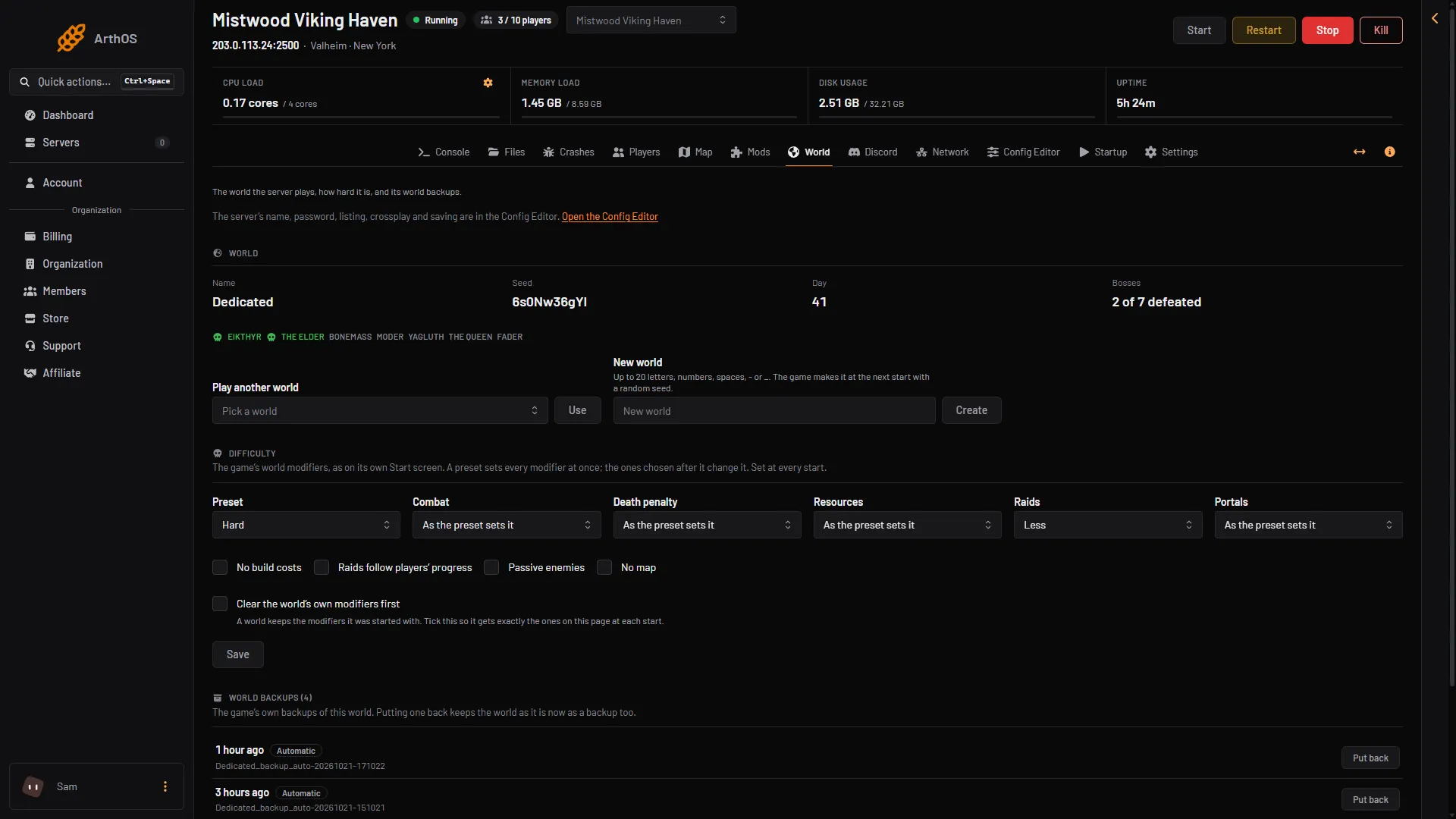
- Pick a preset
- Start clean
- Save
Put a backup back
- Choose Stop at the top of the server page. The page says “Stop the server to put a backup back.” until you do.
- Open the World page and find World backups.
- Choose Put back (2) on the backup you want and confirm.
- Choose Start at the top of the server page.
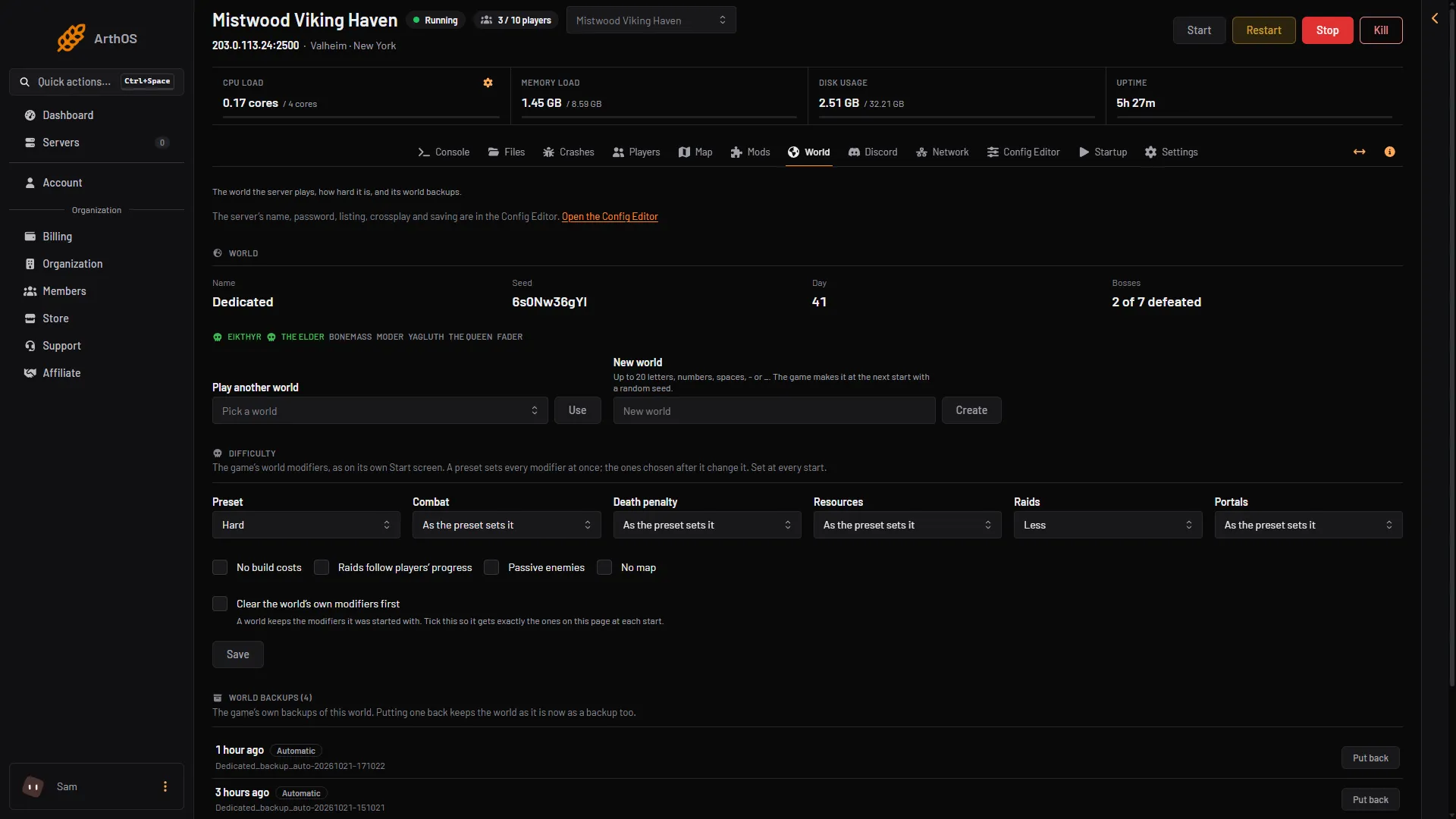
- The list
- Put back
The characters: in each player’s own game
A player’s character, with inventory, food and skills, lives in the player’s own game on their own computer, not on the server.
This means:
- Nothing you do on the server panel edits a character file.
- A player who wants to change their character must do it in their own game.
Edit a copy of the world yourself
If you want to edit a world with a tool, work on a copy and never on the live files.
- Stop the server so the game saves the world.
- Open Files and go to
.config/unity3d/IronGate/Valheim/worlds_local. - Download the world’s folder, or both files of an older world, as described in download a Valheim world. Download them in binary form, or the world can be damaged.
- Edit the copy with a tool you choose and trust. Keep the untouched copy as your backup.
- Upload the result as described in upload a Valheim world.
A world file edited by a third party tool can fail to load. Always keep the original. Loafhosts does not provide or support such tools.
What no server can do
No server can edit the items in a character by changing a file: the character is in the player’s own game. The panel tools act on the player in the live game instead. See the other guides on the Valheim page.
If it does not work
- The world will not load after an edit. Put your untouched copy back, or use Put back on a backup.
- The world’s name shows a different seed than you expect. The pair of files for an older world did not match. Copy both files again.
- A change in Difficulty does nothing. It applies at the next start. Restart the server.
- A player says their items are gone. Their character is in their own game, not on the server. Ask them to check there.
Sources: valheim.fandom.com: Dedicated servers, valheim.fandom.com: Troubleshooting