











The Config Editor changes a VEIN server’s settings as a form, so you never open Game.ini or Engine.ini by hand. Stop the server, change a setting, save, and start the server again. The game reads the new value when it starts. You can also edit the two files by hand: see the last section.
What the two files are
The Config Editor shows two files. Pick one with the buttons Server settings and Game rules (1 and 2).
- Server settings is
Game.ini. It holds the server’s own options: whether it is listed in the server browser, its description, hunger and thirst, the camera distance and Valve Anti-Cheat. - Game rules is
Engine.ini. It holds the rules of the world, as game console variables (settings the game reads when it starts): the length of a day, loot, zombies, player versus player, saves and more. See VEIN game rules.
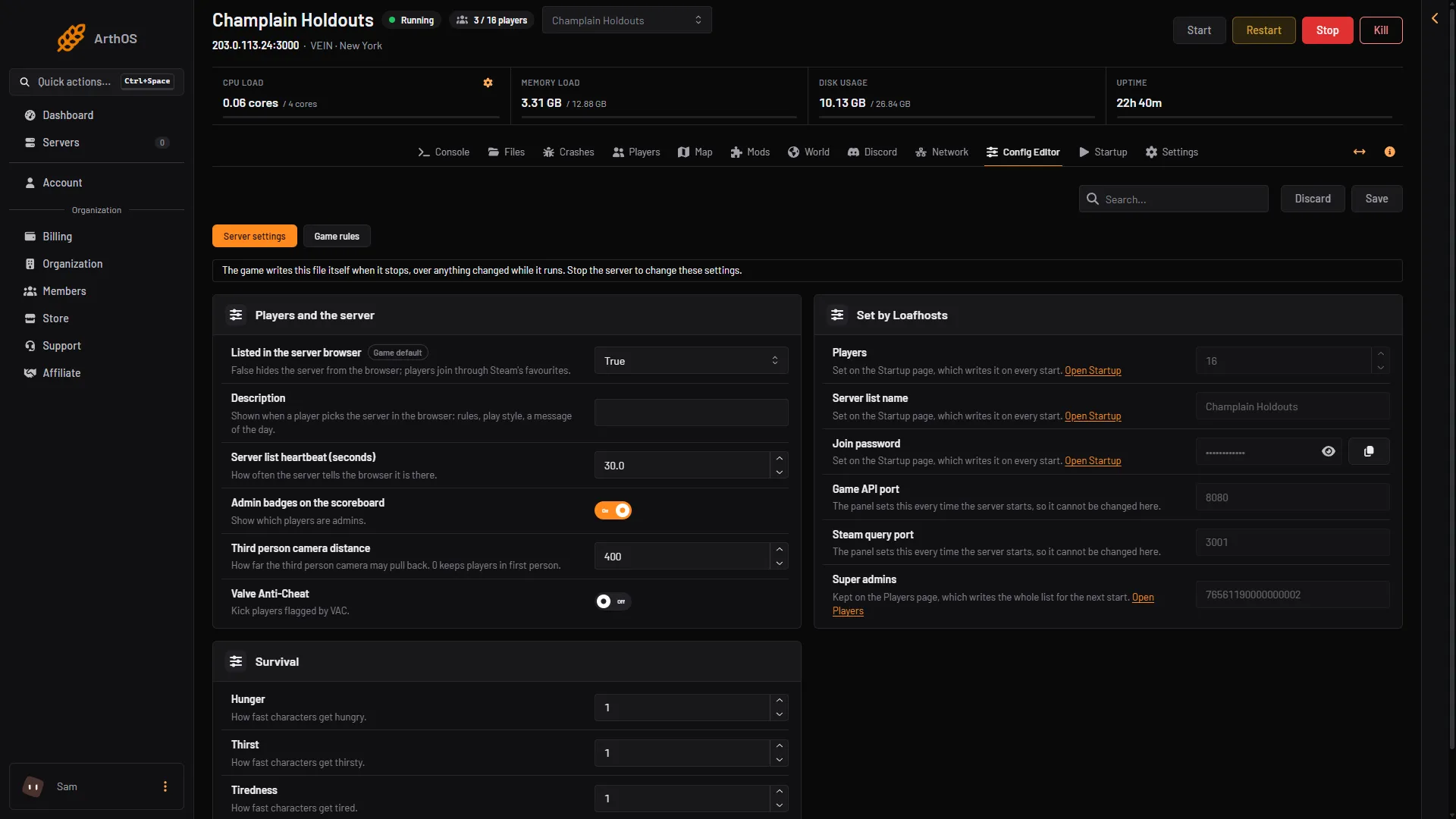
- Server settings
- Game rules
The line under the buttons says the game writes the file itself when it stops, so the server must be stopped to change settings.
How the settings are grouped
Both files use the same group names, so you can find a setting by what it does.
- World and time: day length, night, power and water shut-off.
- Survival: permadeath, items on death, infection, skill XP, hunger, thirst and tiredness.
- Loot: how much loot there is and how often it comes back.
- Zombies and AI: how many, how fast, how hard they hit, hordes.
- Building and PvP: player damage, base damage, raiding, cars and utility cabinets.
- Movement: walking, running, crouching and swimming speed.
- Saves: autosave and compressed saves.
- Players and the server: browser listing, description, players on other versions.
You can also type in the search box to find a setting by its name.
Change a setting
- Choose Stop at the top right of the server page and wait until the server is offline.
- Open Config Editor and choose Server settings or Game rules.
- Change the setting. Each one has a short line of help under it. A changed setting is marked Changed.
- Choose Save. The panel says “Saved. The changes apply when the server starts.”
- Choose Start at the top right of the server page.
While the server runs, the editor shows the settings but will not save. The panel gives the reason: “The game writes this file itself when it stops, over anything changed while it runs.” A change made while the game runs would be lost, so the editor waits for you to stop it.
A setting at its default is not in the file
VEIN, like every Unreal Engine game, leaves out each line that has its default value when it writes its files. A setting you never changed, or one you set back to the default, is not in the file at all. This is normal. The Config Editor still shows the default for it, so you do not need to look for the line.
Settings the panel keeps for you
Some settings sit in the card Set by Loafhosts (1) and cannot be changed here, because the panel writes them again at every start. The line under each one says which page owns it, and a link such as Open Startup (2) or Open Players (3) takes you there.
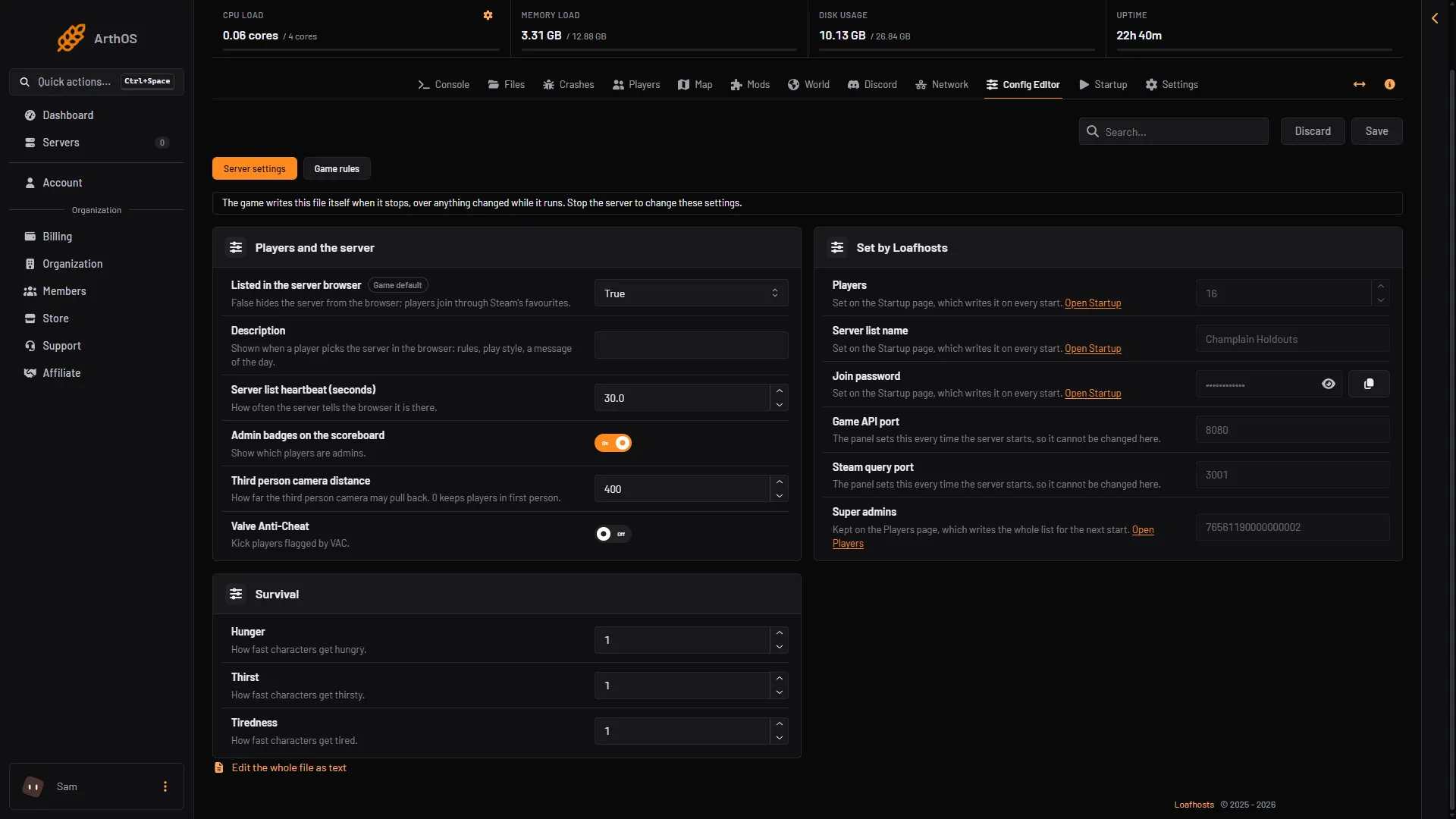
- Set by Loafhosts
- Open Startup
- Open Players
- Max players, server name and join password: set on the Startup page, as Players, Server list name and Join password. See set a server password.
- Super admins, admins, the whitelist and bans: kept on the Players page, which writes the whole list for the next start.
- The Discord chat and admin report webhooks: set on the Discord page, which never shows them again.
- The ports, the bind address and the query port: the panel sets these from the server’s network. They are locked with no page to change them.
Apply a change without a restart?
Not from the Config Editor. It always applies at the next start. The game also has an admin menu, opened with the backslash key (\) by an admin in the game. Not checked on 0.025 as of 27 October 2026: which settings the admin menu offers, and whether a change made there survives the game writing its files when it stops.
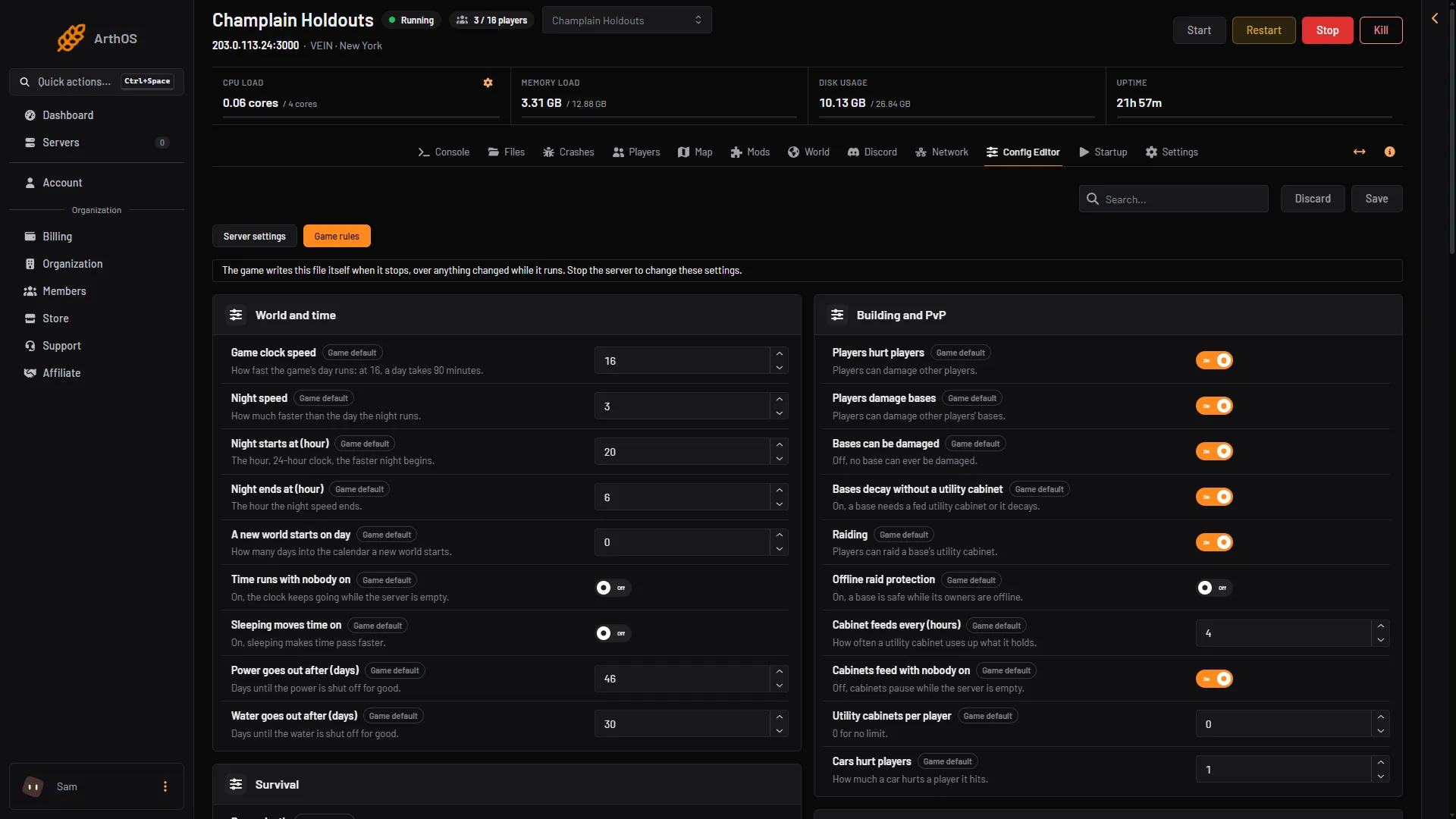
- Game rules
- Game clock speed
- Players hurt players
If it does not work
- Save is greyed out. The server is running. Stop it first.
- My change is gone. It was made in the file while the server ran, and the game wrote its own copy when it stopped. Use the Config Editor with the server stopped.
- A setting is locked. Read the line under it. It names the page that owns the setting.
- The file is missing. The game creates it the first time the server starts. Start the server once, stop it, and open the Config Editor again.
- Not checked on 0.025 as of 27 October 2026: whether every setting is still read by later builds. VEIN is in early access and its settings change between updates.
By hand
On a Loafhosts server, open Files and go to Vein/Saved/Config/LinuxServer. Stop the server first, because the game rewrites both files when it stops.
Game.iniis Server settings. Example: the section[/Script/Vein.VeinGameSession]with the linebPublic=False.Engine.iniis Game rules. Example: the section[ConsoleVariables]with the linevein.Permadeath=1.- A missing line means the default.
- A Windows server’s folder: Not checked on 0.025 as of 27 October 2026.
VEIN game rules lists the key for each rule.
More about the game: VEIN servers.
Sources: ramjet.notion.site