











Guides / VEIN
VEIN server guides.
One task per guide: how to do it in the ArthOS panel, and by hand where there is a way.
Basics
14 guides-
 Basics
 Change the VEIN max players
Set how many players can join your VEIN server on the Startup page. The default is 16. It applies at the next start, and more players need more memory. - Basics
Connect to your VEIN server from the game
Join a VEIN server by its name in the server browser, type the join password, or add its address to Steam favourites. Same game version needed. - Basics
Restart a VEIN server, with a warning for players
Restart a VEIN server from the panel. Use Restart with a warning on the Players page to give players 1, 5 or 10 minutes, or plain Restart. Both save first. - Basics
Set or change a VEIN server password
Change the VEIN join password on the Startup page: letters, numbers, _ and -, up to 32 characters. Leave it empty for none. It applies at the next start. - Basics
Update a VEIN server to the latest version
A VEIN server updates when it starts, if Update on start is on. Restart it to update. Players must run the same version as the server, or they cannot join. - Basics
VEIN server hosting setup guide: order to first join
Set up a VEIN server on Loafhosts: what a new server starts with, where to read the join password, how friends join, and how to make yourself admin. - Basics
VEIN server requirements: memory, CPU and disk
How much memory and disk a VEIN dedicated server uses: 9.5 GB to install, about 3.1 to 3.7 GB with nobody on, 4.5 GB with one player. More players need more. - Basics
Change your VEIN server name in the server browser
Change the name players see in the VEIN server browser: edit Server list name on the Startup page and restart. The description is a separate setting. -
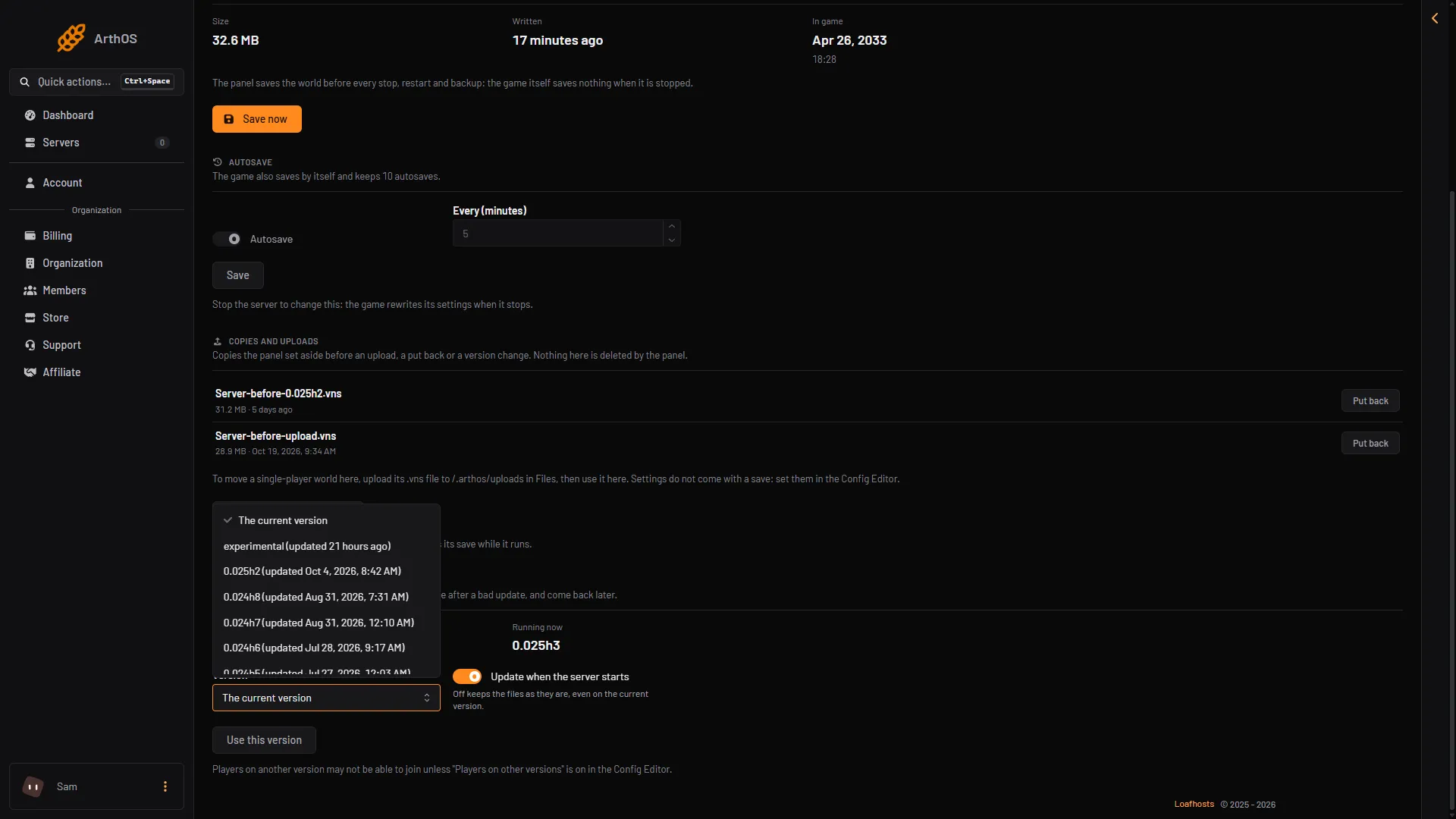
Stay on a VEIN hotfix version, or go back one
Ramjet publishes a version for every VEIN hotfix. Pick one on the World page under Game version and the server uses it from the next start. Players must match. - Basics
VEIN Discord integration: join posts and game chat
Send VEIN joins, leaves, deaths and version changes to Discord, and let the game post its own global chat and admin reports, from one Discord page. - Basics
VEIN experimental branch: switch your server to it
Put a VEIN server on the experimental branch from the World page. A copy of the save is kept first, and you can go back to the current version any time. - Basics
VEIN server description: set what players read
Change the description a player sees when they pick your VEIN server in the browser: rules, play style or a message of the day, in the Config Editor. - Basics
VEIN server mods: what works and what to use instead
VEIN has no server mods yet, and Ramjet lists mod support as far future. Use the Game rules in the Config Editor to change how your server plays. - Basics
VEIN server ports: which ones the server uses
A VEIN server uses three ports: the game port (UDP), the Steam query port (UDP) and a panel-only port (TCP). Players find the server by name, not by port.
Players and admins
12 guides- Players and admins
Ban and kick players on a VEIN server
Ban a VEIN player from the Players page and they cannot join from the next start. To remove someone who is on now, kick them in the admin menu. - Players and admins
Make yourself admin on a VEIN server
Add your SteamID64 as a super admin on the Players page, restart once, then press backslash in game to open the admin menu. - Players and admins
Send a message to everyone on a VEIN server
Use Message everyone on the Players page to show a note in the game to all players, and Restart with a warning to count down before a restart. - Players and admins
VEIN admin menu: open it and what it can do
Admins press backslash in game to open the VEIN admin menu: kick, ban, heal, give items and teleport. The panel cannot do these for you. - Players and admins
VEIN live map: see where players are now
The Map page shows every player on your VEIN server on the game's own map of Champlain Valley, updated every 2 seconds, with a card for each player. - Players and admins
VEIN whitelist: let only chosen players join
Add a player to the VEIN whitelist and only listed players can join from the next start. Add yourself first. Empty means anyone with the password. - Players and admins
Find a VEIN player's SteamID64
A SteamID64 is 17 digits starting with 7656. Copy it from the Players page for anyone who has played, or from a Steam profile for a new friend. - Players and admins
Read VEIN server chat and send it to Discord
Read Local and Global chat on the Players page, with each speaker's Steam name and character, and send Global chat to a Discord channel with a webhook. - Players and admins
See what a VEIN player carries and wears
Open a player's card on the VEIN Map page to see their clothes, their bag and how they are. The panel only shows it. Change it in the game's admin menu. - Players and admins
See who died in VEIN and who killed them
The VEIN Players page lists every death with its killer, counts Kills for each player, and can post deaths to Discord. Also where to set permadeath. - Players and admins
See who is online on your VEIN server
See who is on your VEIN server: the Players page lists everyone online now and everyone who has played, with the live count, read from the game. - Players and admins
VEIN player stats: steps, kills and damage taken
The Players page shows what VEIN counts for each player: Steps, Kills, Damage taken and Items taken, read from the game while the server runs.
The world and saves
8 guides- The world and saves
Reset your VEIN world and start a new one
Start a fresh VEIN world: stop the server, back up, rename Server.vns in Files so it stays as a copy, then start. Settings and admin lists stay. - The world and saves
Upload a VEIN single-player world to your server
Move a single-player VEIN world to your server: upload the .vns file in Files, stop the server, then choose Use this world. Your old save is kept as a copy. - The world and saves
VEIN World page: the save, copies and game version
The VEIN World page shows your save's size and time, saves it now, sets autosave, puts back copies and picks a game version. What needs the server stopped. - The world and saves
Change how often a VEIN server autosaves
Set VEIN autosave on the World page or in the Config Editor Saves group. Turn it on or off and set how often the game saves. Stop the server first. - The world and saves
Download your VEIN server save
Download your VEIN world from the server: Save now or stop the server, then download Server.vns from Vein/Saved/SaveGames in Files. Copies are there too. - The world and saves
Save a VEIN server now
Use Save now on the VEIN World or Players page to write the world to disk at once. The panel also saves before every stop, restart and backup. - The world and saves
VEIN save copies: put one back or use an upload
See the VEIN save copies the panel keeps before an upload, a put back or a version change, and put one back. Nothing there is deleted by the panel. - The world and saves
Where VEIN server files are: save, ini files and logs
Where everything is on a VEIN server: save, Game.ini, Engine.ini, logs and uploads. Use Files or SFTP, and edit ini files only while stopped.
Game rules and settings
14 guides- Game rules and settings
VEIN Config Editor: Game.ini and Engine.ini settings
Change VEIN settings in the Config Editor: Server settings (Game.ini) and Game rules (Engine.ini). Save with the server stopped; they apply at the next start. - Game rules and settings
VEIN day length: change how long day and night last
Change the speed of the VEIN game clock, the night speed and the night hours, and choose whether time runs with nobody on, in the Config Editor. - Game rules and settings
VEIN game rules: what you can change in Engine.ini
A tour of VEIN's Game rules file (Engine.ini): day length, loot, zombies, PvP, saves and more, with each setting's default and the Config Editor label. - Game rules and settings
VEIN loot settings: scarcity, refills and car keys
Change how much loot a VEIN server has, how fast containers and items refill, and how often car keys appear, in the Game rules file of the Config Editor. - Game rules and settings
VEIN PvP settings: player damage, raiding, PvE server
Set VEIN to PvE or PvP in the Config Editor: Players hurt players, base damage, Raiding, Offline raid protection and car damage, with each default. - Game rules and settings
VEIN zombie settings: numbers, health, speed, headshots
Change how many zombies a VEIN server has and how tough they are: health, damage, speed, hearing, sight, climbing, headshots and the chance of infection. - Game rules and settings
VEIN base decay and raiding settings
Control VEIN base decay and raiding: the utility cabinet settings, offline raid protection and how often a cabinet feeds. Change them in the Config Editor. - Game rules and settings
VEIN hordes: turn them off or change how often they come
Turn VEIN hordes off, or change how often a horde starts and how long it lasts, with three settings in the Game rules file of the Config Editor. - Game rules and settings
VEIN hunger, thirst and tiredness multipliers
Make VEIN characters get hungry, thirsty and tired slower or faster. Three Config Editor settings, all 1 by default. Stop the server, save, then start it. - Game rules and settings
VEIN keep items on death: stop players losing their gear
VEIN's Keep items on death is off by default. Turn it on and players keep what they carry when they die. Corpses stay is on by default. Where to set both. - Game rules and settings
VEIN permadeath: turn it on and what it does
VEIN's Permadeath setting is off by default. When on, a character that dies cannot respawn. Where to find it, related settings, and what to tell players. - Game rules and settings
VEIN power and water shutoff: when do they go out
VEIN's power goes out after 46 game days and the water after 30, by default. Change both in the Game rules file of the Config Editor and watch the date. - Game rules and settings
VEIN server listing: hide it or list it in the browser
Hide your VEIN server from the browser with one setting, or keep it listed. Covers admin badges, Valve Anti-Cheat and the server list heartbeat. - Game rules and settings
VEIN XP multiplier: change how fast skills level
Set the VEIN Skill XP multiplier in the Config Editor. 1 is normal, higher levels skills faster, lower slower. Stop the server first, then start it again.
Fixes
10 guides- Fixes
VEIN cannot connect to server: causes and fixes
Cannot join your VEIN server? Check the join password, game version, whitelist, bans, player limit and whether the server is up or listed yet. - Fixes
VEIN progress lost: get your world back
VEIN progress went back? The game autosaves every 5 minutes and the panel saves before stops. Put back a copy from the World page to recover. - Fixes
VEIN save cut off: characters missing and how to fix it
The World page says a VEIN save was cut off? The game was stopped while it wrote, so characters may be missing. Put a copy of the save back. - Fixes
VEIN server and player on different versions
Players cannot join a VEIN server on another version. Update the server on restart, pick a hotfix version, or allow other versions for a short time. - Fixes
VEIN server crashed: read the Crashes page
Open Crashes for your VEIN server: each start and how it ended, what the panel found and how to fix it, the engine's crash report and a cut-off save. - Fixes
VEIN server not showing in the server browser
A new VEIN server lists itself about 30 seconds after it is ready. If it stays missing, check its name and the browser setting, or try Steam favourites. - Fixes
VEIN settings not saving: why they reset and how to fix it
A VEIN setting went back to normal after a restart? The game rewrites its ini files when it stops. Change settings while the server is stopped. - Fixes
VEIN server lag: what slows it down
VEIN server lag usually comes from memory, many zombies or other AI, or many players. See which settings to lower and where to watch memory and CPU. - Fixes
VEIN server logs: where they are and how to read them
VEIN writes one log per start: Vein.log for the start now, Vein-backup files for older ones. Read them live in Console or by start on Crashes. - Fixes
VEIN server out of memory: causes and how to fix it
The Crashes page says the VEIN server ran out of memory? It needs about 3.5 GB with nobody on and more per player. Raise the server's memory or restart it.
- Ban and kick players on a VEIN server Ban a VEIN player from the Players page and they cannot join from the next start. To remove someone who is on now, kick them in the admin menu.
- Change the VEIN max players Set how many players can join your VEIN server on the Startup page. The default is 16. It applies at the next start, and more players need more memory.
- Connect to your VEIN server from the game Join a VEIN server by its name in the server browser, type the join password, or add its address to Steam favourites. Same game version needed.
- Make yourself admin on a VEIN server Add your SteamID64 as a super admin on the Players page, restart once, then press backslash in game to open the admin menu.
- Reset your VEIN world and start a new one Start a fresh VEIN world: stop the server, back up, rename Server.vns in Files so it stays as a copy, then start. Settings and admin lists stay.
- Restart a VEIN server, with a warning for players Restart a VEIN server from the panel. Use Restart with a warning on the Players page to give players 1, 5 or 10 minutes, or plain Restart. Both save first.
- Send a message to everyone on a VEIN server Use Message everyone on the Players page to show a note in the game to all players, and Restart with a warning to count down before a restart.
- Set or change a VEIN server password Change the VEIN join password on the Startup page: letters, numbers, _ and -, up to 32 characters. Leave it empty for none. It applies at the next start.
- Update a VEIN server to the latest version A VEIN server updates when it starts, if Update on start is on. Restart it to update. Players must run the same version as the server, or they cannot join.
- Upload a VEIN single-player world to your server Move a single-player VEIN world to your server: upload the .vns file in Files, stop the server, then choose Use this world. Your old save is kept as a copy.
- VEIN admin menu: open it and what it can do Admins press backslash in game to open the VEIN admin menu: kick, ban, heal, give items and teleport. The panel cannot do these for you.
- VEIN cannot connect to server: causes and fixes Cannot join your VEIN server? Check the join password, game version, whitelist, bans, player limit and whether the server is up or listed yet.
- VEIN Config Editor: Game.ini and Engine.ini settings Change VEIN settings in the Config Editor: Server settings (Game.ini) and Game rules (Engine.ini). Save with the server stopped; they apply at the next start.
- VEIN day length: change how long day and night last Change the speed of the VEIN game clock, the night speed and the night hours, and choose whether time runs with nobody on, in the Config Editor.
- VEIN game rules: what you can change in Engine.ini A tour of VEIN's Game rules file (Engine.ini): day length, loot, zombies, PvP, saves and more, with each setting's default and the Config Editor label.
- VEIN live map: see where players are now The Map page shows every player on your VEIN server on the game's own map of Champlain Valley, updated every 2 seconds, with a card for each player.
- VEIN loot settings: scarcity, refills and car keys Change how much loot a VEIN server has, how fast containers and items refill, and how often car keys appear, in the Game rules file of the Config Editor.
- VEIN progress lost: get your world back VEIN progress went back? The game autosaves every 5 minutes and the panel saves before stops. Put back a copy from the World page to recover.
- VEIN PvP settings: player damage, raiding, PvE server Set VEIN to PvE or PvP in the Config Editor: Players hurt players, base damage, Raiding, Offline raid protection and car damage, with each default.
- VEIN save cut off: characters missing and how to fix it The World page says a VEIN save was cut off? The game was stopped while it wrote, so characters may be missing. Put a copy of the save back.
- VEIN server and player on different versions Players cannot join a VEIN server on another version. Update the server on restart, pick a hotfix version, or allow other versions for a short time.
- VEIN server crashed: read the Crashes page Open Crashes for your VEIN server: each start and how it ended, what the panel found and how to fix it, the engine's crash report and a cut-off save.
- VEIN server hosting setup guide: order to first join Set up a VEIN server on Loafhosts: what a new server starts with, where to read the join password, how friends join, and how to make yourself admin.
- VEIN server not showing in the server browser A new VEIN server lists itself about 30 seconds after it is ready. If it stays missing, check its name and the browser setting, or try Steam favourites.
- VEIN server requirements: memory, CPU and disk How much memory and disk a VEIN dedicated server uses: 9.5 GB to install, about 3.1 to 3.7 GB with nobody on, 4.5 GB with one player. More players need more.
- VEIN settings not saving: why they reset and how to fix it A VEIN setting went back to normal after a restart? The game rewrites its ini files when it stops. Change settings while the server is stopped.
- VEIN whitelist: let only chosen players join Add a player to the VEIN whitelist and only listed players can join from the next start. Add yourself first. Empty means anyone with the password.
- VEIN World page: the save, copies and game version The VEIN World page shows your save's size and time, saves it now, sets autosave, puts back copies and picks a game version. What needs the server stopped.
- VEIN zombie settings: numbers, health, speed, headshots Change how many zombies a VEIN server has and how tough they are: health, damage, speed, hearing, sight, climbing, headshots and the chance of infection.
- Change how often a VEIN server autosaves Set VEIN autosave on the World page or in the Config Editor Saves group. Turn it on or off and set how often the game saves. Stop the server first.
- Change your VEIN server name in the server browser Change the name players see in the VEIN server browser: edit Server list name on the Startup page and restart. The description is a separate setting.
- Download your VEIN server save Download your VEIN world from the server: Save now or stop the server, then download Server.vns from Vein/Saved/SaveGames in Files. Copies are there too.
- Find a VEIN player's SteamID64 A SteamID64 is 17 digits starting with 7656. Copy it from the Players page for anyone who has played, or from a Steam profile for a new friend.
- Read VEIN server chat and send it to Discord Read Local and Global chat on the Players page, with each speaker's Steam name and character, and send Global chat to a Discord channel with a webhook.
- Save a VEIN server now Use Save now on the VEIN World or Players page to write the world to disk at once. The panel also saves before every stop, restart and backup.
- See what a VEIN player carries and wears Open a player's card on the VEIN Map page to see their clothes, their bag and how they are. The panel only shows it. Change it in the game's admin menu.
- See who died in VEIN and who killed them The VEIN Players page lists every death with its killer, counts Kills for each player, and can post deaths to Discord. Also where to set permadeath.
- See who is online on your VEIN server See who is on your VEIN server: the Players page lists everyone online now and everyone who has played, with the live count, read from the game.
- Stay on a VEIN hotfix version, or go back one Ramjet publishes a version for every VEIN hotfix. Pick one on the World page under Game version and the server uses it from the next start. Players must match.
- VEIN base decay and raiding settings Control VEIN base decay and raiding: the utility cabinet settings, offline raid protection and how often a cabinet feeds. Change them in the Config Editor.
- VEIN Discord integration: join posts and game chat Send VEIN joins, leaves, deaths and version changes to Discord, and let the game post its own global chat and admin reports, from one Discord page.
- VEIN experimental branch: switch your server to it Put a VEIN server on the experimental branch from the World page. A copy of the save is kept first, and you can go back to the current version any time.
- VEIN hordes: turn them off or change how often they come Turn VEIN hordes off, or change how often a horde starts and how long it lasts, with three settings in the Game rules file of the Config Editor.
- VEIN hunger, thirst and tiredness multipliers Make VEIN characters get hungry, thirsty and tired slower or faster. Three Config Editor settings, all 1 by default. Stop the server, save, then start it.
- VEIN keep items on death: stop players losing their gear VEIN's Keep items on death is off by default. Turn it on and players keep what they carry when they die. Corpses stay is on by default. Where to set both.
- VEIN permadeath: turn it on and what it does VEIN's Permadeath setting is off by default. When on, a character that dies cannot respawn. Where to find it, related settings, and what to tell players.
- VEIN player stats: steps, kills and damage taken The Players page shows what VEIN counts for each player: Steps, Kills, Damage taken and Items taken, read from the game while the server runs.
- VEIN power and water shutoff: when do they go out VEIN's power goes out after 46 game days and the water after 30, by default. Change both in the Game rules file of the Config Editor and watch the date.
- VEIN save copies: put one back or use an upload See the VEIN save copies the panel keeps before an upload, a put back or a version change, and put one back. Nothing there is deleted by the panel.
- VEIN server description: set what players read Change the description a player sees when they pick your VEIN server in the browser: rules, play style or a message of the day, in the Config Editor.
- VEIN server lag: what slows it down VEIN server lag usually comes from memory, many zombies or other AI, or many players. See which settings to lower and where to watch memory and CPU.
- VEIN server listing: hide it or list it in the browser Hide your VEIN server from the browser with one setting, or keep it listed. Covers admin badges, Valve Anti-Cheat and the server list heartbeat.
- VEIN server logs: where they are and how to read them VEIN writes one log per start: Vein.log for the start now, Vein-backup files for older ones. Read them live in Console or by start on Crashes.
- VEIN server mods: what works and what to use instead VEIN has no server mods yet, and Ramjet lists mod support as far future. Use the Game rules in the Config Editor to change how your server plays.
- VEIN server out of memory: causes and how to fix it The Crashes page says the VEIN server ran out of memory? It needs about 3.5 GB with nobody on and more per player. Raise the server's memory or restart it.
- VEIN server ports: which ones the server uses A VEIN server uses three ports: the game port (UDP), the Steam query port (UDP) and a panel-only port (TCP). Players find the server by name, not by port.
- VEIN XP multiplier: change how fast skills level Set the VEIN Skill XP multiplier in the Config Editor. 1 is normal, higher levels skills faster, lower slower. Stop the server first, then start it again.
- Where VEIN server files are: save, ini files and logs Where everything is on a VEIN server: save, Game.ini, Engine.ini, logs and uploads. Use Files or SFTP, and edit ini files only while stopped.