
















The rotation is the list of missions your server plays, in order. With Play the first mission at once on, the server starts the first one at every start without waiting for an admin; with it off, an admin chooses one in game after joining. You build it on the Missions page. Add a mission, put it where you want it, choose a difficulty, and press Save. The change applies at the next start of the server, not to the mission that is running now.
Add a mission
- Open the Missions page.
- Under On the server, find the mission. If it is your own, upload it first: see upload a mission.
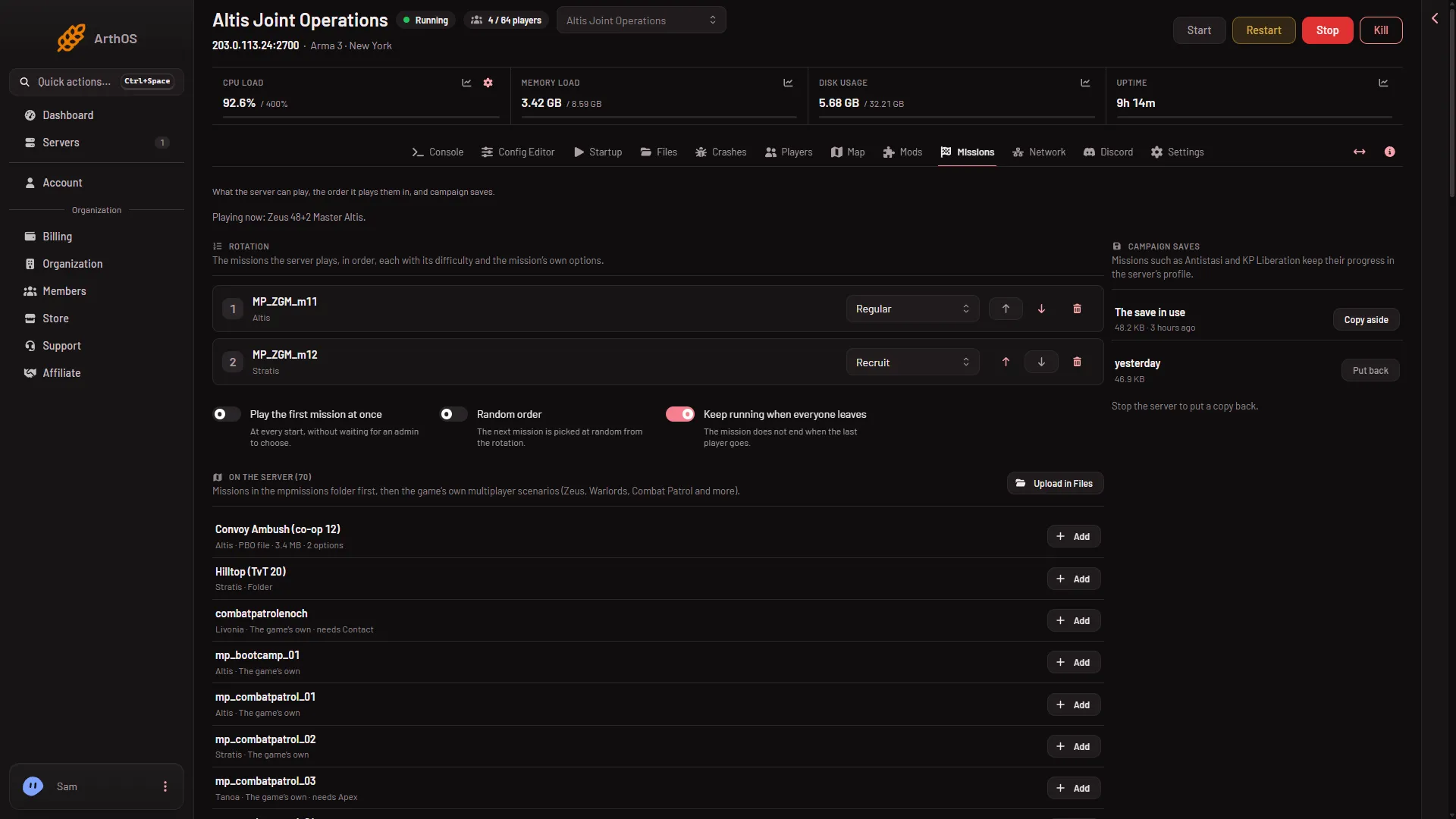
- Choose Add (1) on its row. The row now carries the tag In the rotation, and the mission appears in the rotation card.
- Add
- Difficulty
A rotation holds at most 50 missions. A new server made from the store starts with two sample missions in it, both Zeus missions (Zeus is the mode where one player runs the mission live): one on Altis and one on Stratis.
Set the order
The list is kept in this order. For each entry you can:
- Choose Move (name) up or Move (name) down to change its place.
- Choose Take (name) out to remove it.
If an entry says “not on the server”, its file is gone. Take it out, or upload the file again.
Choose a difficulty and options
Each entry has a Difficulty for (name) picker (2 in the first picture): Server’s difficulty, Recruit, Regular, Veteran or Custom. Custom uses the settings in the server’s own profile. A difficulty for the whole server is set under Difficulty for every mission in the Config Editor. Not checked on 2.22.154089 as of 13 November 2026: which of the two wins when both are set.
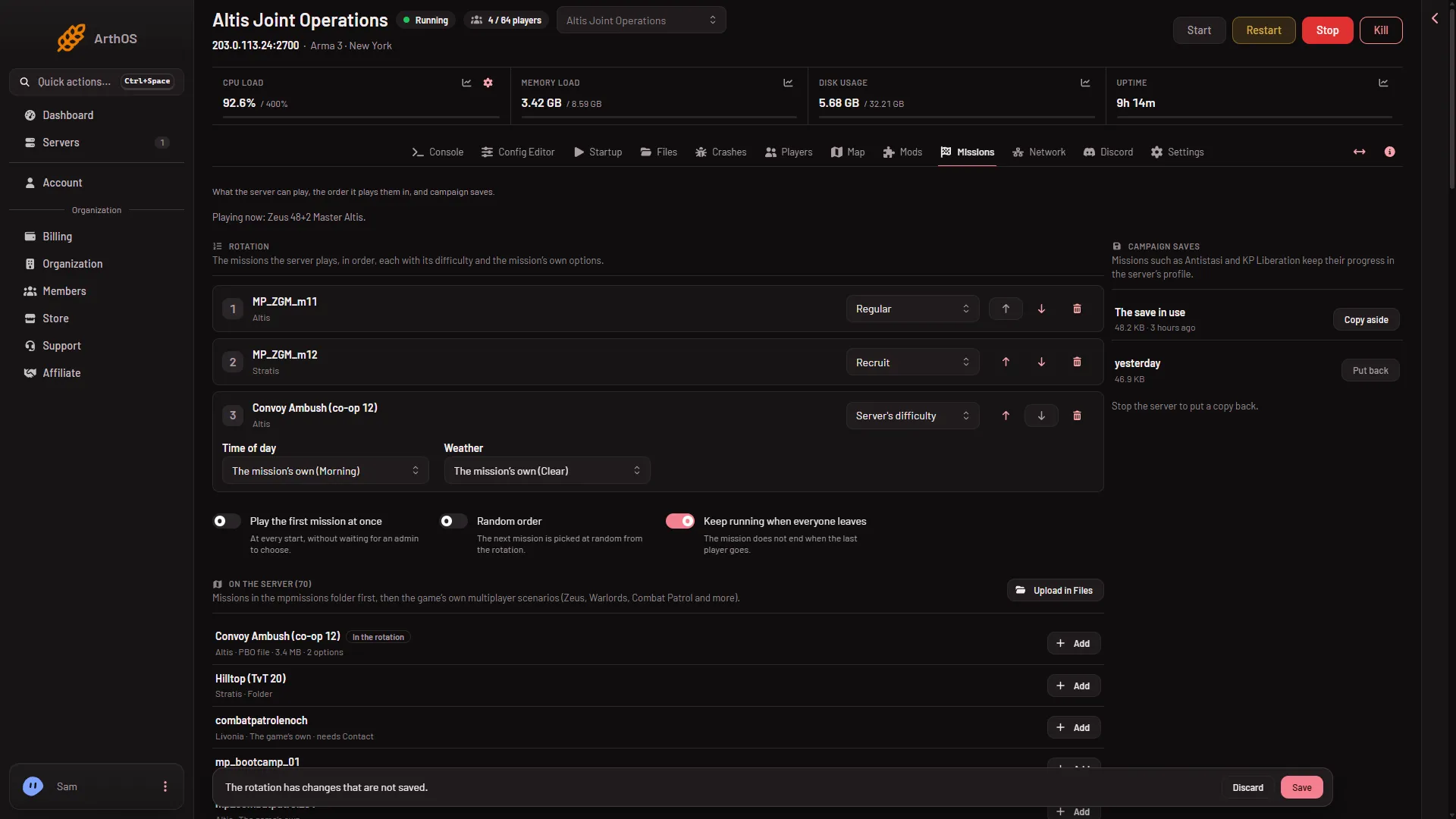
If the mission has options of its own, they show as choices under the entry. The default reads “The mission’s own (value)”.
Three switches
Under the rotation are three switches:
- Play the first mission at once: “At every start, without waiting for an admin to choose.”
- Random order: “The next mission is picked at random from the rotation.”
- Keep running when everyone leaves: “The mission does not end when the last player goes.” See keep the mission running when empty.
Save it
When you change anything, a bar appears: “The rotation has changes that are not saved.” Choose Save (3), or Discard (2) to go back.
- Not saved yet
- Discard
- Save
After saving, the page tells you when it applies:
- Server stopped: “Saved. The server plays this rotation from its next start.”
- Server running: “Saved. The server plays this rotation from its next restart.”
Nothing changes in the running mission. Not checked on 2.22.154089 as of 13 November 2026: what the server does when a mission ends. To switch the mission now, see change the mission now.
The panel writes the rotation into server.cfg, in the Missions class. The same lines are locked in the Config Editor with the note that the Missions page keeps them, so use this page.
More: Arma 3 servers.
If it does not work
- The page says the rotation has no missions. An empty rotation is allowed. Then an admin chooses a mission in game after joining. Add one from the list to change that.
- Save is refused: “server.cfg changed since this page loaded”. Someone changed the file. Reload the page and make your changes again.
- Save is refused: the server has no
server.cfgyet. Start the server once, then try again. - Save is refused: a class or list does not close. The
server.cfghas a broken line. The panel will not change a file it cannot read safely. Open the Config Editor and fix the file first. - A notice says
-autoInitis on the start line. The game then plays the first mission at once and ignores the missions’ parameters (the panel’s own notice). Take it out of Extra Start Parameters on Startup to use them. - The server still plays the old order. Restart it. A saved rotation is read at a start.
Sources: Bohemia wiki: Dedicated Server