
















A custom mission goes into the mpmissions folder of your server. It can be a .pbo file or a mission folder. Once it is there, the Missions page lists it, and you can add it to the rotation or play it now.
The name must end in the world
Every mission in mpmissions is named name.world. The part after the last dot is the world the mission is played on. For example, MyMission.Altis is a mission called MyMission on Altis. A PBO file adds .pbo at the end: MyMission.Altis.pbo.
The panel reads the world from the end of the name, in the game’s own class name. End the name with one of these, not with the display name:
altis, stratis, tanoa, malden, enoch (Livonia), vr (Virtual Reality), gm_weferlingen_summer, gm_weferlingen_winter, cam_lao_nam, vn_khe_sanh, vn_the_bra, stozec, sefrouramal, spe_normandy, spe_mortain, tem_anizay and lingor3.
So a Livonia mission is MyMission.enoch, never MyMission.Livonia. Some worlds need an expansion or a Creator DLC, and every player must own it. The Missions page shows “needs” beside such a mission.
Upload it
- Open Files and open the
mpmissionsfolder. (If the Missions page ever says “No missions found. Upload a .pbo or a mission folder into mpmissions.”, its link Upload in Files opens the same folder.) - Open the New menu.
- For a PBO file (a packed mission), choose File from Upload (1) and pick the file.
- For a mission folder, choose Directory from Upload (2) and pick the folder.
- Wait for the upload to finish.
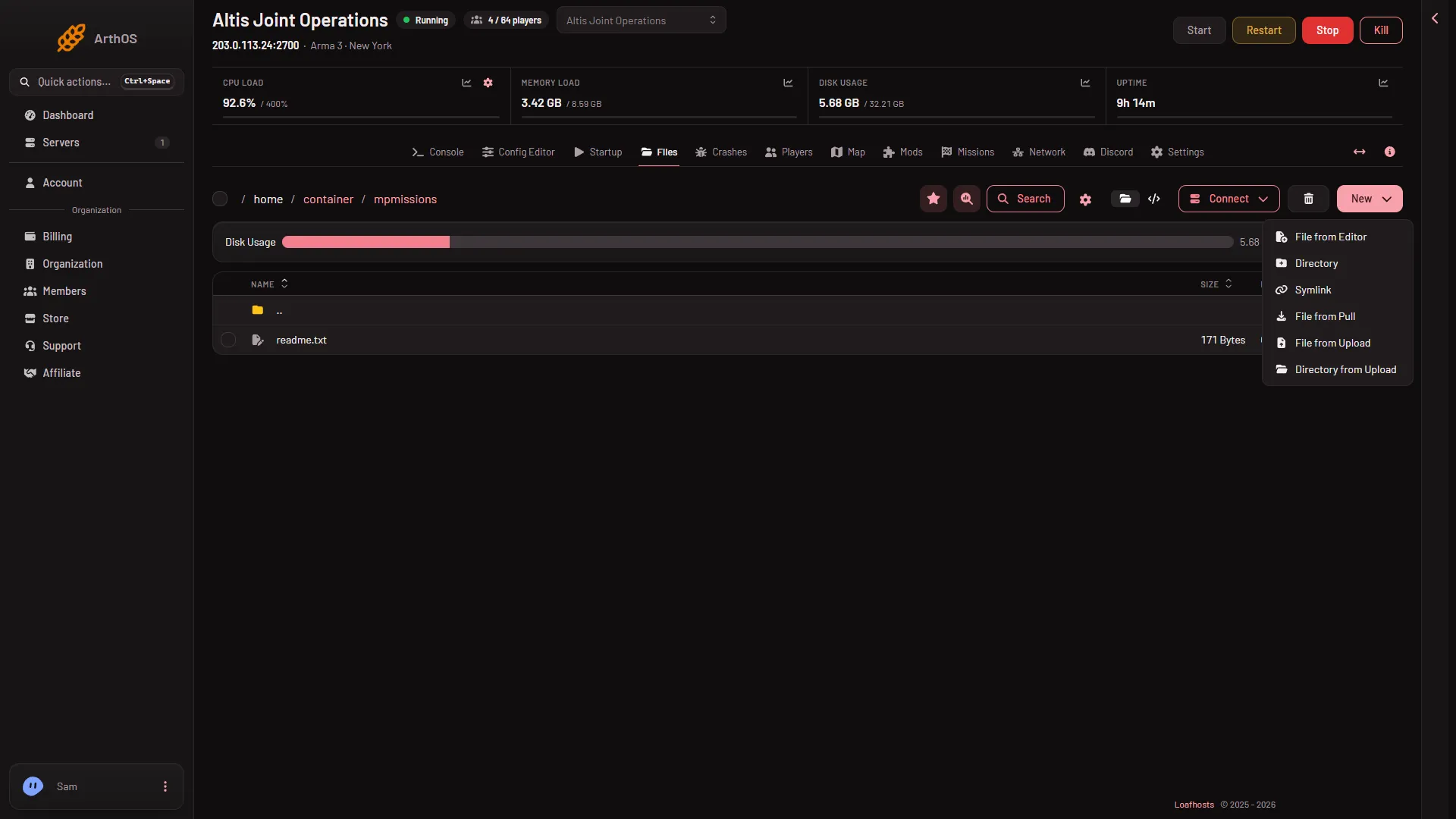
- File from Upload
- Directory from Upload
You can also upload with SFTP. In Files, open the Connect menu and choose via SFTP to see the SFTP Details.
See it on the Missions page
Go back to the Missions page. While the server runs, the page reloads its list by itself. The list under On the server shows your mission with:
- Its title, read from the mission’s own
description.ext. - Its
name.world. - A chip, PBO file or Folder.
- “(number) options”, if the mission has settings of its own.
The game’s own missions, such as the Zeus ones (Zeus is the mode where one player runs the mission live), are listed after yours with the chip The game’s own. They are not in mpmissions.
What to do next
Uploading does not put the mission into play. It only makes it available. Then you have two choices:
- Add it to the rotation, so the server plays it at its next start. See add a mission to the rotation.
- Play it now. See change the mission now.
Not checked on 2.22.154089 as of 13 November 2026: whether a mission added while the game is running is offered at once in the game’s own mission list. The panel’s list reads the folder. Also not checked on 2.22.154089 as of 13 November 2026: whether the game on Linux needs the mission name in lower case. The panel matches names without regard to case.
More about the game on Loafhosts: Arma 3 servers.
If it does not work
- The mission is not listed. Check the name. It should end in the world, such as
.Altisor.enoch, as inname.world. - The mission is in the wrong folder. Put it directly in
mpmissions. - The Missions tab is missing. Your role may not allow reading startup settings. Ask the owner of the server to give your role that.
- The row says it needs something. The world belongs to an expansion or Creator DLC. Players need to own it. For a Creator DLC world, two things are needed: Creator DLC Server Files on Startup (it arrives at the next update) and the DLC’s folder on the Mods list. Every player must own the DLC.
- The row shows no options. That is normal. A mission only shows options when it lists settings in its
description.ext.
Sources: Bohemia wiki: Dedicated Server