
















When a player cannot join, check these eight things in this order.
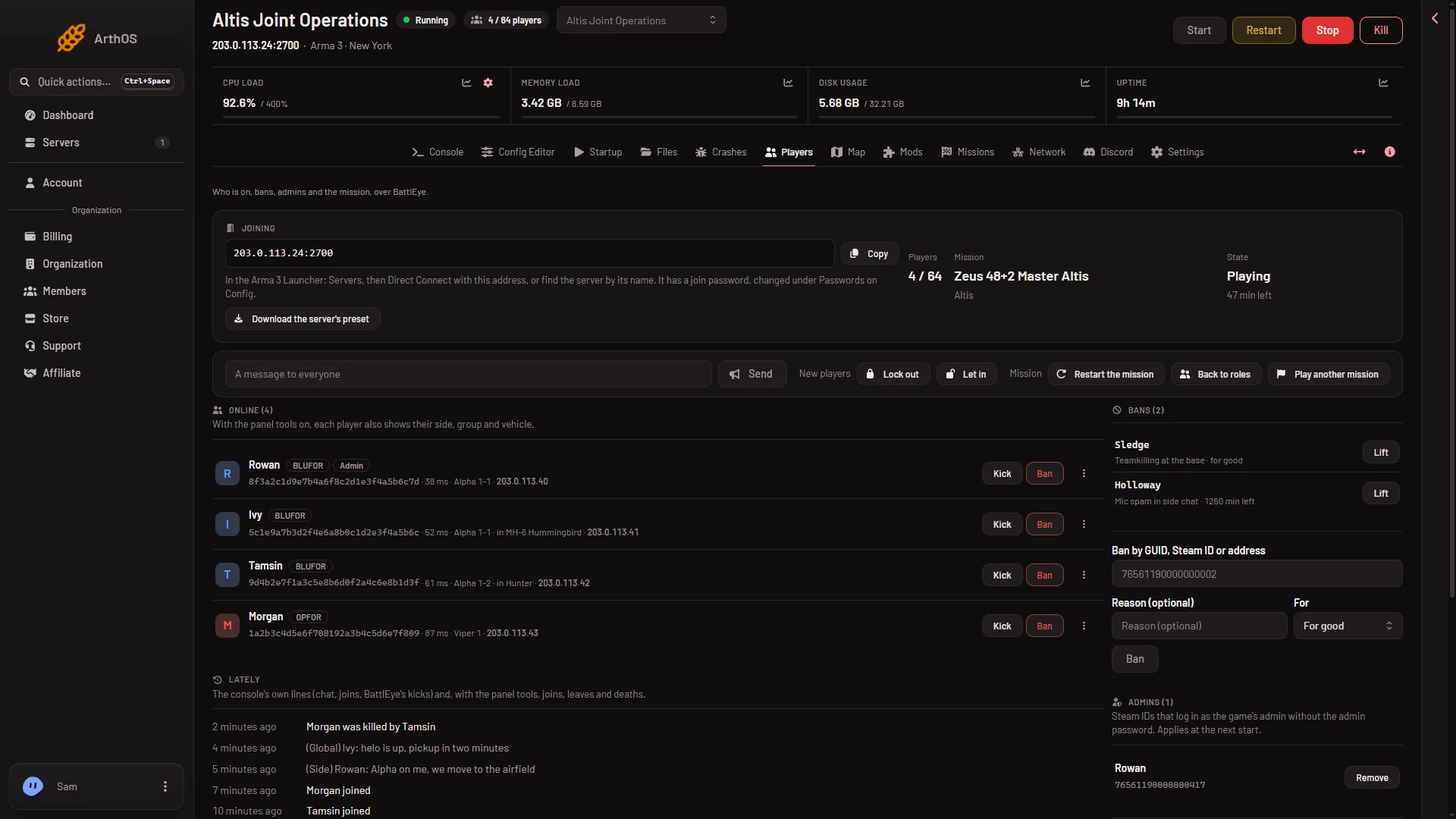
The Players page shows most of the answers in one place. BattlEye is the game’s anti-cheat; the panel talks to it to read the player list.
- Copy the address
- Lock out
- Let in
- Bans
1. Is the server running?
Open the Players page. The page’s status line says how the server is doing. The State tile beside it shows the mission’s stage (for example Choosing a mission or Playing); “Choosing a mission” is a healthy server waiting for an admin. If the status line says “The server is stopped.”, start it. If it says “The server is starting.”, wait: players can join once it is up. If it says “The server is running, but BattlEye is not answering yet.”, give it a minute.
A server that went into standby is stopped too. Nothing was deleted. Start it from the panel, or open its wake link (Settings, Standby, Wake link).
2. Is the address right?
The Joining card on the Players page shows the address, the server’s address and game port, with a Copy button (1). The panel’s own line there reads: “In the Arma 3 Launcher: Servers, then Direct Connect with this address, or find the server by its name.”
Type the address exactly as shown, port included. The game’s manual says that if the server does not show in the server browser, use Direct Connect.
3. Same game version?
The game’s manual says to start the client on the same branch as the server (the stable game or a test version of it). A player on another branch or an older build may be refused. The Crashes page shows the server’s Game version. The Config Editor also has Oldest game build allowed under Joining: if it is set, players on an older build are refused.
4. Same mods and keys?
With signatures checked, every player must load the same mod versions as the server. The setting is Check mod signatures under Joining in the Config Editor. A player whose mod files differ is refused, and the Crashes page names it “A player’s files did not match the server’s keys”.
The simplest fix is to give players the server’s own list:
- Open Mods, then the Presets tab.
- Choose Download the preset.
- Players drag the file onto the Arma 3 Launcher.
The preset holds the mods players need, in load order. Server-only mods are left out. For the keys, see mod keys and signatures.
A mission or map that uses a Creator DLC needs that DLC on every player’s account too.
5. Join password
If the Joining card says “It has a join password, changed under Passwords on Config.” (the Config Editor tab), players must type it when they join. A wrong password is refused. See wrong password when joining. The password is under Passwords in the Config Editor. A change applies at the next start.
6. Is the player banned?
Open the Players page and look under Bans (4). A ban is listed by GUID or by address. To remove one, choose Lift next to it. A player who left can also be found under Seen lately.
7. Is the server full?
The stats strip shows Players as a count such as 12 / 32. When both numbers match, nobody else can join. The limit is Max Players on Startup, and it changes at the next start. Headless clients count toward it. The game’s manual says the final limit is the lesser of that number and the number of slots in the mission.
8. Is the server locked?
Under New players on the Players page, the button Lock out (2) stops anyone new from joining. The panel’s own text says nobody new can join until it is unlocked or the server restarts. The page does not show whether the server is locked. If you are not sure, choose Let in (3).
If it still does not work
- It works for you, not for one friend. Ask them for the exact message the game shows. A password, signature or version message points to steps 3 to 5.
- The server does not show in the browser. Use Direct Connect with the address from the Joining card, as in step 2.
- Nothing in the list fits. Open the Console and read the last lines. A server that never printed
Host identity created.never finished starting. The Crashes page then names the cause.
More about the game: Arma 3 servers.
Sources: Bohemia wiki: Dedicated Server, Bohemia wiki: Server Config File