
















The RCon Password is the password of BattlEye’s remote console. Change it under Passwords in the Config Editor. Use letters and digits only, 40 at most, then restart the server so BattlEye uses it. The panel’s own Players page signs in with it.
Rules for the password
- Letters and digits only. No spaces, no symbols.
- 40 characters at most.
- Empty is allowed, but then the panel makes a random one at the next start.
- A password with other characters is also replaced by a random one at the next start.
Change it
- Open the server in the panel and choose Config Editor.
- In the list of settings files, choose Passwords.
- In RCon Password, type the new password.
- Choose Save. Running, the page says “Saved. Restart the server to apply the changes.”; stopped, “Saved. The changes apply when the server starts.”
- Restart the server. A restart drops everyone who is on: warn them first with A message to everyone and Send on the Players page.
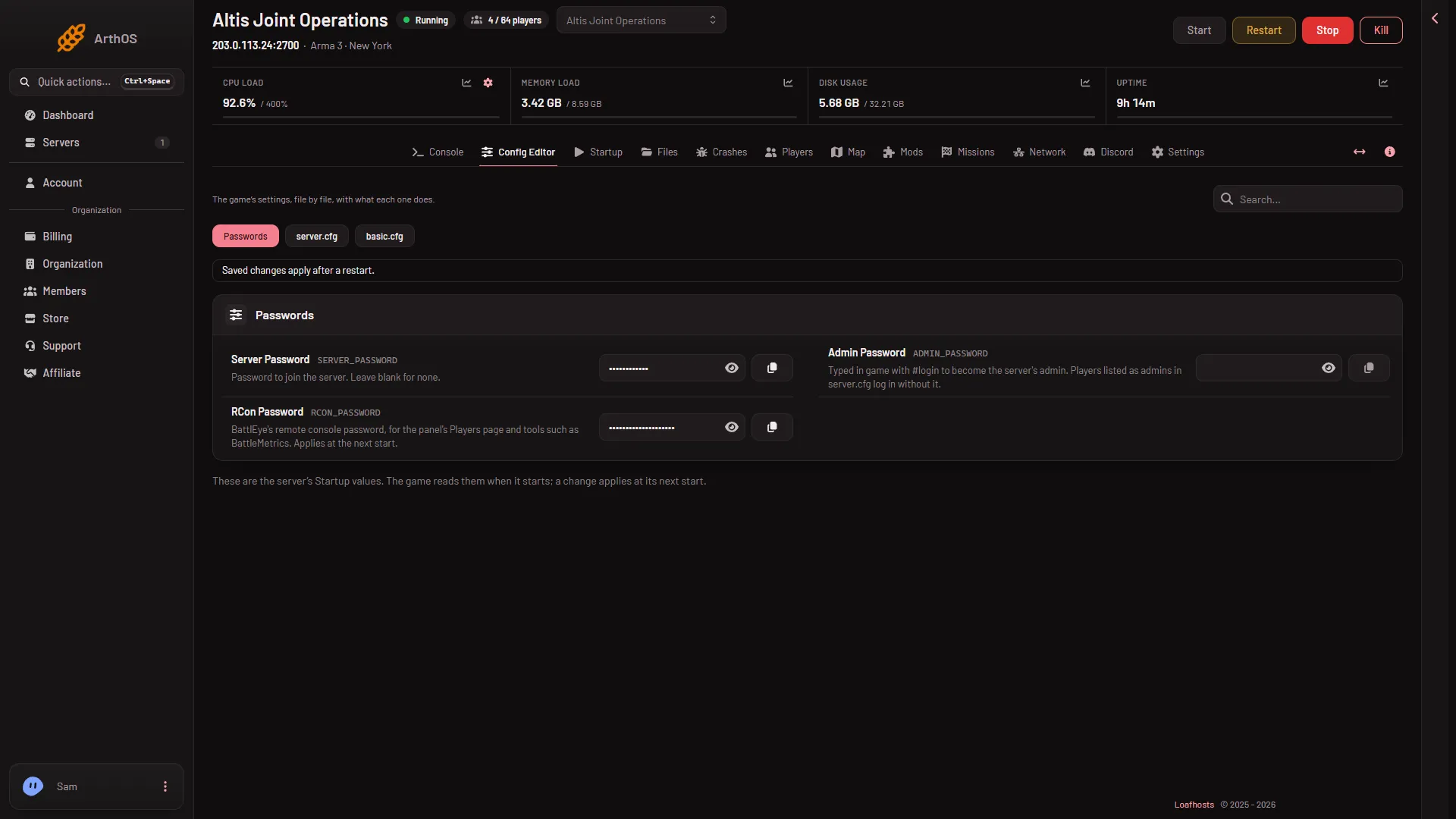
- Passwords
- RCon Password
Open Passwords (1), then type in RCon Password (2).
The new password applies at the next start. At every start the panel writes the RCon port and the password into BattlEye’s own file, beserver_x64.cfg, in the folder battleye/launch. Do not edit that file by hand: the panel rewrites it at the next start. It also removes any beserver_x64_active_ copies of the file before each start, because with -bepath=./ BattlEye would keep such a copy over a newer config and ignore the new password.
The RCon Port is set by the panel and read only on Startup. It is the game port plus 5 in the panel’s port plan (the game’s own wiki lists BattlEye traffic at plus 4, which is a different port).
What the panel uses it for
The Players page reads who is online and sends kicks, bans and messages through BattlEye’s remote console. It uses the password you set here. You do not type it anywhere on that page.
Other tools that use BattlEye’s remote console need the same password, and the same address and RCon port. The Network page lists the ports under Allocations.
BattlEye logs each remote console login with its address. The Players page leaves these lines out.
After you change it, before you restart
In that time the Players page shows: “BattlEye refused the panel’s RCon password: it was changed after the server started, and the game keeps the old one until it restarts. Restart the server to use the new password.” This is expected. Restart the server and it goes away.
If it does not work
- The Players page says BattlEye is not answering. The server may still be starting. Wait until it is up. See BattlEye not answering.
- The page says BattlEye refused the password. Restart the server. See BattlEye refused the RCon password.
- The password you typed is gone after the restart. It was empty or had a character that is not a letter or a digit. Type a new one with letters and digits only.
- A message says the server has no RCon password yet. The panel makes one at its next start. Start the server.
More about the game: Arma 3 servers.
Sources: Bohemia wiki: BattlEye