
















The panel ties “Client not responding” to the largest packet the server sends, and advises keeping it at 1300 or less. Check that first. The limits for ping, packet loss and desync can also drop players, but they kick for their own reasons.
Not checked with players on 2.22.154089 as of 13 November 2026: no packet size has been measured with real players on a Loafhosts server. The steps below follow the panel’s own advice.
1. Check the largest packet
The file basic.cfg holds the server’s network settings. The setting is maxPacketSize. The game’s own default is 1400. The panel’s help text says: “Keep it at 1300 or less: our nodes carry 1360 bytes, and bigger packets drop players (“Client not responding”).”
- Open the Config Editor.
- Choose
basic.cfg. - Find Largest packet (1), in the Packets card.
- If it is above 1300, set it to 1300.
- Choose Save in the “Unsaved changes” bar, then restart the server. The page says “Saved. Restart the server to apply the changes.”
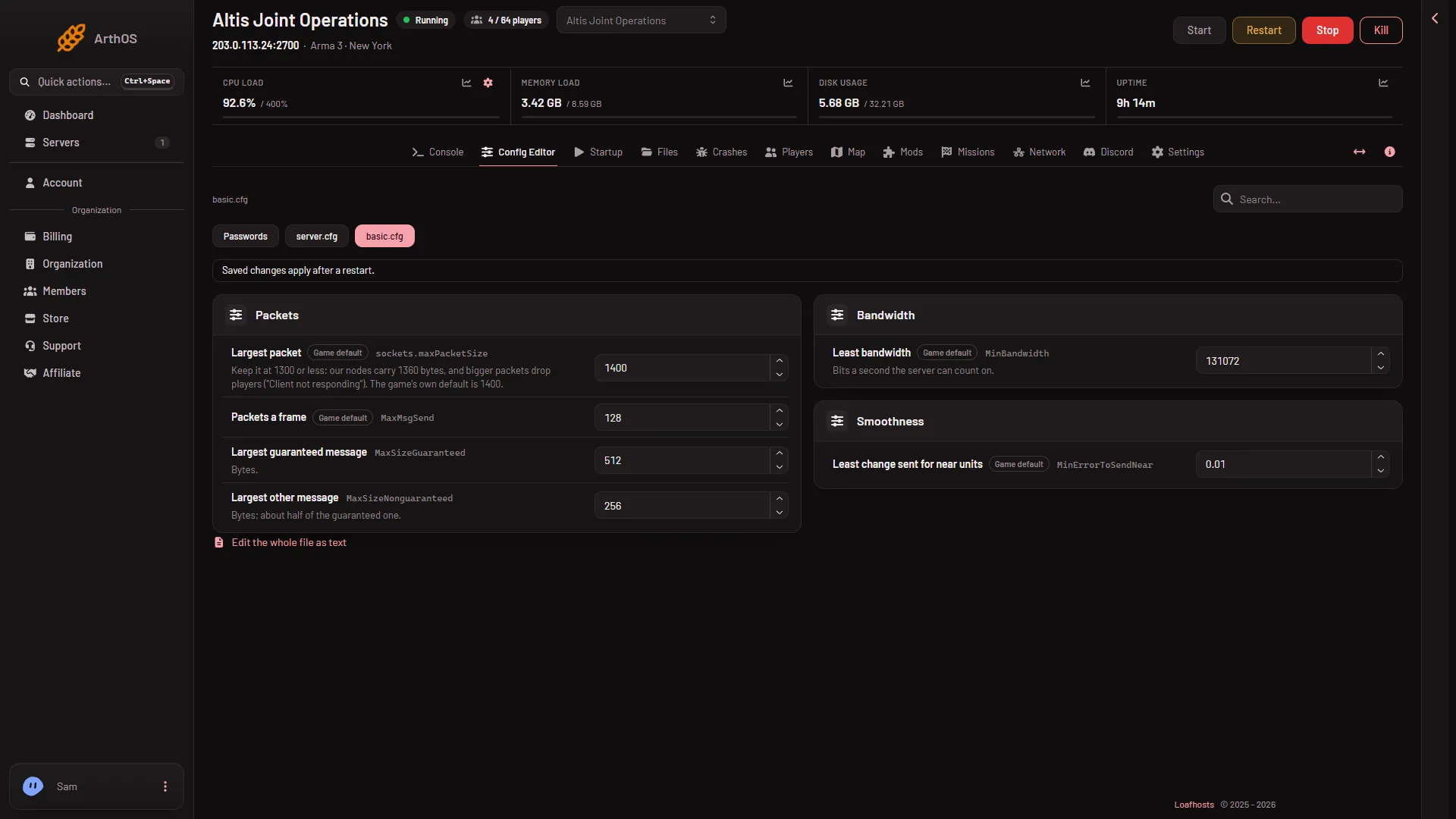
- Largest packet
The setting applies at the next start. The field accepts 576 to 1500.
2. Check the limits that kick
server.cfg can also kick players whose connection looks poor. These are in the Config Editor under server.cfg, in the Network health card:
- Seconds before a lost connection is dropped: how long a silent connection is kept.
- Most desync, Highest ping (in milliseconds) and Most packet loss (in percent): the limits.
- Kick for ping, loss, desync, timeout: four switches. The panel explains: “Four switches, 1 kicks and 0 only logs: {1, 1, 0, 1}.” A 1 kicks, and a 0 only writes a line in the log.
The server.cfg a new server starts with sets a limit of 200 ms ping, 50 percent packet loss, 150 desync and 90 seconds for a lost connection, with switches {1, 1, 0, 1}: ping, loss and timeout kick, and desync only logs. The game’s own defaults are no limit (-1) for ping, loss and desync, and 15 seconds for the lost connection. A server that was set up before may differ: read the card.
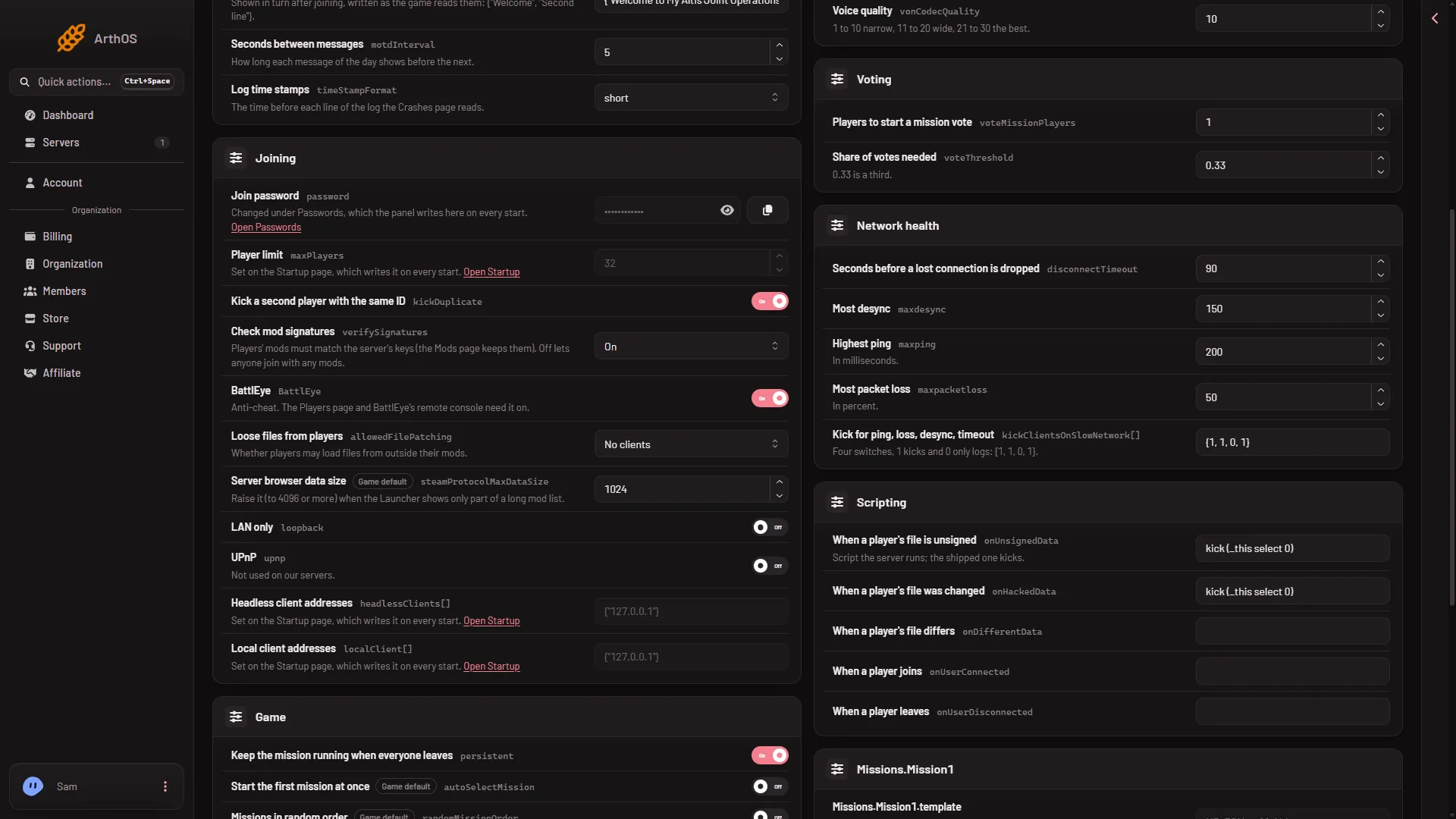
- Seconds before a drop
- Most desync
- Highest ping
- Most packet loss
If players are kicked for a limit, you can raise that limit, or set its switch to 0 so the server only logs it. Change one thing at a time, so you can tell which change helped. Settings in server.cfg apply at the next start, so the same restart warning applies.
3. Check that the server itself keeps up
A server that runs slowly sends late, and players then look unresponsive. See desync and lag. On the Map page the mission bar shows the server’s FPS.
If it does not work
- It only happens to one player. Their own connection or Wi-Fi is the likely cause. Ask them to try a wired connection.
- It happens to everyone at the same moment. Look at the server’s FPS and at the Crashes page: a freeze or restart drops everyone.
- The setting went back. Check you saved, and restarted. The change is read once, at the start.
- The Largest packet field is empty or missing. The
basic.cfgmay be unreadable. The Config Editor then shows it as plain text: fix any unclosed brace.
More about the game: Arma 3 servers.
Sources: Bohemia wiki: Server Config File, Bohemia wiki: Dedicated Server