
















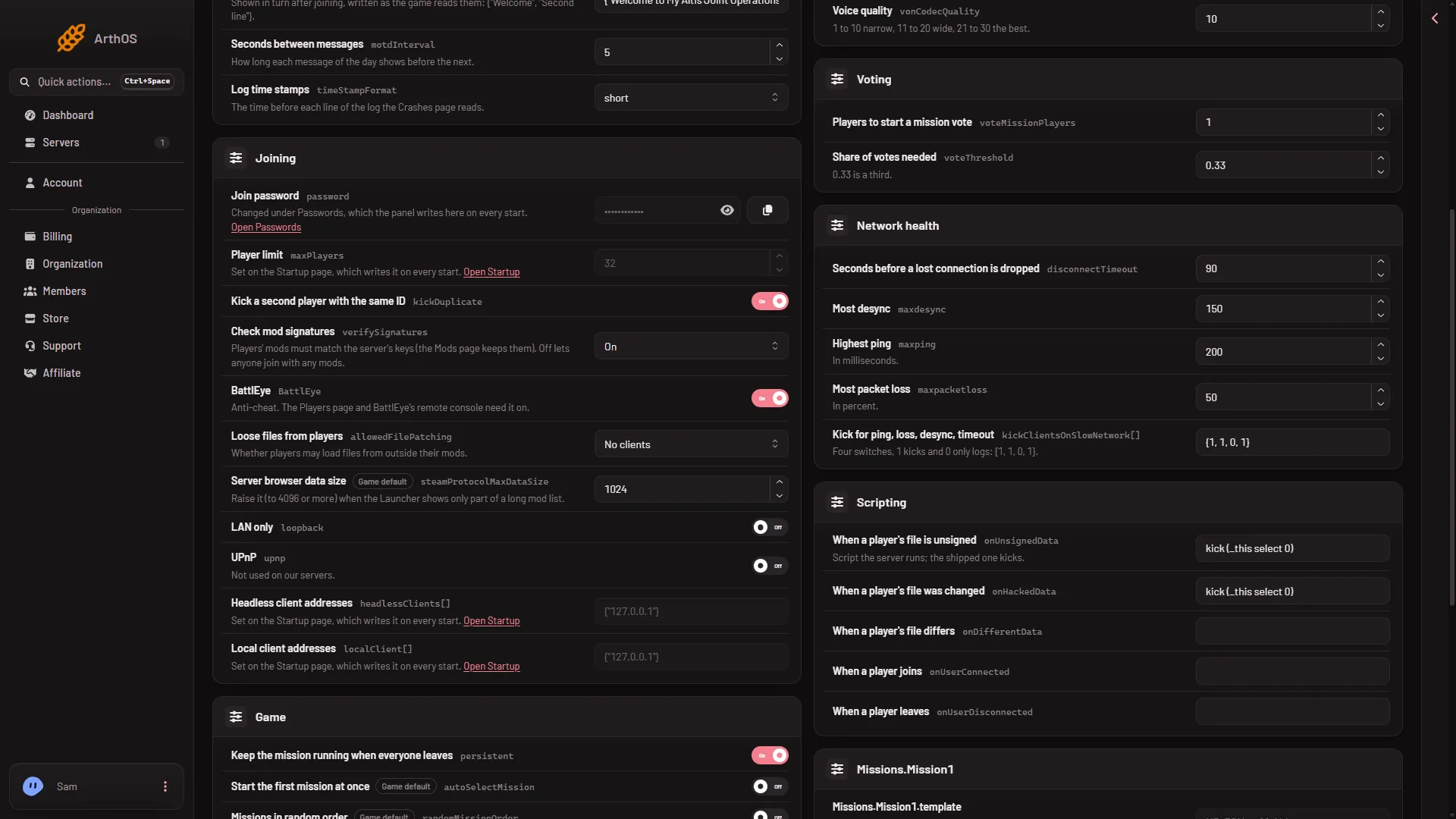
Arma 3 can drop a player whose connection is bad. Four numbers say how bad is too bad, and a fifth setting says which of the four kick and which only write a line in the log. A new server already has all five set (see below). All five are in the Network health card of the Config Editor.
What each setting means
| Panel label | Game key | What it does |
|---|---|---|
| Highest ping | maxping | Ping in milliseconds. A player above it can be kicked. |
| Most packet loss | maxpacketloss | Percent of packets lost. A player above it can be kicked. |
| Most desync | maxdesync | The game’s desync figure for a player. A player above it can be kicked. |
| Seconds before a lost connection is dropped | disconnectTimeout | How long the server waits after a player’s traffic stops before it drops them. The panel accepts 5 to 90. |
| Kick for ping, loss, desync, timeout | kickClientsOnSlowNetwork[] | Four switches that decide if each limit kicks (1) or only logs (0). |
The game’s own documentation lists -1 as the default for the first three and 15 seconds as the default timeout. The fields in the panel take only numbers inside these ranges: ping 0 to 10000, packet loss 0 to 100, desync 0 to 100000, lost-connection time 5 to 90. To stop one limit from kicking, set its switch in Kick for ping, loss, desync, timeout to 0. Then it only logs.
What a new server starts with
The server.cfg a new server starts with sets maxping = 200, maxpacketloss = 50, maxdesync = 150 and disconnectTimeout = 90. Its four switches are {1, 1, 0, 1}. So a new server already kicks for ping above 200, for packet loss above 50 and for a lost connection, and only logs desync. Read your own card to see what your server holds now.
Set them in the panel
- Open the Config Editor and choose
server.cfg. - Find the card Network health.
- Type a number in Highest ping (3), Most packet loss (4) or Most desync (2). Set Seconds before a lost connection is dropped (1) if you want a different wait.
- In Kick for ping, loss, desync, timeout, type four numbers in braces. The order is ping, loss, desync, timeout.
{1, 1, 0, 1}kicks for ping, loss and timeout, and only logs desync. - A bar reads “Unsaved changes: (n)” with Discard and Save. Choose Save.
- Lost connection time
- Most desync
- Highest ping
- Most packet loss
The limits apply at the next start. A running server shows “Saved. Restart the server to apply the changes.” A restart drops everyone who is on, so choose a quiet moment and warn players first with A message to everyone and Send on the Players page.
By hand
Open Files, open server.cfg and set the lines. The last one holds the four switches, in the order ping, loss, desync, timeout (1 kicks, 0 only logs):
maxping = 200;
maxpacketloss = 50;
maxdesync = 150;
disconnectTimeout = 90;
kickClientsOnSlowNetwork[] = { 1, 1, 0, 1 };
Save and restart the server. These are the values a new server starts with, not advice for your players.
Take care
- If players are dropped with “Client not responding” and you set no limit, see the Client not responding kick.
- Not checked on (2.22.154089) as of 13 November 2026: which numbers suit real players on a Loafhosts server.
If it does not work
- The limit seems ignored. You have not restarted since saving. The game reads
server.cfgonce, at the start. - Nobody is kicked even though a limit is set. The switch for that limit in Kick for ping, loss, desync, timeout is 0, so it only logs.
- A field will not accept your number. Each field keeps to the ranges above.
- You want to change something the Config Editor locks. See locked settings explained.
More about the game: Arma 3 servers.
Sources: Bohemia wiki: Server Config File