
















Check the server’s FPS first. Then look at what the mission and the mods ask of it.
1. Read the server FPS
Server FPS is how many frames a second the server computes. When it falls, everything players see lags together. The Map page shows it, but only with the panel tools running.
- Open the Map page.
- If the panel tools are off, turn them on with Turn on the panel tools and restart the server. They load at the next start. Players install nothing. A restart drops everyone who is on, so choose a quiet moment and warn players first with A message to everyone on the Players page.
- Start a mission and open the Map page again.
- In the mission bar (1), read “{fps} FPS on the server”. Next to it you see how many AI are alive and how long the mission has run.
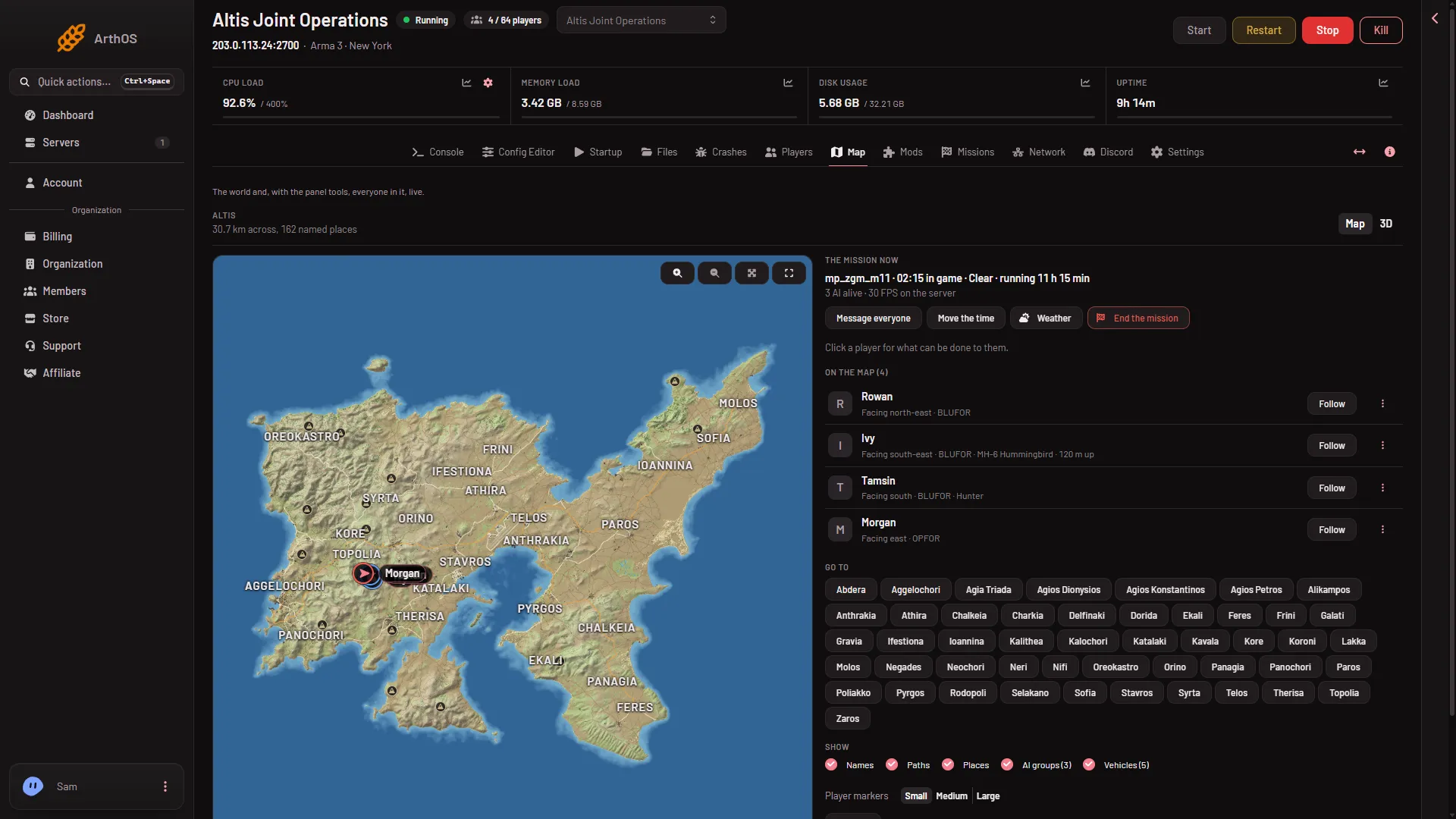
- FPS and AI alive
Watch the number as the mission goes on. A number that drops while the AI count climbs points at the mission. A number that is low from the first minute points at mods or at the plan’s size.
2. Too many AI
Every AI soldier and vehicle costs the server time. If FPS falls as “AI alive” rises, ask the mission’s author for fewer AI or a lower spawn limit.
3. Mods and script errors
Large mod sets and badly written scripts slow the server. The Crashes page can name the second cause: its finding “The mission or a mod has script errors” says the lines name the script, and that errors at every frame slow the server down. Only the author of the mission or mod can fix those. To remove a mod:
- Open Mods and the On this server tab.
- Choose Take (name) off the list.
- Choose Apply and restart. This disconnects everyone who is online, so warn players first.
If the mod was loaded for players too, they must remove it from their own list. See mod keys and signatures if they are then refused.
4. Headless clients
A headless client is an extra game client that runs AI on the server side. The game’s manual says it is used “to offload AI calculations from the server instance”. The mission must be built for them: the manual says missions need to be changed a little to support headless clients.
On the panel, set Headless Clients on Startup, from 0 to 5. They count toward the player limit and share the server’s CPU. Not checked on 2.22.154089 as of 13 November 2026: how much a headless client helps on a Loafhosts plan. See headless clients.
5. Network limits
If the server’s FPS is fine and players still desync, look at the limits in basic.cfg and server.cfg. See client not responding.
6. The player limit and the plan
Max Players on Startup sets the limit, and it applies at the next start. If FPS is low with few AI and few mods, a plan with more cores gives the server more CPU: the largest store size has 4 cores, the other two have 2.
If it does not work
- The Map page shows no FPS. The panel tools are off, or no mission is running. They show while a mission plays.
- FPS is fine but one player lags. That player’s own connection is the cause.
- The server runs out of memory or stops. See server out of memory.
More about the game: Arma 3 servers.
Sources: Bohemia wiki: Headless Client, Bohemia wiki: Dedicated Server