
















A preset is a small file that lists mods. If you already play with a mod list in the Arma 3 Launcher, you do not need to add each mod by hand. Export that preset from the Launcher, then import it on the Mods page. The panel reads it and puts the mods on your server’s list.
Import the file
- Export your preset from the Arma 3 Launcher and keep the file.
- Open the Mods page and the Presets tab.
- In the card Import a preset (1), choose Choose the preset file (2) and pick the file.
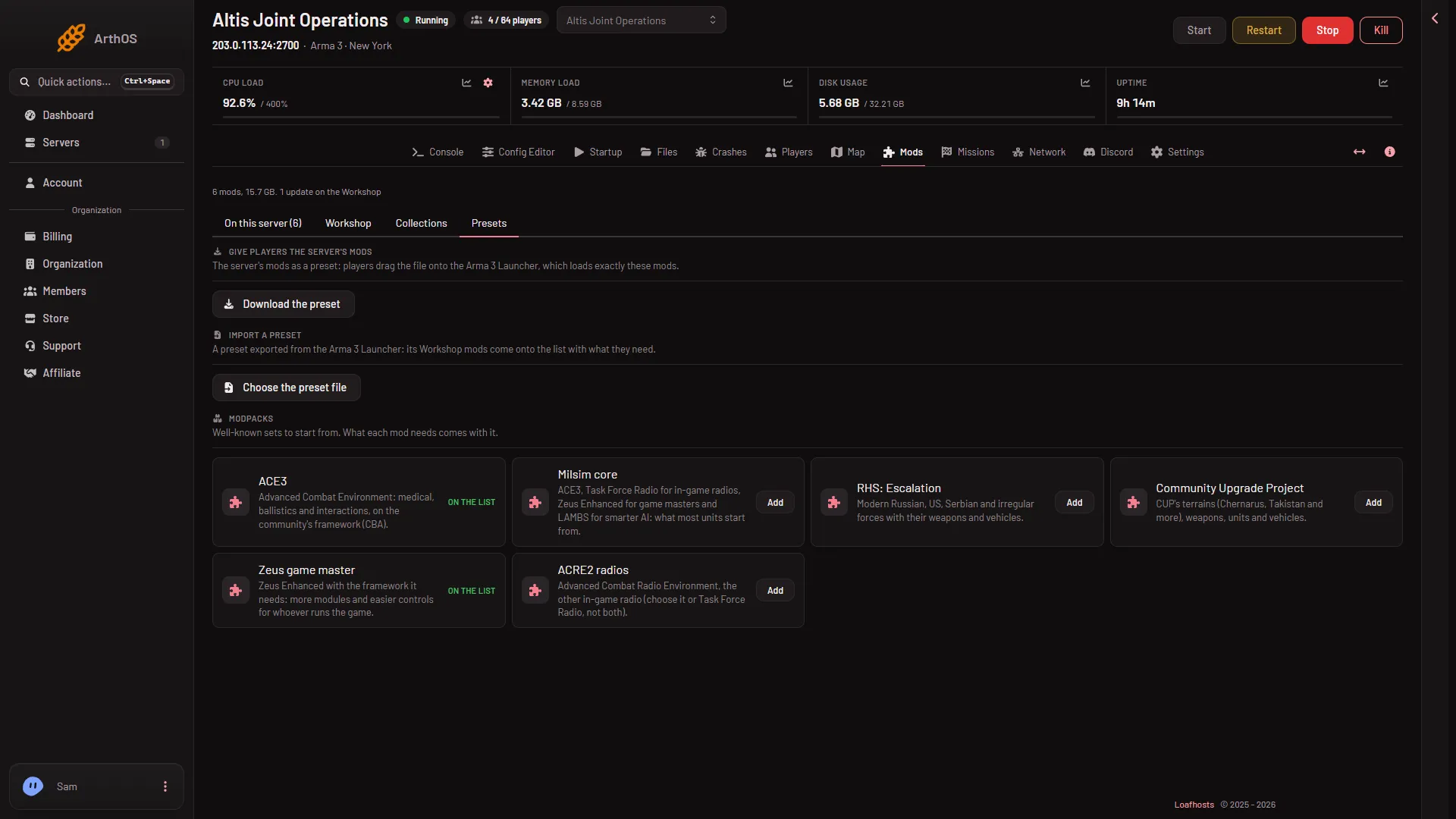
- Import a preset
- Choose the preset file
The card explains it: “A preset exported from the Arma 3 Launcher: its Workshop mods come onto the list with what they need.”
You can also use the Workshop tab. Its box Add by link or ID accepts a preset, and there is a button Import a Launcher preset.
Read the result
The panel shows a line such as “12 Workshop mods (2 already on the list), 1 DLC, 3 local mods.” Each part means something different:
- Workshop mods. They can be added. Those already on the list are counted but not added twice.
- DLC. Creator DLC is loaded like a mod. For a Creator DLC the server can load, the row says it needs Creator DLC Server Files on Startup, and that every player must own it. For other DLC the row says it is each player’s own.
- Local mods. These are not on the Workshop, so the panel cannot download them. It names them: “Not on the Workshop, so upload these to the server yourself”. See upload a mod by hand.
Add them to the list
- Choose Add to the list.
- A box shows how many mods will be added, how many only because other mods need them, and the size to download.
- Confirm. Choose Clear instead to drop the file and start again.
The mods go on the list as a draft. The box says: “They wait on the list until it is applied, which downloads them and restarts the server.”
- When you are ready, choose Apply (or Apply and restart while the server runs). See apply mod changes.
A Creator DLC needs two things: its folder on the list (the import does that) and Creator DLC Server Files turned on under Startup. The DLC’s server files arrive at the next update.
A preset in the server’s folder
Startup has a setting named Arma 3 Launcher Preset. It names a preset exported from the Launcher that sits in the server’s own folder. The Mods page imports it into the list. The page tells you when a file is in use: the mods in it load too, and applying once moves them onto the list.
If it does not work
- The panel says “that is not a preset exported from the Arma 3 Launcher”. The file is not a Launcher export. Export it again from the Launcher.
- A mod is missing after the import. It may be a local mod. Look at the “local mods” line and upload those yourself.
- A mod is marked for another game. The row says it is a mod for another game, so the server cannot use it. Take it off.
- Nothing downloaded. The mods only wait on the list. Apply the changes.
More about the game: Arma 3 servers.