
















To install a mod, add it to the list on the Mods page, then choose Apply and restart. The panel downloads the mod, copies its keys and starts the server with it. You never enter a Steam account: Loafhosts downloads the mods for you.
Install a mod
- Open the Mods page and choose the Workshop tab.
- Type the mod’s name in Search the Workshop. If you already have its link or ID, see add a mod by link or ID.
- Find the mod in the results and choose Add. The button changes to On the list.
- Look at the list on the On this server tab. If the new mod needs another mod, its row says “Needs (name), which is not on the list.” Choose Add (name) on that line. Whether Add on a search result also adds the mods it needs is not checked; Look up shows them in a box. A mod must load after the mods it needs, so the row may tell you to drag it lower.
- A bar appears at the bottom with the count, such as “2 to add”, and how much will download. Choose Apply and restart (2). If the server is running, this drops everyone who is on (see below). If the server is stopped, the button is Apply.
- Read the box Apply the mod changes? and confirm.
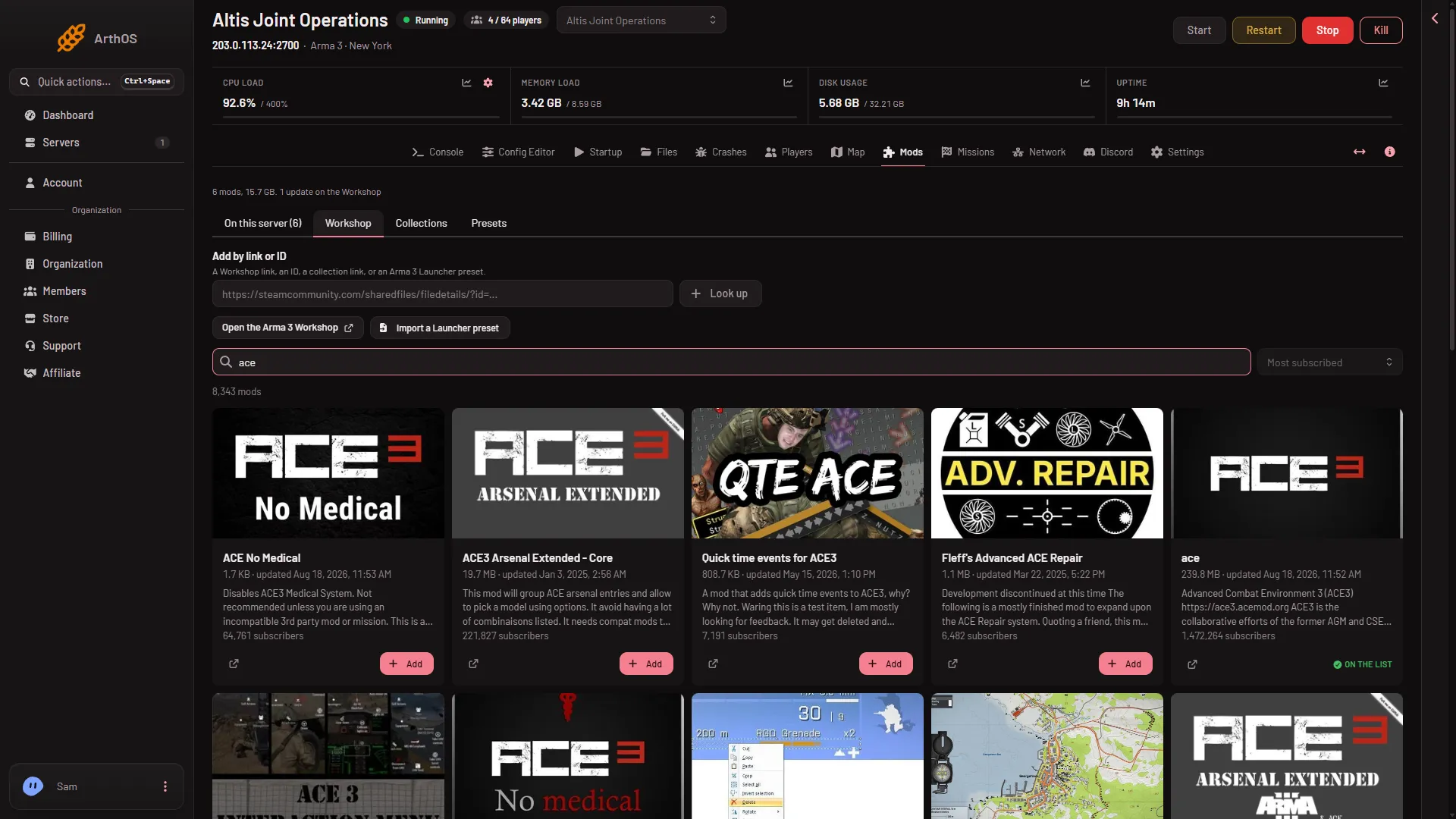
- Search the Workshop
Type the name in Search the Workshop (1). A mod already on your list shows On the list instead of Add.
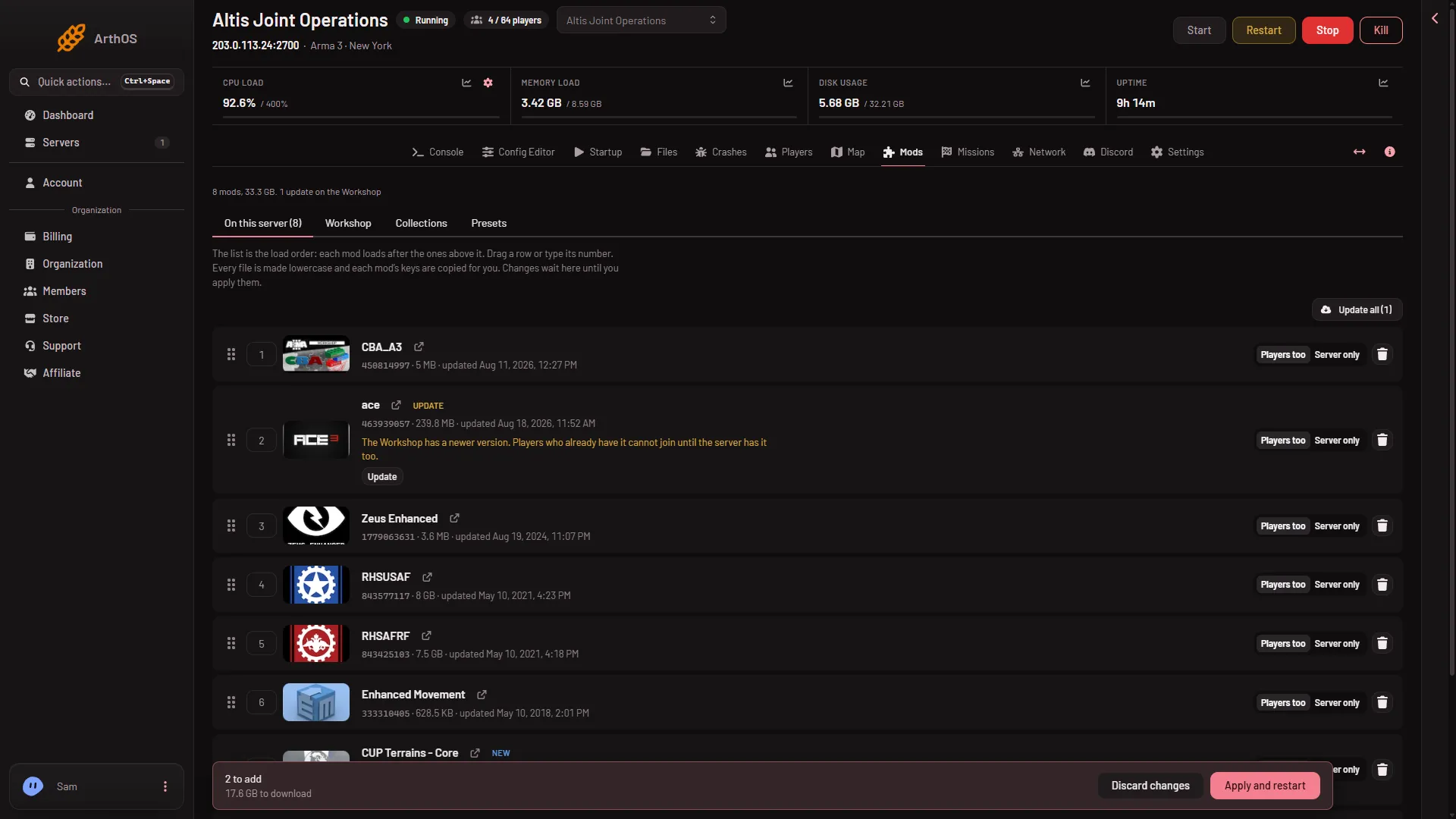
- Discard changes
- Apply and restart
Discard changes (1) throws the draft away. Apply and restart (2) starts the work.
What happens next
If a download fails, the copy the server already had stays.
The panel also makes every mod file lower case, because the server runs on Linux. It copies each mod’s keys into the keys folder. When the server is back, the mod is loaded. Progress shows at the top of the page while it works. See apply mod changes.
Until you apply, the list is only a draft. You can close the page and come back to it.
Players need the mod too
A mod that loads for players must be on their computers, at the same version as the server. The server checks each player’s files against the keys. A player with a missing or different mod is refused.
The easiest way to share the list is the Presets tab. Choose Download the preset and give players the file. They drag it onto the Arma 3 Launcher, and it loads exactly these mods.
A mod can also be Server only, which means players do not need it. Set that in the row’s Who loads picker. See mod load order for the order mods load in.
If it does not work
- The mod has a chip such as Wrong game: it is made for another game. Choose a different mod.
- The mod is Not for servers: it is made for players only. Look for a server version.
- The Workshop did not answer: try again in a minute.
- Not enough disk space: the panel says how much it needs and how much is free. Delete a mod you do not use, or ask for a bigger plan.
- The server loads but the mod does nothing: some mods ship their extension only for Windows. A server on Linux cannot run them. The Crashes page names this as “A mod’s extension did not load”.
More about Arma 3 servers.
Sources: Bohemia wiki: Startup Parameters, Bohemia wiki: Server Config File