
















To make a player an admin, open the Players page, open the three-dot menu on their row, and choose Make admin. The player can then log in as admin in the game with #login and no password. This starts at the next restart of the server.
What you need
- A role that is allowed to change the server’s startup. Without it, the menu item is not there.
- The player’s Steam ID. The Steam ID is the 17-digit number of their Steam account. The panel gets it from the panel tools, so the tools must be on and the player must be online. The tools are turned on from the Map page and load at the next start of the server.
If the panel tools are off, the page tells you: “Side, group, Steam ID and where everyone is come from the panel tools.” and links to Turn them on on the Map page. Without the tools, use the box Add by Steam ID, below.
Make someone admin
- Open the Players page. The server must be running.
- In the Online list, find the player.
- Open the three-dot menu on the row. Its name starts with More for, followed by the player’s name.
- Choose Make admin.
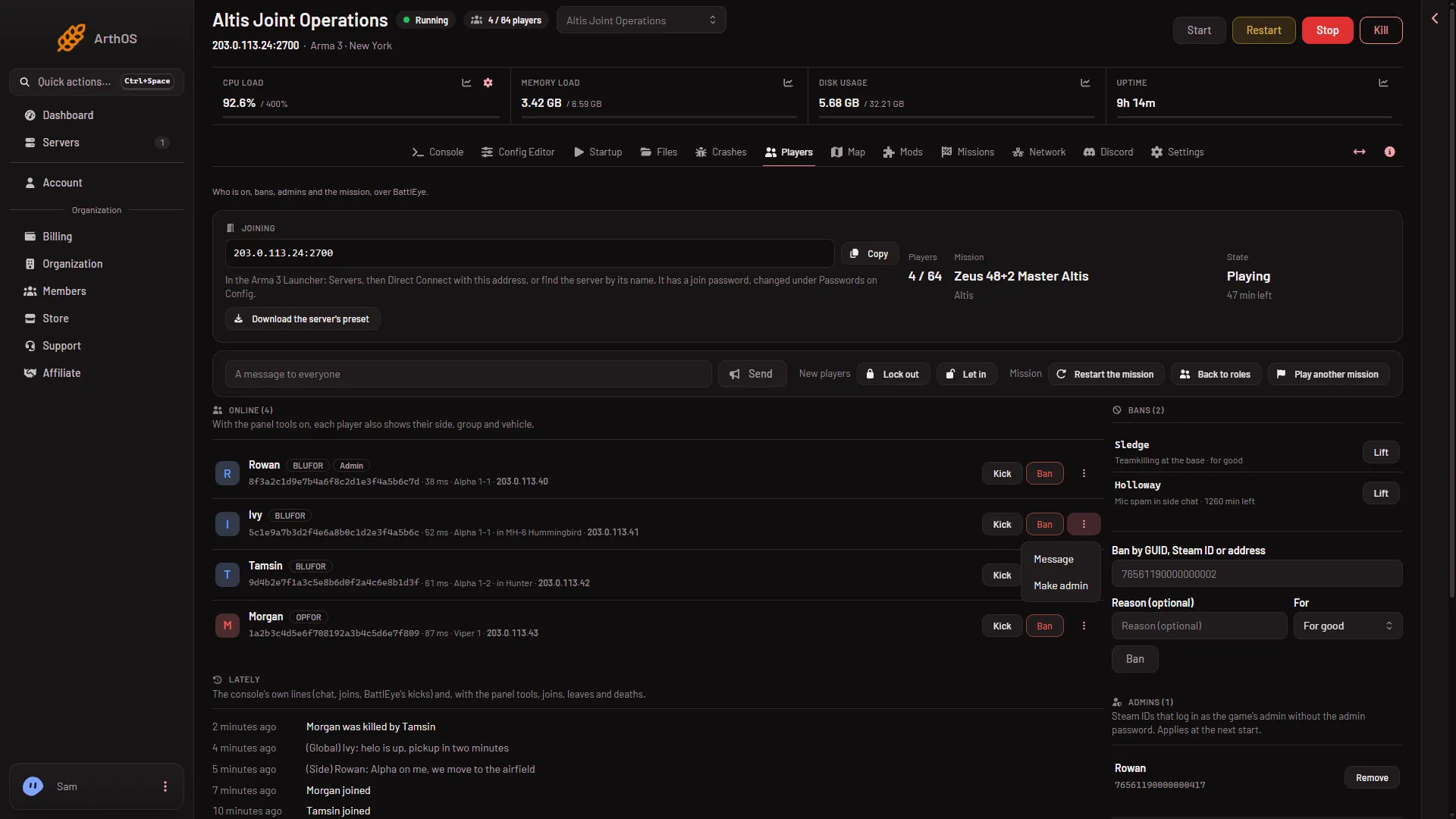
- Message
- Make admin
Choose Make admin (2) in the menu.
The panel writes the player’s Steam ID into the server’s server.cfg, in the list admins[], and tells you: “Added to the admins list; they can log in as admin without the password from the next restart”.
The server reads server.cfg once, when it starts. So the player is not an admin yet. Restart the server when it suits you, at a quiet moment.
The player logs in
After the restart, the player joins and presses the / key to open the chat (on a German keyboard: Shift and 7). They type #login and press Enter. The game does not ask for a password, because their Steam ID is on the list. If the server is not playing a mission yet, the game then shows the mission list and they choose one. If a mission is already running, they are simply logged in as admin.
Admin shows next to a player who is logged in as admin or whose Steam ID is on the Admins list.
A player who is not online
Use the card Admins on the right side of the page.
- Find Add by Steam ID.
- In Add by Steam ID (1), type the 17-digit Steam ID. It starts with 7656, for example
76561190000000101. A wrong entry gives “A 17-digit Steam ID.” - Choose Add.
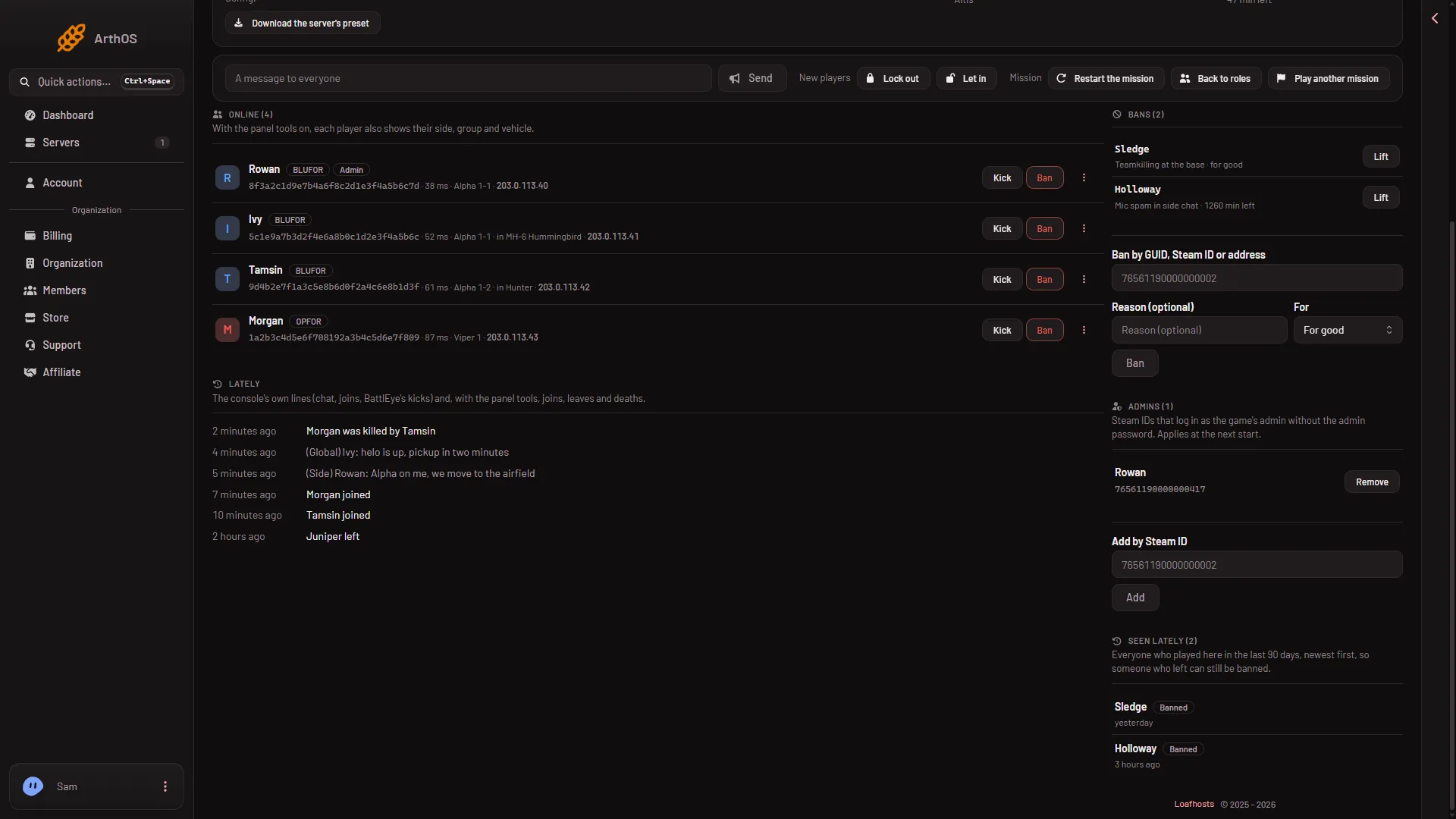
- Add by Steam ID
- Remove
The card title shows how many admins there are, such as Admins (2). The hint says “Steam IDs that log in as the game’s admin without the admin password. Applies at the next start.” To remove someone, choose Remove (2) next to the Steam ID, or open the row menu and choose Take admin away. That also applies at the next start.
The admin password still works
The admin password is a different way in. It is kept under Passwords in the Config Editor. Anyone who knows it can log in with #login and the password. See log in as admin with the password. The setting Admins without a password in the Config Editor shows the same list. See admins without a password.
If it does not work
- Make admin is not in the menu. The row has no Steam ID, or your role does not allow it. Turn the panel tools on, or use Add by Steam ID.
- “They are already on the admins list”. The player is already an admin. Nothing to do.
- “The admins list holds at most 30”. Remove someone you no longer need.
- “The server has no server.cfg yet; start it once”. Start the server one time, then try again.
- The player cannot log in after the restart. Check that the Steam ID is the right one. A typed ID that is one digit wrong adds a different player.
More about the game on Loafhosts: Arma 3 servers.
Sources: Bohemia wiki: Server Config File, Bohemia wiki: Dedicated Server