
















Open the Mods page, choose the bin button on its row (named Take the mod off the list), then apply. The server stops loading the mod from its next start. Keys that only that mod used are removed, and keys other mods share stay.
Take the mod off
- Open the Mods page and stay on the On this server tab.
- Find the mod’s row.
- Choose the button Take (name) off the list. The page says “(name) is off the list. Apply to take it off the server.”
The change is a draft. A bar at the bottom of the page counts it as “1 to remove”. The picture shows the same bar with a different draft, “2 to add”.
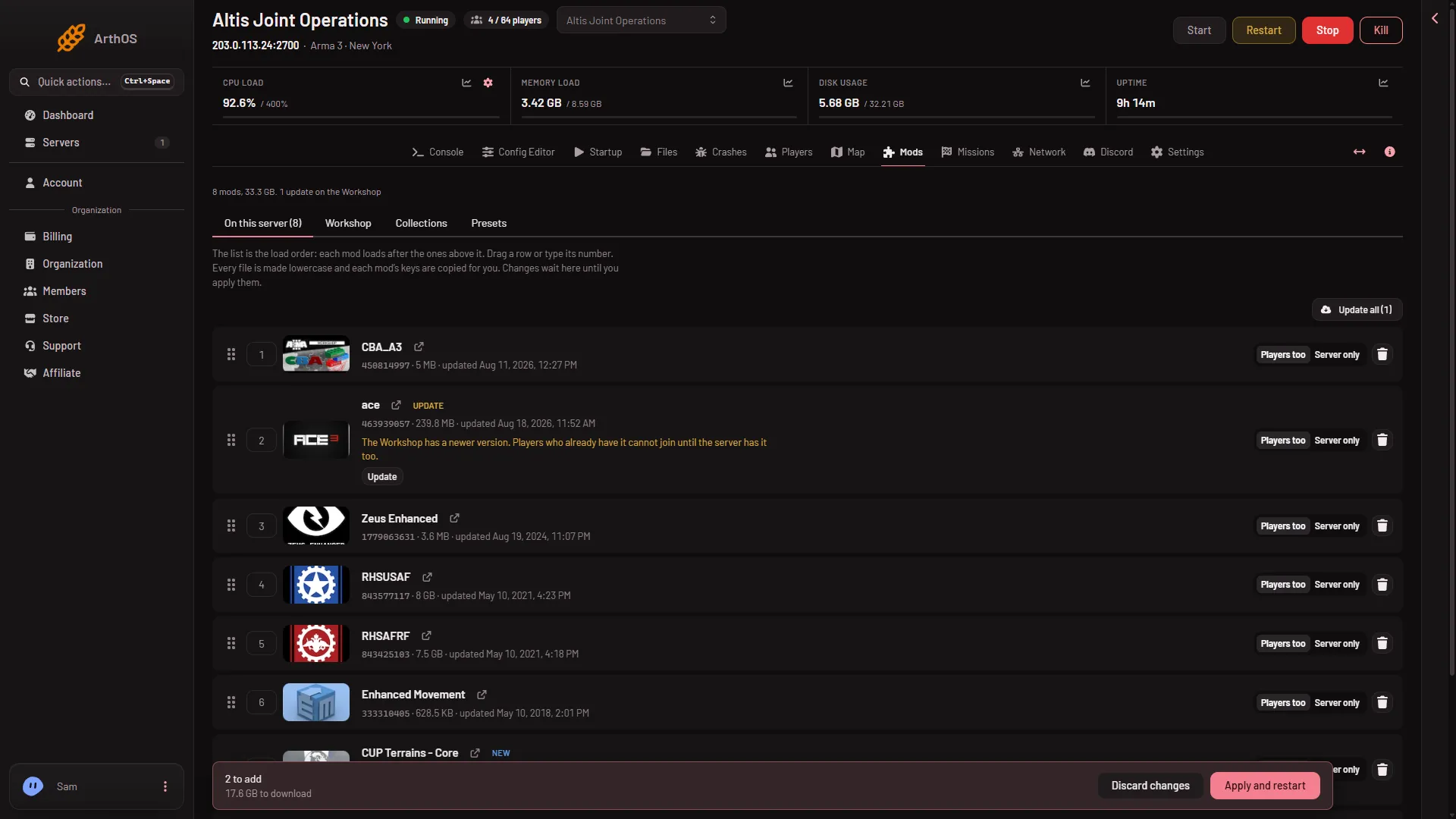
- Discard changes
- Apply and restart
To change your mind before applying, choose Discard changes (1).
Check what else needed it
Other mods may need the one you remove. Their rows then say “Needs (name), which is not on the list.” A mod whose needed mod is gone can fail to load. Take such mods off too, or put the needed mod back with Add (name).
Apply
- Choose Apply (server off) or Apply and restart (2) (server running).
- Read the box Apply the mod changes?. Under Takes off the list it names the mod. It also says “Each mod’s signing keys are copied into the keys folder, and a key only a mod leaving the list used is removed.”
- Confirm.
The mod is no longer loaded from that start. Players who had the mod no longer need it for this server.
Keys
The keys folder holds each mod’s .bikey files. When a mod leaves, the panel removes a key only if no mod left on the list uses it. A shared key stays. See mod keys and signatures.
Free the disk space
A mod’s files can stay on the server after it leaves the list. The page then shows a group On the server, not loaded: “These folders are not on the list, so the game does not load them. They only take disk space: (size) in all.”
- Put on the list loads the mod again.
- Delete files frees the space. The box Delete (name)‘s files? says “This frees the space. Adding the mod again later downloads it again.”
Deleting needs a role that may delete files. For where mods live, see where mods are stored.
If it does not work
- The mod still loads. The change was not applied. Look for Changes not applied yet and choose Apply.
- The server will not start after removing a mod. Another mod needed it. Check the Crashes page, then take that mod off or add the removed one back. See apply mod changes.
- Delete files is missing. Your role may not allow deleting files.
More about the game: Arma 3 servers.