
















If the server does not show in the browser, join it with Direct Connect while you find the cause. The panel gives you the address to use. Then check four things: the server has finished starting, its name, its Steam query port, and that players run the same game build.
Join without the browser
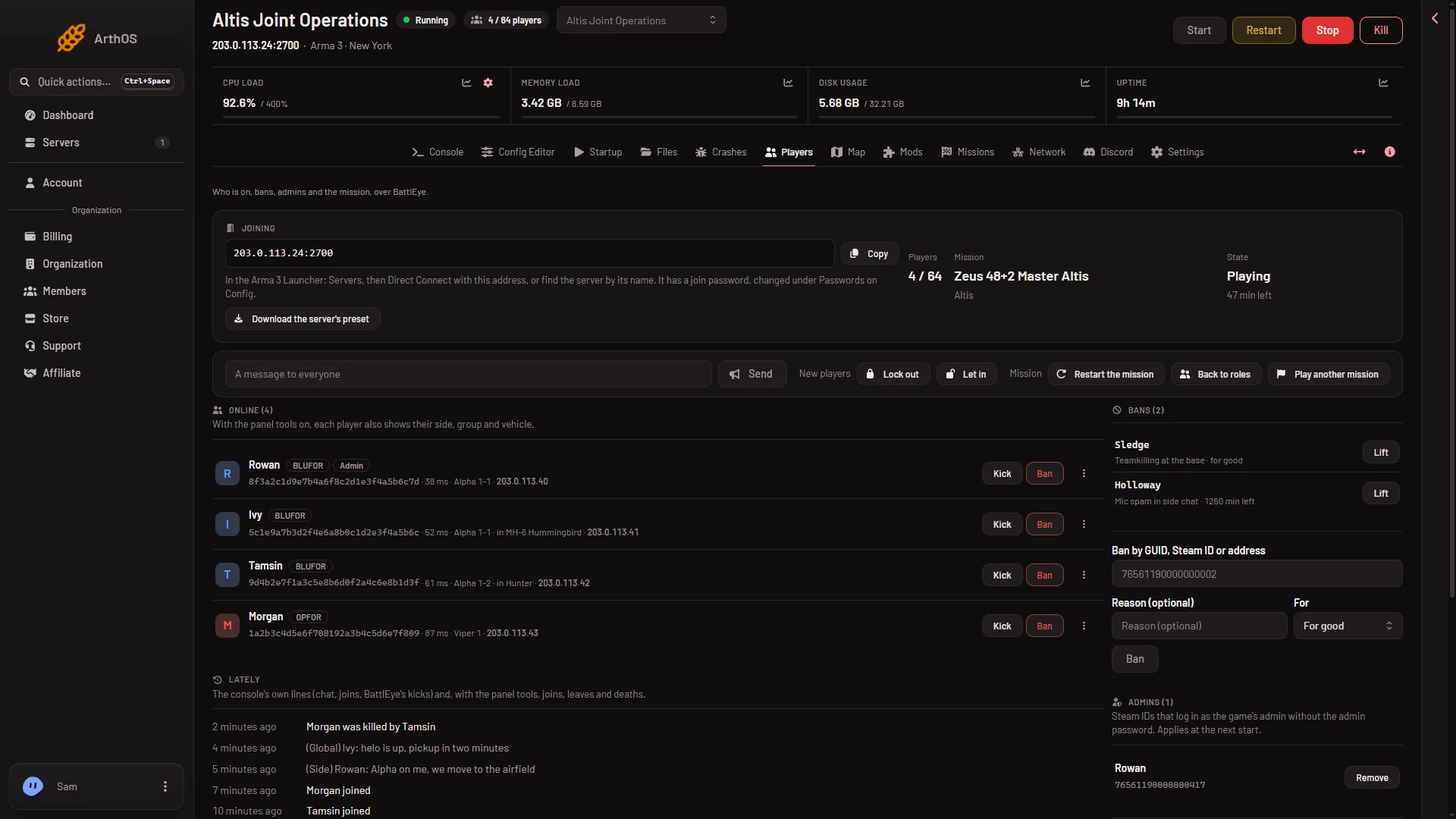
- Open the Players page.
- In the Joining band, choose Copy beside the address (1).
- Players open the Arma 3 Launcher and use the panel’s own line (2): “Servers, then Direct Connect with this address, or find the server by its name.”
- If the server has a join password, the band says “It has a join password, changed under Passwords on Config.” (the Config Editor tab). Players type it when asked.
- Copy the address
- How players join
The game’s own documentation gives the same advice: if you cannot connect through the server browser, use Direct Connect. Every player must own Arma 3.
Check the server has finished starting
A server that is still starting is not listed. Open the Console and look for Host identity created. That line means the server is ready. The Console also fills with many lines like BattlEye Server: RCon admin #0 (...) logged in. That is the panel checking who is online, and it is normal. The Players page says “The server is starting.” until the server is up.
Check the name
The browser lists the server by its hostname. In the Config Editor, open server.cfg and read Server name. Search for that exact name. A new server from the store starts with the name you ordered.
The Rename Server card on Settings changes only the name the panel shows for the server. It does not change the name in the game’s browser. Change that one under Server name in the Config Editor.
Check the Steam query port
The browser asks the server about itself on the Steam query port, which is the game port plus 1. All of the server’s ports use UDP. Open the Network page and read Allocations. The table has the columns Hostname, Port, Notes and Created. The game port has a star. No row says what a port is for, so count from the star: the Steam query port is the next port up.
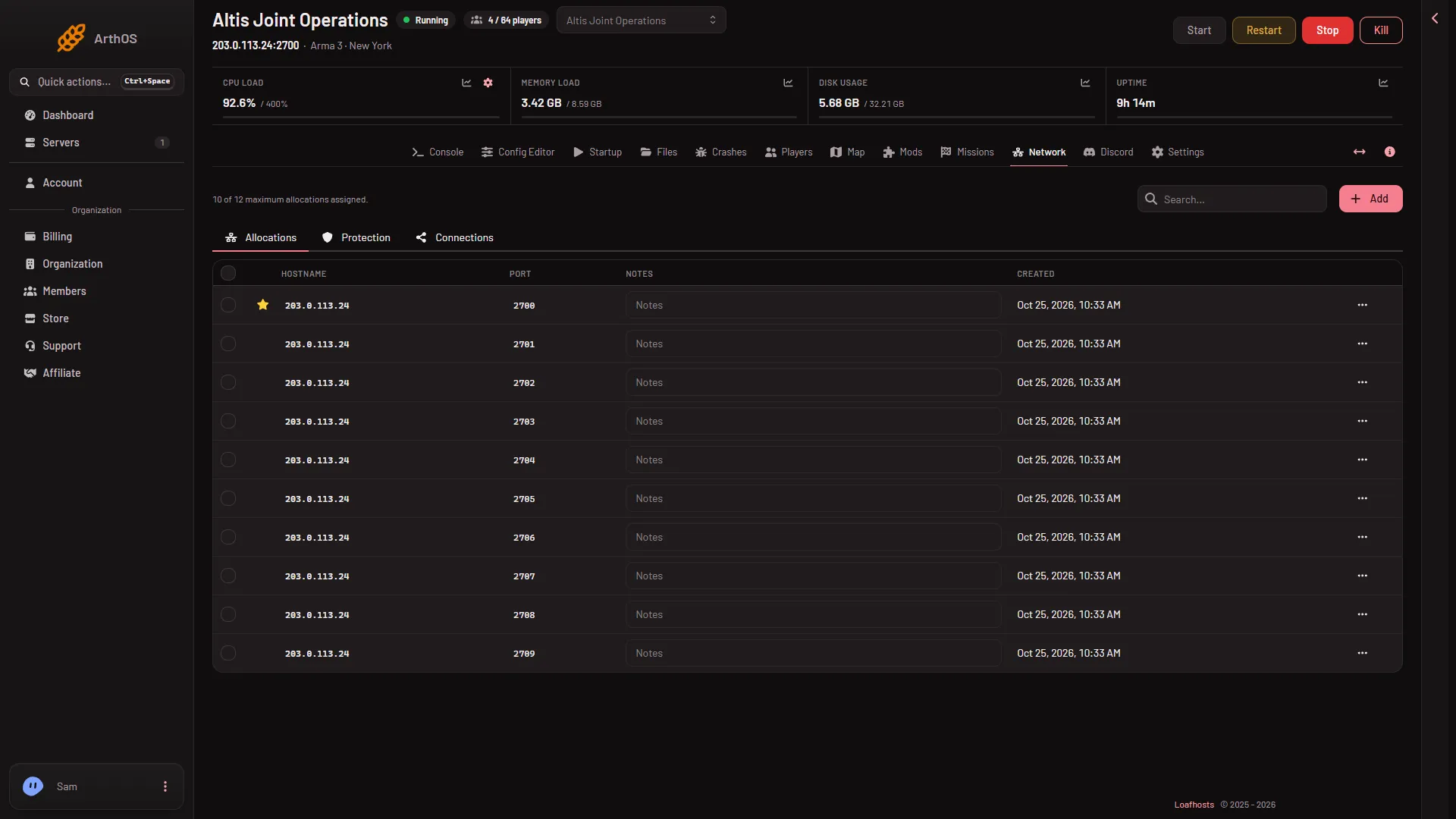
If the Steam query port is blocked on the way to the player, the server can be joined with Direct Connect on the game port, and still not appear in the browser. By default the panel puts nothing on the query port. If you added a filter on the Protection tab, look at it first.
Check the game build
The game’s documentation says to start the client on the same branch as the server. Ask players to run the same branch as the server and to update the game.
A long mod list
If the server shows in the browser but the Launcher lists only part of its mods, raise Server browser data size in the server.cfg of the Config Editor. The panel’s help says to raise it to 4096 or more. The game warns that a much larger value can send packets bigger than the network carries. Not checked on a Loafhosts server: whether a reply above 1,360 bytes arrives. If the server drops out of the browser after you raise it, set it back to 1024. It applies at the next start, and a restart drops everyone who is on, so warn players first with A message to everyone and Send on the Players page.
If it does not work
- Direct Connect also fails. See cannot connect to the server.
- The address is empty. The Joining band says “This server has no address yet.”
- It shows, but players are asked for a password. That is the join password. Change or clear it under Passwords in the Config Editor.
More about the game: Arma 3 servers.
Sources: Bohemia wiki: Dedicated Server, Bohemia wiki: Server Config File