
















To update an Arma 3 server, restart it with Automatic Updates on. The server checks for a game update at every start and installs it before the game runs. The switch is on by default; a server that has been played may have it off, so look at the switch.
- Automatic Updates
Update now
- Open Startup.
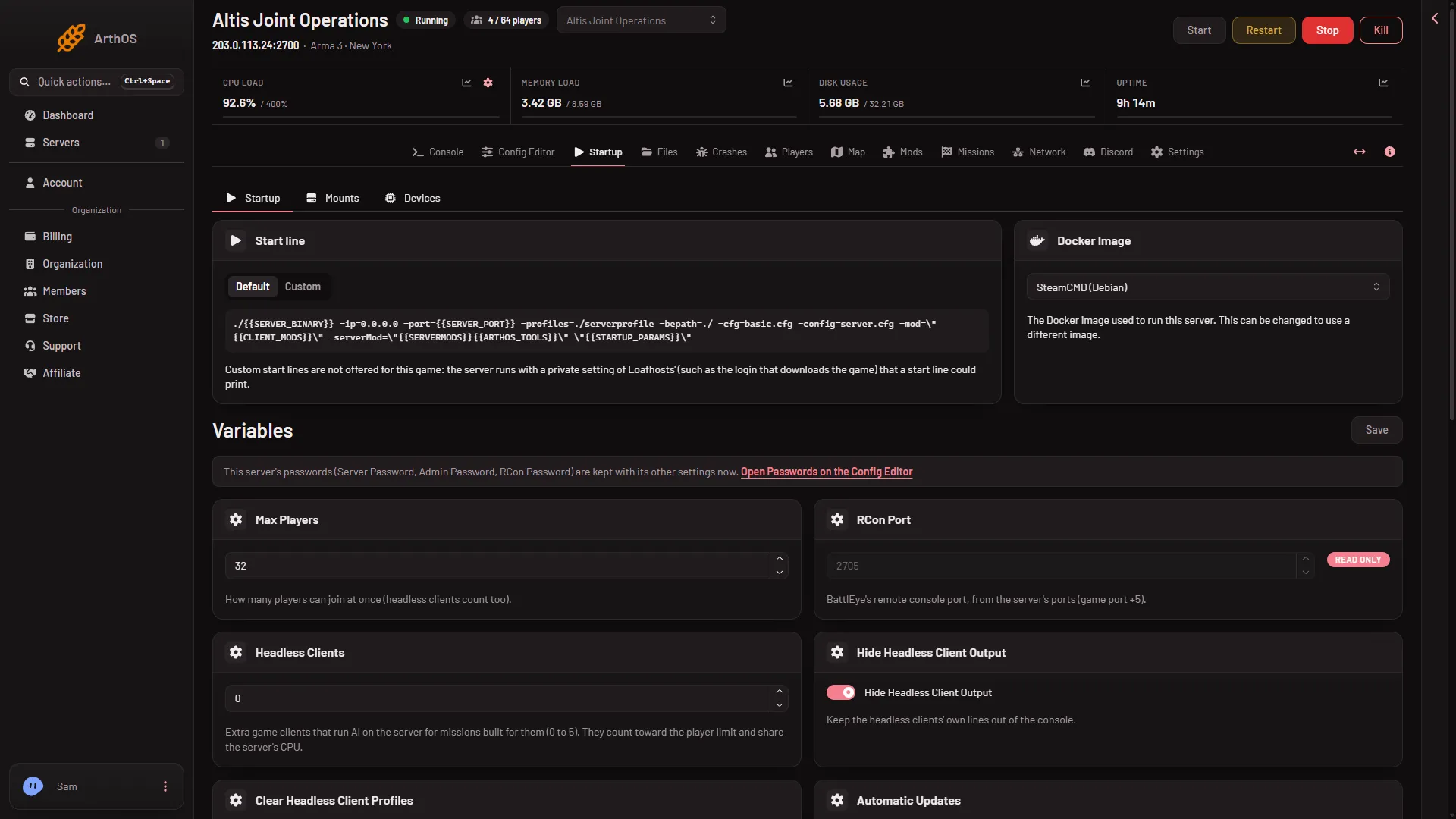
- Scroll to Automatic Updates (1) and check that it is on. If you turn it on, choose Save at the top of the Variables list.
- Open the Console and choose Restart. See start, stop or restart.
- Watch the console. The update downloads first, so the start takes longer than usual. The server is ready at
Host identity created.Many lines readBattlEye Server: RCon admin #0 (...) logged in: that is the panel checking who is online, and it is normal.
Why the version matters
Players on a different version of the game than the server cannot join. When the game updates, players update theirs, and a server still on the old version stops letting them join. Updating the server fixes it.
The Crashes page shows the Game version of each start, for example 2.22.154089 x64. Compare it with the number players see in their game.
Check what version it is on
Open Crashes and read Game version on the newest start. This is the version the server really ran.
Turn updates off
Turn Automatic Updates off if you must stay on one build. Then the server does not change at a restart. Players who update their game can no longer join, so use this only for a short time.
Other update switches
- Creator DLC Server Files. Off by default. When on, the next update also downloads the data for Creator DLC. It needs a start with Automatic Updates on. Every player must own the DLC.
- [Repair] Validate Server Files. Checks every game file at the next update. Starts take much longer while it is on. Use it if the server will not start after an update, then turn it off.
- Mods. Mods are updated on the Mods page, not by this switch. See the Update chip on a mod there.
Customers never enter a Steam account. Loafhosts downloads the server for you.
If it does not work
- Players are refused after a game update. The server is on the old version. Restart with Automatic Updates on.
- The start takes very long. An update or a file check is running. Wait for
Host identity created.in the console. - It still shows the old version. Look at the newest start on Crashes, and check that Automatic Updates is on.
- A mod stopped working after the update. The mod may need its own update. Open the Mods page.
Not checked on 2.22.154089 as of 13 November 2026: how soon after a game release the server download is available.
More about the game: Arma 3 servers.
Sources: Bohemia wiki: Dedicated Server