
















The Startup page holds the settings that decide how the Arma 3 server is started. You can change most of them. Changes apply at the next start. The passwords are not here: they are under Passwords in the Config Editor.
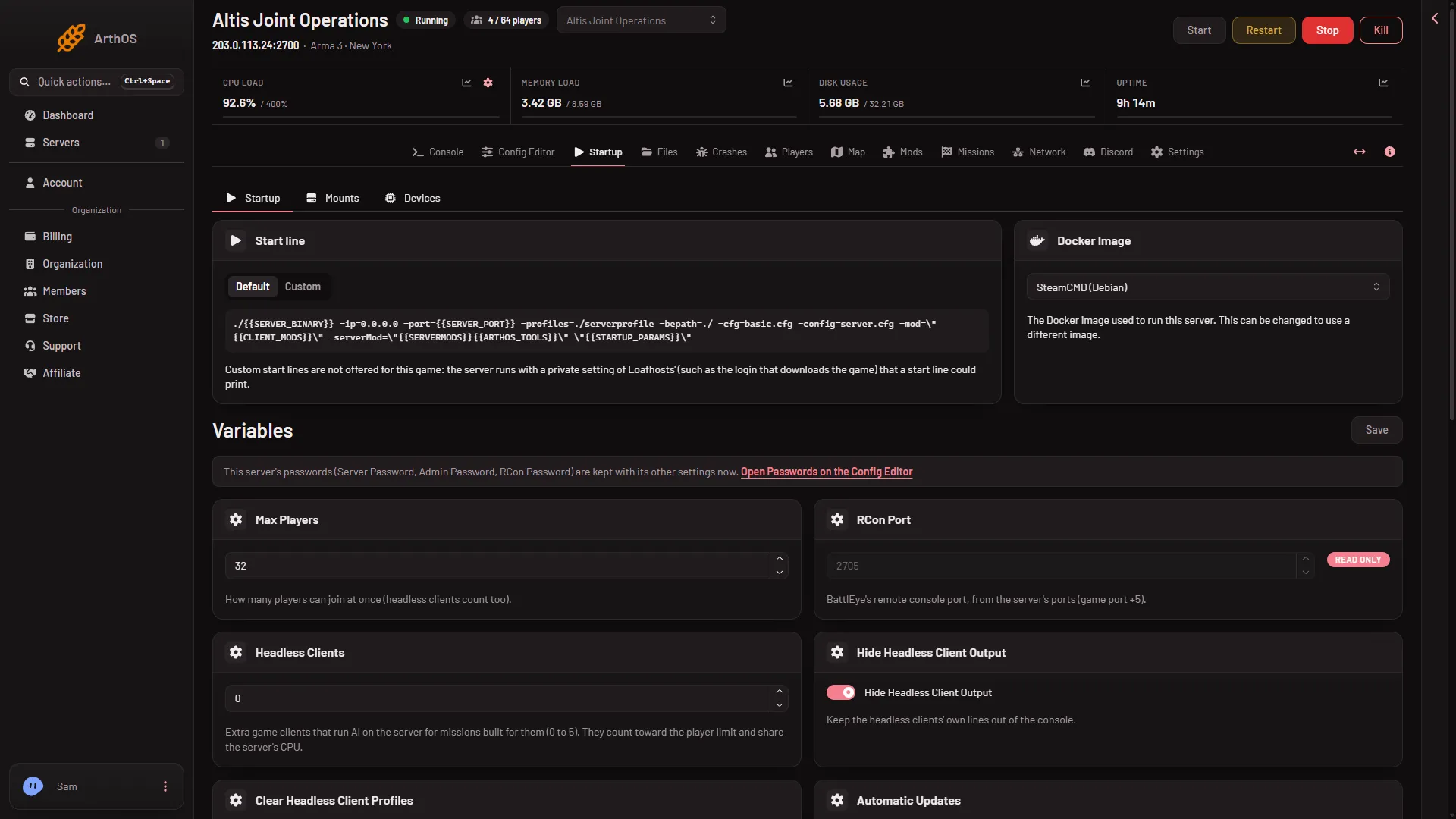
- Passwords are on the Config Editor
- Max Players
- Headless Clients
- Automatic Updates
The passwords
A short note on the page (1) says the server’s passwords “are kept with its other settings now”, with the link Open Passwords on the Config Editor. The Server Password, Admin Password and RCon Password are all there. A change applies at the next start.
Variables you can change
- Max Players (2). How many players can join at once. Headless clients count too. The panel writes it into the game’s settings at every start.
- Headless Clients (3). 0 to 5. Extra game clients that run AI on the server for missions built for them. They count toward the player limit and share the server’s CPU. The game’s own page says missions need to be changed a little to support them. See headless clients.
- Hide Headless Client Output. On keeps the headless clients’ own lines out of the console.
- Clear Headless Client Profiles. Starts the headless clients with clean profiles.
- Automatic Updates (4). Checks for a game update at every start. On by default. See update your server.
- Creator DLC Server Files. Downloads the data for Creator DLC at the next update, so missions on those maps can run. Off by default. Every player still needs to own the DLC.
- [Repair] Validate Server Files. Checks every game file at the next update. Starts take much longer while it is on. Turn it on to repair a damaged install, then off.
- [Advanced] Extra Start Parameters. Extra options added to the start line. See extra start parameters.
- [Advanced] Server Binary.
arma3server_x64is the normal one.arma3serverprofiling_x64is the profiling build, for measuring performance. Leave it on the normal one unless you know you need the other. - Arma 3 Launcher Preset. The name of a preset file exported from the Arma 3 Launcher, kept in the server’s folder. The Mods page imports it into the mod list.
- [Repair] Make Mod Files Lowercase. The Mods page already makes every file it downloads lower case. This does it again at every start, for mods you uploaded by hand.
- [Advanced] Extra SteamCMD Options. For a game branch, for example
-beta profiling.
Variables you can only read
- RCon Port. BattlEye’s remote console port. The panel sets it from the server’s ports, the game port plus 5. The Players page uses it.
- Mods, Server-Side Mods and Optional Mods. The mod lists. The Mods page sets them. Change mods there.
Some host variables are not shown at all. Customers never enter a Steam account.
Docker Image
Leave Docker Image as it is.
The start line
The page can show a Start line with Default and Custom. On Arma 3 the custom line is not offered, because the server runs with a private Loafhosts setting that a start line could print. Put extra options in [Advanced] Extra Start Parameters instead.
Save and apply
Change a value, save it, then restart the server. The panel reads the variables when the server starts, so a running server keeps the old values.
If it does not work
- A field cannot be edited. It is one of the read-only ones above, or your role may not allow changing the startup.
- The passwords are missing. They moved to Passwords in the Config Editor.
- The server will not start after a change. Put the variable back to its default, or check Extra Start Parameters for a typo. The Crashes page reads each start.
- Max Players is capped. Your plan sets the limit.
More about the game: Arma 3 servers.
Sources: Bohemia wiki: Headless Client