









ARCL Admin Tools is a free Workshop mod by ARCL_HYPER. Once it is on your server, the Admin Tools tab gets an ARCL Admin Tools page. There you give people a staff role, lift bans, warn players and set the server tools the mod offers.
This guide covers the panel side. What each mod feature looks like in the game is not covered here.
Add the mod
- Open Admin Tools.
- With no admin tool on the server, the page shows Add an admin tool. Choose the ARCL Admin Tools card and press Add to the mod list. You can also add it from the Mods page.
- Restart the server, or start it if it is stopped. The mod loads at the next start and writes its files then. Until it has, the page says “The mod writes its files the first time the server starts with it. Restart the server, then come back.”
Your role must be allowed to edit files to add the mod.
With two admin tools on the server, a tab row appears at the top. Choose ARCL Admin Tools.
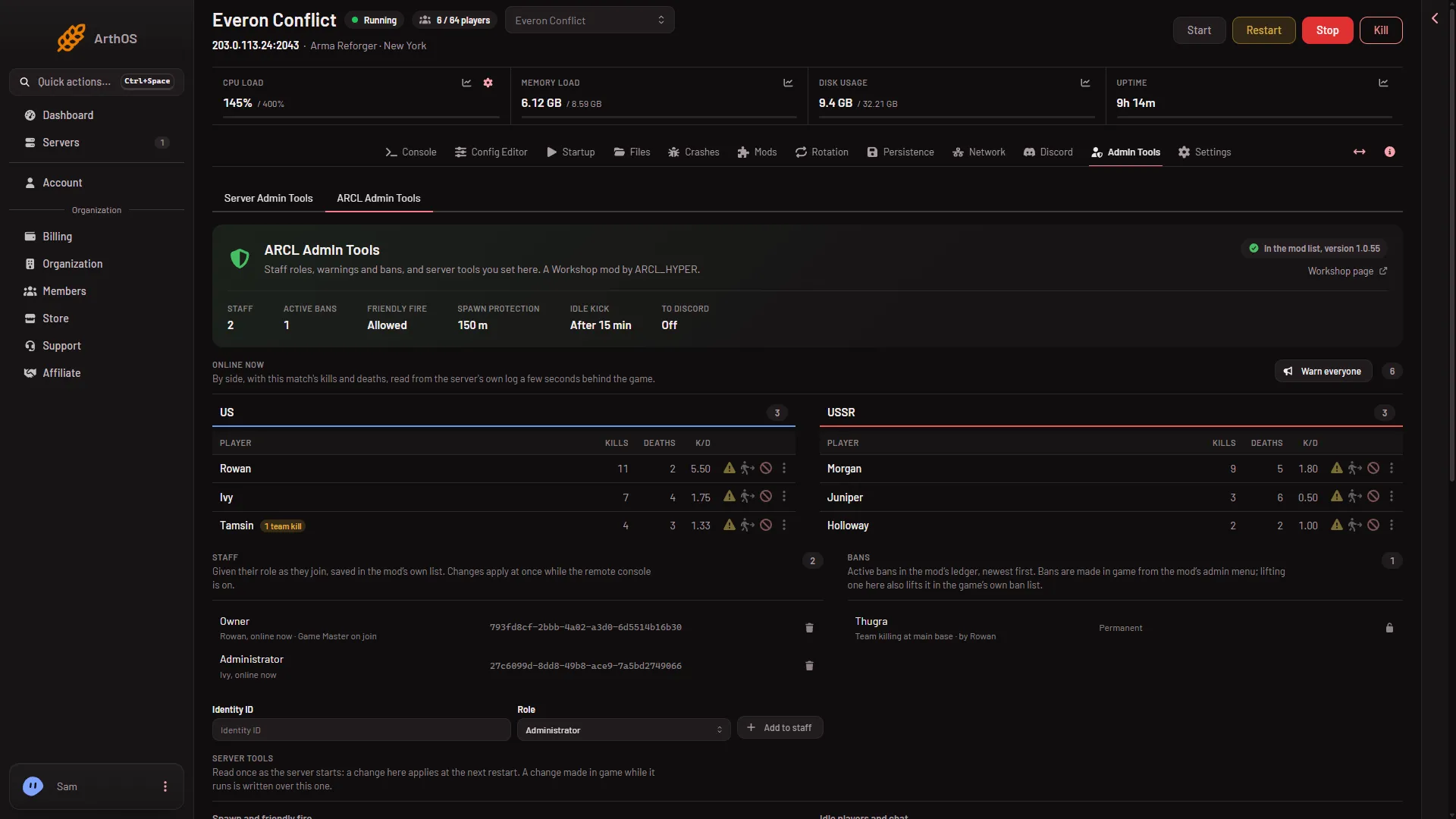
- ARCL Admin Tools tab
What the page shows
Under the band at the top, a row of facts shows what the mod has saved: Staff, Active bans, Friendly fire (Blocked or Allowed), Spawn protection, Idle kick and To Discord. Webhook addresses are never shown.
Below it is Online now, with kick and warn buttons. Warn here goes through ARCL. See kick and warn players. Ban buttons on that list need Server Admin Tools, not ARCL.
Staff roles
Under Staff, each person has a role: Moderator, Trial Admin, Administrator, Head Staff or Owner (levels 1 to 5). They are given the role as they join.
To add someone:
- Type their Identity ID.
- Choose a Role. The box starts on Administrator.
- Press Add to staff.
To take a role away, press the bin on their row and confirm Remove. They lose the role at once. To give it back, add their Identity ID again.
Adding and removing staff needs the server running with its remote console on. Your role must be allowed to edit files. The page says “Staff saved; it applies at once” when it worked. Admins in the game’s own admin list are owners in the mod without being listed here. To find an Identity ID, see find a player’s ID.
Bans
Bans lists the active bans, newest first, with the reason, who made it and whether it is permanent or until a date. The panel cannot make an ARCL ban. Bans are made in the game from the mod’s admin menu.
The panel can lift one. Press the lock button on the row and confirm Lift the ban. The player can join again at once, and the ban leaves the game’s own ban list too. This needs the permission to moderate players and the server running with its remote console on.
Server tools
The settings below are saved in the mod’s own files. Change them, then press Save changes. A bar shows “Unsaved changes” with Discard and Save changes.
- Spawn and friendly fire: Block friendly fire, Spawn protection and its Protected radius (m).
- Night and clean-up: Skip the night, when the night starts and ends, clearing left-behind objects, and removing abandoned vehicles.
- Idle players and chat: Kick idle players, Staff roles shown in chat, Flag words in chat for staff, Message of the day.
- Balancing the sides: Balance the sides with a faction key and a player limit for each side. The mod keeps this off unless both factions are set, they differ and one has a limit.
These settings apply at the next restart, not at once. The page says so: a change made in game while the server runs is written over the one you save. Staff and ban changes are the exception. They apply at once while the server runs with its remote console on.
If it does not work
- No ARCL page. The mod is not in the server’s mod list. Add it on the Mods page.
- The page says the mod writes its files at the first start. Restart the server and come back.
- “the remote console is off on this server”. Staff and ban changes need it. See the RCON console.
- “the admin tool did not do it”. The mod refused. The rest of the message says why.
- The settings are read only. Your role cannot edit files. Ask the owner.
More about the game: Arma Reforger servers.