











Open Admin Tools on your server. Under Online now, every player has small buttons at the end of their row: warn, kick and ban. Press one, fill in what the dialog asks, and the panel does it at once. You do not need to be in the game.
This works only while the server is running and its remote console is on. The panel talks to the game through that console. To keep someone out for good, use a ban (below). If you would rather type commands, see ban and kick players and the RCON console.
Before you start
- The Admin Tools tab needs one admin tool in the server’s mod list. With none, the tab shows Add an admin tool. Add one, then restart the server so it loads. See Server Admin Tools and ARCL Admin Tools.
- Your role needs the permission to moderate players for Kick, Warn and Warn everyone. Without it the buttons are not there. Ban also needs a role that may edit files.
- A player only gets buttons when the panel knows their identity. Players the panel has just read from the log may show a moment later.
Kick a player
- Open Admin Tools.
- Find the player under Online now. With more than six players, use the search box and type a name or identity.
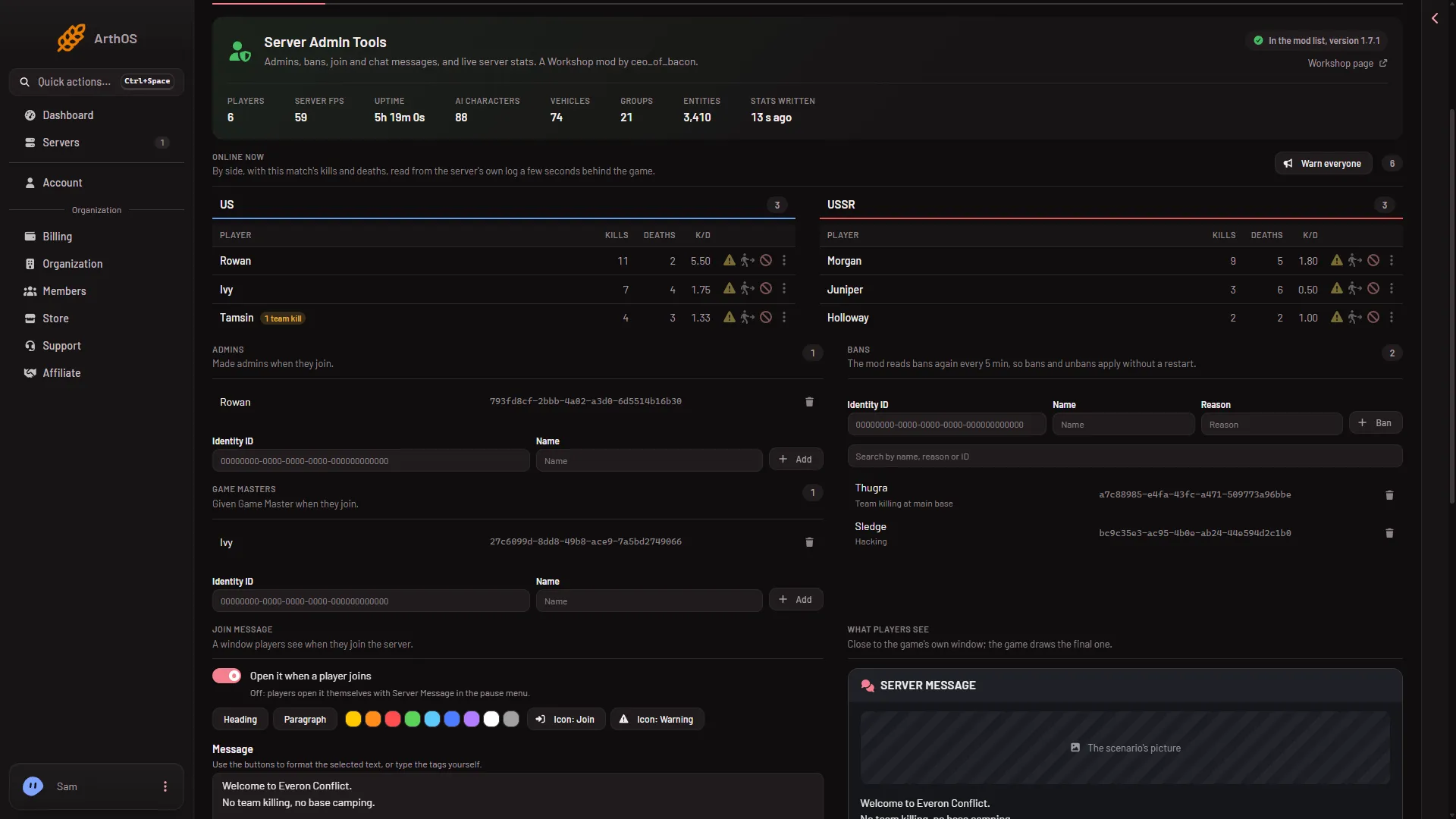
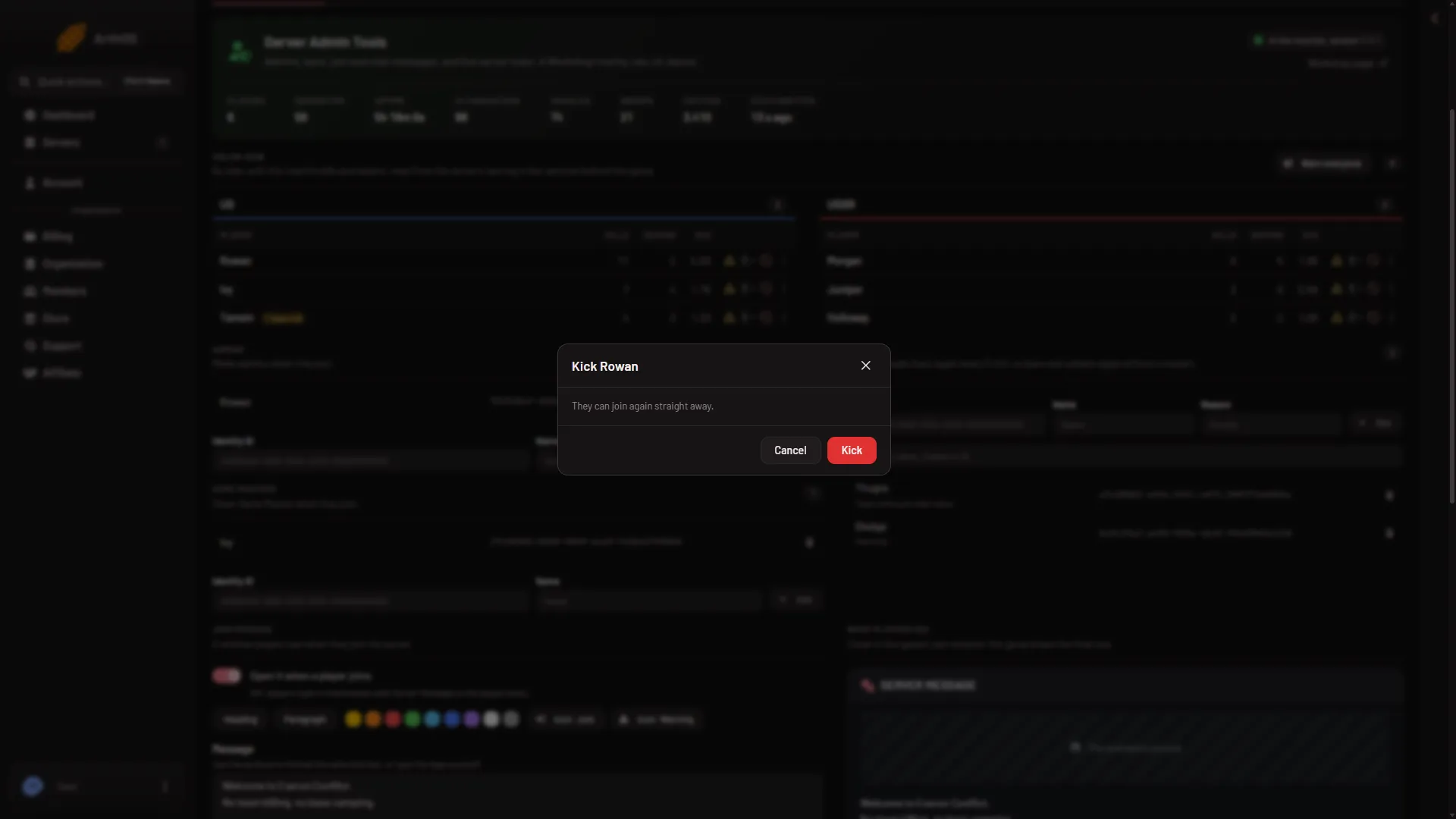
- Press the kick button on their row (3 in the first picture). The dialog asks “Kick (name)” and says “They can join again straight away.”
- Press Kick in the dialog (box 2 in the second picture).
- Warn everyone
- Warn
- Kick
- Ban
- Players can rejoin at once
- Kick
The panel finds the player on the live list, sends the kick, and checks the list again. It then tells you “Kicked (name)”. If the player is still on the list, it says the kick was sent and they still show as connected. Look again a few seconds later.
A kick has no reason box and no time. The player can rejoin at once. To keep someone out, use a ban.
Warn a player
Press the warn button (2 in the first picture) on a row. Type the Warning, up to 200 characters, and press Warn. The panel says the warning is shown on their screen through the admin tool, and that they stay in the game.
A warning needs an admin tool that can send one: ARCL Admin Tools, or the Moderation tool if your server already has one. Server Admin Tools cannot send a warning on its own, and neither can the game. With only Server Admin Tools on the server, there are no warn buttons.
Warn everyone
Press Warn everyone (1) above the list. Type the Warning and press Warn everyone. One warning appears on every player’s screen. The button shows only when someone is online and a warning tool is on the server.
Ban a player
The ban button (4) appears only when Server Admin Tools is on the server and its settings file exists. Your role must be allowed to edit files. Press it, add a Reason (optional) of up to 120 characters, and press Ban. The ban goes on the Server Admin Tools ban list and stays until someone removes it there. The player is kicked at once if the remote console is on. If it is off, the ban still applies when the mod next reads its list, within a few minutes.
The row’s menu also has Copy identity, and on Server Admin Tools Add to admins and Add to Game Masters.
If it does not work
The panel shows these messages. Read the last words of each.
- “the remote console is off on this server”. Open Config Editor, find the Remote console group, set Remote console password (3 or more characters, no spaces) and Remote console access to
admin, then save and restart. Steps: the RCON console. - “the server is not answering on its remote console”. The server is stopped or still starting. Wait until it is running.
- “that player is no longer on the server”. They left before you pressed the button.
- “the game refused the panel’s remote console password”. The password was changed after the server started. The game keeps the old one until it restarts. Restart the server.
- “that admin tool is not in this server’s mod list”. The tool was removed from the mod list. Add it again on the Mods page.
- “the admin tool did not do it”. The mod answered with a refusal. The rest of the message says why.
- A permission error. Your role is missing the permission. Ask the owner of the server.
The panel allows 30 of these actions a minute per server. Every kick, warning and ban is written to the server’s activity log.
More about the game: Arma Reforger servers.