














A config instance is a whole config.json kept as a file. You can keep several, for example a different scenario, mods and settings for each, and switch between them from the Config Editor tab. A switch applies at the next start of the server. This works on Arma Reforger servers only.
Make your first instance
- Open the server and choose the Config Editor tab.
- Find the card Config instances above the settings.
- Choose Create new instance.
- Type a Name if you want one (up to 40 characters). It is optional, but it helps you tell them apart.
- Choose Create new instance in the dialog.
The config you were using is kept as config1.json. The new instance becomes the one in use, and it starts as a copy of the old one. You now have two tiles: instance 1 (the kept copy) and instance 2 (in use). Change it in the Config Editor or in Files.
You need a role that may edit and create files on the server.
Read the tiles
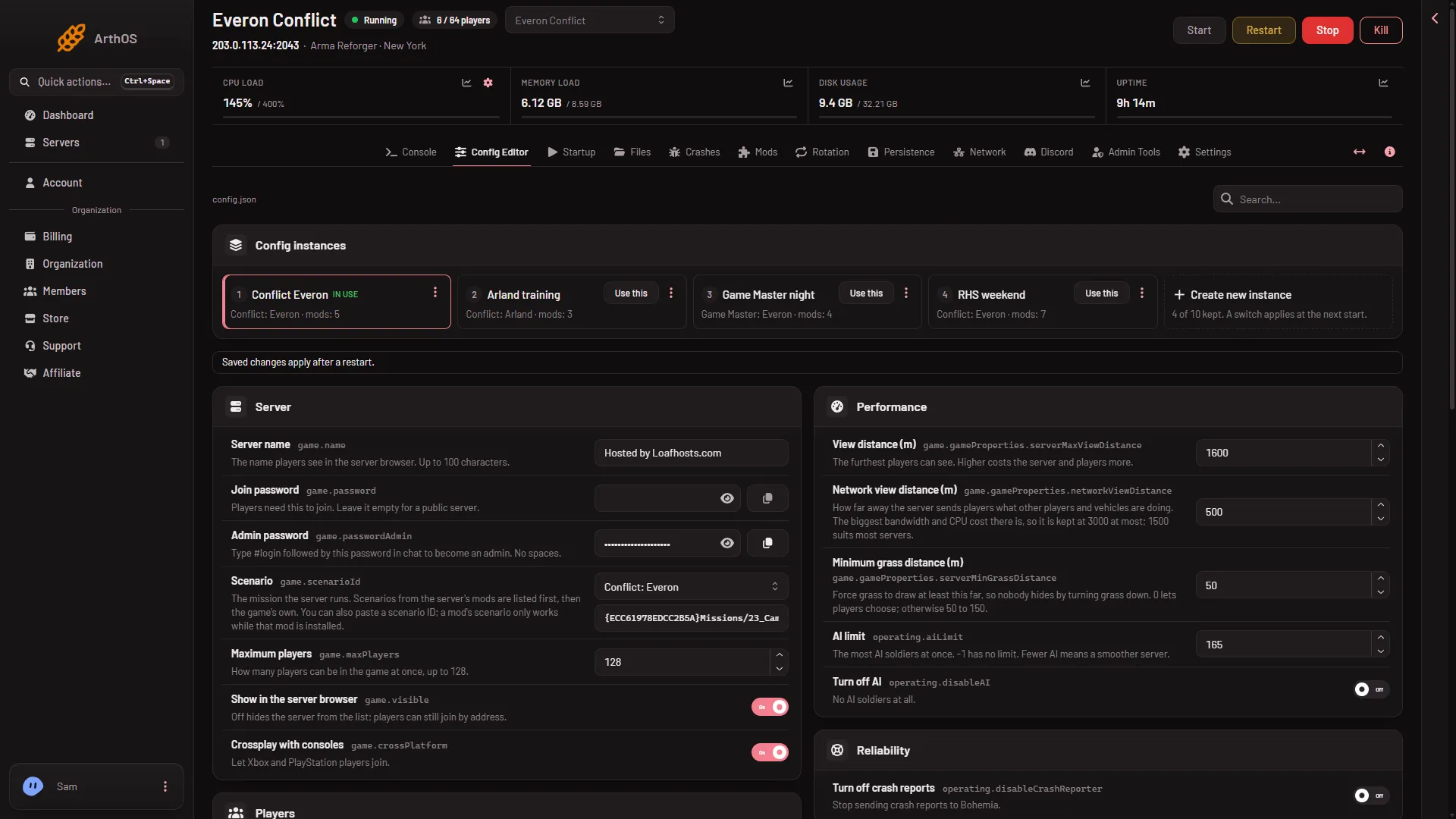
- Config instances
- In use
- Use this
- More: Preview, Rename, Delete
- Create new instance
The card (1) holds one tile for each instance. Each tile shows the instance number, its name, the scenario and how many mods it has. The one marked In use (2) is the config the server runs now. Other tiles have a Use this button (3) and a three dot menu (4) with Preview, Use this, Rename and Delete. The last tile (5) is Create new instance. It tells you how many of 10 you keep.
A server can keep at most 10 instances, counting the one in use. With more than one, a button folds the list: Show the other and Show only the one in use.
Switch to another instance
- Choose Use this on the tile you want.
- Read the dialog Use (name)? and choose Use this.
The one you chose moves into config.json, and its own disabled mods come with it. The config you were using is kept under its own number. The server runs the new config from its next start. If the server is stopped, the message says it runs when it starts. If it is running, restart it to run the new config.
You do not need to fix ports. The panel writes the server’s own ports into config.json at every start.
Look inside before you switch
Choose Preview in the tile’s menu, or click the tile.
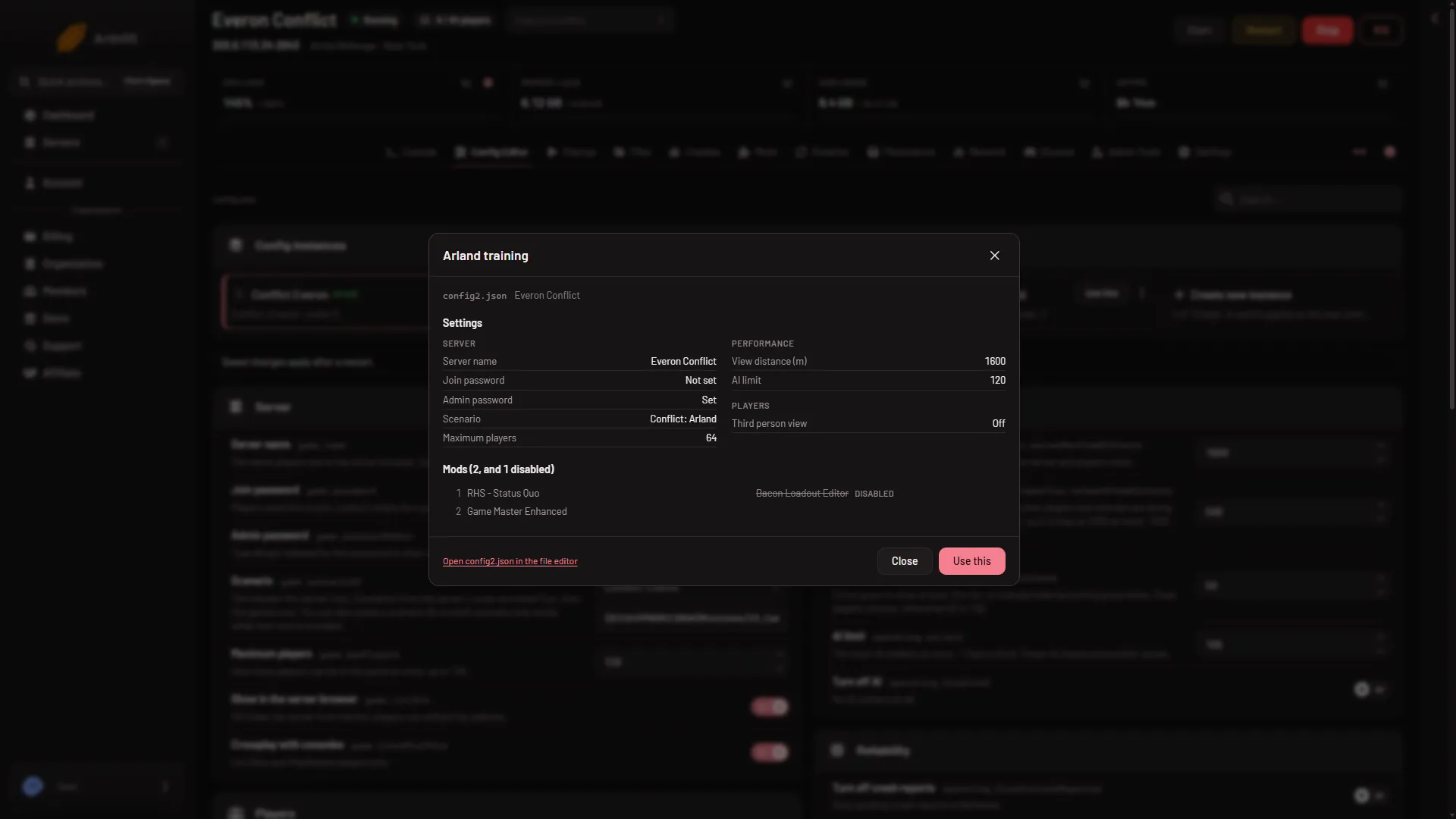
- Settings
- Mods
The preview is read only. It lists the Settings (1) as the Config Editor groups them. A password shows only Set or Not set, never its value. Under Mods (2) you see the load order, with disabled mods marked Disabled. A link at the bottom opens the file in the file editor.
Rename and delete
- Rename changes the name only. The name is kept in the panel, not in the file. Leave it empty to clear it.
- Delete asks you to confirm. The file goes to the server trash, and its disabled mods are forgotten. You cannot delete the instance in use. Switch to another one first. Deleting also needs the permission to delete files.
What to know
- Kept instances are plain files named
config1.jsontoconfig10.jsonin the server’s main folder. A file you delete in Files is an instance gone. You can open one in the file editor to edit it. - The instance in use is
config.jsonitself and has no numbered file. When you switch, the one you chose moves intoconfig.jsonand the one you were using is kept under its own number. To edit the one in use, editconfig.json. - Each instance has its own disabled mods. See turn a mod off without removing it.
- Mod order marks such as Keep first and Keep last belong to the server, not to one instance.
- For the settings themselves, see the config.json guide.
If it does not work
- Create and Use this are greyed out while the Rotation is on. The card says “The rotation changes config.json itself. Turn the rotation off to create or switch instances.” Turn the rotation off on the Rotation tab first. See the scenario rotation guide.
- They are also greyed out while the server is starting or stopping. Wait until it has finished.
- “is not valid JSON; fix it in the file editor first”. The instance file has a mistake. The tile shows Not valid JSON. Open the file, fix it, and try again.
- “config.json changed since you opened it”. Reload the page and try again.
- “config.json does not exist yet”. Start the server once so it creates the file.
- No card at all. You may lack the file permissions, and nothing has been kept yet.