












To download a Palworld world, save it first, then download the world’s folder from Pal/Saved/SaveGames/0. The folder is named by a 32-character id. Inside are Level.sav, LevelMeta.sav and a Players folder. That folder is your whole world: its bases, its Pals and its characters.
Save first
The game writes the world to disk by itself every 30 seconds. To copy the very latest moment, do one of these:
- On the Players page, choose Save now (1). See save a Palworld world now.
- Or stop the server from the panel. It saves the world first while the game’s API is on.
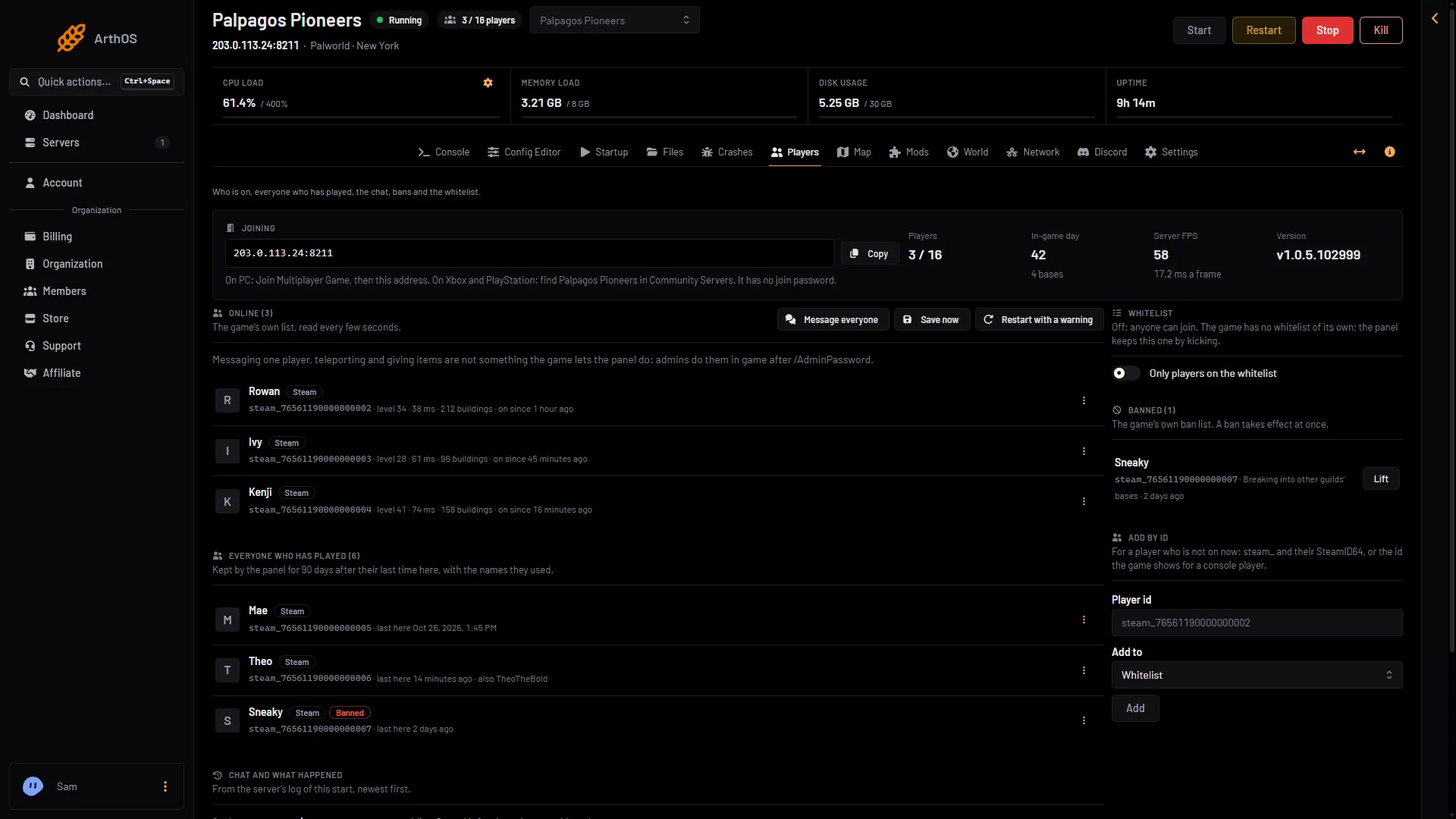
- Save now
The game’s API is how the panel talks to the game. The panel keeps it on while the Admin password is 16 characters or more (a new server gets a 20-character one). With the API off, Save now does not work: stop the server instead, or wait for the next autosave.
Find the right world
A server can hold more than one world. The one in play is the one you want, unless you saved another on purpose. In play means the world the server loads at every start.
- Open the World page.
- Under Worlds, find the row tagged In play. Its id is shown on the row. Note it, so you pick the same folder in Files.
In the panel
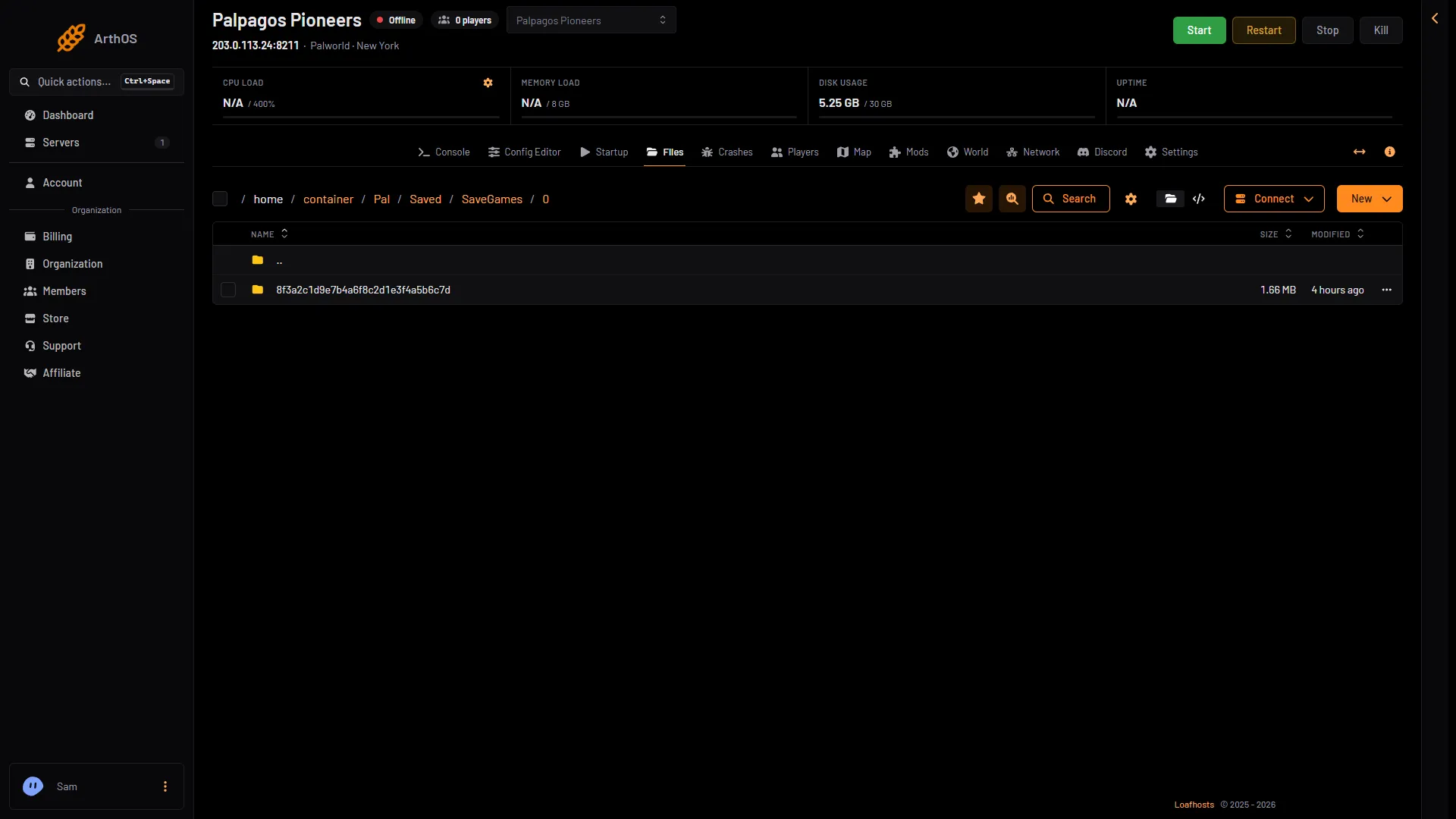
- The world folder
- Connect menu
- Open the Files page.
- Go to
Pal/Saved/SaveGames/0. - Find the folder named with your world id (1 in the picture). Select only that folder.
- Choose Archive to pack it into one file. In the Create Archive box, pick a format and create it. A message says “Archive creation has begun.” When it is done the archive appears beside the folder.
- Choose the archive, then Download. A message says “Download started.”
Another way: open the menu at the end of the folder’s row (the three dots), choose Download, then a format such as Download as .zip.
Afterwards you can delete the archive from Files to free space.
With SFTP
SFTP is a way to copy files with an SFTP program on your computer. Open Files, choose Connect (2 in the picture above), then via SFTP. The panel shows SFTP Details: the address, the user name and a password field that reads “Your Control Panel Password”. Go to Pal/Saved/SaveGames/0 and copy the world’s folder.
Where it goes on a PC
A co-op world is a world you hosted from the game’s own menu. On a Windows PC with a Steam copy it lives in %LOCALAPPDATA%\Pal\Saved\SaveGames\, then a folder named with your 17-digit SteamID64, then one folder per world with a 32-character id. A world you hosted holds Level.sav, LevelMeta.sav, a Players folder, WorldOption.sav, LocalData.sav and a backup folder. A downloaded server world has no LocalData.sav.
Not checked on 1.0.5 as of 4 November 2026: where the Microsoft Store version keeps co-op worlds.
Not checked on 1.0.5 as of 4 November 2026: whether the game lists a server’s world there as it is.
Xbox and PlayStation co-op worlds cannot be copied off the console.
Keep it safe
- Note the game version when you copy. It is on the World page, under Game version.
- To put a world back on a server, see upload a Palworld world.
If it does not work
- The archive has old data. The world was not saved just before. Save now, then archive again.
- You do not see Archive or Download. Your role may not allow reading the server’s files.
- There are two folders in SaveGames/0. Each is a world. The World page shows which one is In play.
More about the game: Palworld servers.