












A Palworld world is saved in Pal/Saved/SaveGames/0, in a folder named with the world’s 32-character id. Open Files in the panel and go there. Settings, the ban list and the logs are under Pal/Saved too.
The map of the folders
All paths start in the server’s top folder, which is where Files opens.
| What | Where |
|---|---|
| Worlds | Pal/Saved/SaveGames/0/(world id)/ |
| The game’s own backups of a world | Pal/Saved/SaveGames/0/(world id)/backup/world/(time)/ |
| Which world is in play | DedicatedServerName in Pal/Saved/Config/LinuxServer/GameUserSettings.ini |
| Game settings | Pal/Saved/Config/LinuxServer/PalWorldSettings.ini |
| The ban list | Pal/Saved/SaveGames/banlist.txt |
| Kept logs | Pal/Saved/Logs/, one arthos-(start time).log per start |
With server mods on, these two files are in another folder under Pal/Saved/Config. Open Config in Files and use the folder that holds them, or use the Config Editor, which always finds them.
Worlds
Each world has its own folder. The game names a world’s folder when it makes the world. The World page chooses which world loads.
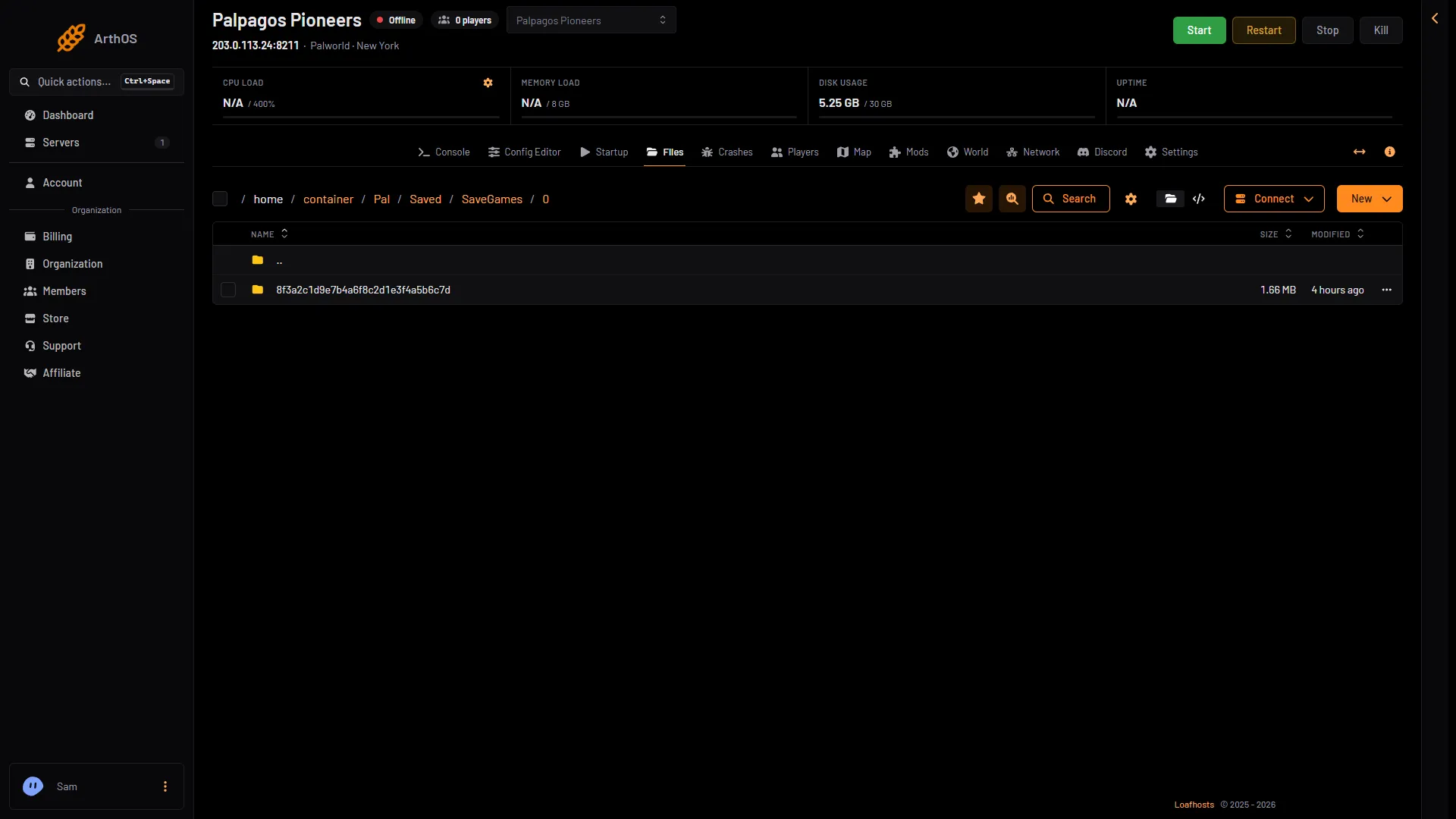
- SaveGames/0
- A world folder
Open a world folder and you see these:
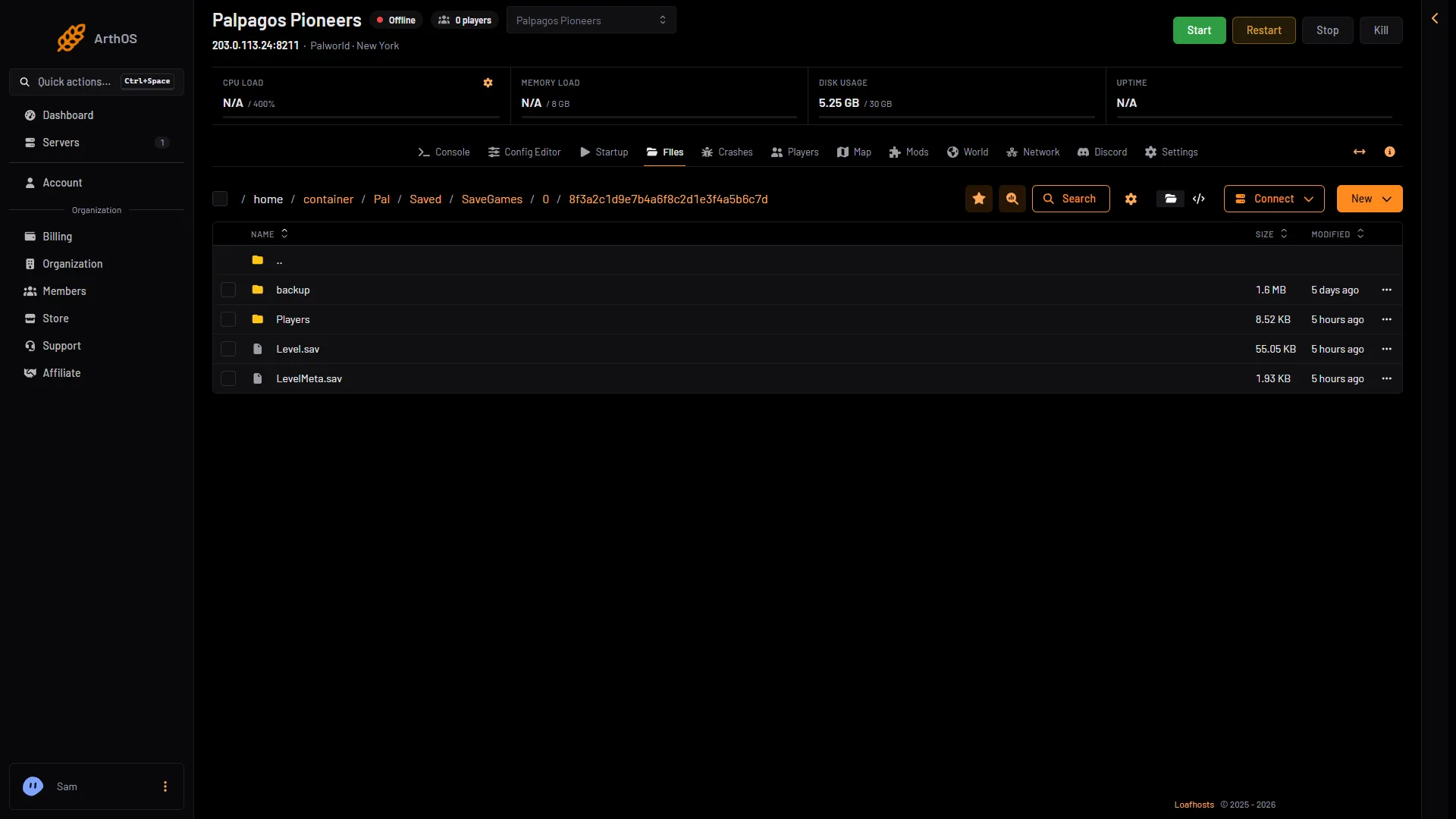
- backup
- Players
- Level.sav
- LevelMeta.sav
In it:
Level.sav, the world itself.LevelMeta.sav, its details.Players, one file per character.WorldOption.sav, only if the world has its own settings. See WorldOption.sav.backup, the game’s own copies of the world.
The world that loads at the start is the one named by DedicatedServerName in GameUserSettings.ini. If that name has no folder, the game makes a new world about a minute after the server is up. Play this world sets it, and Start a new world makes a fresh one. Use the page instead of editing the file by hand, because the game writes GameUserSettings.ini again when it stops and replaces a hand edit made while it runs.
The game saves the world every 30 seconds by default. That is the Autosave every (seconds) setting in the Config Editor.
Backups the game keeps
With World backups on, the game copies the world in play into its backup/world folder. Each copy is a whole world in a folder named after its time (UTC), such as 2026.10.29-17.31.19. The World page lists them under The game’s backups and has Put back for each. The panel’s own backups, made from Settings, then Backups, are kept elsewhere and are not in this folder.
Settings, ban list and logs
Game settings are better changed in the Config Editor page, which keeps the file valid. The game writes PalWorldSettings.ini again when it stops, so a hand edit made while the server runs is lost. Stop the server first if you edit it by hand, or use Edit the whole file as text in the Config Editor. PalWorldSettings.ini has one section line and one long OptionSettings=(...) line with every setting inside the brackets, separated by commas. The game’s own DefaultPalWorldSettings.ini is not the file the server reads.
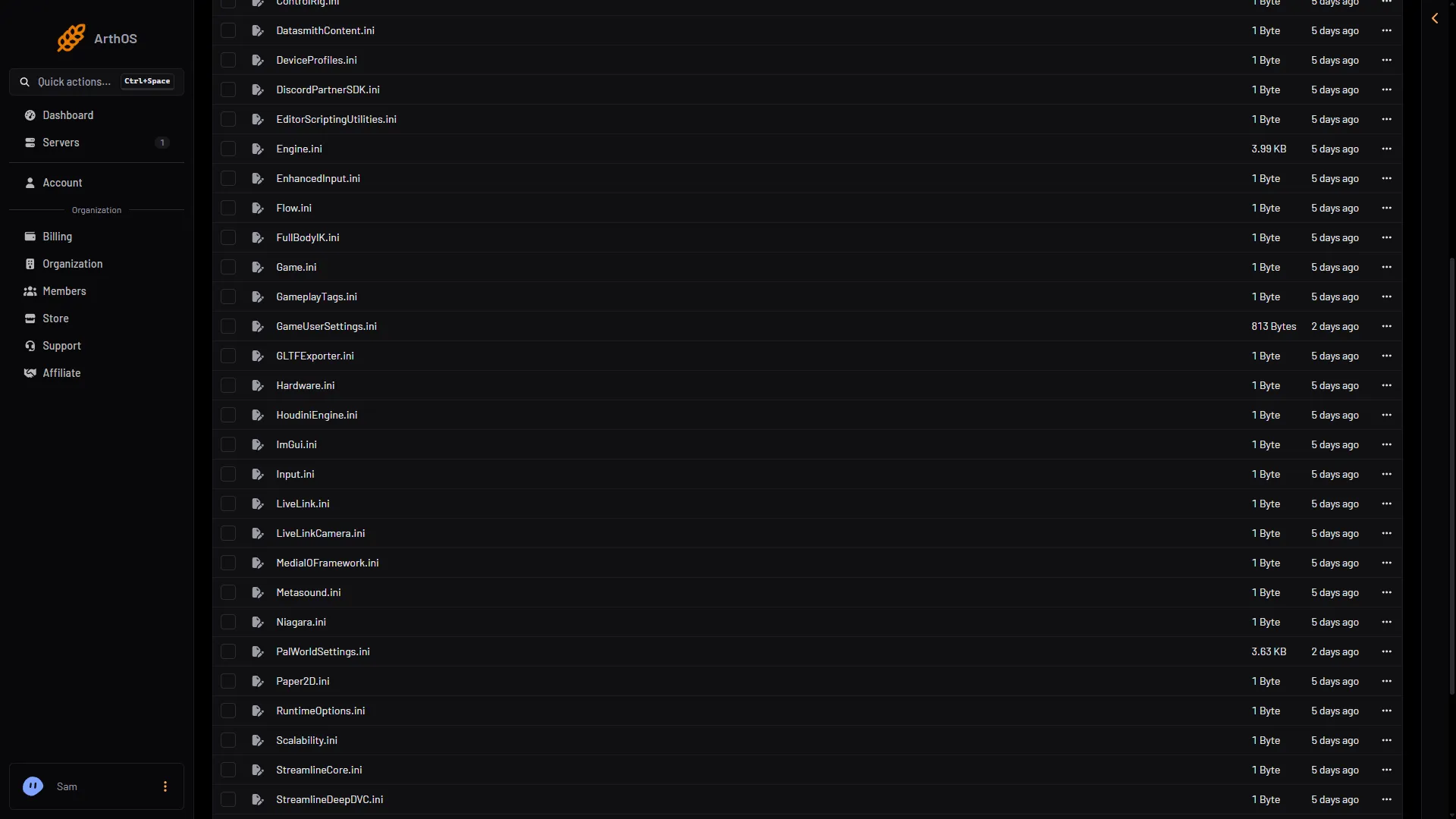
- GameUserSettings.ini
- PalWorldSettings.ini
Before every start, the panel writes the server’s name, passwords, player limit and ports into PalWorldSettings.ini. A hand edit of those keys is replaced at the next start, so change them in the Config Editor.
banlist.txt is the game’s own list of banned players. A ban from the Players page is written there.
Each start of the server keeps a log in Pal/Saved/Logs. The newest ten are kept, and each holds at most the first 50 MB of its start. The Crashes page reads them.
On your own PC
On a Windows PC with the Steam version, a world you hosted from the game’s own menu is stored in %LOCALAPPDATA%\Pal\Saved\SaveGames\. Open the folder named with your 17-digit Steam ID, and each world is a folder inside it, named with 32 letters and numbers. It holds Level.sav, LevelMeta.sav, a Players folder, WorldOption.sav, LocalData.sav and a backup folder.
A folder that holds only LocalData.sav and backup is not a world. The game keeps one for each server you have joined. A server’s own worlds have no LocalData.sav. To bring a co-op world here, see move a co-op save.
Not checked on 1.0.5 as of 4 November 2026: where the Microsoft Store version keeps co-op worlds.
Open the files
In the panel. Open Files and click through the folders above. To download a single file, open its menu and choose Download. To download a folder such as a world, open the menu at the end of its row (the three dots) and choose Download, then a format such as Download as .zip. Or choose Archive on it and download the archive. Stop the server or press Save now on the Players page first for an up-to-date copy. Or use SFTP.
By SFTP. SFTP is a way to copy files with an SFTP program on your computer. In Files, open the Connect menu and choose via SFTP. The SFTP Details box shows the protocol, port, host and user name, and its password field reads “Your Control Panel Password”. Put them into your SFTP program, then open the same folders.
If it does not work
- There is no
SaveGames/0folder. The server has not made a world yet. Start it and wait a minute. - You see two world folders. One is in play (the world the server loads at every start), the other is not. Open
GameUserSettings.iniand readDedicatedServerName, or look for the In play tag on the World page. - Your hand edit disappeared. The game wrote the file again when it stopped. Edit it with the server stopped, or use the Config Editor.
More about the game: Palworld servers.
Sources: docs.palworldgame.com: Configuration, docs.palworldgame.com: Deploy dedicated server