












To play a world from another server or host, stop your server, upload the world’s folder into /Pal/Saved/SaveGames/0, and choose Play this world. The world, its bases and its Pals at bases come along. Players get new characters.
What the folder must look like
A world is one folder, named with 32 letters and numbers. It must hold:
Level.sav, the world itself.LevelMeta.sav, its details.Players, a folder with one file per character.
It may also hold WorldOption.sav, the world’s own settings. See WorldOption.sav.
Upload the folder as it is. Do not open it and upload only the files from inside.
A co-op world from your PC
A co-op world is a world you hosted from the game’s own menu. On a Windows PC with the Steam version, the game keeps it in %LOCALAPPDATA%\Pal\Saved\SaveGames\. Open the folder named with your 17-digit Steam ID, and each world is a folder inside it. Take the one that holds Level.sav, LevelMeta.sav and Players. A folder that holds only LocalData.sav and backup is not a world you can upload. The server does not need LocalData.sav, so you can leave it out. A co-op world on Xbox or PlayStation cannot be copied off the console.
Not checked on 1.0.5 as of 4 November 2026: where the Microsoft Store version keeps co-op worlds.
For more about moving a co-op world, see move a co-op save.
Before you start
- Make sure you have a copy of the world on your own computer. Do not upload your only copy.
- Keep the world that is in play now. In play is the tag on the world the server loads at every start. Nothing here deletes it, and you can go back to it.
- Everyone who played the world somewhere else gets a new character here. The World page says so: “moving characters is not done yet”.
In the panel
-
Open the World page and stop the server. The game writes its world and settings again when it stops. Play this world and the other world buttons are greyed out while the server runs. Stop it first.
-
Under Worlds, choose Upload a world. Files opens at
/Pal/Saved/SaveGames/0(1). -
Open the New menu (3), choose Directory from Upload and pick the world’s folder. When it is done, the folder shows in the list (2). Connect (4) is the menu used for SFTP below.
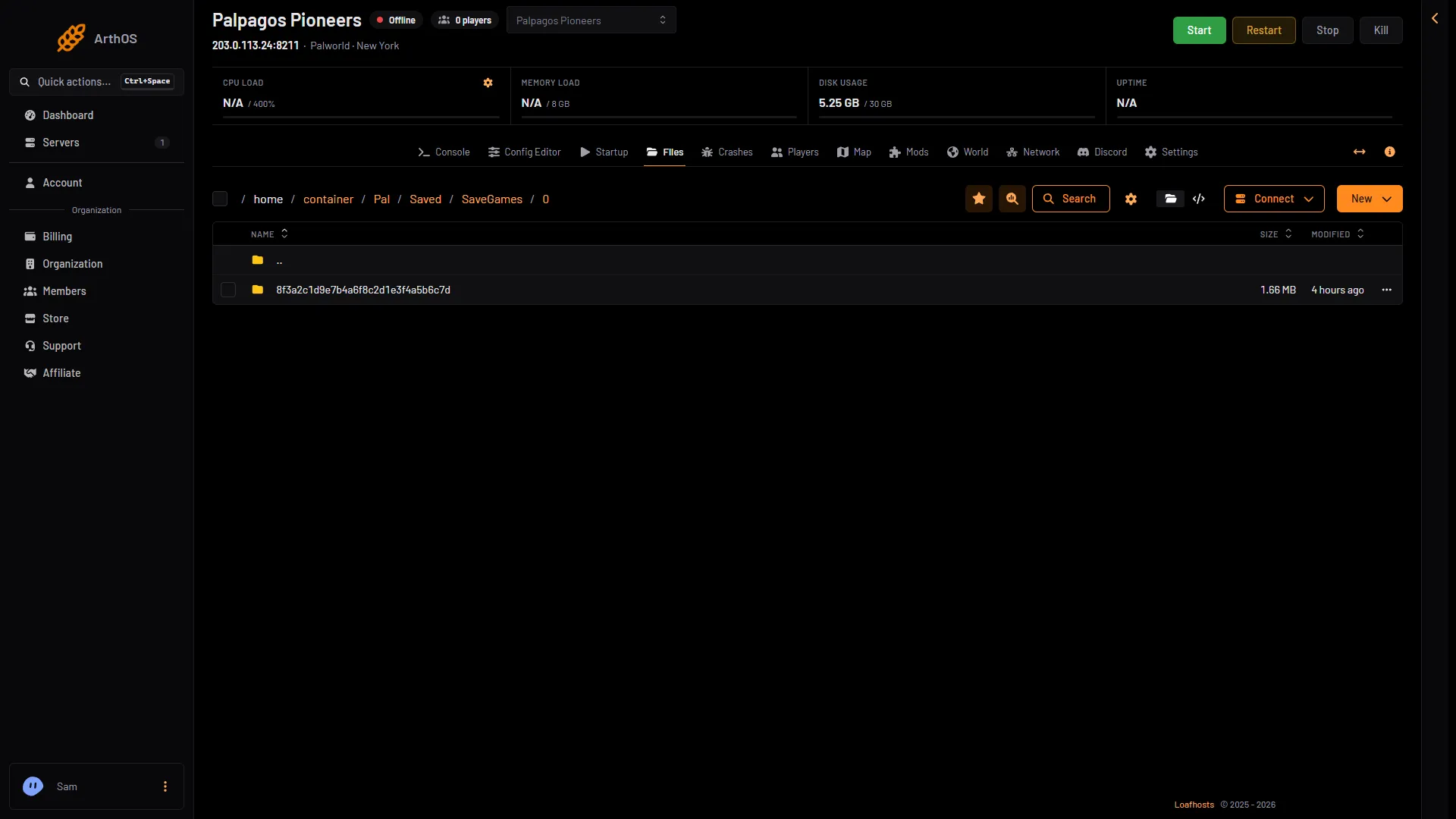
- The SaveGames/0 folder
- The uploaded world folder
- New menu
- Connect menu
-
Return to the World page. The uploaded world is listed with its size and “characters: N”.
-
Choose Play this world (3) on it, then Play it. It loads at the next start.
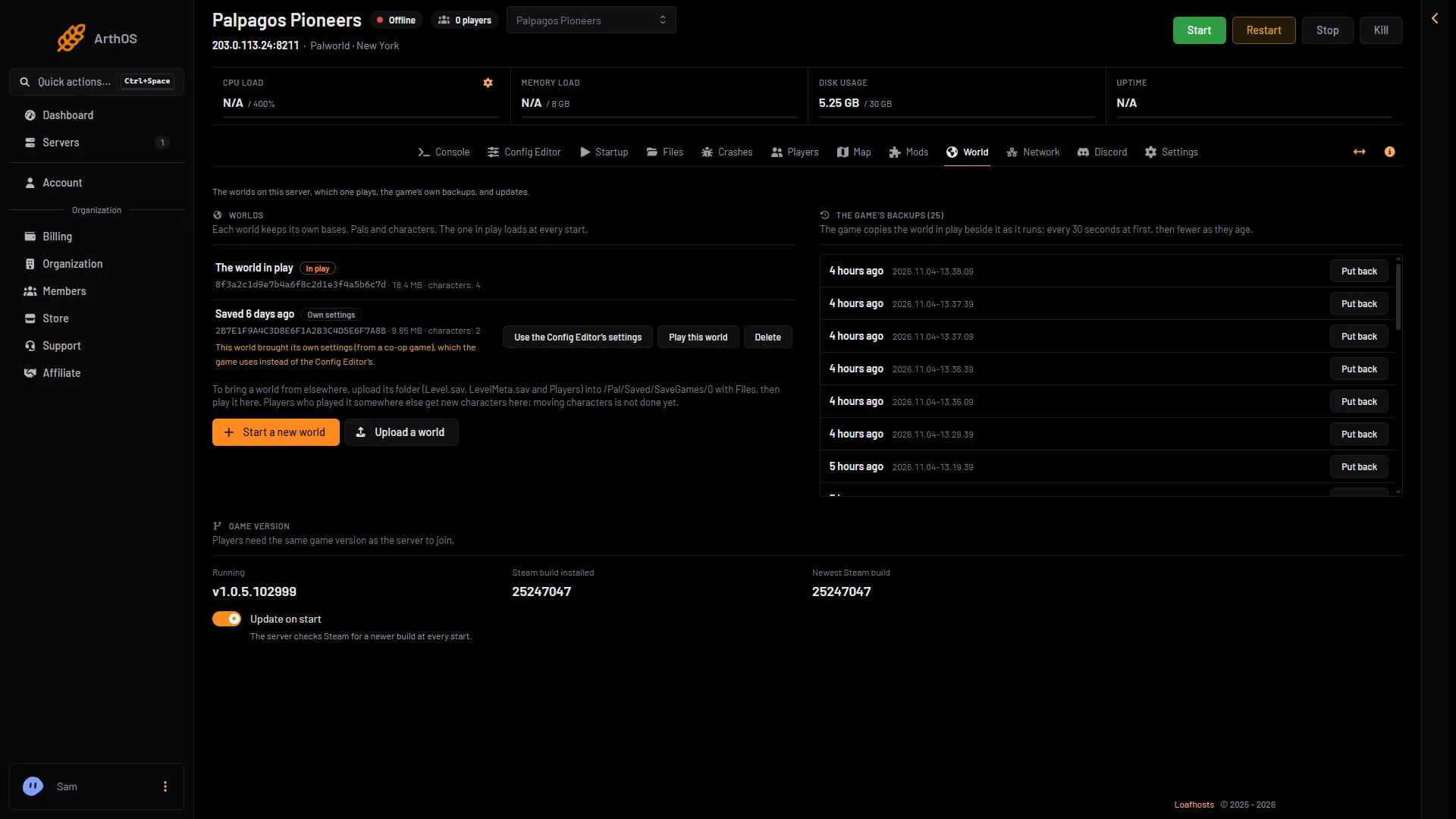
- The world in play
- Own settings
- Play this world
- Use the Config Editor's settings
-
If the world shows Own settings (2), the game uses the settings inside the world and ignores the Config Editor for the settings that file holds. The server name, passwords, player limit and ports still come from Server settings. To use your server’s settings instead, choose Use the Config Editor’s settings (4). The file is renamed, not deleted.
-
Start the server.
By SFTP
SFTP is a way to copy files with an SFTP program on your computer. It suits a large world. In Files, open the Connect menu (4 in the first picture) and choose via SFTP. The SFTP Details box shows the host, port and user name, and its password field reads “Your Control Panel Password”. Put the world’s folder in /Pal/Saved/SaveGames/0. Then follow steps 4 to 7 above.
Check it worked
The World page shows the tag In play on the new world. After the start, join and look for the bases. Let the server run a minute first.
If something is wrong, choose Play this world on the old world and start again. The uploaded world stays on the server. When the new world works and you no longer need the old one, choose Delete on the old one. A world that is in play cannot be deleted. Deleting a world removes its bases, Pals, characters and backups from the server. The panel’s own backups of the server are not touched.
If it does not work
- The world is not in the list. It must sit directly inside
/Pal/Saved/SaveGames/0. A folder inside another folder is not found. - The server started a new world instead. The world was not chosen, or the upload was still running when you started. Choose Play this world and restart.
- Settings are not the ones in the Config Editor. The world has Own settings. See step 6.
- Players cannot join. Players must run the same game version as the server. See update your Palworld server.
More about the game: Palworld servers.