
















The panel has no save editor. It does not open a save and change what is inside. What it can do is give items to a player, move or kill a player, make a new world, and keep copies so you can go back. This guide says which one fits what you want.
What you want, and what to use
- Items for a player. Use live game details, then Give items.
- A player somewhere else. Use live game details, then Move to a player or Move to a spot on the map.
- A different map: more ore, no enemies, a new seed. Make a new world.
- Other new-world rules. Change them in the Config Editor, then make a new world.
- A way back if it goes wrong. Save a copy or take a backup first.
The map, the buildings and the research of a world that is already running are not changed by any of these.
Give items, move or kill a player
These need live game details. They are off until you turn them on for that world.
- Start the server. The button to turn the details on says “Start the server to turn them on” while it is stopped.
- Open the Players page and find the Live game details card. It is also on the Map page.
- Choose Turn on live game details.
- A box asks “Turn on live game details for (world)?” and repeats the achievements warning. Confirm it.
- Find the player under Online. Choose the Act button on the player’s row.
- Choose Give items, Move to a player, Move to a spot on the map or Kill.
Give items has an item search and a How many field. The items go into the player’s inventory. What does not fit is not given. The player must be in the game. Kill works as in the game: what the player carried stays where they fell, and they respawn.
A role needs to allow these actions. If the Act button is missing, ask the owner of the server to change your role: roles are changed on the organization page (Settings, Access, Manage roles).
Live game details are asked for once per save. If you switch to another save, they are off again until you turn them on for it. Turn off stops the panel asking the game, but achievements stay off on that world.
A new world
A new world is the way to change the map itself.
- Open the World page.
- In New world (1), type a Name.
- Pick a Preset (2), or type a Seed, or paste a Map exchange string (3) copied from the game’s map generator. The string sets the whole map, preset and seed included.
- Choose Make the world, then confirm.
The server stops, which drops everyone who is on, so warn them first with Message everyone on the Players page. A backup is taken, the world is made, and the server starts again if it was running. The old world stays in Saves. To go back, open the menu on it and choose Run this from the next start, then restart.
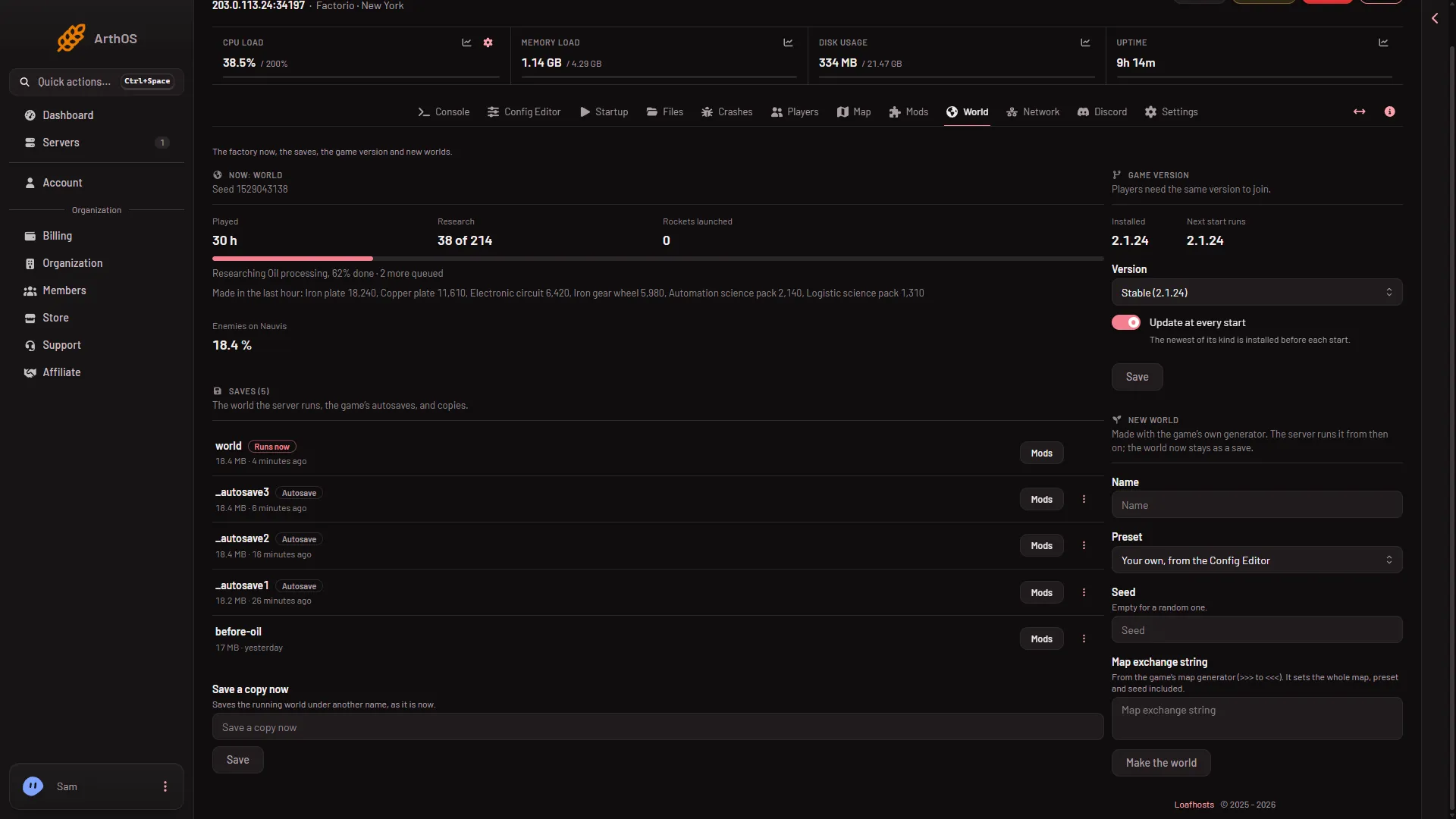
- New world
- Preset
- Map exchange string
Rules for a new world
Open the Config Editor. New world rules holds research cost, spoiling, pollution, enemy evolution and expansion, and asteroids. New world map holds the map size, starting area, peaceful mode, water, trees, cliffs, enemy nests and the six ores. Choose Your own, from the Config Editor as the Preset to use them.
Both files are read only when a world is made. Changing them does not change a world that is running.
Lua commands
The game’s own console runs Lua commands. By default only admins may use them. The setting is Who may use console commands in the Config Editor. The game refuses the first command once and says “Using Lua console commands will disable achievements. Please repeat the command to proceed.” Repeating it runs it. Achievements are then off for that save for good.
Keep a way back
- On the World page, Save a copy now saves the running world under another name as it is now. The server must be running.
- Under Settings, Backups, choose Create and then Create Backup.
- To keep a save on your own computer, open Files, go to
saves, and choose Download on the file.
If it does not work
- There is no Act button on the row. Live game details are off, the server is stopped, or your role does not allow it.
- Give items says the player left. The player is not in the game now.
- Give items says the inventory is full. Nothing was given for what did not fit.
- A new world is refused. A save already has that name. Pick another name. If the panel cannot take a backup first, it says so and asks you to confirm going ahead without one.
More about the game: Factorio servers.
Sources: wiki.factorio.com: Console, wiki.factorio.com: Map generator